"Which is better, WinSCP or FileZilla?" has been argued on forums for years, mostly from memory. So we put both through the same tests: one lab server, the same files, a connection that behaves like the internet (40 ms round trip, 100 Mbit/s), and each app at its default settings, the way most people use it. Then we gave each app its best setting and ran the small-file tests again.
The versions: WinSCP 6.7 (released 14 October 2026) and FileZilla 3.71.1, the current releases when we ran the tests, on Windows 11, in October 2026.
The verdict in 30 seconds
- Many small files: FileZilla is faster out of the box: 1,000 files over SFTP in 58 s, WinSCP 75 s, because FileZilla sends two files at a time and WinSCP one. Over FTPS the gap is much wider: FileZilla 115 s, WinSCP 303 s, more than two and a half times as long. With each app at its best setting both get much faster, and FileZilla still finishes first (below).
- Big files: a tie. Three 1 GiB files took both apps 259 to 282 s on every protocol, close to the line's limit; the differences were smaller than the spread between runs.
- When the connection drops: we cut the line for 10 seconds during an upload. WinSCP reconnected and finished by itself in all 5 runs. FileZilla in none: it moved the two files in flight to "Failed transfers" and stopped, leaving partial copies on the server.
- File dates: WinSCP kept every file's modification date; FileZilla, at its defaults, kept none.
- Long paths: FileZilla skipped a file whose path is over 260 characters without saying so, and still reported 18 of 18 transfers successful. WinSCP uploaded it.
- Saved passwords: FileZilla saves them by default, in a form anything running as you can read (base64). WinSCP doesn't save a password unless you tick "Save password (not recommended)". Both offer a master password.
- A folder with 50,000 files: FileZilla showed it in 4.1 s. WinSCP's window took 106 s.
Pick WinSCP if you need scripting, two-way sync, S3 or WebDAV, file dates kept, or deep folder paths. Pick FileZilla if you move lots of small files (it was faster at its defaults and at its best setting), open folders with tens of thousands of files, or also work on a Mac or Linux.
| Test | WinSCP 6.7 | FileZilla 3.71.1 |
|---|---|---|
| 1,000 small files, SFTP, internet-like link | 74.5 s | 58.2 s |
| 1,000 small files, FTPS (FTP over TLS) | 302.8 s | 115.4 s |
| 3 × 1 GiB, SFTP | 261.2 s | 261.0 s |
| Finished by itself after a 10 s outage | 5 of 5 | 0 of 5 |
| Awkward file names (18 files) | 18/18 | 17/18 (silently skipped the long path) |
| File modification dates kept | all | none (default) |
| Show a folder of 50,000 files | 105.7 s | 4.1 s |
| Saves passwords by default | no (opt-in, reversible obfuscation) | yes (base64) |
| Master password | optional (encrypts them) | optional (encrypts them) |
| Scripting and automation | yes (scripts, .NET, PowerShell) | no (paid FileZilla CLI) |
| Sync folders | yes | compare only (sync is in FileZilla Pro) |
| Protocols, free app | SFTP, SCP, FTP, FTPS, WebDAV, S3 | SFTP, FTP, FTPS, Storj |
| Runs on | Windows | Windows, macOS, Linux |
Times are the median of four runs after a warm-up run; every file was checked byte for byte on the server after every run. Shorter is better.
Speed: small files
Most uploads aren't one big file. A website is thousands of small ones, and that's where the two apps differ most. We uploaded 1,000 files of 1 to 64 KB (34 MB in total) over each protocol.
| 1,000 small files, 40 ms link | WinSCP 6.7 | FileZilla 3.71.1 |
|---|---|---|
| SFTP | 74.5 s | 58.2 s |
| FTPS (FTP over TLS) | 302.8 s | 115.4 s |
FTP, as typed (ftp://) |
219.7 s (unencrypted) | 115.6 s (encrypted: it switched to TLS) |
Why FileZilla wins here: by default it runs two transfers at once, while WinSCP sends files one at a time in the foreground. Every file means waiting for the server's answer a couple of times (WinSCP's 74.5 s for 1,000 files is about two 40 ms round trips per file), and FileZilla does that waiting for two files at once.
Why FTP is so much slower than SFTP for both: FTP opens a new connection for every file, and FTPS adds an encryption handshake to each of those. SFTP sends every file through the one connection it already has.
Over FTP, WinSCP's window has one more cost: as it creates each folder on the server, it reads that folder's listing (about twice per folder, 204 listings for our 111 folders), and on FTP every listing is another new connection. WinSCP's own command-line scripting doesn't do this and sent the same 1,000 files over FTP in 190.6 s, about 30 seconds sooner.
One thing to know about ftp://. When we opened an ftp:// address, FileZilla switched to encryption on its own,
because the server offered it (its default since version 3.10). WinSCP's ftp:// stays plain, unencrypted FTP; for
encryption you pick FTPS (ftpes://). So FileZilla's "FTP" row above is really FTPS, and the like-for-like comparison is
the FTPS row.
On a local network, with no delay to wait for, the picture changes:
| 1,000 small files, local network | WinSCP 6.7 | FileZilla 3.71.1 |
|---|---|---|
| SFTP | 5.0 s | 9.7 s |
| FTPS | 22.4 s | 14.8 s |
| FTP, as typed | 11.1 s (unencrypted) | 13.8 s (encrypted) |
With no delay to wait for, sending one file at a time costs WinSCP nothing: over SFTP it was almost twice as fast as FileZilla. Over FTPS, FileZilla still came out ahead.
Each app's best setting
Both apps can go faster than their defaults. In WinSCP, tick "Transfer in background (add to transfer queue)" in the upload dialog, so the transfer queue does the work over more than one connection, and raise its limit, Preferences > Transfer > Background > Maximal number of transfers at the same time, from 2 to 10. In FileZilla, raise Settings > Transfers > Maximum simultaneous transfers from 2 to its maximum, 10. We also timed WinSCP's background transfer at its default limit of 2.
| 1,000 small files, 40 ms link | WinSCP default | WinSCP, background | WinSCP, background, 10 at once | FileZilla default | FileZilla, 10 at once |
|---|---|---|---|---|---|
| SFTP | 74.5 s | 52.0 s | 37.0 s | 58.2 s | 25.0 s |
| FTPS | 302.8 s | 175.4 s | 93.0 s | 115.4 s | 53.0 s |
Both got much faster. WinSCP's background transfer alone cut its times by 30% over SFTP and 42% over FTPS; with 10 transfers at once it took 37.0 s and 93.0 s, half its default time over SFTP and under a third over FTPS. FileZilla at 10 more than halved its own times, to 25.0 s and 53.0 s. So with both at 10, FileZilla was still about 1.5 times as fast over SFTP and 1.75 times as fast over FTPS. Ten connections at once is more than some servers allow one user; if yours limits it, set both apps lower. WinSCP kept every file's date in these runs; FileZilla, still at its default for dates, kept none.
Speed: big files
Three 1 GiB files of random data, so nothing could be compressed along the way.
| 3 × 1 GiB, 40 ms, 100 Mbit/s | WinSCP 6.7 | FileZilla 3.71.1 |
|---|---|---|
| SFTP | 261.2 s | 261.0 s |
| FTPS | 275.6 s | 263.5 s |
| FTP | 267.0 s | 267.0 s |
At 100 Mbit/s, 3 GiB can't take less than about 258 seconds, and every run of both apps came within 10% of that (259 to 282 s). Over SFTP and FTP the two medians were within a fraction of a second of each other. Over FTPS WinSCP's median was 12 seconds higher, but its own four runs ranged from 260 to 282 s, so we don't read that as a difference. With big files, your connection matters far more than the app.
When the connection drops
We started uploading the three 1 GiB files over SFTP, cut the connection 40 seconds in, and restored it 10 seconds later. Then we left each app alone: default settings, no clicks. Five runs each.
- WinSCP: 5 of 5. The moment the line went, it showed "Network error: Software caused connection abort" with a Reconnect button counting down from 5 seconds, and reconnected by itself at zero. In the run where we recorded every dialog, its first try fell inside the outage ("Connection refused"), so it counted down again, and the second got through. It then picked up the interrupted file where it had stopped instead of starting it again: every run finished in 273-275 s, about 12 seconds more than without the outage, with every file intact.
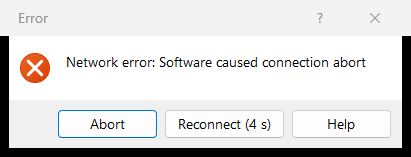
If you automate WinSCP: its command-line scripting also recovered by itself in 5 of 5 runs, in batch mode (the usual way to run a script, and the mode in which WinSCP's scripting reconnects automatically).
- FileZilla: 0 of 5. Every time, the two files being sent at the moment of the cut went to the "Failed transfers" tab and the upload stopped there; the third file, still queued, went through. The two partial files (about 250 MB of each 1 GiB) stayed on the server. FileZilla's default is to retry twice, 5 seconds apart, and that wasn't enough to ride out our 10-second outage. A shorter outage might go differently.
Nothing was ever silently corrupted: wherever a file arrived complete, its contents matched byte for byte. But with FileZilla, after our 10-second outage you had to notice and restart the failed files yourself.
Awkward file names
We uploaded 18 files that trip up software: emoji, Chinese, Japanese and Korean names, accents, a leading space,
[brackets], an empty file, and one file inside folders that make its full path longer than 260 characters (the
old Windows limit).
- WinSCP: 18 of 18 arrived intact, with their dates, including the long path (twice).
- FileZilla: 17 of 18. It created all the folders on the server but never sent the file with the long path, and its summary still said "Successful transfers (18)", with nothing under "Failed transfers". We ran it twice; same result. FileZilla doesn't support Windows long paths yet (there's an open ticket on its tracker), so a skipped file is no surprise; what's wrong is that it doesn't tell you.
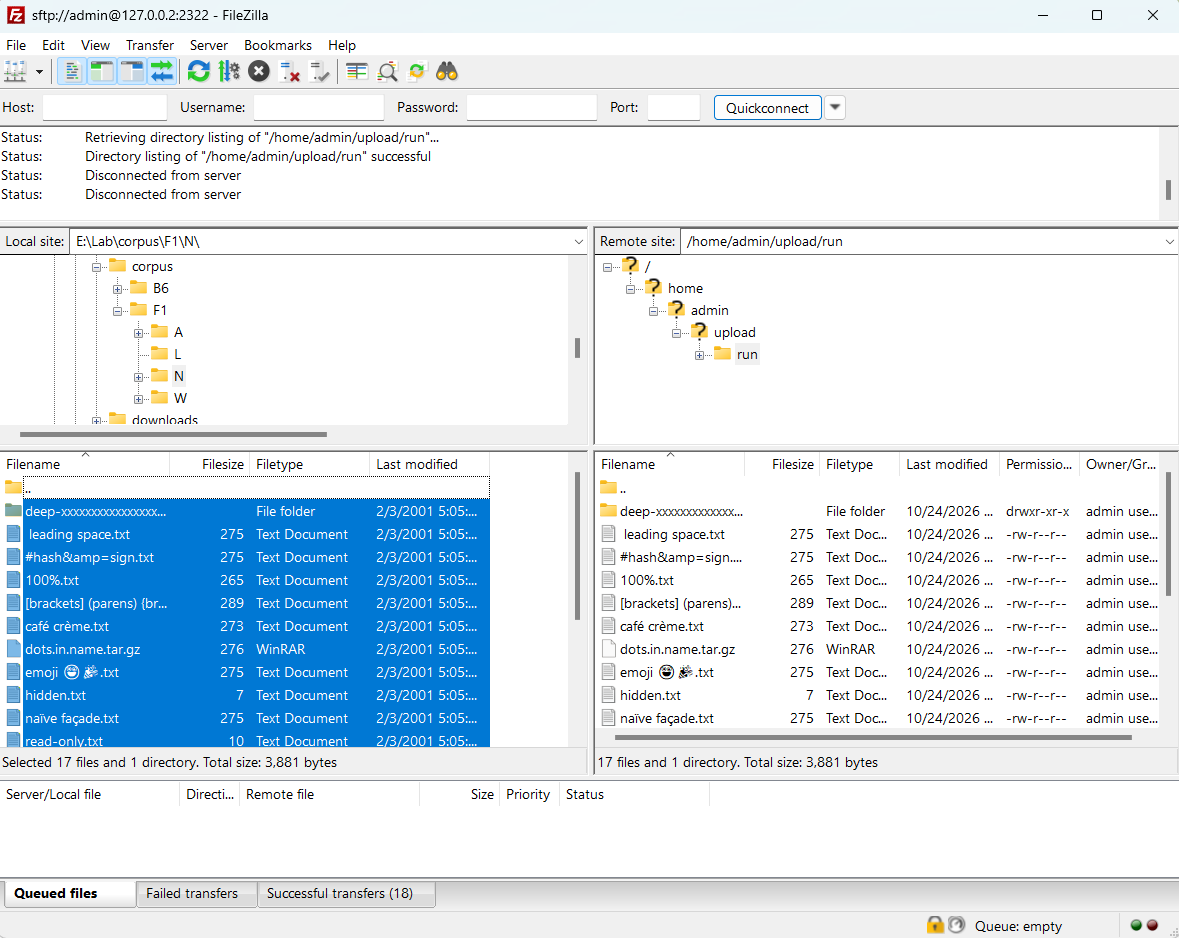
WinSCP didn't carry Windows' read-only or hidden flags over SFTP (we downloaded the files back to check). We didn't download them back with FileZilla.
File dates. WinSCP kept the original modification date of every file, in every test. FileZilla set each file's date to the moment of the upload. You can change that in FileZilla (Transfer > Preserve timestamps of transferred files), but it's off by default. If you deploy websites, run backups or use any tool that compares dates, this matters.
Installers
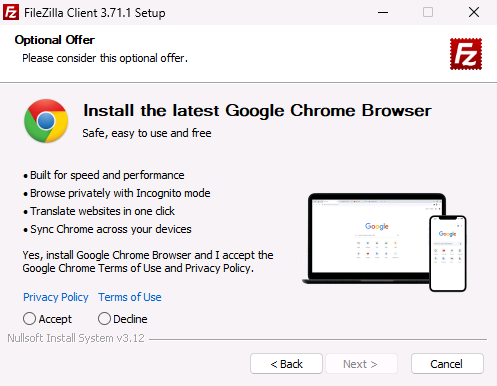
FileZilla has two installers, and the big green button gives you the one with an offer. Its download page says,
under that button: "This installer may include bundled offers. Check below for more options." The file it gives is
named ..._sponsored2-setup.exe. On our run, right after the licence, it showed "Loading data" (it fetched the
offer from the internet) and then a page headed "Optional Offer: Install the latest Google Chrome Browser", with
Accept and Decline. Neither was preselected, and Next stayed greyed out until we picked one, so you can't
install Chrome by accident, but you do have to say no. It was the only offer: after Decline, the rest of the
installer was the same as the plain one (we ran it twice, from a fresh Windows each time; the same offer both times).
Under "Show additional download options" there is a plain installer (..._win64-setup.exe) and a zip. The plain
installer showed no offers: the licence; install for anyone who uses this computer (preselected, needs
administrator rights) or only for you; components; folder; Start menu folder; installing; done.
Microsoft Defender detects the main-button installer as PUABundler:Win32/FileZilla_BundleInstaller, a potentially unwanted
bundler, and doesn't flag the plain one. That's a label for the offer, not a malware verdict. More in
Is FileZilla safe?
WinSCP 6.7's installer, taking every default, is seven screens: install for all users (which needs administrator rights) or "Install for me only" (which doesn't); the licence; Typical or Custom; the interface style (Commander or Explorer); ready; installing; finished. No offers, nothing bundled, no donation request. The last screen has "Open Getting started page" and "Launch WinSCP" ticked; untick the first if you don't want WinSCP's website to open.
Saved passwords
We saved the same test login in each app the normal way, then looked at what landed on disk.
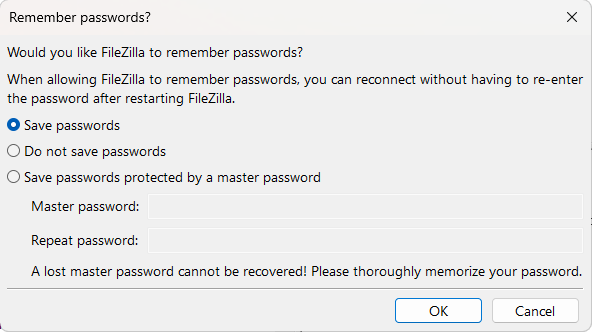
FileZilla asks at the first connection: "Would you like FileZilla to remember passwords?", with "Save passwords"
already selected. The other choices are "Do not save passwords" and "Save passwords protected by a master password".
Accept the default, and the password goes into two files in your profile, filezilla.xml and recentservers.xml,
in base64: an encoding, not encryption. Any program running as you can turn it back into the password in one step.
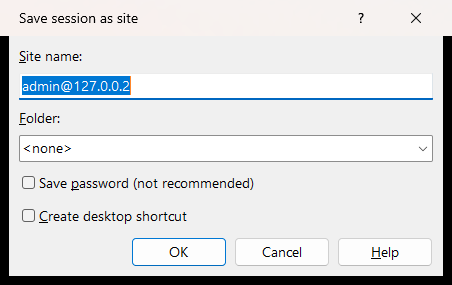
WinSCP doesn't save a password unless you tick "Save password (not recommended)" when you save the site; it's off by default. Tick it, and the password is stored with WinSCP's documented obfuscation, which a program can reverse without any secret.
Both offer a master password, and with one set, the saved passwords are encrypted with it. We checked FileZilla's: with "Save passwords protected by a master password" chosen at that first question, both files hold only ciphertext, and the password appears nowhere in them, neither as text nor as base64. If you save passwords in either app, set one.
Big folders
A folder with 50,000 files, opened over the 40 ms connection. We timed how long each app took to show the whole list, minus the time to open a folder with a single file in it (so connecting isn't counted).
FileZilla: 4.1 s. WinSCP: 105.7 s, every time (105.6 to 106.1 s in four runs). For WinSCP we timed until its file list held all 50,000 names; for FileZilla, until its status line said "50000 files".
WinSCP's wait isn't the network. Connected straight to the server with no delay added at all, its window still took 104 s. Its log shows where the time goes: it reads the folder in batches of about 100 names and asks for the next batch only every 0.19 seconds, so 500 batches take over a minute and a half, with only the "connecting" window on screen. Its own command-line client reads the same folder, over the same 40 ms connection, in 18.7 s. If you keep tens of thousands of files in one folder (logs, image uploads, backups), this is the biggest difference we measured.
Features only one of them has
| WinSCP 6.7 | FileZilla 3.71.1 (free) | |
|---|---|---|
| Protocols | SFTP, SCP, FTP, FTPS, WebDAV, Amazon S3 | SFTP, FTP, FTPS (FileZilla Pro adds S3, WebDAV, Google Drive, OneDrive, Dropbox and more) |
| Runs on | Windows only | Windows, macOS, Linux |
| Sync | Synchronize folders (one way or both ways); "Keep remote directory up to date" | Directory comparison and synchronized browsing, but no copying of differences (file sync is in FileZilla Pro) |
| Automation | Scripting, a .NET library, PowerShell | None in the free app (a paid FileZilla CLI exists) |
| Price | Free (GPL) | Free (GPL); FileZilla Pro from €12.99 a year |
Which one should you pick?
- You upload websites or lots of small files: FileZilla. It was faster at its defaults and at its best setting. If you use WinSCP, tick "Transfer in background" and raise its limit of transfers at once: that halved its time in our test.
- File dates matter (deployments, backups, anything that compares dates): WinSCP, or turn on FileZilla's "Preserve timestamps".
- You automate transfers: WinSCP. Its scripting and .NET library are free; FileZilla's free app has none. (How to automate FTP and SFTP transfers on Windows)
- You also use a Mac or Linux: FileZilla. WinSCP is Windows-only.
- Your connection is unreliable (patchy Wi-Fi, a flaky VPN): WinSCP. It reconnected and finished on its own every time; FileZilla left the interrupted files for you to notice and restart.
- Deep folder structures: WinSCP. FileZilla can't send files whose path is over 260 characters, and doesn't warn you.
- Folders with tens of thousands of files: FileZilla. It showed 50,000 files in 4 seconds; WinSCP's window took 106.
- S3 or WebDAV: WinSCP does both for free; in FileZilla they're Pro features.
A third option: FTPie
We make FTPie, so we're not neutral, and it isn't in this comparison. The point of this page is a fair comparison, not to make either app look bad.
If your files don't only live on servers, FTPie puts FTP, FTPS and SFTP next to Google Drive, OneDrive, Dropbox and other cloud storage in one Windows app (cloud storage needs FTPie Pro), so you can move files between them directly. Every saved login is encrypted (AES-256, with the key protected by Windows for your account, or by your own password if you turn on App Lock). The free plan, for personal use, covers up to three FTP, FTPS or SFTP connections. (FTPie vs WinSCP · FTPie vs FileZilla)
How we tested
| Apps | WinSCP 6.7.0 (portable, official download, SHA-256 checked against the official readme) and FileZilla 3.71.1 (official zip); both signed by their developers. Each started from fresh settings, kept apart from any other install |
| Server | OpenSSH 9.6 (SFTP) and vsftpd 3.0.5 (FTP and explicit FTPS) on Ubuntu 24.04, on the same PC |
| Connection | A relay adding 40 ms round trip and a 100 Mbit/s limit ("internet"), or the same relay with no delay or limit ("local network") |
| Long paths | This PC has Windows' long-path support turned on (LongPathsEnabled); on a PC without it, results with long paths may differ |
| Files | 1,000 files of 1-64 KB (34 MB); 3 × 1 GiB of random data; 18 awkward names; a folder of 50,000 empty files |
| Runs | Every speed test at least 5 times, starting with a warm-up run that isn't counted; we report the median of the counted runs (four in almost every cell) |
| How it was driven | Both apps through their normal windows, the way a person uses them: FileZilla's Upload command, WinSCP's Upload dialog. The clock starts at the click and stops when the server holds every file at full size |
| Checking | After every run, every file on the server was compared with the original: name, size, date and SHA-256 |
| The outage | All connections cut 40 s into the upload, the line back 10 s later |
Download the data: every run, with a column showing which ones counted: runs.csv · the CSV behind each chart : f1-best-settings.csv, f1-drop.csv, f1-listing.csv, f1-small-files-internet.csv, f1-small-files-lan.csv.
FAQ
Is WinSCP faster than FileZilla? Not at their defaults with many small files: FileZilla uploaded 1,000 small files over SFTP in 58 s, WinSCP in 75 s, because FileZilla sends two at a time. With both at 10 transfers at once, FileZilla was still faster (25 s against 37 s). On a local network WinSCP was faster over SFTP (5.0 s against 9.7 s). With big files they're close: both come near the limit of the line.
Why is WinSCP slow with many files? In the foreground it sends one file at a time, and each file waits a couple of round trips for the server. Tick "Transfer in background" in the upload dialog to use the transfer queue: in our test that cut 1,000 small files over SFTP from 75 s to 52 s, and to 37 s with the queue's limit raised to 10 transfers at once (Preferences > Transfer > Background).
Does FileZilla keep file dates? Not by default: uploaded files get the time of the upload. Turn on Transfer > Preserve timestamps of transferred files. WinSCP keeps dates by default.
Is it safe to save passwords in FileZilla? At its default, FileZilla stores them in base64, which any program running as you can read. Choose "Save passwords protected by a master password" (Settings > Interface > Passwords) to encrypt them.
Does FileZilla support scripting? The free FileZilla client doesn't. WinSCP has free scripting and a .NET library; FileZilla sells a separate CLI.
Is there a WinSCP for Mac? No. WinSCP runs on Windows only. FileZilla runs on Windows, macOS and Linux.
Which is more secure for FTP? Over a plain ftp:// address, FileZilla switches to encryption whenever the server
supports it; WinSCP doesn't unless you choose FTPS. For anything sensitive, use SFTP or FTPS in either app.