The FTP client landscape on Windows has barely changed in over a decade. Most popular options still look and work like they did in the mid-2000s - functional, but far behind what modern software should feel like.
If you are looking for an FTP client in 2026, you have more choices than ever - but only a few that qualify as truly modern. Here are the top five, what each does best, and where they fall short.
Connecting over SFTP rather than plain FTP? Most servers expect it now, and the shortlist changes a little - see our honest roundup of the best SFTP clients for Windows.
What makes an FTP client “modern”?
Before comparing tools, it helps to define what separates a modern FTP client from a legacy one:
- Clean, intuitive interface - no cramped toolbars, floating windows, or icon sets from 2005
- Dark mode - a genuine dark theme, not just a dark background with unreadable text
- Cloud integration - FTP alone is not enough; users need Google Drive, Dropbox, OneDrive, and others alongside their servers
- Built-in tools - file preview, editing, compression, and sharing without switching to separate apps
- Active development - regular updates, not a project that shipped its last release years ago
With that lens, here is how the top options compare.
1. FTPie - the complete file management platform
FTPie is not a traditional FTP client with cloud support bolted on. It is a unified file management platform that treats FTP, SFTP, FTPS, WebDAV, and cloud storage as equals in a single, modern interface.
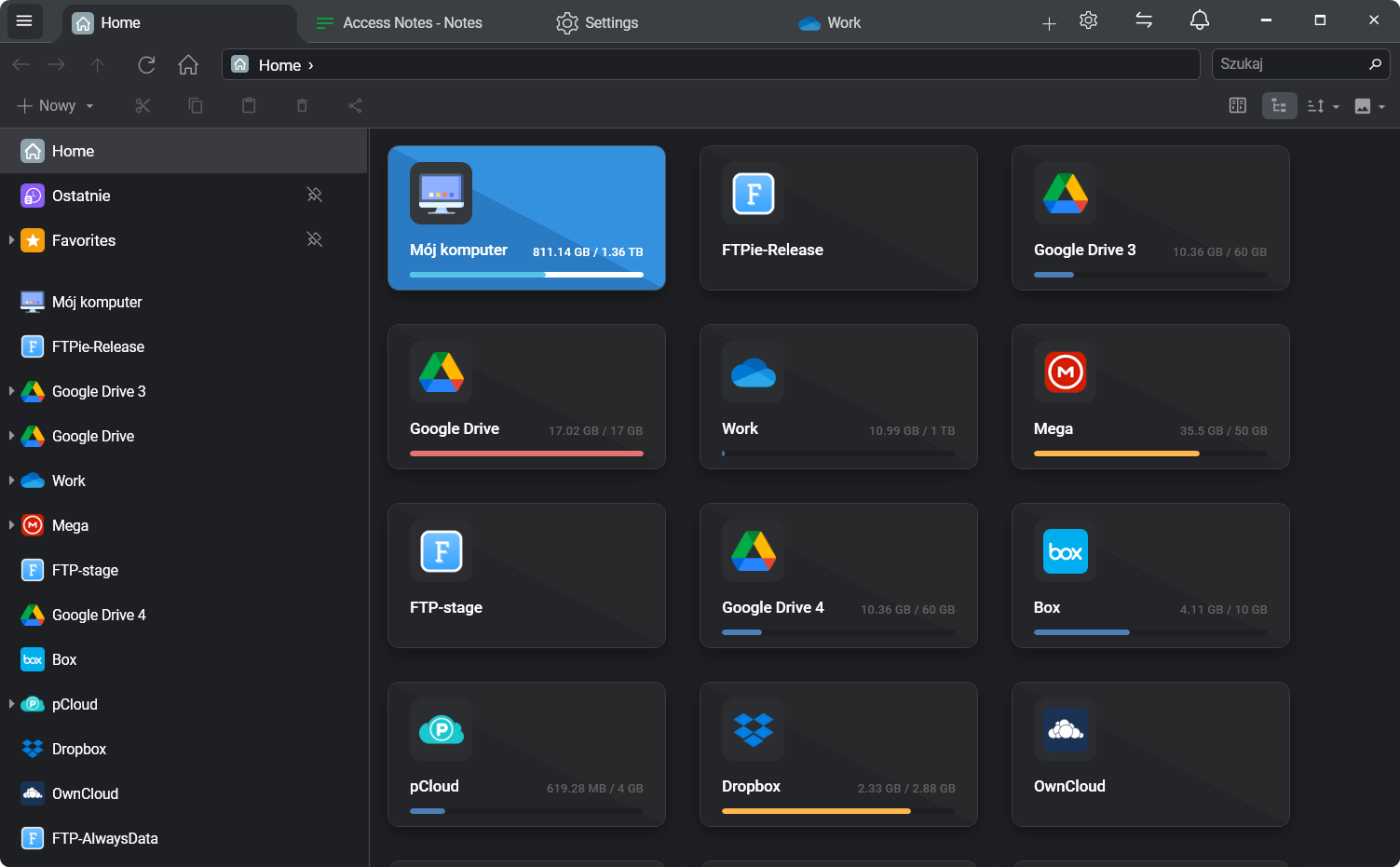
What sets it apart:
- Tabbed interface - every connection, viewer, editor, and tool opens in its own tab, like a browser. No floating windows, no lost panels
- Dual-pane explorer - drag and drop files between any two storages, including FTP to Google Drive, Dropbox to SFTP, or any combination
- Built-in viewers - preview images, PDFs, code, video, and music directly from any storage using embedded apps
- Remote editing - edit files on FTP or cloud using VS Code, Photoshop, or any local app - FTPie syncs changes back automatically
- Quick Share - generate shareable links for files on any storage, even FTP servers that have no native sharing
- Auto Backups - schedule backups with compression, AES encryption, and retention policies
- Shell extension - upload, share, and download directly from Windows Explorer’s right-click menu
- Screenshot and screen recording - built-in capture tools that pair with Quick Share for instant sharing
- 500+ file type icons and image thumbnails in the file browser
- Native Windows app - built for Windows, not on Electron, and stable through long sessions
Supports: FTP, SFTP, FTPS, WebDAV, NAS over SMB, Google Drive, Dropbox, OneDrive, pCloud, Box, Mega, Koofr, OpenDrive, self-hosted clouds (ownCloud, Nextcloud, Seafile), and object storage: Amazon S3 and S3-compatible services, Azure Blob and Google Cloud Storage.
Pricing: Free plan with up to 3 FTP/FTPS/SFTP connections, no time limit. Pro adds cloud storage, NAS, WebDAV and the built-in tools. Windows only.
Best for: Users who want a single app for all file management - transfers, previews, editing, sharing, backups, and compression - without juggling multiple tools.
2. WinSCP - the reliable workhorse
WinSCP has been a staple on Windows since 2000. It is free, open source, and supports FTP, SFTP, FTPS, SCP, S3, and WebDAV. For system administrators who need a dependable, scriptable file transfer tool, WinSCP delivers.
Strengths:
- Solid protocol support with excellent SFTP implementation
- Built-in text editor for quick remote file edits
- Powerful scripting and automation via command line and .NET assembly
- PuTTY integration for SSH terminal access
- Portable version available - runs from a USB drive
- Free and open source
Limitations: The interface is dated - it still uses the classic Windows Explorer or Norton Commander layout with no modern design language. No cloud storage integration (Google Drive, Dropbox, etc.). No built-in file preview for images, PDFs, or media. No dark mode. No sharing features. The experience is powerful but austere.
Best for: Sysadmins and developers who prioritize scripting, SSH integration, and protocol reliability over interface design.
3. FileZilla - the household name
FileZilla is probably the most widely known FTP client. It is free, open source, cross-platform (Windows, macOS, Linux), and has been around since 2001. If you have ever transferred files via FTP, there is a good chance you have used FileZilla at some point.
Strengths:
- Cross-platform - consistent experience on Windows, macOS, and Linux
- Supports FTP, FTPS, and SFTP
- Site Manager for organizing and bookmarking connections
- Transfer queue with drag-and-drop
- Well-documented with a large community
- Free and open source
Limitations: The interface has not changed meaningfully in nearly 20 years - multi-panel layout with cramped toolbars and no visual refinement. No cloud storage support. No built-in file viewers or editors. No dark mode. The installer has been criticized for bundling adware in the past. No compression, sharing, or backup features.
Best for: Users who need a free, no-frills FTP client that works across operating systems and do not need cloud integration or modern UI.
4. SmartFTP - the enterprise option
SmartFTP is a commercial FTP client for Windows with broad protocol support and enterprise-oriented features. It supports FTP, FTPS, SFTP, WebDAV, S3, Google Drive, OneDrive, and more.
Strengths:
- Wide protocol and cloud service support
- Built-in text editor with syntax highlighting
- Transfer queue with scheduling and automation
- Terminal emulator for SSH access
- Thumbnail view for image files
- Active development with regular updates
Limitations: Paid only - no free tier (subscription model with annual renewal). The interface, while functional, follows traditional Windows application conventions rather than modern design. The breadth of features can feel overwhelming for casual users. Cloud integration exists but is not as seamless as purpose-built solutions.
Best for: Enterprise users and power users who need extensive protocol support and are willing to pay for a full-featured commercial client.
5. Cyberduck - the cross-platform contender
Cyberduck is a free, open-source file transfer client for Windows and macOS. It supports FTP, SFTP, WebDAV, S3, Google Drive, Dropbox, OneDrive, Azure, and Backblaze B2. Its sibling project, Mountain Duck, mounts remote storage as local drives.
Strengths:
- Clean, minimal interface
- Good cloud and protocol coverage
- Cryptomator integration for client-side encryption
- Bookmarks system for quick access to frequent connections
- macOS-native look and feel on Apple devices
- Free (donation-supported) or available via Microsoft Store
Limitations: Single-pane interface only - no dual-pane or side-by-side view for drag-and-drop between storages. No built-in file preview, media playback, or document editing. No dark mode on Windows. No compression, sharing, backup, or screenshot tools. Transfer performance can lag behind dedicated clients for large batch operations.
Best for: Users who want a clean, open-source client with solid cloud support and do not need advanced file management features.
Two more worth knowing
Total Commander is a dual-pane file manager first and an FTP client second, and it has been both since the 1990s. Its built-in FTP client handles FTP and FTPS with resume and saved connections; SFTP and cloud storage come through plugins. It is shareware, keyboard-driven and endlessly customizable - the obvious pick if you already live in it. Our comparison: FTPie vs Total Commander.
Windows File Explorer still opens plain ftp:// addresses: paste one into the address bar, log in, and drag files in and out like any other folder. Nothing to install - but no FTPS or SFTP, and none of the extras of a real client. Fine for a one-off download; how to open an FTP link covers the other built-in options.
Comparison at a glance
| Feature | FTPie | WinSCP | FileZilla | SmartFTP | Cyberduck |
|---|---|---|---|---|---|
| FTP / SFTP / FTPS | ✓ | ✓ | ✓ | ✓ | ✓ |
| Cloud storage | 11 clouds + S3, Azure, GCS | S3 only | ✗ | 5+ providers | 8+ providers |
| Modern UI / dark mode | ✓ / ✓ | ✗ / ✗ | ✗ / ✗ | Partial / ✗ | Partial / ✗ |
| Tabbed interface | ✓ | ✓ | ✓ | ✓ | ✗ |
| Dual-pane explorer | ✓ | ✓ | ✓ | ✓ | ✗ |
| File preview / viewers | ✓ | ✗ | ✗ | Thumbnails | ✗ |
| Remote file editing | ✓ (any app) | Built-in editor | ✗ | Built-in editor | External editor |
| Compression / encryption | ✓ | ✗ | ✗ | ✗ | Cryptomator |
| Shareable links | ✓ | ✗ | ✗ | ✗ | ✗ |
| Scheduled backups | ✓ | Via scripting | ✗ | ✓ | ✗ |
| Shell integration | ✓ | ✗ | ✗ | ✗ | ✗ |
| Scripting / CLI | ✓ (Pro) | ✓ | Paid add-on | ✓ | CLI available |
| Cross-platform | Windows | Windows | Win / Mac / Linux | Windows | Win / Mac |
| Free tier | ✓ | ✓ | ✓ | ✗ | ✓ |
How to actually choose
- Scripted transfers and SSH-heavy server work: WinSCP.
- The same free client on Windows, macOS and Linux: FileZilla - just read the installer screens.
- Mac and Windows, or a lot of object storage: Cyberduck.
- A commercial all-protocols client with vendor support: SmartFTP.
- Servers, clouds and NAS in one window, with previews, editing, sharing and backups built in: FTPie.
- Your server speaks SFTP: the picks shift slightly - see the SFTP client roundup.
The bigger picture: FTP clients are file managers now
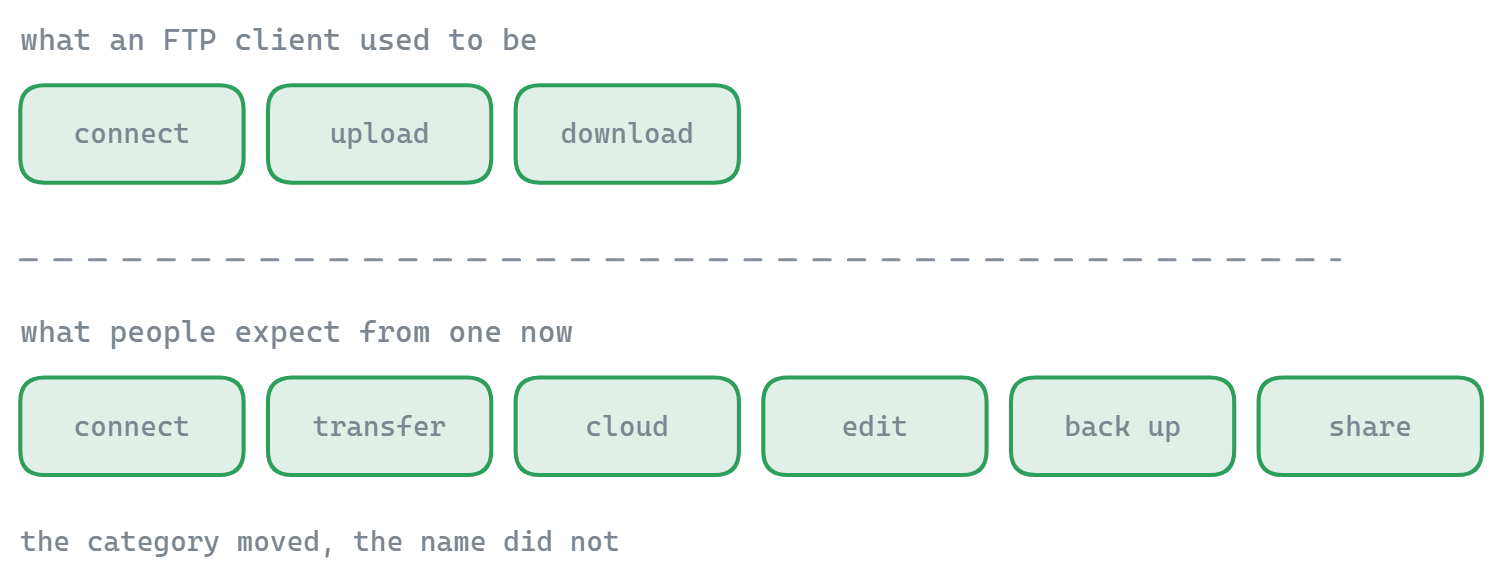
The traditional FTP client - connect, transfer, disconnect - is no longer enough. Users work with files across FTP servers, cloud storage, and local drives simultaneously. The tools that have not evolved force users to bridge the gaps themselves, jumping between apps for tasks that should be seamless.
The clients on this list all handle FTP well. The difference is in everything around FTP - the interface, the integrations, the built-in tools, and the overall experience. That is where modern clients separate themselves from legacy ones.
Why FTPie leads the pack
Looking at the comparison table, FTPie is the only client that checks every box - cloud integration, modern design, file preview, remote editing, compression, sharing, backups, and shell integration. Other clients excel in specific areas (WinSCP for scripting, FileZilla for cross-platform, Cyberduck for cloud coverage), but none offer the same breadth in a single, cohesive application.
FTPie was built with the philosophy that design matters as much as functionality - and that a file transfer tool should do more than just transfer files. It should be the one app that replaces the five you are currently switching between.
Ready to try it? Download FTPie for free and see how it compares to your current workflow. Or explore the top 7 benefits for a quick overview.