File transfer tools have long been treated as purely functional software - connect, transfer, disconnect. The interface was an afterthought. As long as files moved from point A to point B, nobody questioned whether the experience could be better.
But design matters, even for utility software. A well-designed tool reduces errors, eliminates confusion, and lets you work faster without thinking about the tool itself. That is the philosophy behind FTPie.
Why FTP clients feel stuck in the past
Open FileZilla or WinSCP today and you will see essentially the same interface from 2005. Multiple floating windows, cramped toolbars, plain file lists with no previews, and dense configuration dialogs that assume you already know what every option does.
These tools were built when FTP was the primary way to move files, and they solved that problem well. But the world moved on - cloud storage, modern UI patterns, dark mode, touch-friendly design, integrated tools - and FTP clients did not follow.
The result is a gap between what users expect from modern software and what file transfer tools actually deliver.
Tabs over floating windows
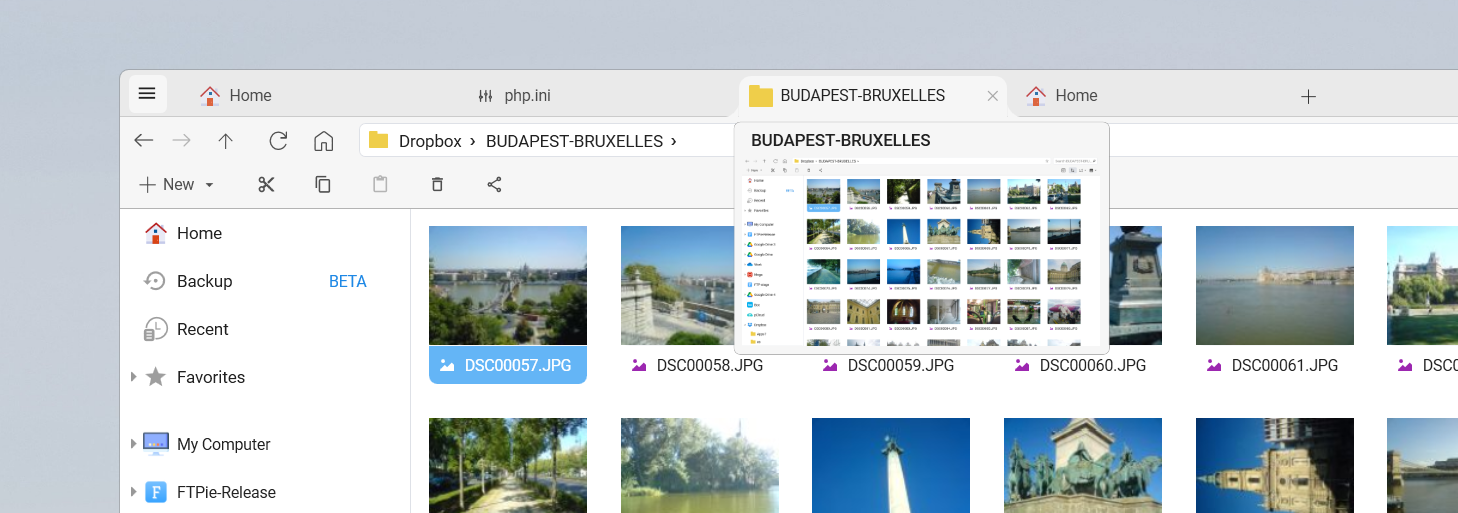
One of the most impactful design changes in FTPie is replacing floating windows with a tabbed interface. Every connection, viewer, editor, and tool opens in its own tab - just like a browser.
This sounds simple, but the effect on daily use is significant:
- No lost windows - everything is visible in the tab bar, not buried behind other windows
- Easy switching - jump between an FTP server, a Google Drive folder, and a code editor with a single click
- Consistent layout - the interface stays predictable no matter how many connections are open
- Better screen use - one maximized window instead of arranging and resizing multiple panels
Making file operations feel natural
Good design means operations work the way you expect them to, without reading documentation. FTPie follows conventions from tools people already use daily:
- Drag and drop - works between panels, between FTPie and Windows Explorer, and between any connected storages
- Ctrl+C / Ctrl+V - copy and paste files across storages just like in Explorer
- Right-click context menus - all actions available where you expect them, styled to match Windows 11 conventions
- Breadcrumb navigation - click any part of the path to jump back, just like a file manager or browser
These interactions seem obvious, but most FTP clients still require toolbar buttons or menu bar navigation for basic file operations.
Showing instead of telling
Traditional FTP clients show you a list of file names, sizes, and dates. That is enough to find a file, but not enough to understand what it contains without opening it.
FTPie's storage explorer adds visual context:
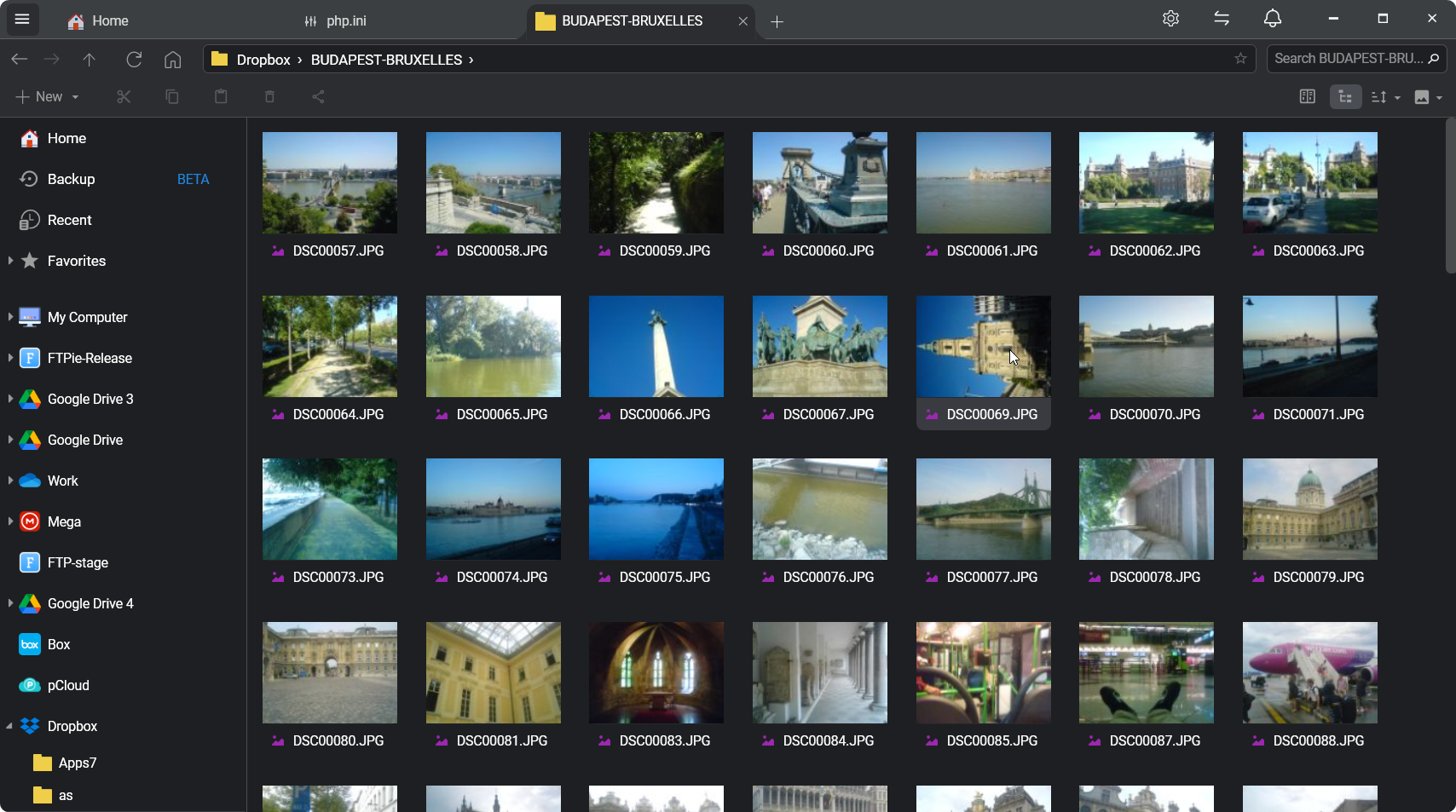
- Preview mode - image thumbnails replace generic icons, so you can identify files at a glance
- 500+ file type icons - even without previews, files are visually distinct by type
- Inline file viewers - open images, PDFs, code, video, and music in built-in viewers without downloading or switching apps
This reduces the guesswork of "is this the right file?" - a common source of wasted time when managing remote storage.
Reducing complexity without removing power
A common trade-off in software design is simplicity versus capability. Simplify too much and power users feel limited. Expose everything and beginners feel overwhelmed.
FTPie handles this by layering complexity:
- Adding a storage requires only the essentials - host, username, password. Advanced options (port, timeout, chunk size, encryption mode) are available but tucked behind an expandable section
- Transfers work with drag-and-drop by default, but the transfer manager exposes per-file progress, pause/resume, retry counts, and queue management for those who need it
- Backups use a three-step wizard to guide setup, while still offering compression levels, AES encryption, retention policies, and missed-run handling
- Compression defaults to sensible settings but lets you choose compression level and encryption strength when needed
The goal is that basic tasks take one or two clicks, while advanced configuration is always accessible but never in the way.
Dark mode that actually works
Dark mode in FTP clients - if it exists at all - is often an afterthought: dark backgrounds with hard-to-read text, inconsistent styling across dialogs, or icons designed only for light themes.
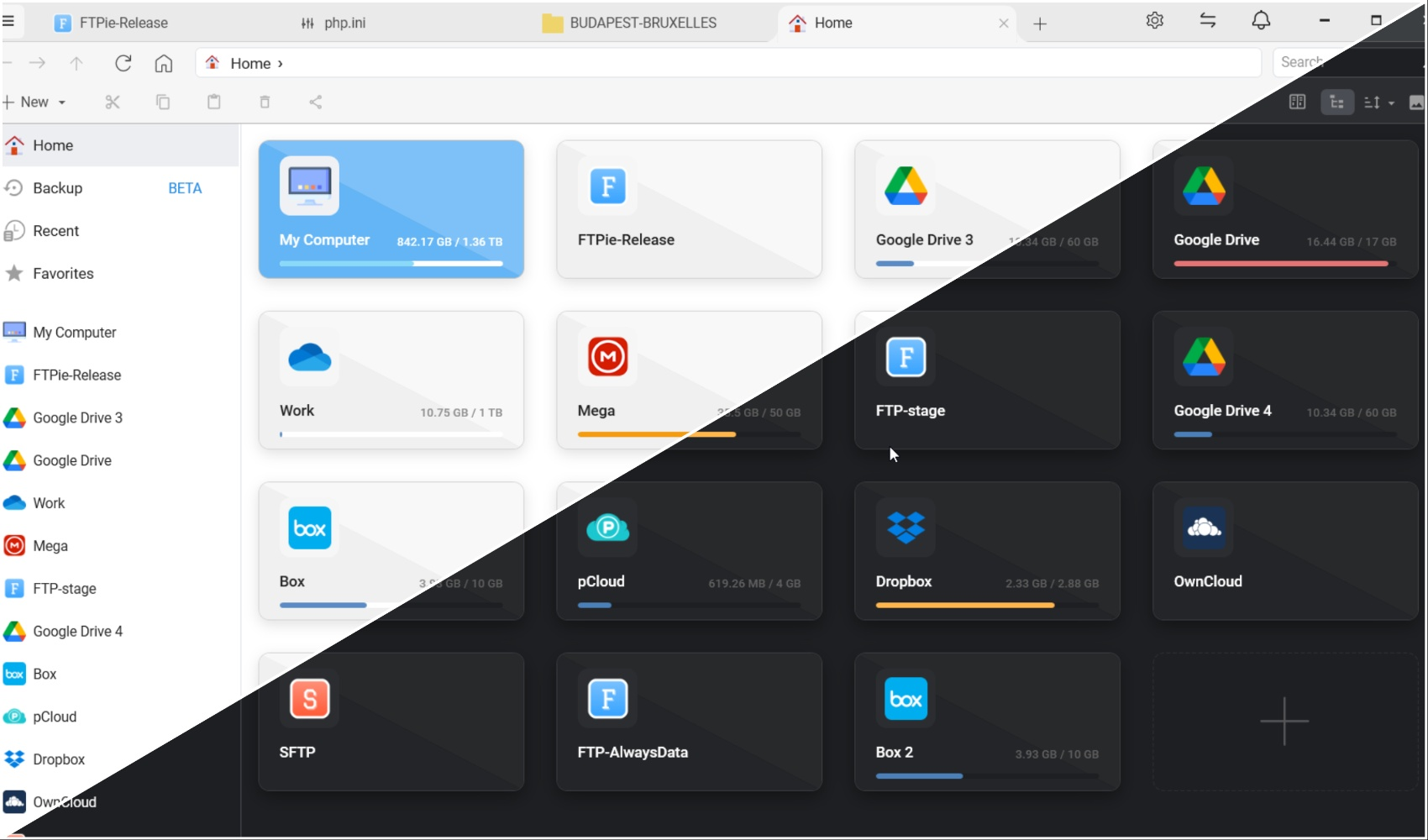
FTPie's dark mode is designed from the ground up as a first-class theme. Every element - panels, dialogs, editors, viewers, context menus, and even the notes editor - adapts consistently. You can switch manually or let FTPie follow your system's light/dark schedule automatically.
The dashboard as a starting point
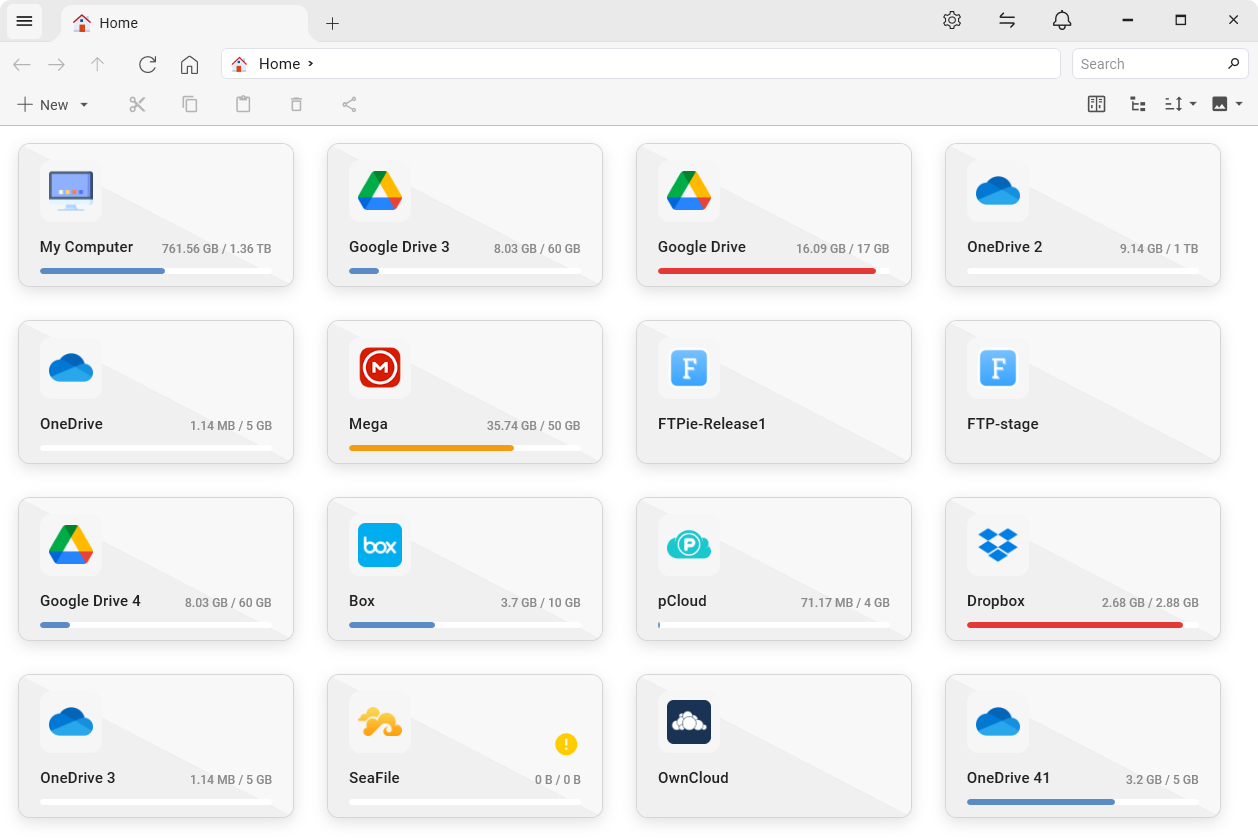
Instead of opening to a blank connection screen, FTPie starts with a dashboard that shows all connected storages at a glance - each with a tile displaying used and free space. You can reorder storages, pin frequently used ones, and jump into any account with a single click.
This gives you immediate context about your storage landscape before you start working - something no traditional FTP client offers.
Integration over isolation
One of the core design principles in FTPie is that features should connect to each other, not exist in isolation. A few examples:
- Take a screenshot, then share it via link - two clicks, no file management in between
- Compress files on a remote server, then preview the archive without downloading it
- Edit a remote file in VS Code, and FTPie syncs changes back automatically
- Upload a file from a URL directly to any connected storage
- Right-click in Windows Explorer and upload, share, or download without opening FTPie
Each feature becomes more useful because of the others. The whole is greater than the sum of the parts.
Design as a competitive advantage
File transfer software has been feature-complete for years. The protocols work. Files get moved. What has been missing is the experience around it - the polish, the thoughtfulness, the respect for the user's time and attention.
FTPie is not trying to reinvent file transfers. It is trying to make them feel like a natural part of your workflow instead of an interruption. That starts with design.
See how this philosophy plays out in practice - explore the top 7 benefits of FTPie, or download it and experience the difference yourself.