Editing files stored on remote servers or cloud storage usually means downloading them locally, making changes, and uploading them back again. This workflow is slow, error-prone, and easy to forget - especially when working with configuration files, documents, or shared resources.
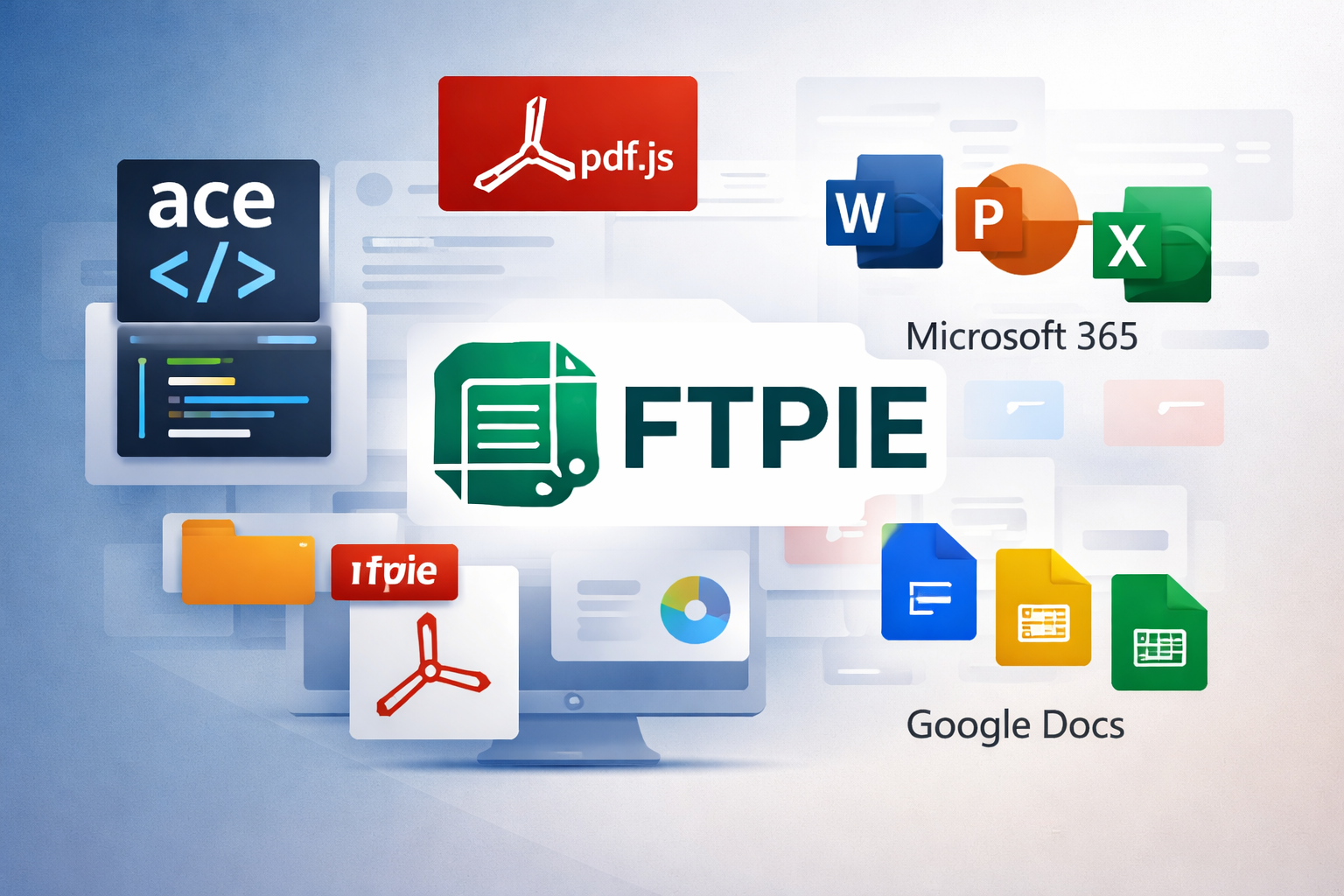
FTPie works as a modern FTP file editor, allowing you to open, edit, preview, and save remote files directly while it handles all file transfers automatically in the background using its file transfer engine.
Why editing remote files without downloading matters
Traditional FTP clients and browser-based cloud tools still rely on manual file handling. This often leads to:
- Unnecessary downloads and re-uploads
- Accidentally editing outdated file versions
- Lost time switching between tools
- Cluttered local folders filled with temporary files
A proper remote file editor removes these steps and keeps your workflow focused.
Using FTPie as an FTP file editor
FTPie lets you work with files stored on FTP, SFTP, WebDAV, and cloud storage providers as if they were local. You select a file, edit it, and save - FTPie takes care of synchronizing changes back to the original location.
Built-in editors and previews
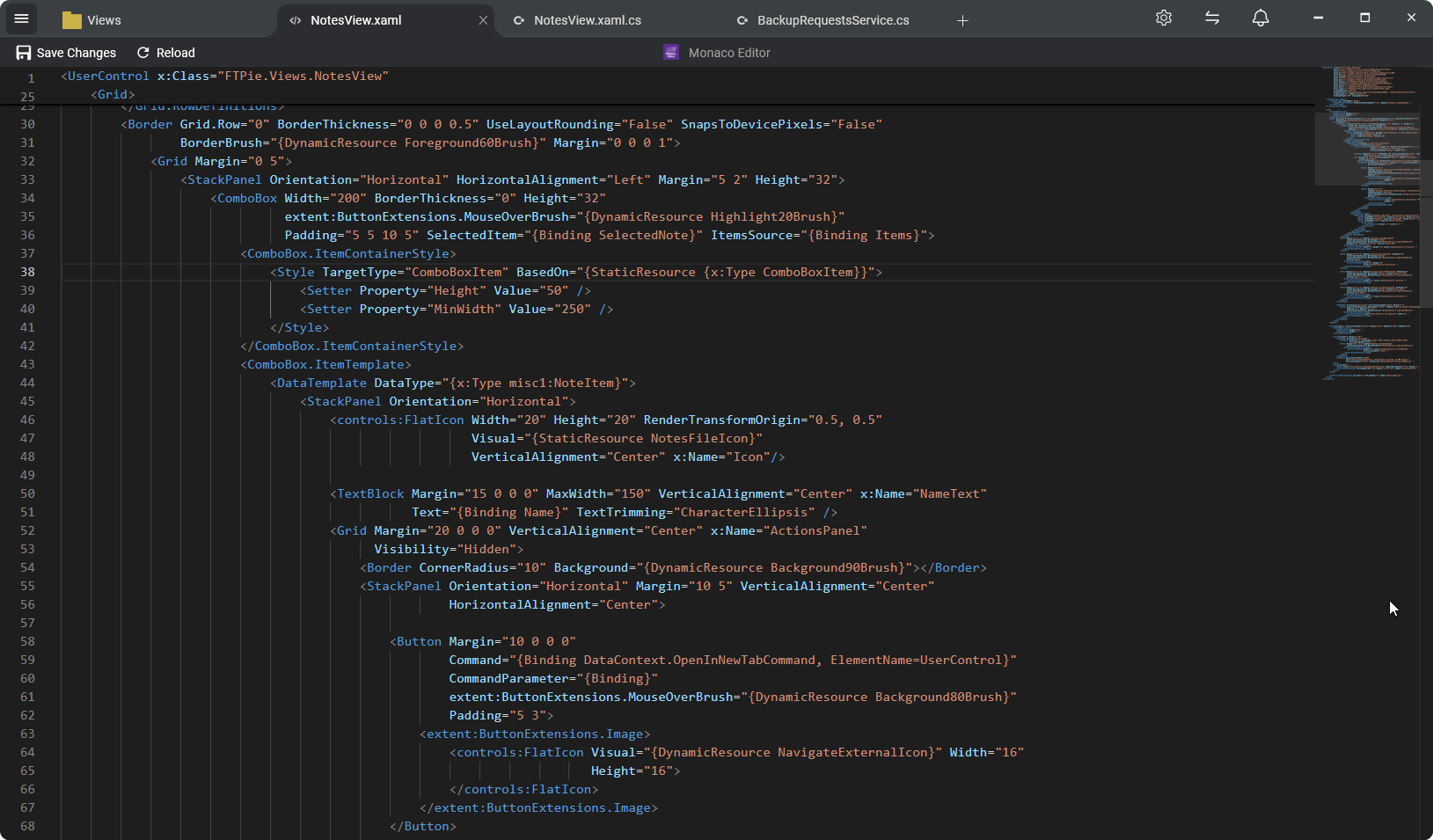
For many file types, FTPie includes built-in tools so you don’t need external applications. These are part of FTPie’s embedded apps system:
- Monaco editor for text and code files
- PDF viewer for reading and previewing documents
- Image and media previews to quickly verify file contents
These tools are ideal for quick edits or reviews without leaving the application.
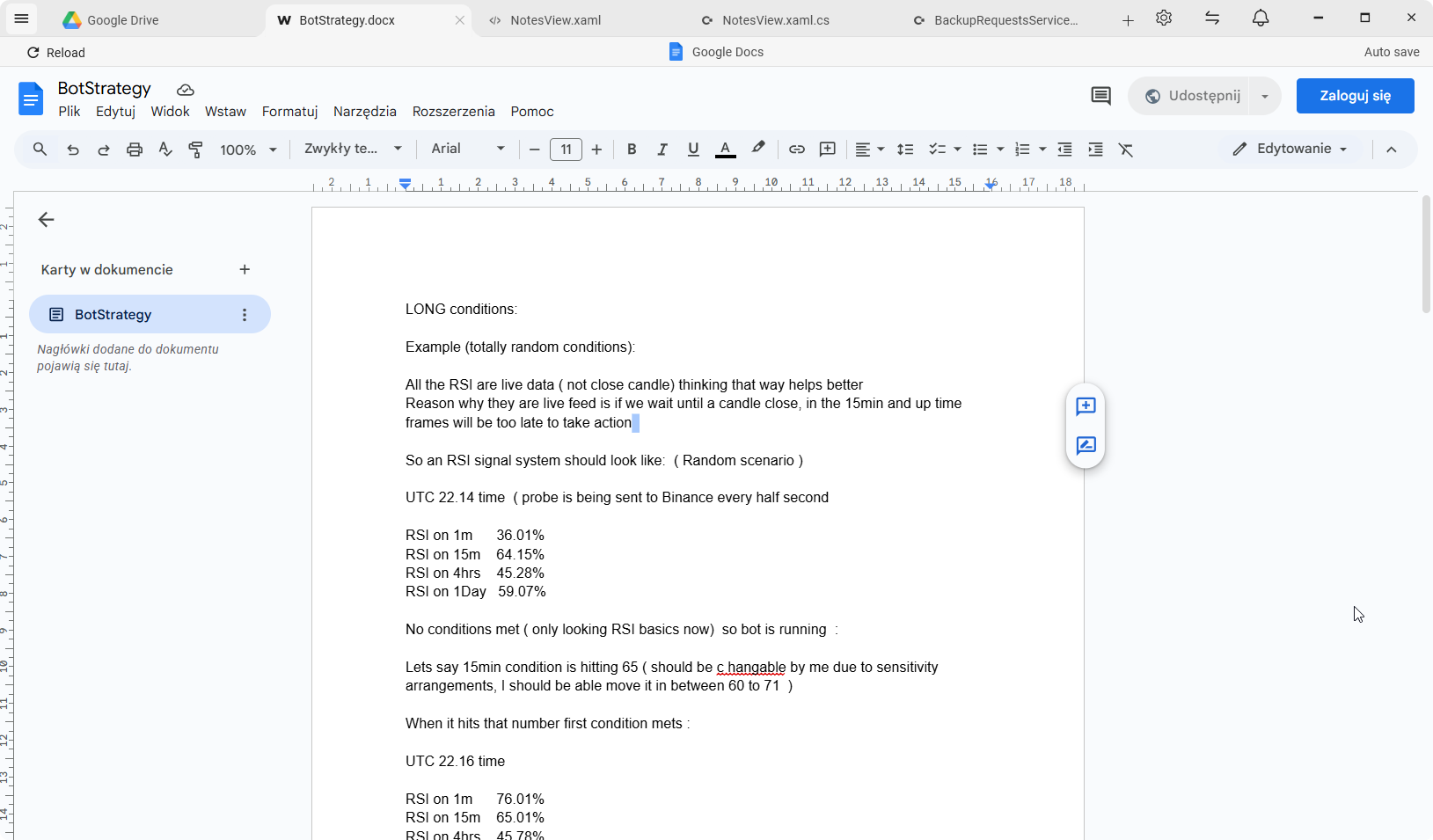
Editing FTP and cloud files with Google Docs or Microsoft 365
When full document editing or collaboration is required, FTPie integrates with cloud editors through its document editing feature.
- Select a file from any connected storage
- Choose Google Docs or Microsoft 365
- FTPie transfers the file automatically to the appropriate cloud storage
- Edit the file in the cloud editor
- FTPie syncs the updated file back to its original location
- Temporary cloud copies are cleaned up automatically
Editing remote files with local applications
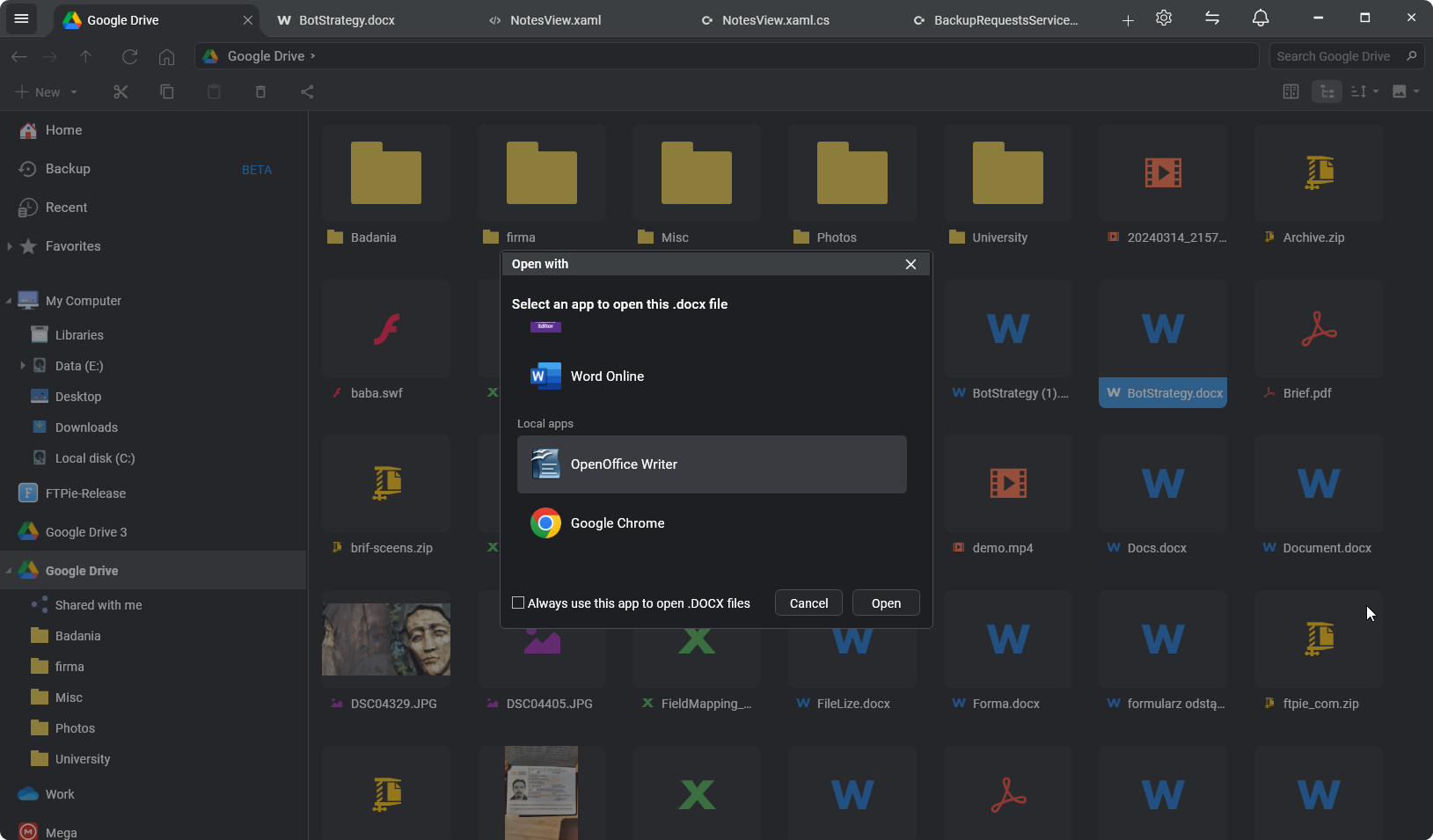
If you prefer desktop software, FTPie works with any local application, including code editors, office tools, and creative software.
The workflow is simple:
- Open a remote file from within FTPie
- The file is placed in a secure temporary location
- Edit and save normally in your chosen application
- FTPie detects the change and uploads the updated file
- The temporary file is removed automatically
When direct remote editing makes sense
Editing remote files directly is ideal for:
- Configuration and text file updates (a common need for SFTP-based deployments on Windows)
- Document corrections and reviews
- Quick fixes without full downloads
- Working across multiple FTP and cloud providers
For very large files or mission-critical production systems, traditional workflows may still be preferred - but for day-to-day work, direct editing is significantly faster.
Final thoughts
A modern FTP file editor shouldn’t force you into outdated workflows. With FTPie, you can preview, edit, and save remote files using built-in editors, cloud tools, or your favorite local applications - without manually downloading or uploading files.
For a focused real-world walkthrough, see the edit remote files without downloading use case. You can also compress and archive files directly on remote storage without downloading them first. New to FTPie? Check out the getting started guide.