Upload from URL: Send Web Files Straight to Cloud or FTP
Paste one or more URLs and FTPie streams the files straight into Google Drive, Dropbox, OneDrive, FTP, SFTP or any connected storage - without saving them to disk first.
You find a useful file on the web - a release build, a dataset, a big PDF, an installer. You want it in your Google Drive or on your FTP server, not on your laptop. Normally that means saving it to your Downloads folder and then re-uploading it, which wastes disk space and takes twice as long. FTPie’s Upload from URL skips the detour: paste the URL, pick a destination, and the file streams straight into that storage. For a step-by-step walkthrough, see our guide on uploading files to Google Drive from a URL.
How it works
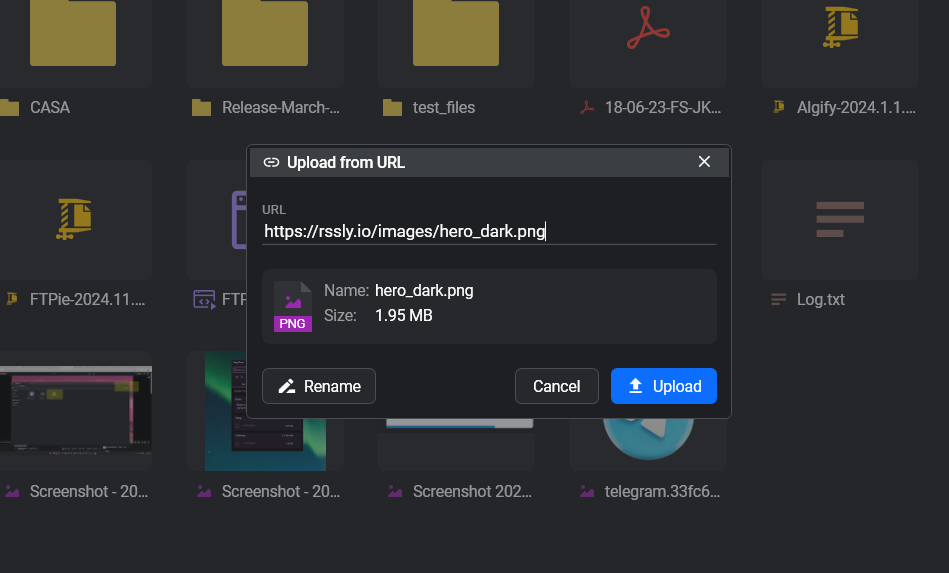
- Right-click inside any folder → Upload from URL (or use the New → Upload From URL menu)
- Paste one URL, or paste several (one per line) to queue multiple uploads
- FTPie fetches metadata first - file name, size, content type - so you can verify the file before committing
- Pick the destination folder on any connected storage
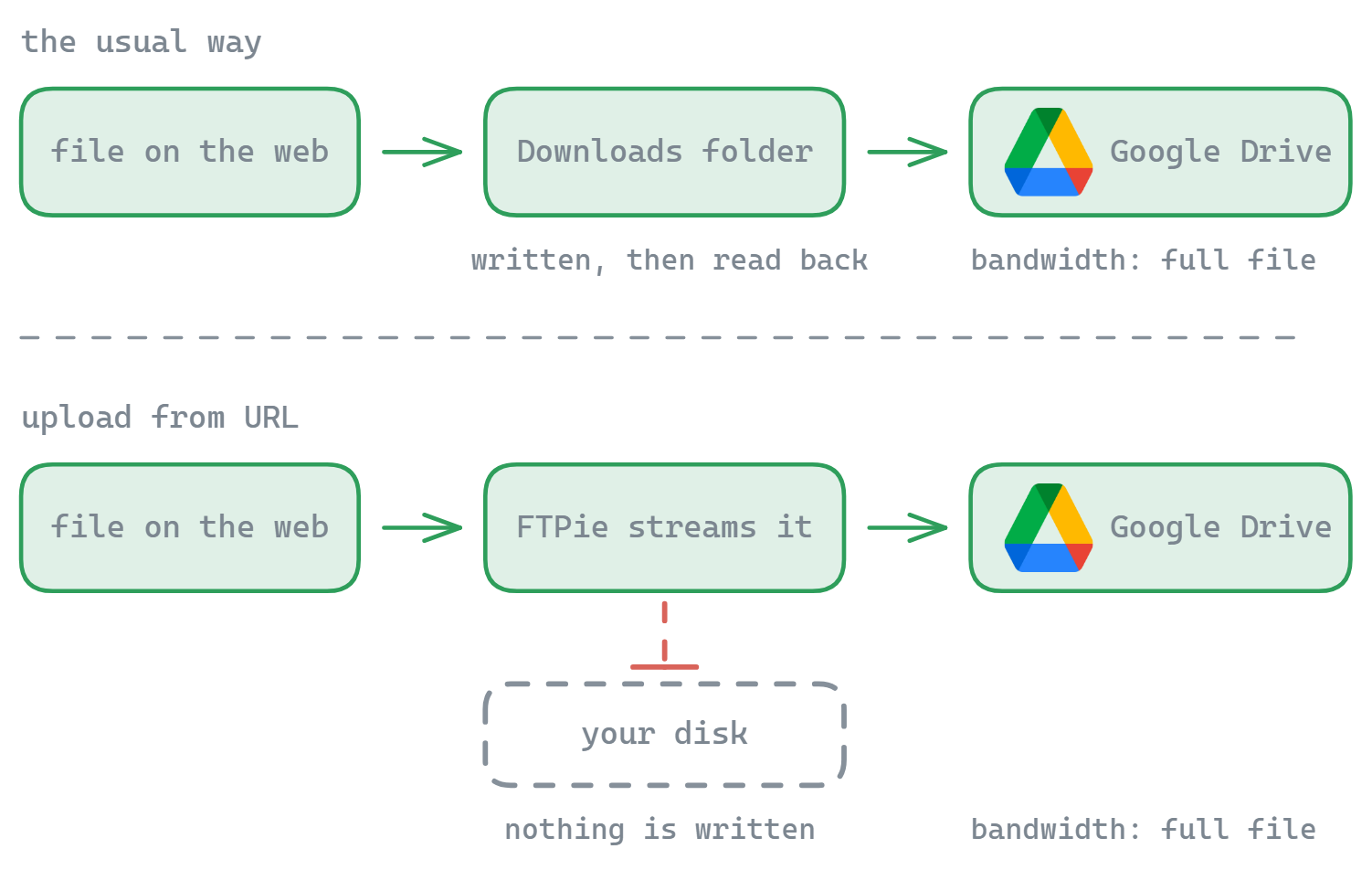
- The transfer runs through FTPie like a pipe - bytes flow from the URL straight into the destination with no local save step
Why this matters
No local disk footprint
The file is never saved to your hard drive. Useful when the file is large, when disk is tight, or when you simply don’t want another stray download.
Half the time, a fraction of the hassle
You skip the download-then-upload cycle. The file moves in one pass instead of two.
Works with any connected storage
Cloud (Google Drive, Dropbox, OneDrive, pCloud, Box, Mega), self-hosted cloud (ownCloud, NextCloud, SeaFile), FTP, SFTP, WebDAV.
Multi-URL batch
Paste a whole list of links. FTPie queues them, runs several in parallel, and retries failed ones.
Bandwidth, honestly
Worth being clear on one thing. Most cloud providers don’t offer a true server-to-server “fetch this URL for me” API - so the bytes do pass through FTPie on your machine as they move from the source URL to the destination storage. Your network bandwidth is still used. The saving is on disk, not on bandwidth: you don’t pay the cost of writing to a local file and then reading it back up.
For FTP/SFTP destinations that’s the only way this could work anyway. For cloud destinations, the net effect is the same as downloading and re-uploading - just without the disk round-trip.
Monitoring and managing uploads
Every URL upload lands in FTPie’s regular transfer manager, so you get the same:
- Real-time progress per file
- Pause, resume, cancel individual uploads
- Automatic retries with configurable strategy
- Full queue view when batching multiple URLs
Where it fits
Upload from URL is the clean way to get web files to where they actually belong. It pairs naturally with Auto Backups (archive downloads into a versioned backup destination), integrated compression (zip a batch once it lands), and the rest of FTPie’s cross-storage toolkit.
Common questions
It leaves no local disk footprint. FTPie pipes the data from the source URL straight into the destination storage as it arrives. Your own bandwidth is still used - this is not a true cloud-to-cloud handoff - but nothing is written to your disk and cleaned up afterwards.
Yes. Paste several URLs, one per line, and they are queued as separate uploads.
Yes. FTPie fetches the file name, size and type first so you can verify the target before committing to the transfer.
Any connected storage - cloud, FTP, FTPS, SFTP, WebDAV, self-hosted or local. Progress appears in the same transfer manager as everything else.
Related
- Uploading to cloud from a URL - the full walkthrough
- File transfers - the transfer engine this runs through
- Upload from Windows Explorer - for files already on your PC
Start Your 30-Day Free Trial
Download FTPie and start your free 30-day trial. Enjoy seamless FTP + cloud integration and keep using the free version afterward.
Download Free Trial