Comparison

FTPie vs FileZilla

Two free FTP clients, two very different approaches

FTPie — All-in-one FTP + cloud file manager vs FileZilla — The most popular open-source FTP client

If you've ever transferred files over FTP, there's a good chance you've used FileZilla. It's been around since 2001, it's open-source, it runs on every major platform, and it's probably the first result when you search "free FTP client." For a lot of people, FileZilla is FTP.

FTPie is newer and takes a different approach. Instead of being a dedicated FTP transfer tool, it tries to be an all-in-one file manager that handles FTP, SFTP, cloud storage, and a bunch of built-in tools — all in one window. It's Windows-only and doesn't have FileZilla's two-decade track record.

So which one should you actually use? That depends on what you need. Let's look at the real differences.
The basics: FTP, SFTP, and FTPS

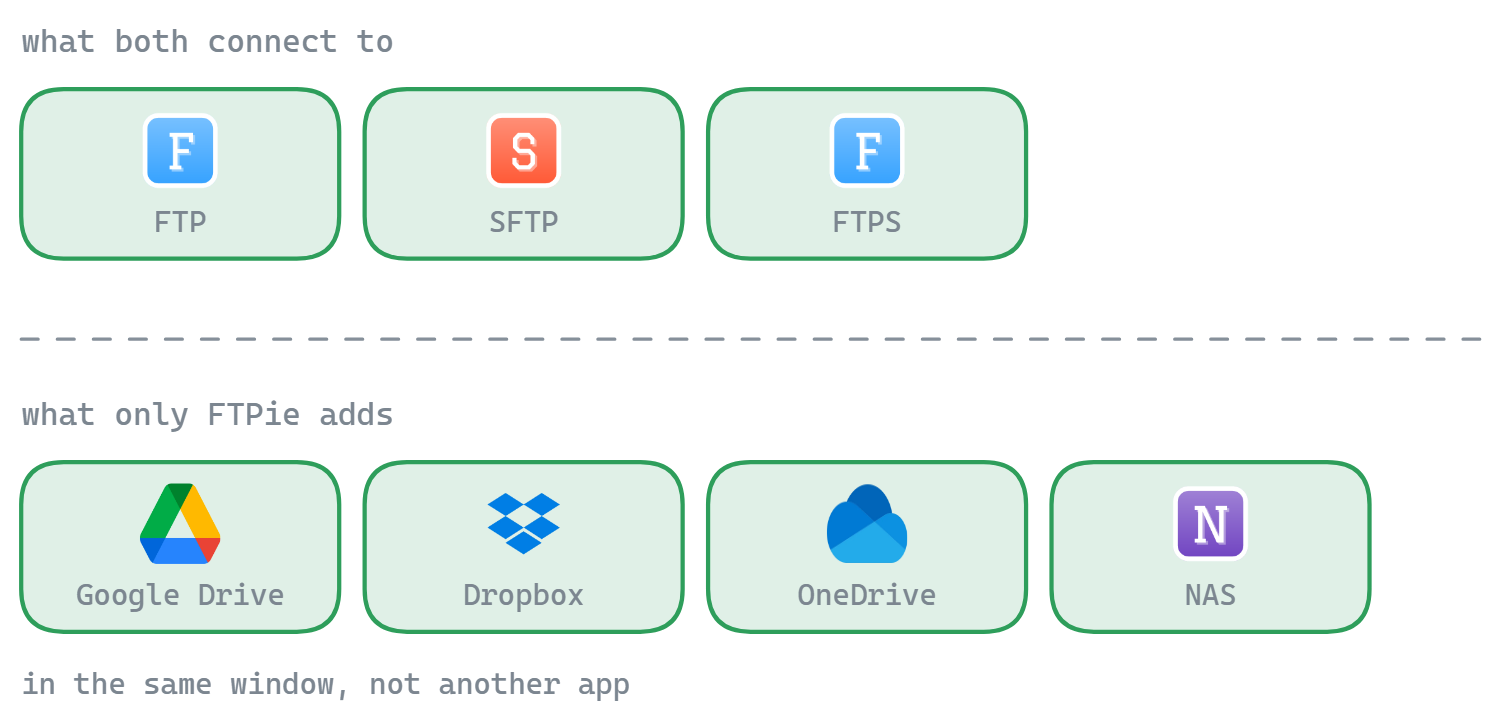
Both FTPie and FileZilla support the core trio — FTP, FTPS (FTP over SSL/TLS), and SFTP (SSH File Transfer Protocol). If all you need is to connect to a server, upload some files, and disconnect, both tools will get the job done. One thing to note: FTPie's free plan is limited to a single FTP/FTPS connection (SFTP and cloud storage are unlimited), while FileZilla's free version has no such limit.

FileZilla has been handling these protocols for over 20 years, and it shows — in a good way. It's extremely well-tested, handles edge cases gracefully, and has a massive community that's documented just about every server configuration you'll encounter. If you're troubleshooting a weird FTP server, there's probably a FileZilla forum post about it.

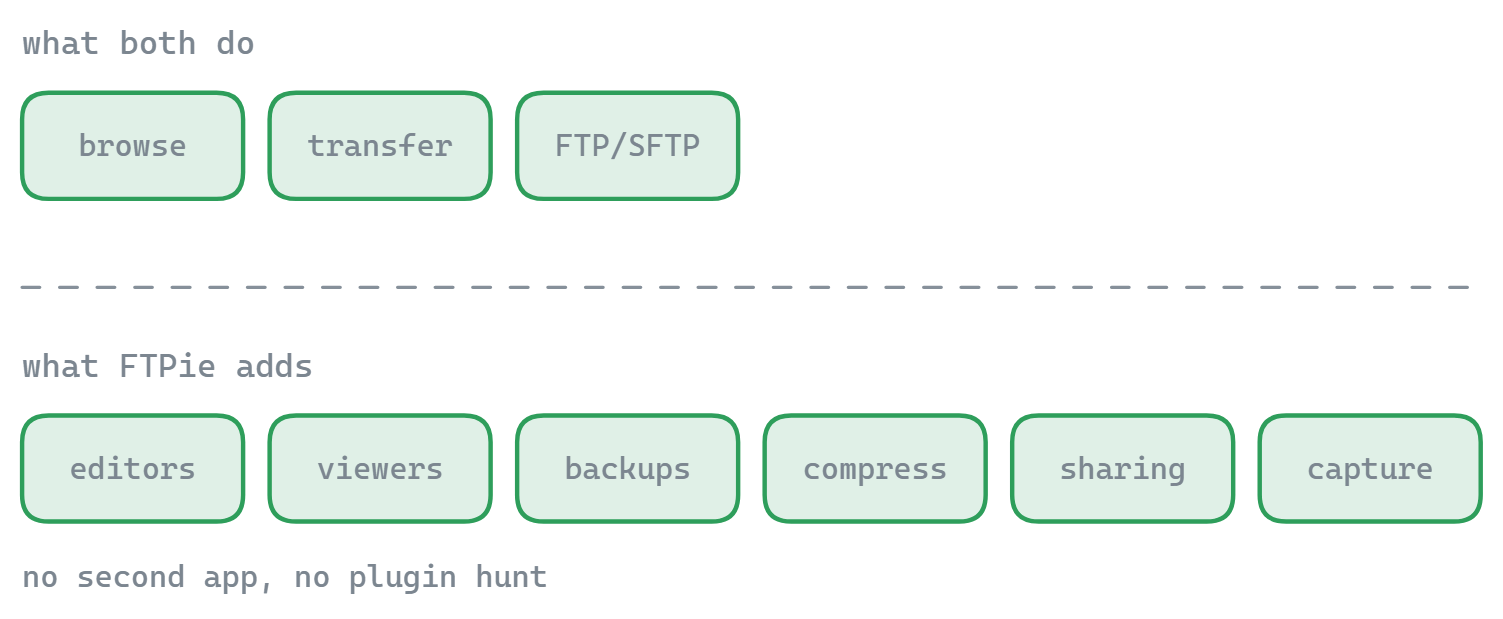
FTPie supports the same protocols plus WebDAV. It also adds features on top of basic transfers — like pause/resume at the chunk level (which survives app restarts), parallel transfers, and configurable retry behavior. These matter more when you're dealing with large files or unreliable connections, but for simple transfers, either tool works fine.

Cloud storage: this is where they diverge

This is probably the biggest practical difference between the two.

FTPie treats cloud services as first-class citizens. You can connect Google Drive, Dropbox, OneDrive, pCloud, Box, and Mega right alongside your FTP servers. They all show up in the same file manager, and you can drag files between them — say, from an SFTP server to Google Drive — without downloading anything to your local machine first.

FileZilla added cloud storage support, but only in the paid FileZilla Pro version (around $20). The free version is FTP/SFTP/FTPS only. That's a perfectly reasonable business model, but it means the free FileZilla and the free FTPie are very different in scope.

If you only work with FTP servers, this doesn't matter. If you regularly move files between FTP and cloud storage, it matters a lot.

Interface: tabs vs. panels

FileZilla's interface is functional but dated. You get four panels at once — the message log at the top, local files on the left, remote files on the right, and the transfer queue at the bottom. It works, but it can feel cramped, especially on smaller screens. The layout hasn't fundamentally changed in years, which is either a strength (familiar) or a weakness (cluttered), depending on who you ask.

FTPie uses a tabbed interface — more like a web browser. Each connection, file viewer, or tool opens in its own tab. There's a Total Commander-style dual-pane mode for side-by-side file management, but you're not forced into it. You can have one panel open, two panels, or switch between tabs.

Honestly, this comes down to preference. Some people like seeing everything at once (FileZilla's approach). Others prefer a cleaner view where you switch between things (FTPie's approach). Neither is objectively better.

Built-in tools: where FTPie packs more in

FileZilla is a file transfer tool. That's what it does, and it does it well. You won't find a code editor, image viewer, or backup scheduler in FileZilla — that's not its purpose.

FTPie bundles a lot more:

  • Code editor (Monaco, the same engine as VS Code) — open and edit remote files directly, with syntax highlighting for 50+ languages
  • Image viewer with zoom, pan, and rotate
  • PDF viewer with search and text selection
  • Video and music player — stream media from remote storage without downloading
  • Backup scheduler — automated backups between any two storages, with compression and encryption
  • File compression — create zip archives directly on remote storage
  • Notes tool — rich text editor with export to PDF or shareable link
  • Screenshot and screen recording tools

Whether this is a pro or a con depends on what you're looking for. If you want a focused FTP client that does one thing well, all these extras are just bloat you don't need — and FileZilla's simplicity is the better choice. If you're managing a web server and want to preview images, edit config files, and set up backups without switching apps, FTPie saves real time.

Side-by-side comparison

Here's a quick reference of the main differences:

Feature FTPie FileZilla
FTP / FTPS / SFTP
WebDAV
Cloud storage (free)
Cross-platform
Server-to-server transfers
Built-in file viewers/editors
Edit remote files in place
Backup scheduling
File compression
Windows shell integration
Dark / light theme Partial
Open source
Free to use Partial

The elephant in the room: FileZilla's installer

This has to be mentioned because it comes up in every FileZilla discussion. The official FileZilla installer has bundled third-party software offers for years — things like browser toolbars or antivirus trials. You can decline them during installation, but they're opt-out, not opt-in, and they've frustrated a lot of users.

To be fair, this is how the FileZilla project funds itself — it's open-source software that costs money to maintain. You can avoid the bundled offers entirely by downloading FileZilla from a package manager (like Chocolatey or winget) or getting the portable version. But if you grab the installer from the official website without paying attention, you might end up with software you didn't ask for.

FTPie doesn't bundle anything with its installer. It's a straightforward install — no third-party offers, no checkboxes to uncheck.

Where FileZilla has the edge

Let's be real about where FileZilla is the stronger choice:

  • Cross-platform. FileZilla runs on Windows, macOS, and Linux. FTPie is Windows-only. If you work across operating systems, FileZilla is your only option here.
  • Maturity and stability. Over 20 years of development means FileZilla has encountered — and handled — just about every FTP server quirk in existence. It's battle-tested in a way that newer software simply isn't yet.
  • Community and documentation. Need help with a specific FTP configuration? FileZilla's forums, wiki, and Stack Overflow presence are enormous. You'll almost always find an answer.
  • Open source. If that matters to you — whether for transparency, auditing, or contributing — FileZilla's code is available for inspection. FTPie is closed-source.
  • Unlimited free FTP connections. FileZilla lets you connect to as many FTP/FTPS servers as you want for free. FTPie's free plan limits you to one FTP/FTPS connection — you need a paid plan for more.
  • Lightweight. FileZilla does one thing and doesn't load extras you don't need. If you want a simple, focused FTP client without the overhead of built-in viewers and productivity tools, that's a real advantage.

Where FTPie has the edge

  • Cloud storage built in. Six cloud services included for free — no separate app, no paid upgrade. Connect Google Drive next to your SFTP server and drag files between them.
  • Edit files without downloading. Open a remote file in FTPie's built-in code editor, or in any local app — FTPie handles the download, watches for changes, and syncs it back automatically.
  • Built-in viewers. Preview images, PDFs, videos, and code files without leaving the app. Useful when you're managing a web server and want to quickly check uploaded content.
  • Backup scheduling. Set up automated backups between any two storages with compression and encryption. FileZilla has no built-in backup feature.
  • Windows integration. Shell extension adds right-click upload, Quick Share, and drag-and-drop between FTPie and Windows Explorer. Global hotkeys for quick access.
  • Modern interface. Tabbed browsing, clean dual-pane layout, proper dark/light theme support. Less visual noise than FileZilla's four-panel layout.
  • No bundled software. Clean installer, no third-party offers.

So which one should you pick?

If you need a straightforward FTP client that works on any operating system, FileZilla is hard to beat. It's free, proven, and does exactly what it says. The interface is dated and the bundled installer offers are annoying, but the core tool is solid.

If you're on Windows and your workflow involves more than just FTP — cloud storage, remote file editing, backups, previewing uploaded content — FTPie handles all of that in one place. You don't need to install separate tools for things that are built in.

There's no wrong answer here. FileZilla is completely free, and FTPie has a free plan (limited to one FTP/FTPS connection but with unlimited SFTP and cloud). The easiest thing is to try both and see which one fits how you actually work.

Start Your 14-Day Free Trial

Download FTPie and start your free 14-day trial. Enjoy seamless FTP + cloud integration and keep using the free version afterward.

Download Free Trial
CASA Verified & VirusTotal Scanned
14-day trial · Free version included
Windows 10 & 11