Upload to Cloud & FTP from Windows Explorer
Right-click a file or folder anywhere in Windows, pick a destination, and it uploads - without opening FTPie first.
Quickly upload files to any connected storage with FTPie's streamlined transfer dialog. Available in both the app and Windows Explorer (with the shell extension).
How It Works
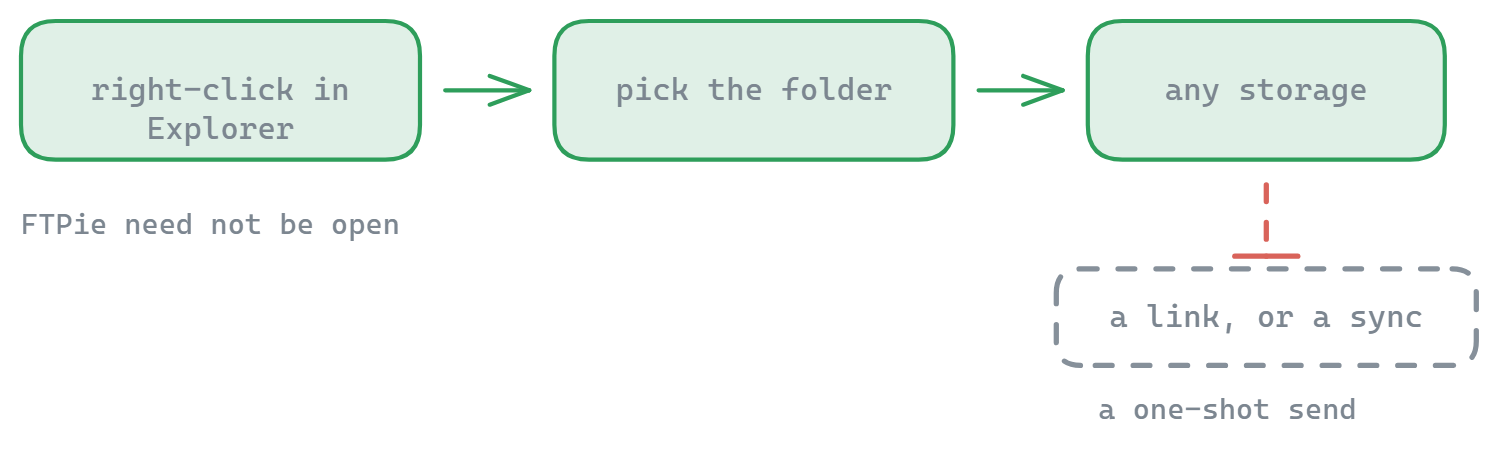
- Right-click files/folders in FTPie or Explorer (with extension)
- Select "Quick Upload" from the context menu
- Choose destination from our custom folder selection dialog
- Transfer begins immediately to the specified location
Key Features
- Precise destination - Custom dialog for exact folder selection
- Works everywhere - Available in app and Explorer context menu
- Reliable transfers - Progress tracking and automatic retries
Use the search function in the destination dialog to quickly find specific folders across your connected storages.
When To Use Quick Upload
Quick Upload is perfect when you need to:
- Backup files to cloud storage
- Transfer project files to team folders
- Move content between different storage accounts
- Upload batches of files without opening multiple windows
Unlike Quick Share, this feature simply transfers files without generating any shareable links. To upload files directly from a URL instead of your local machine, see uploading from URL.
What it does not do
Quick Upload is one-way: it sends local files to a remote storage and stops there. It does not give you a shareable link, and it does not keep the folder in sync afterwards - it is a deliberate one-shot action. It also depends on the Windows shell extension being installed, so it is not available on machines where you skipped that part of setup.
Common questions
No. Quick Upload comes from the Windows shell extension, so the right-click menu works straight from Explorer or the desktop. FTPie handles the transfer in the background.
Yes. Picking Quick Upload opens a destination browser showing your connected storages, so you choose the exact target folder rather than dropping everything in one fixed place.
Yes. Select any number of files or folders in Explorer and upload them in one action, without opening multiple windows.
No - Quick Upload only transfers files. If you want a link to send someone, use Quick Share instead.
Any storage you have connected. FTP, FTPS and SFTP are covered by the free plan; cloud, WebDAV, NAS and self-hosted storage are part of Pro. See the plan comparison.
Related
- Quick Share - upload and get a link back
- Folder shortcuts - the other half of the Explorer integration
- Upload from URL - pull a file straight from the web instead
- Dual-pane file manager - when you want to see both sides
Start Your 30-Day Free Trial
Download FTPie and start your free 30-day trial. Enjoy seamless FTP + cloud integration and keep using the free version afterward.
Download Free Trial