Share via Email: Send Files Straight From FTPie
Right-click any file in FTPie and email it to anyone - a branded message with a download button, sent through your own Gmail or custom SMTP. No third-party link service.
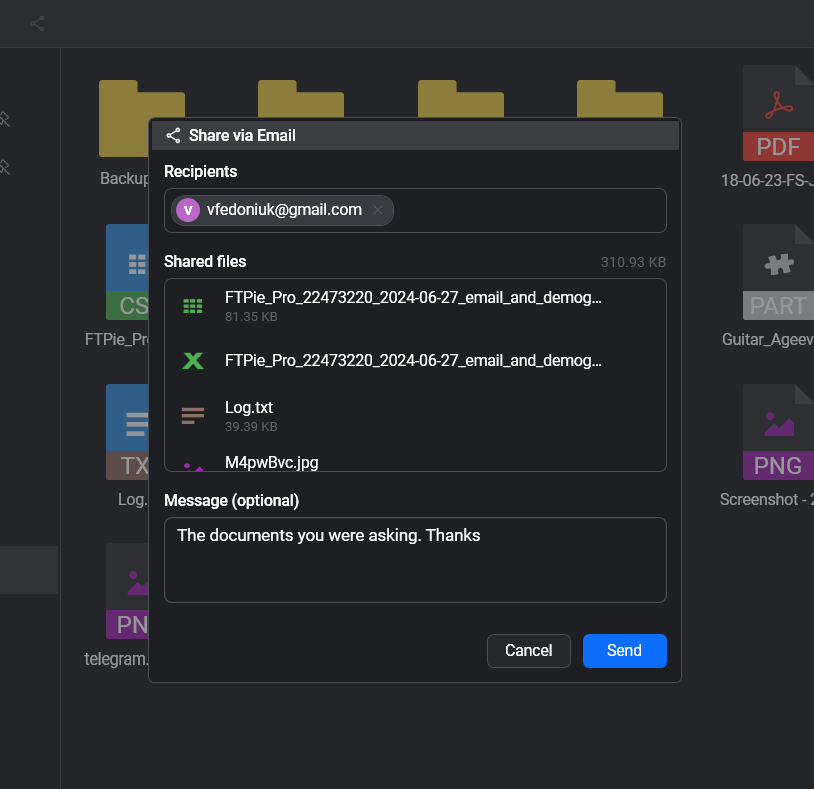
Share via Email lets you send any file to anyone without leaving FTPie. Right-click a file, pick your recipients, add an optional message, and FTPie delivers a clean, branded email with a download button - sent through your own Gmail or custom SMTP account. It’s the email-delivery sibling of Quick Share: same one-right-click simplicity, but the file lands directly in someone’s inbox instead of on a clipboard.
How Share via Email Works
- Right-click any file in FTPie and choose Share via Email
- Enter one or more recipient addresses
- Optionally add a short message - it appears in the email body
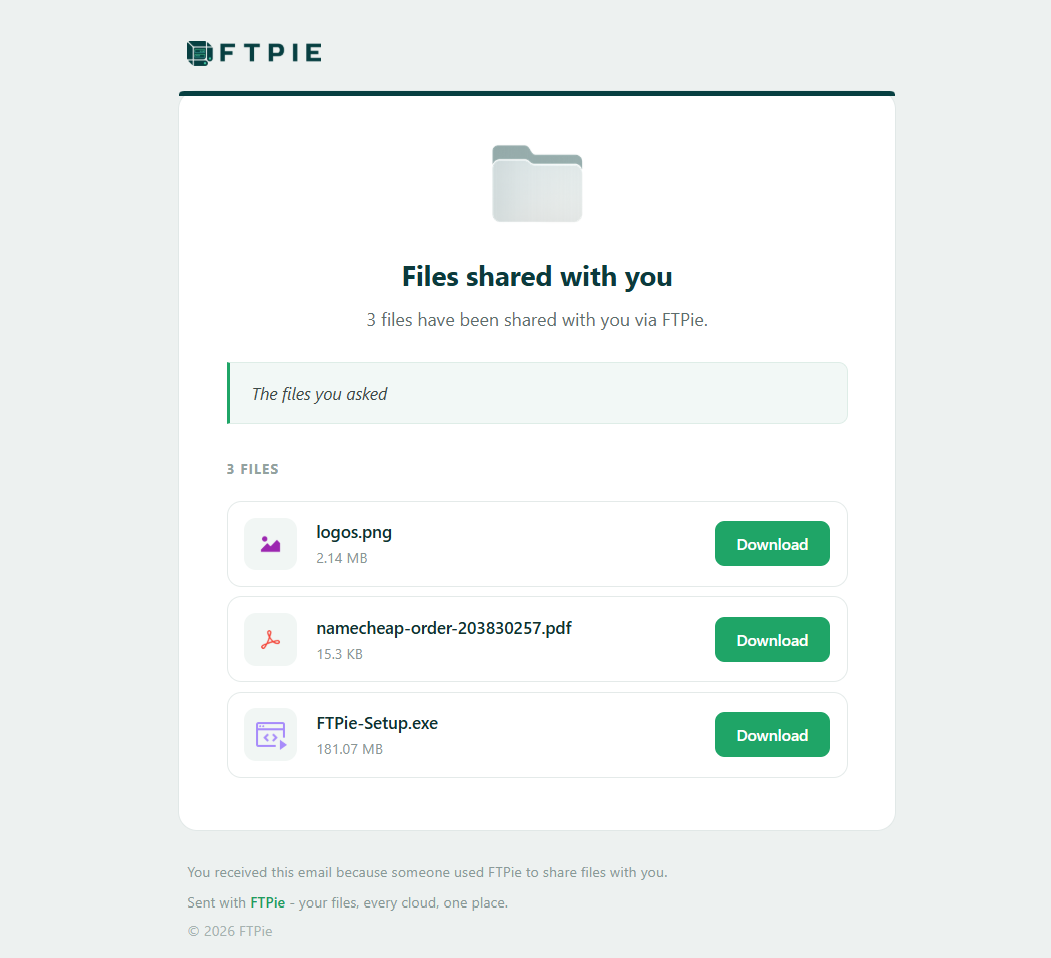
- Hit Send. FTPie composes a branded HTML email with a clear download button and delivers it through your configured email account
- Your recipient gets a polished “Files shared with you via FTPie” email and downloads the file in one click
Key Features
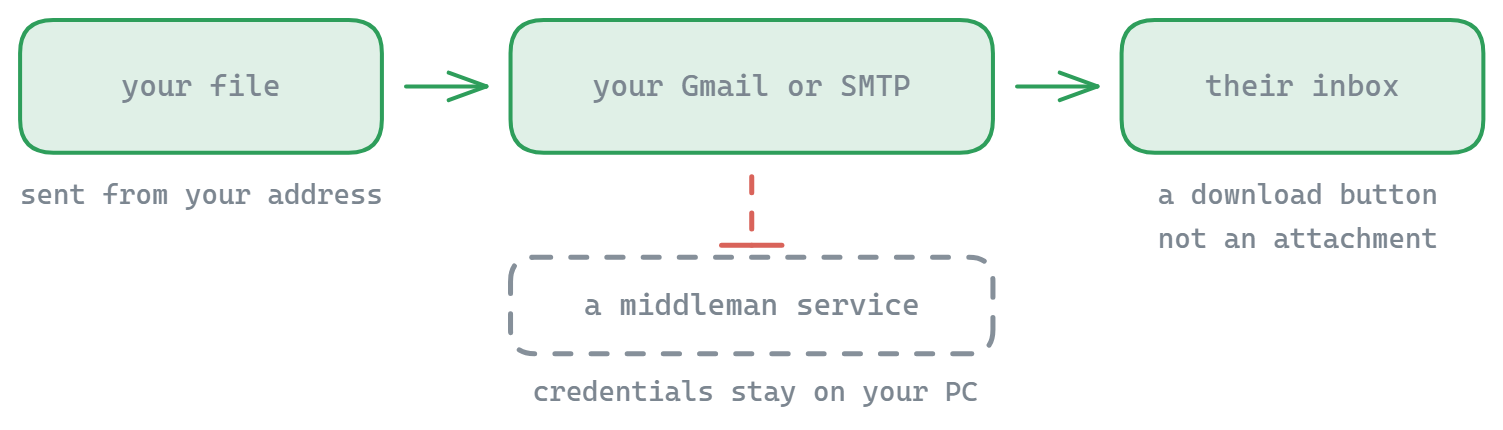
- Sends from your own account - recipients see the email coming from your real address, not an anonymous link service
- Gmail or any SMTP - pick the Gmail preset or enter custom SMTP host, port, and SSL settings
- Branded, professional email - a clean FTPie-styled message with a one-click download button, not a bare attachment
- Multiple recipients & a personal message - address several people at once and add context in the body
- Works with files on any storage - cloud, FTP, SFTP, WebDAV, self-hosted, or local - FTPie handles delivery for you
- No bandwidth caps or middleman - mail goes through your provider on your terms
The email carries a one-click download button rather than a heavy attachment. If the file already lives on a cloud that supports shareable links, FTPie links to it in place. If it lives on FTP, SFTP, WebDAV or any other storage that can’t mint public links, FTPie uploads it to your default shareable storage first - the same bridge Quick Share uses - and points the download button there. You choose which cloud acts as that bridge in settings.
In FTPie’s settings, choose Gmail for a guided setup (Gmail users with two-factor authentication generate a one-time app password), or pick Custom to enter your own SMTP host, port, username, sender address, and SSL preference. A Send Test Email button confirms everything works before you share for real. Your credentials stay on your machine.
Share via Email vs. Quick Share
Both turn a right-click into a share. Quick Share generates a link you can paste anywhere - ideal for chat, tickets, or docs. Share via Email goes one step further and delivers the file to a specific person’s inbox, from your own address, with a message attached. Use Quick Share when you need a link; use Share via Email when you know exactly who should receive the file.
Usage Scenarios
Send a finished deliverable to a client, forward a document to a colleague, or get a file off a remote SFTP server and into someone’s inbox - all without opening a browser, a webmail tab, or a separate email client. It pairs naturally with the Screenshot and Screen Recording tools: capture something, then email it straight out in the same workflow.
Common questions
Your own. You connect Gmail, Outlook or any custom SMTP server (host, port, username, sender address, SSL), and mail routes through your provider. Credentials stay on your machine and there is no anonymous middleman.
No. The recipient gets a branded HTML email with a one-click Download button, so large files do not have to survive an attachment size limit.
You generate a one-time app password in your Google account - the setup panel links straight to it - and paste that instead of your normal password. A Send Test Email button confirms the configuration before you rely on it.
Any of them: cloud accounts, FTP, FTPS, SFTP, WebDAV, self-hosted servers and local disks.
Related
- Quick Share - get a shareable link instead of sending mail
- Upload from Windows Explorer - right-click transfers
- Dual-pane file manager - where you pick the file from
Start Your 30-Day Free Trial
Download FTPie and start your free 30-day trial. Enjoy seamless FTP + cloud integration and keep using the free version afterward.
Download Free Trial