Comparison

FTPie vs Cyberduck

Both handle FTP and cloud, but one is Mac-first and the other is built for Windows

FTPie — Windows-native FTP + cloud file manager vs Cyberduck — Open-source FTP and cloud browser

Cyberduck is one of those tools that's been quietly reliable for years. It started as a Mac FTP client, grew to support a huge list of cloud and server protocols, and eventually got a Windows version too. It's open-source, well-maintained, and has a clean, simple interface.

FTPie comes at the same problem from the opposite direction — it's built from the ground up for Windows, with a wider scope that goes beyond just browsing and transferring files.

Both tools let you connect to FTP servers and cloud storage. But the way they approach file management, and the kind of user they're designed for, is quite different.

The platform question: Mac-first vs. Windows-native

Cyberduck was born on macOS and it shows — in a good way on Mac. The Mac version feels natural, follows Apple's design conventions, and integrates nicely with the system. The Windows version works, but it's a Java-based port and it can feel like it. The UI looks slightly off on Windows, startup is slower than a native app, and it doesn't integrate deeply with Windows features like the shell context menu, JumpList, or System Tray.

FTPie is Windows-only, and it uses that constraint to go deep on Windows integration. There's a shell extension that adds right-click actions in Windows Explorer (upload, Quick Share, open in FTPie), JumpList support for quick access from the taskbar, System Tray with global hotkeys, and full drag-and-drop plus clipboard integration between FTPie and Explorer.

If you work on both Mac and Windows, Cyberduck gives you the same tool on both platforms. If you're a Windows user and want something that feels like it belongs there, FTPie has a clear advantage.

Protocols and cloud support

This is one area where Cyberduck genuinely impresses. It supports a massive list of protocols and services: FTP, FTPS, SFTP, WebDAV, Amazon S3, Google Cloud Storage, Azure Blob, Backblaze B2, OpenStack Swift, Dropbox, Google Drive, OneDrive, and more. If you need to connect to obscure or enterprise cloud storage, Cyberduck probably supports it.

Cyberduck also has Cryptomator integration — client-side encryption for any cloud storage. This is a genuinely useful feature if you're security-conscious and want to encrypt files before they leave your machine.

FTPie's list is shorter: FTP, FTPS, SFTP, WebDAV, Google Drive, Dropbox, OneDrive, pCloud, Box, and Mega. It covers the most popular consumer cloud services well, and S3/Azure/Google Cloud Storage are on the roadmap, but it can't match Cyberduck's breadth today. FTPie also doesn't have client-side encryption yet (it's planned).

Where FTPie differs is what you can do with those connections. It supports server-to-server transfers — moving files from SFTP to Google Drive, for instance, without downloading to your local machine first. Cyberduck doesn't do that; each transfer goes through your computer.
Interface: browser vs. file manager

This is one of the biggest practical differences between the two.

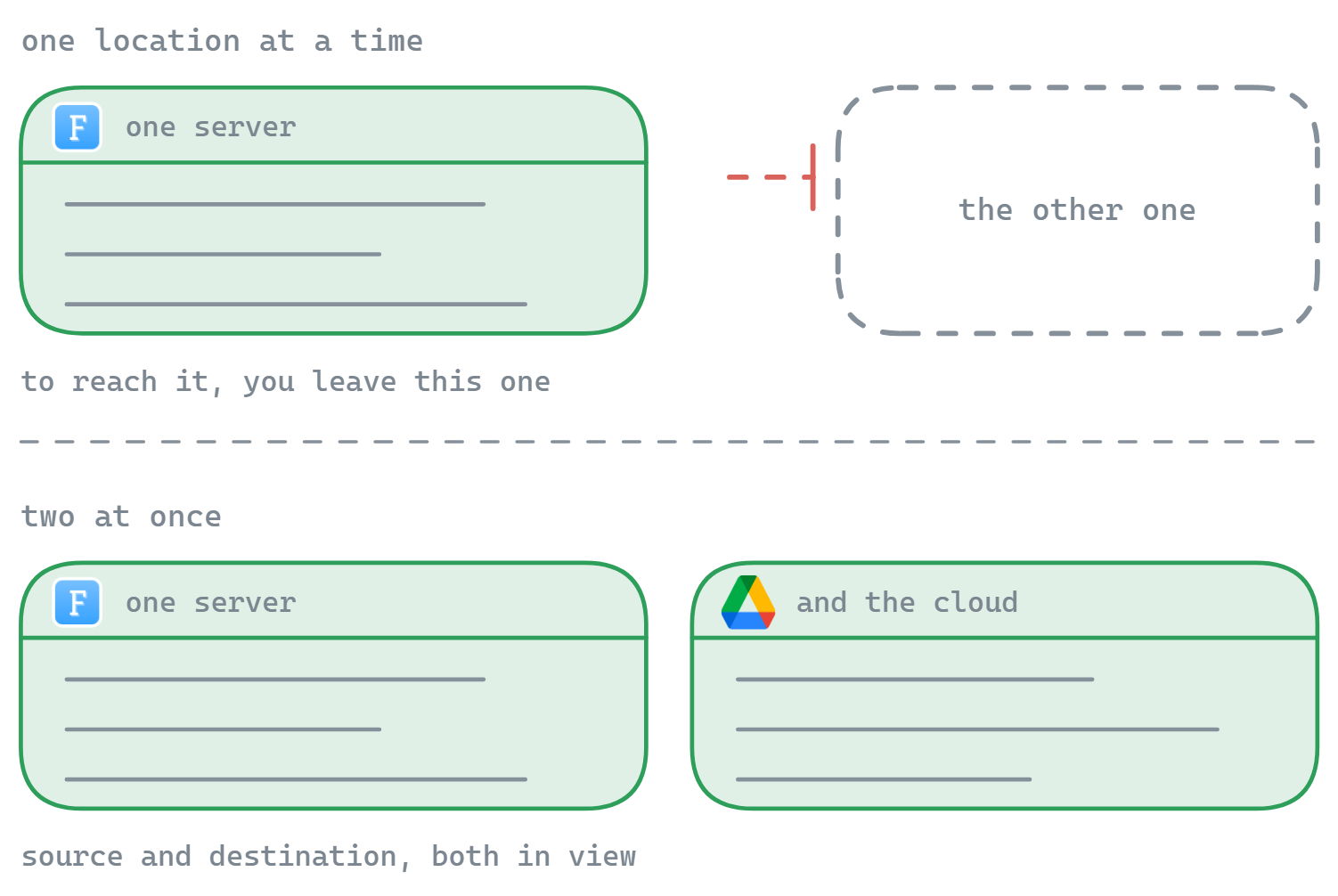
Cyberduck is a file browser. You connect to one location at a time and see a single-panel list of files. Want to move files between two servers? You'd need to download to your local machine first, then upload to the other server. There's no way to see two locations side by side in the same window.

FTPie is a file manager with a dual-pane layout — think Total Commander. You can have two locations open side by side (say, an FTP server on the left and Google Drive on the right) and drag files between them. Each connection, viewer, or tool opens in its own tab. It's a fundamentally different workflow for anyone who regularly moves files between locations.

If you mainly connect to one server at a time to upload or download files, Cyberduck's simpler interface works fine. If you spend time organizing files across multiple storages, the dual-pane approach saves a lot of back-and-forth.

Built-in tools

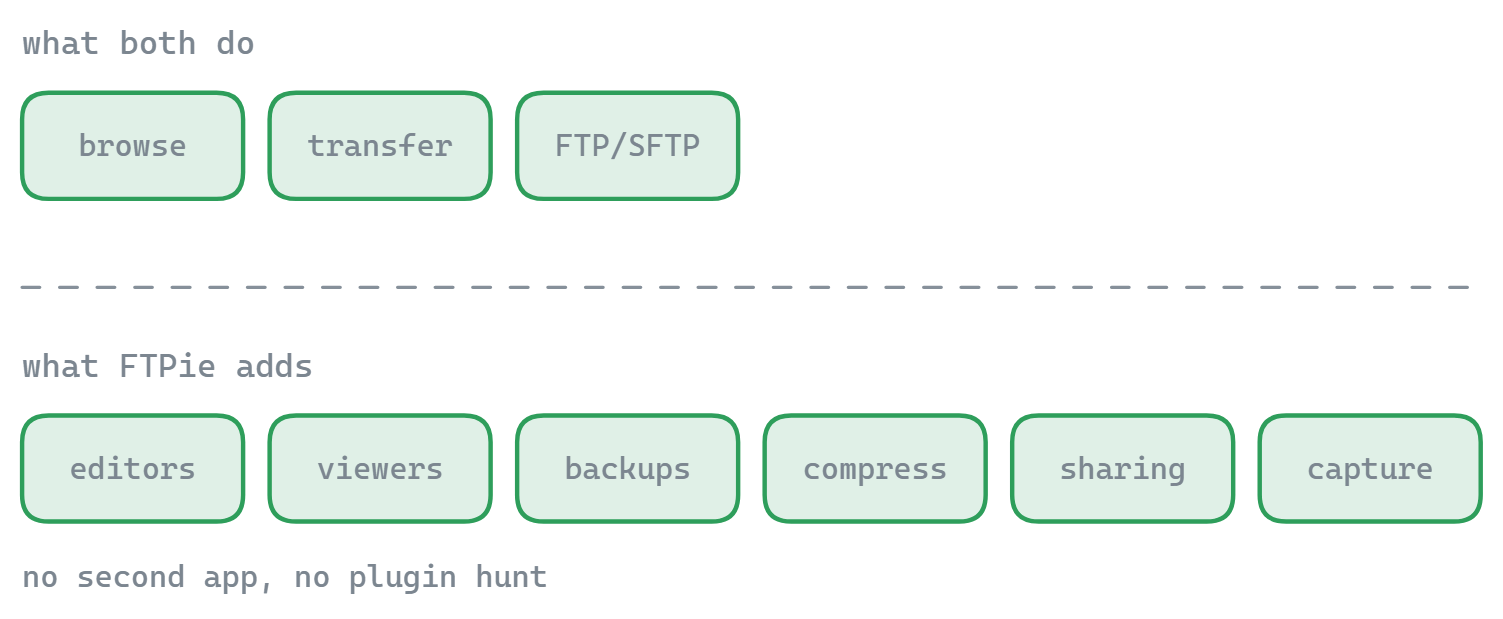
Cyberduck keeps things simple. It can open files in external editors and will re-upload them on save, similar to WinSCP. It has a built-in Quick Look-style preview on Mac, but the Windows version doesn't have that. Beyond browsing and transferring, it defers to external tools.

FTPie takes the all-in-one approach:

  • Code editor (Monaco) with syntax highlighting for 50+ languages
  • Image viewer, PDF viewer, video and music player
  • Backup scheduler with compression and AES encryption
  • File compression — create and preview zip archives on remote storage
  • Notes tool, screenshot tool, and screen recorder

Whether you want all of this in your file transfer tool is a matter of preference. Cyberduck's minimalist approach means it stays out of your way. FTPie's approach means you switch between apps less. Neither philosophy is wrong — it depends on how you work.

Side-by-side comparison

Feature FTPie Cyberduck
FTP / FTPS / SFTP
Amazon S3 / Azure / GCS
Consumer cloud (Google Drive, Dropbox…)
Client-side encryption (Cryptomator)
Server-to-server transfers
Dual-pane file manager
Built-in file viewers/editors
Backup scheduling
File compression
Windows shell integration
Cross-platform
Open source
Free to use Partial

Where Cyberduck has the edge

  • Protocol breadth. S3, Azure Blob, Google Cloud Storage, Backblaze B2, OpenStack Swift, DRACOON — Cyberduck supports an impressive number of enterprise and developer-focused services that FTPie doesn't have yet.
  • Cryptomator encryption. Built-in client-side encryption for any cloud storage. If you want zero-knowledge encryption without a separate tool, this is a strong feature.
  • Cross-platform. Same tool on Mac and Windows. If you switch between operating systems, Cyberduck keeps your workflow consistent.
  • Open source. The code is available on GitHub. If transparency or the ability to contribute matters to you, that's a real advantage.
  • Completely free. No connection limits or paid tiers (though it does ask for donations). FTPie's free plan is limited to one FTP/FTPS connection.
  • Mountain Duck companion. If you want to mount remote storage as a local drive, Cyberduck's sister product Mountain Duck does exactly that — and they share bookmarks and settings.

Where FTPie has the edge

  • Dual-pane file management. See two locations side by side and drag files between them. Cyberduck's single-panel browser means every cross-location transfer goes through a local download first.
  • Server-to-server transfers. Move files between storages without routing through your machine. Useful for large files or slow local connections.
  • Windows-native experience. Shell extension, JumpList, System Tray, global hotkeys, clipboard integration with Explorer. On Windows, FTPie feels like it belongs; Cyberduck feels like a visitor.
  • Built-in viewers and editors. Code editor, image viewer, PDF viewer, video/music player — all in tabs. Preview and edit remote files without leaving the app.
  • Backup scheduler. Automated recurring backups between any two storages, with compression and AES encryption.
  • File compression. Create and preview zip archives directly on remote storage.

So which one should you pick?

If you're on Mac, or if you work across Mac and Windows, Cyberduck is the natural choice. It's where the tool feels most at home, and its protocol support is hard to beat — especially if you need S3, Azure, or other enterprise cloud services.

If you're a Windows user, the comparison gets more interesting. Cyberduck works on Windows, but it doesn't feel native. FTPie is built specifically for Windows and takes full advantage of the platform. The dual-pane file manager, server-to-server transfers, built-in tools, and deep shell integration make it a more capable file management tool on Windows — though you'll miss Cyberduck's broader protocol support and Cryptomator encryption.

One practical note: FTPie's free plan is limited to one FTP/FTPS connection (SFTP and cloud are unlimited), while Cyberduck is fully free with no restrictions. If you manage many FTP servers without a paid plan, that's worth factoring in.

Both are free to try, so the best test is using each one for your actual workflow and seeing which fits.

Start Your 14-Day Free Trial

Download FTPie and start your free 14-day trial. Enjoy seamless FTP + cloud integration and keep using the free version afterward.

Download Free Trial
CASA Verified & VirusTotal Scanned
14-day trial · Free version included
Windows 10 & 11