FTPie CLI
FTPie, but in your shell - browse, search, and move files across every account you've set up, straight from a script.
ftpie-cli reads the same accounts you configured in the app - no second config, no re-auth. One <name>:<id>:/path syntax addresses FTP, SFTP, FTPS, WebDAV, and 10+ clouds alike, so the same command works everywhere.
The GUI's terminal twin
ftpie-cli is not a separate product or a stripped-down clone. It loads exactly what the FTPie app loads - the same accounts, the same credentials, the same paths you see in the browser. Add a Dropbox account in the app and ftpie-cli accounts lists it. No sign-in, no config file, no duplicated setup.
It's built for the file-management half of FTPie from the shell: browse and inspect folders, search trees, and transfer files between any two storages - local, FTP/SFTP, FTPS, WebDAV, or cloud.
No config file, no separate credential store. The CLI reads your existing FTPie data directory and credentials.
FTP, SFTP, FTPS, WebDAV, and 10+ clouds are all addressed with the same name:id:/path form - or copy a ready-made reference from any file's right-click menu.
copy and move work between any two accounts - cloud-to-cloud included - through the same engine the app uses.
Default output is one entry per line, so list and search drop straight into Select-String, grep, or a loop. Add --json for structured output.
Installation
ftpie-cli ships inside FTPie - installing or updating the app installs the CLI too. There's nothing extra to download, and FTPie adds it to your PATH automatically, so it's usually ready right away:
Open a new terminal (so it picks up the PATH set during install) and run ftpie-cli status to confirm it's wired up.
If the command isn't found, the PATH option may be off - open Settings and, under Command line, tick "Add ftpie-cli to PATH". It's per-user - no administrator rights needed - and survives every update.
In a hurry? The app menu CLI → Run CLI opens a terminal already pointed at the install folder, so ftpie-cli works immediately - PATH or not.
The CLI is part of FTPie Pro (and works during the free trial so you can evaluate it). On the Free plan, commands exit with code 30 and a message pointing you to activate a license. Credentials live in your local FTPie data directory and are never sent anywhere.
Storage URLs
Every path the CLI takes can name a location on any storage. The readable form is name:id:/path - for example dropbox:9034:/Reports. The leading name is just a label so you can see which storage you're touching at a glance; the CLI matches on the numeric id (from ftpie-cli accounts) and ignores the name, so a reference keeps working even after you rename the account. Bare paths are local.
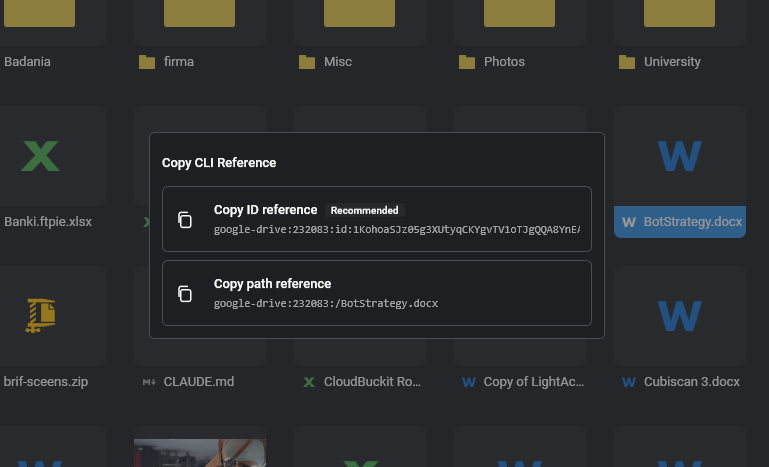
In the app, right-click any file or folder and choose Other → Copy CLI Reference. FTPie copies a ready-to-paste reference - a rename-proof id reference (recommended) or a readable path reference - so you never have to assemble one yourself. And the Command Builder goes one further: it assembles the whole command, references included.
| Example | Resolves to |
|---|---|
dropbox:9034:/Reports/2026 | The /Reports/2026 folder on the account named dropbox (id 9034). The name is a readable label; only the id is matched |
9034:/Reports/2026 | The same folder by bare id - identical result, just less self-documenting |
dropbox:9034:id:<nativeId> | Reference an item by its stable native id - rename-proof, and unambiguous on clouds (e.g. Google Drive) where names can repeat |
local:/C:/Users/you/Desktop | An explicit local path |
C:\Users\you\Desktop or ./out | A bare path - treated as local, backslashes normalized to / |
A prefix with :/ that isn't a numeric id (or a single drive letter) is reported clearly rather than guessed - the CLI exits 3 and points you at the right id, e.g. typing drobox:/ prints "no account for 'drobox'. Did you mean 'dropbox'? Use '9034:/'."
Quick start
From nothing to browsing a cloud folder and pulling a file - no setup, because the accounts are already there.
Command Builder
New in 2026.7.2: you can assemble any CLI command from a dialog instead of typing it. In the app, open the main menu and choose CLI → Command Builder.
- Pick a command from a dropdown - every verb the CLI ships is listed, with its description.
- Fill friendly fields - each argument becomes a labelled input with a hint; flags become checkboxes.
- Pick storage paths visually - a Pick… button opens the item picker and fills in the correct reference (the rename-proof id form where the storage supports it); local paths get a native browse dialog.
- Copy or run - a live preview shows the exact command; copy it into a script, or run it in a terminal straight from the dialog.
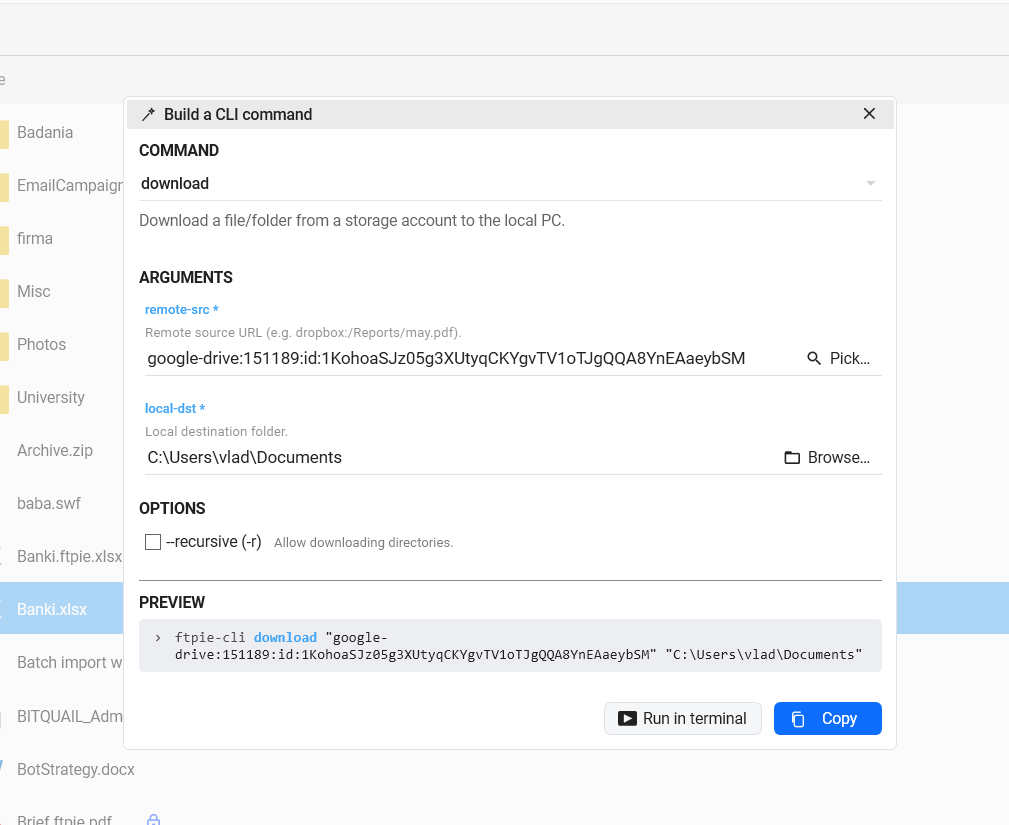
The builder reads the command set from the installed ftpie-cli itself, so the commands, arguments and hints it offers always match the version on your machine - it can never drift from what the CLI actually accepts.
Command reference
The complete command set - twelve verbs. Run ftpie-cli <command> --help for one command's options, or ftpie-cli --help for everything at once.
Every command also accepts --help for its own options and the global --json flag. Run ftpie-cli status to print the version and environment.
Output & scripting
The CLI is built to live in a pipeline. Data goes to stdout; errors and warnings go to stderr (prefixed Error: / Warning:). Color is used only when the stream is a real terminal - piped output stays plain so tools downstream see clean text.
delete prompts before removing. When stdin isn't a terminal (a script or pipe), it refuses without --yes rather than guess.
Folder operations need -r - copy, move, upload, download, and delete all refuse a directory without it.
Exit codes
Every command returns a meaningful exit code so scripts can branch on the outcome.
| Code | Meaning |
|---|---|
0 | Success |
1 | Generic error |
2 | Bad arguments |
3 | Account not found |
4 | Path not found |
5 | Transfer failed |
6 | Cancelled |
20 | Permission denied |
30 | Pro license required |
Good to know
- No separate config or login. Accounts and credentials come from the app; the CLI just reads them.
- Address accounts by id. Use the numeric id from ftpie-cli accounts - e.g. 9034:/path. An optional name label (dropbox:9034:/path) is ignored, so references survive renames.
- upload / download are guard-railed copies. They validate direction up front so a swapped src/dst gives a clear error; use copy for any direction, including cloud-to-cloud.
- Close the app for writes. Read commands are always safe. For write operations (copy, move, delete, upload), close the FTPie window first so its in-memory view stays in sync with what the CLI changes on disk.
- Focused on file operations. The CLI is for browsing, searching, and transferring files. Backups, scheduling, and account setup stay in the FTPie app.
Get FTPie - the app and the CLI
One install gives you the full FTPie app plus the ftpie-cli command. FTP, SFTP, FTPS, WebDAV, and 10+ cloud services - in the window and in your shell. The CLI is a Pro feature and works during the free trial.
Download FTPie Free