QNAP Client for Windows
Access your QNAP NAS from Windows over SMB (the \\server\share network path) - browse, transfer, edit in place and back up, in one app with your clouds. No drive mapping.
QTS gives your QNAP a capable web interface, but a browser tab is a slow way to manage files, and Qsync is a sync client built around mirroring folders locally. If you mostly want to browse the NAS, pull a file, or shuttle data between the QNAP and your cloud, you want a file manager - not a sync agent.
FTPie connects to your QNAP over its SMB / Windows network share and gives it a real dual-pane file manager, in the same window as your clouds and other servers - with no drive to map.
How FTPie connects to QNAP
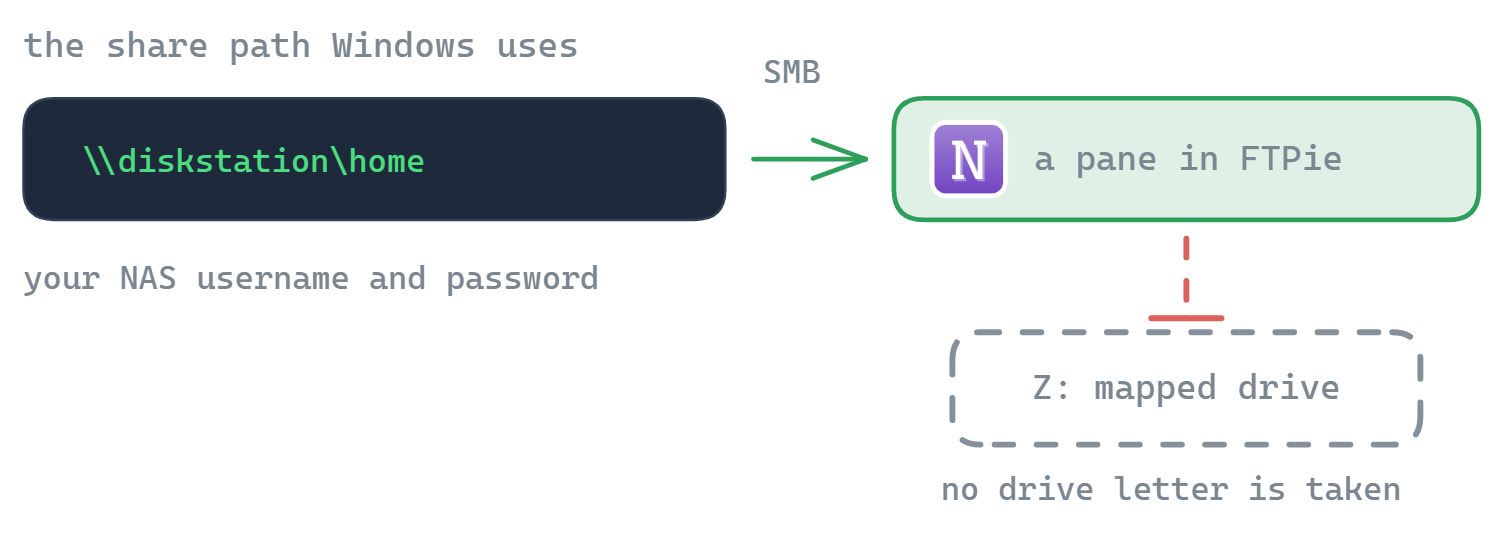
FTPie reaches your QTS NAS over SMB - the standard \\server\share Windows file-sharing protocol. It opens the share inside FTPie; it does not map a drive letter.
- In QTS, make sure Microsoft Networking (SMB) is on (Control Panel → Network & File Services → Win/Mac/NFS/WebDAV) - it is enabled by default.
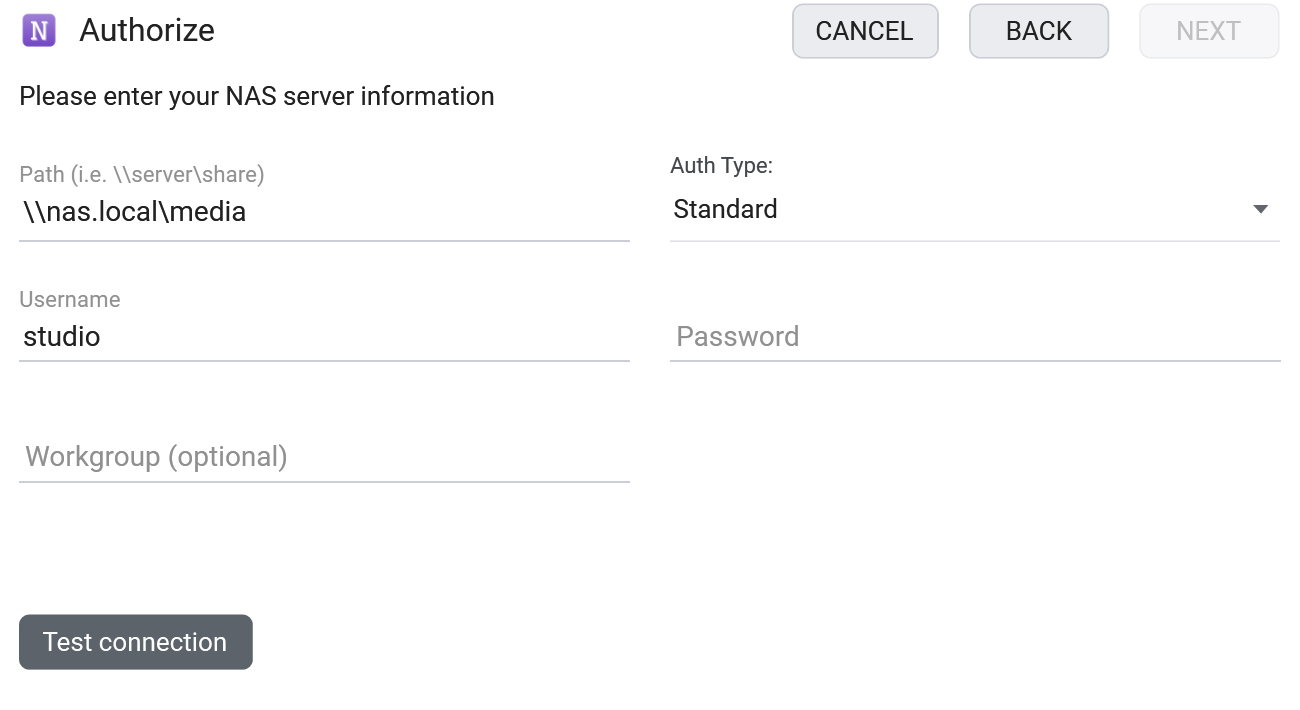
- In FTPie, add a NAS storage and enter the share path, e.g.
\\nas\Publicor\\192.168.1.20\share, with your QNAP username and password. - Your QNAP appears as a tile, ready to browse alongside your other storage.
What you can do
- Browse and transfer in a dual-pane window, with no drive mapping
- Edit in place with built-in editors or your own apps
- Back up QNAP ↔ cloud on a schedule with Auto Backups
- Move files between the NAS and any cloud by dragging across panes
- Connect multiple NAS devices, each as its own tile
Common questions
Over SMB, using the \\server\share path and your QNAP credentials. The share opens inside FTPie's file manager - no drive letter is mapped.
SMB is a local-network protocol, so remote access means a VPN. If you enable SFTP or WebDAV in QTS, you can alternatively add the NAS as an SFTP or WebDAV server for direct remote access.
NAS connections are part of FTPie Pro. The free plan covers up to 3 FTP/FTPS/SFTP connections; Pro adds NAS, cloud, WebDAV and self-hosted, with a 30-day free trial. See the plan comparison.
Related
Start Your 30-Day Free Trial
Download FTPie and start your free 30-day trial. Enjoy seamless FTP + cloud integration and keep using the free version afterward.
Download Free Trial