Synology Client for Windows
Access your Synology NAS from Windows over SMB (the \\server\share network path) - browse, transfer, edit in place and back up, in one app with your clouds. No drive mapping.
Synology's DSM is excellent, but its web File Station is a browser tab, not a file manager - and Synology Drive is a sync client that wants to mirror folders onto your PC. When you just need to browse the NAS, grab a file, or move data between the NAS and your cloud, neither is the right tool.
FTPie connects to your Synology over its SMB / Windows network share and gives you a real dual-pane file manager - in the same window as your other clouds and servers, with no drive to map.
How FTPie connects to Synology
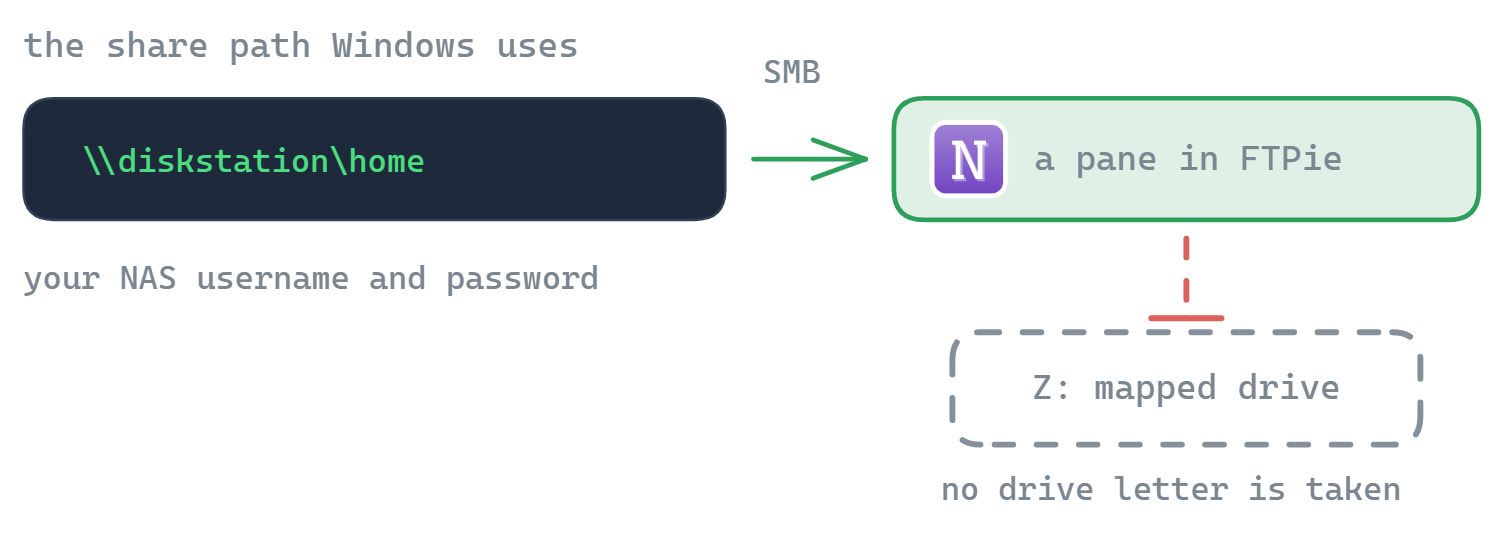
FTPie reaches your DSM NAS over SMB - the standard \\server\share Windows file-sharing protocol. It opens the share inside FTPie; it does not map a drive letter.
- In DSM, make sure SMB is on (Control Panel → File Services → SMB) - it is enabled by default.
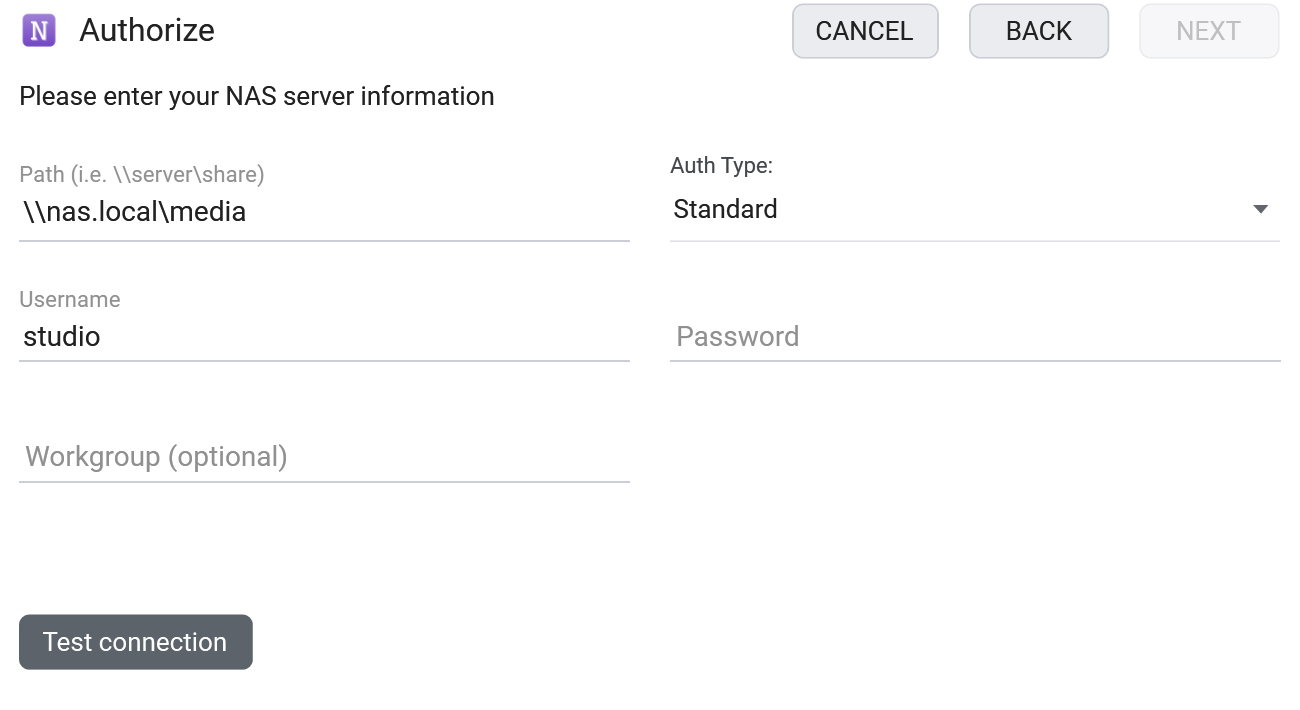
- In FTPie, add a NAS storage and enter the share path, e.g.
\\diskstation\homeor\\192.168.1.10\photos, with your DSM username and password. - Your Synology appears as a tile, ready to browse alongside your other storage.
What you can do
- Browse and transfer in a dual-pane window, with no drive mapping
- Edit in place with built-in editors or your own apps
- Back up Synology ↔ cloud on a schedule with Auto Backups
- Move files between the NAS and any cloud by dragging across panes
- Connect multiple NAS devices, each as its own tile
Your NAS and AI assistants (MCP)
MCP - the Model Context Protocol - is how an AI assistant gets access to external tools and data. The clouds are well served here: there are MCP servers for Google Drive, Dropbox and S3. There is no equivalent for the box sitting in your house, which is where a lot of people keep the archive that would actually benefit from being searchable in conversation.
Your Synology does not need one of its own. It already speaks SMB, SFTP and WebDAV, and FTPie already connects over all three - so the FTPie MCP server (shipped in 2026.9.2) reaches your DiskStation through the connection you have set up in the app, with no extra package to install on DSM and nothing exposed to the internet. It works over your LAN exactly as the app does.
And because the same server also covers your clouds, the useful direction works: pull a finished project down from Google Drive into the right share on the NAS, or push an archive folder off the NAS to cheap object storage - one instruction, one tool, transfers you can watch in FTPie's queue. The same applies to a QNAP or any other SMB share.
Common questions
Over SMB, using the \\server\share path and your DSM credentials. The share opens inside FTPie's file manager - no drive letter is mapped.
SMB is a local-network protocol, so remote access means a VPN. If you enable SFTP or WebDAV in DSM, you can alternatively add the NAS as an SFTP or WebDAV server for direct remote access.
NAS connections are part of FTPie Pro. The free plan covers up to 3 FTP/FTPS/SFTP connections; Pro adds NAS, cloud, WebDAV and self-hosted, with a 30-day free trial. See the plan comparison.
Related
Start Your 30-Day Free Trial
Download FTPie and start your free 30-day trial. Enjoy seamless FTP + cloud integration and keep using the free version afterward.
Download Free Trial