Access Your NAS from Windows
One Windows app to reach your NAS over SMB (the Windows network share) - browse, transfer, edit in place and back up, alongside your cloud accounts and servers. No drive mapping.
A NAS is a great place to keep files - until you actually try to work with them from a Windows PC. The NAS's own web interface is clunky for anything bulk, and none of it helps when your files also live in the cloud or on a server you manage.
FTPie gives your NAS a proper Windows file manager. It connects to the NAS's SMB / Windows network share - the standard \\server\share address Windows already uses for network storage - and puts it in the same dual-pane window as your cloud accounts and servers. Browse, transfer, edit in place and back up, all from one app.
How FTPie reaches your NAS
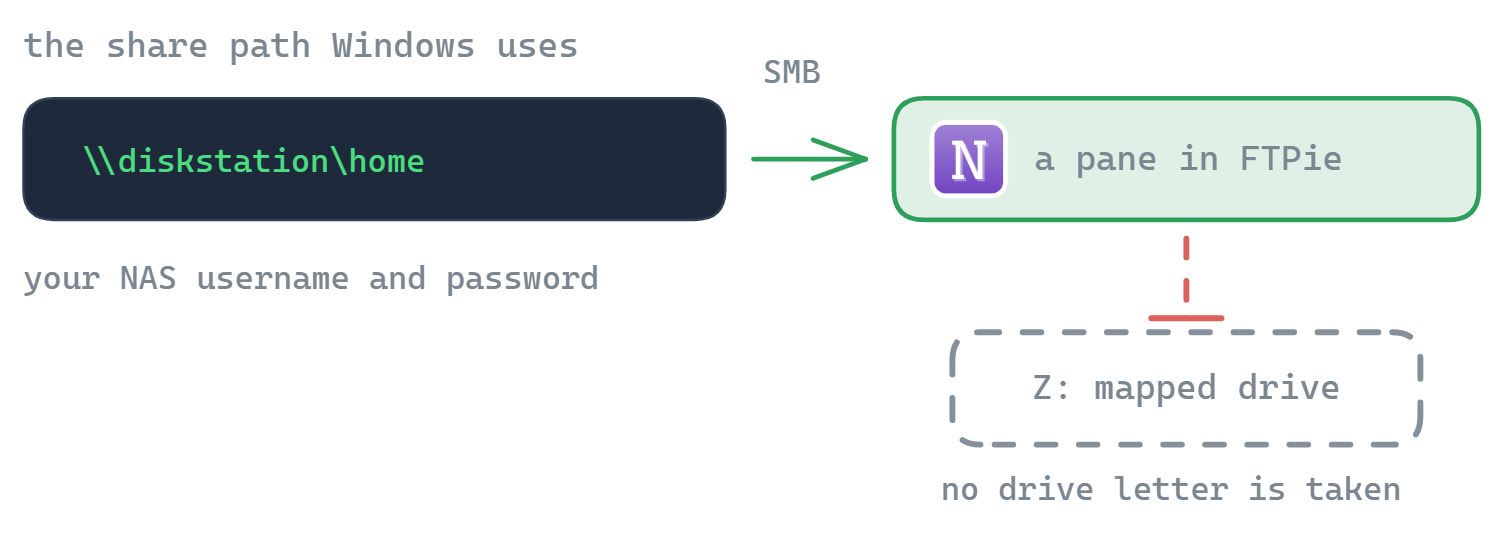
FTPie connects to a NAS over SMB - the Windows file-sharing protocol behind every \\server\share path. It browses the share directly inside FTPie's file manager; it does not map a drive letter, and you do not need to set one up in Windows.
- Make sure file sharing (SMB) is enabled on your NAS - on Synology and QNAP it usually is by default.
- In FTPie, add a NAS storage and enter the share path (e.g.
\\diskstation\homeor\\192.168.1.10\share) with your NAS username and password. - The NAS appears as a tile, ready to browse next to your other storage - no drive mapping required.
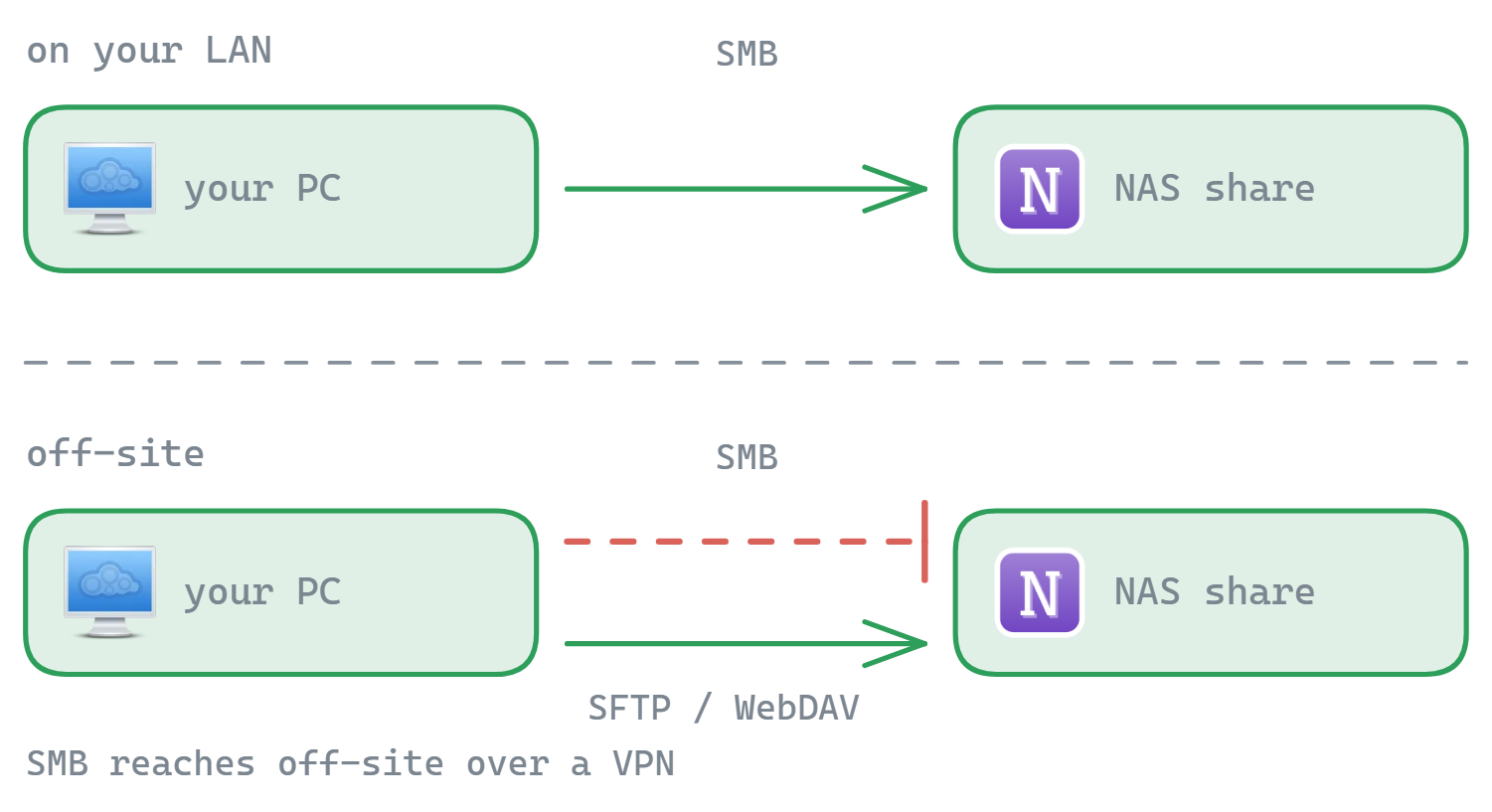
SMB is the default because it is what almost every NAS exposes out of the box, with no extra setup. It is not the only option, though: most NAS devices can also speak FTP/FTPS, SFTP and WebDAV, and FTPie connects over any of them. If your NAS has one of those enabled - or you simply prefer it - add it as a separate SFTP, FTP/FTPS or WebDAV connection instead.
SMB is a local-network protocol, so the SMB connection works on your LAN - or remotely over a VPN, which is the safe way to reach SMB off-site. For direct remote access without a VPN, use one of the alternative connections above (FTP/FTPS, SFTP or WebDAV) if your NAS exposes it to the internet.
What you can do with your NAS in FTPie
- Dual-pane browsing - NAS on one side, a cloud or local folder on the other, drag between them
- No drive mapping - the share opens inside FTPie, not as a
Z:drive in Explorer - Edit files in place with the built-in editors or via local-app round-trip
- Back up NAS ↔ cloud on a schedule with Auto Backups - off-site copies, under your control
- Compress in place and manage multiple NAS devices at once
Your NAS, next to your cloud
The point of a hub is that the NAS stops being an island. Pull a media folder off the NAS into Google Drive to share it, copy a cloud archive down to the NAS for cold storage, or run a scheduled backup from your NAS to off-site cloud storage - all without bouncing between the NAS web UI and a separate cloud app.
Synology (DSM)
SMB is enabled by default in DSM. Connect with \\diskstation\share from FTPie. See the Synology client guide.
QNAP (QTS)
Microsoft Networking (SMB) is on by default in QTS. Connect with \\nas\share. See the QNAP client guide.
Common questions
By default over SMB - the Windows network-share protocol - using the \\server\share path and your NAS credentials, opened inside FTPie's file manager. If your NAS also exposes FTP/FTPS, SFTP or WebDAV, you can connect over any of those instead.
No. FTPie does not map drive letters. It connects to the SMB share directly and browses it in its own window.
Over a VPN, SMB works off-site too. For direct remote access without a VPN, connect via FTPS, SFTP or WebDAV instead - whichever your NAS exposes to the internet.
Yes - Auto Backups can run scheduled, optionally encrypted backups between your NAS and any connected cloud or server.
NAS connections are part of FTPie Pro. The free plan covers up to 3 FTP/FTPS/SFTP connections; Pro adds NAS, cloud, WebDAV and self-hosted, with a 30-day free trial. See the plan comparison.
Related
- Synology client for Windows and QNAP client for Windows
- Automated encrypted backups - back up NAS to cloud
- All integrations and supported services
Start Your 30-Day Free Trial
Download FTPie and start your free 30-day trial. Enjoy seamless FTP + cloud integration and keep using the free version afterward.
Download Free Trial