Automated Encrypted Backups to Cloud and FTP
Schedule encrypted, compressed backups from your PC to Google Drive, Dropbox, OneDrive, pCloud or any FTP/SFTP server. AES-256, flexible retention, no vendor lock-in.
The best backup is the one that runs without you remembering. The second-best is one that’s encrypted, so a compromised cloud account or a leaked external drive doesn’t become a second incident on top of the first. FTPie does both: a scheduler that runs on its own, AES-256 encryption before anything leaves your machine, and destination flexibility that doesn’t tie you to a single cloud provider.
This page covers the Auto Backups feature - what it does, how to set it up, and the decisions worth thinking about (schedule, encryption, retention) when you’re planning an automated backup job.
What FTPie Auto Backups actually does
FTPie is a Windows desktop app that already connects to 24 storage services - Google Drive, Dropbox, OneDrive, pCloud, Box, Mega, Koofr, OpenDrive, plus FTP, SFTP, FTPS, WebDAV, NAS shares over SMB, self-hosted options like NextCloud, ownCloud, and SeaFile, and enterprise object storage (Amazon S3, Azure Blob, Google Cloud Storage and S3-compatible providers). Auto Backups piggybacks on those connections: you pick a source folder, pick a destination among any of those services, configure schedule/encryption/retention, and it runs.
- Source: any local folder on your PC, a network share, or another connected storage (you can back up one cloud to another)
- Destination: any connected storage - cloud, FTP/SFTP server, NAS, self-hosted cloud
- Compression: configurable levels trading speed against archive size
- Encryption: plain password, 128-bit AES, or 256-bit AES
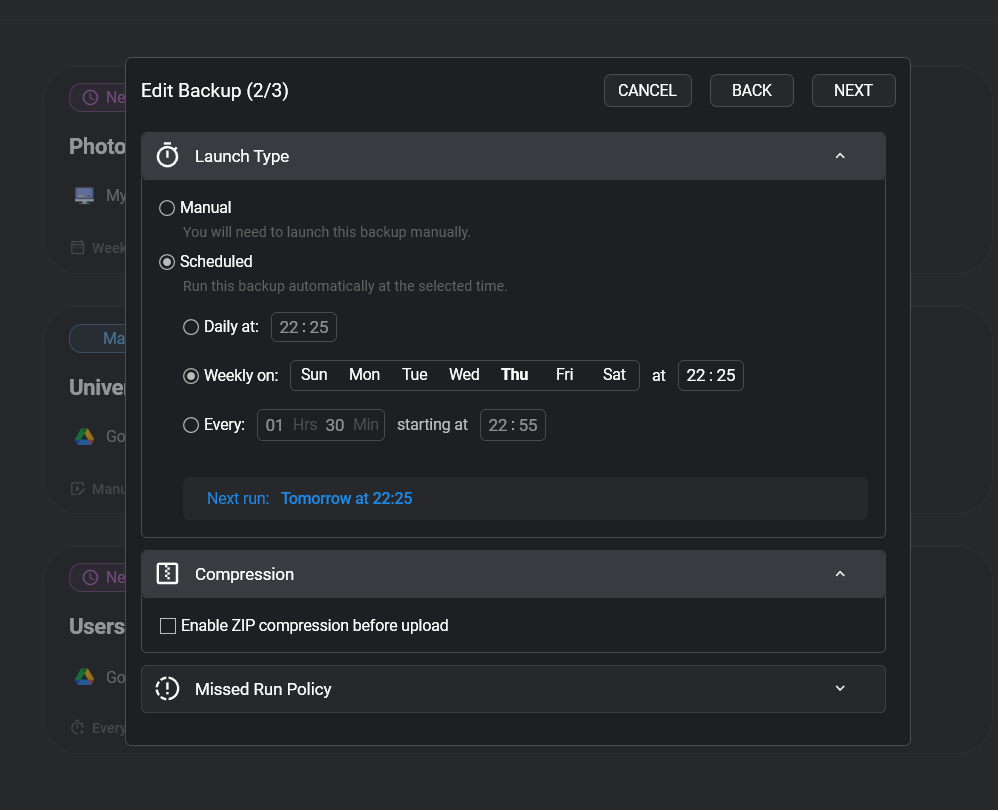
- Schedule: daily, weekly (specific days), custom intervals, or manual-only
- Retention: auto-cleanup by number of days or number of versions
Why encrypt the backup itself?
Cloud providers already encrypt data at rest and in transit. That’s not the same thing as end-to-end encryption. When the provider holds the keys, a provider-side breach, a compromised account, or a court order can all expose the contents. Client-side AES-256 encryption means the archive is ciphertext from the moment it leaves your PC. Whoever ends up with a copy - a hacked Dropbox account, a stolen external drive, a curious admin at your hosting provider - sees nothing without the password.
FTPie encrypts the archive locally before uploading. The password is never sent to the cloud provider; you hold it, and you need it to restore.
Encryption is only useful if you can get your data back. Keep the password stored somewhere reliable and separate from the backup destination - a password manager is the typical answer. An encrypted backup with a lost password is indistinguishable from no backup at all.
Setting up an auto backup (3 steps)
The Auto Backups feature uses a three-step wizard.
- Pick source and destination. Source is the folder you’re backing up - typically a local project folder, Documents, a photo library, or a remote server directory. Destination is any storage you’ve connected in FTPie.
-
Configure.
- Compression level (higher = smaller archive, slower CPU)
- Encryption (pick AES-256 unless you have a reason not to) and password
- Schedule: daily at 2am, every Sunday, every 6 hours - whatever matches how often the source changes
- Missed run policy: skip, run immediately on wake, or wait for the next schedule
- Retention: keep the last 30 days, or the last 7 versions
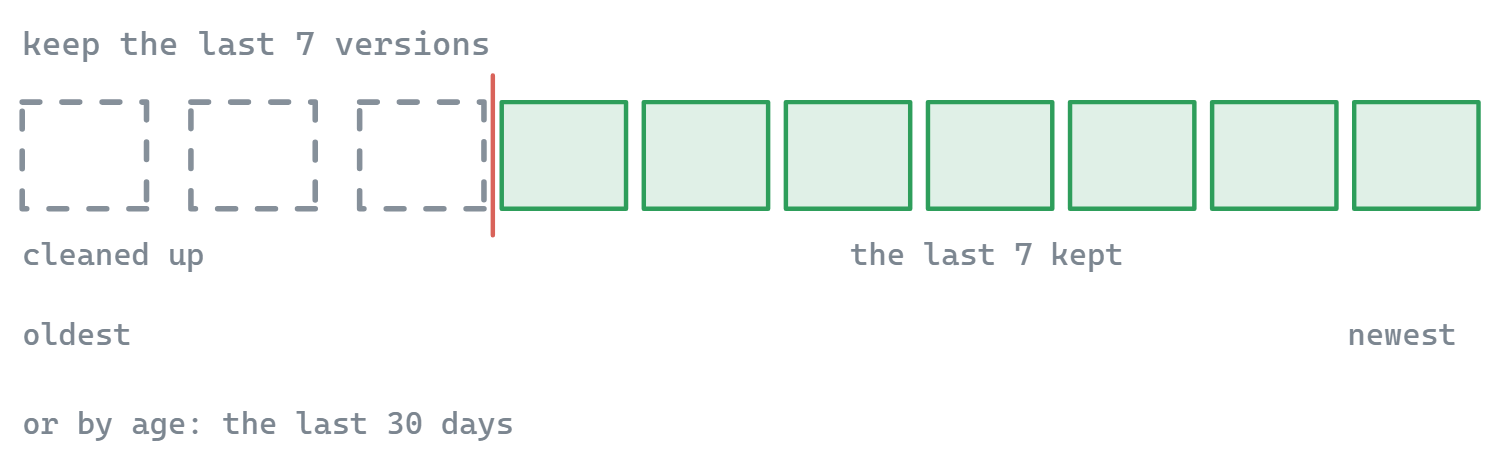
Retention is what stops a nightly job from filling the destination. - Save and activate. The job shows up in the backup list with its next scheduled run.
Picking a destination
The “where to back up” question is worth thinking about for 30 seconds before you pick.
Cloud storage (Drive, Dropbox, OneDrive, pCloud)
Easiest to set up. Off-site by default. Free tiers cover small data volumes. Paid cloud plans are cheap per gigabyte. Works well for documents, photos, project folders.
FTP or SFTP server
Good if you already have hosting with spare disk, or a VPS. Full control over the destination, but you manage the server uptime and capacity.
NAS via SFTP or WebDAV
Synology, QNAP, Unraid - all work as backup destinations. On-prem, no monthly fee, but “in the same building as your PC” isn’t truly off-site.
Self-hosted cloud (NextCloud / ownCloud)
Best of both if you have a server somewhere else. Connect via WebDAV and back up to it on a schedule.
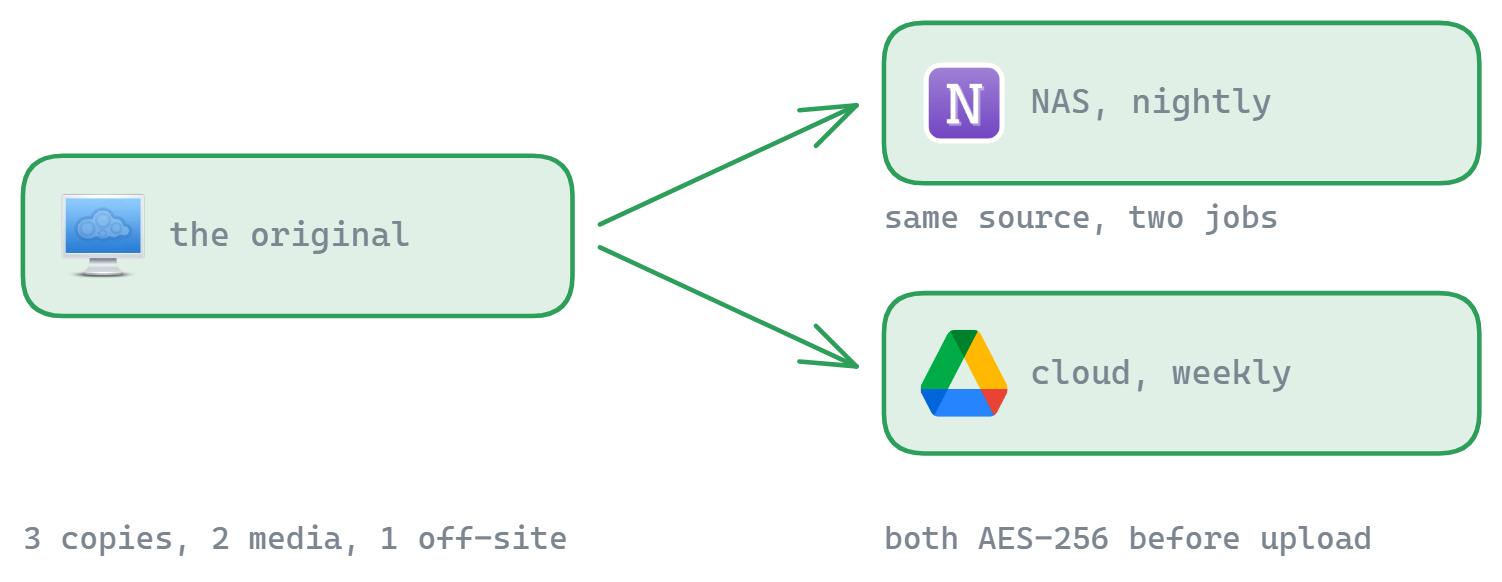
For something critical, the convention is the 3-2-1 rule: three copies of the data, two different media, one off-site. FTPie makes it easy to run two backup jobs with the same source and two different destinations - e.g. one to a NAS nightly, one to cloud weekly.
Compression and retention in practice
Compression is integrated - the backup is stored as a compressed archive, optionally encrypted. For a typical mix of documents and code, expect 20–50% size reduction. Big media files (JPEG, MP4) don’t compress meaningfully, so don’t plan storage based on huge ratios if that’s your data.
Retention policies prevent the backup destination from growing forever:
- By days - “keep anything from the last 30 days”. Predictable disk usage if your data volume is stable.
- By versions - “keep the last 7 runs”. Simpler mental model; disk usage scales with backup size.
“I had a weekly backup running for two years and never thought about it until my laptop SSD died. Restored from last Sunday’s archive and lost six hours of work instead of two years.”
Managing running jobs
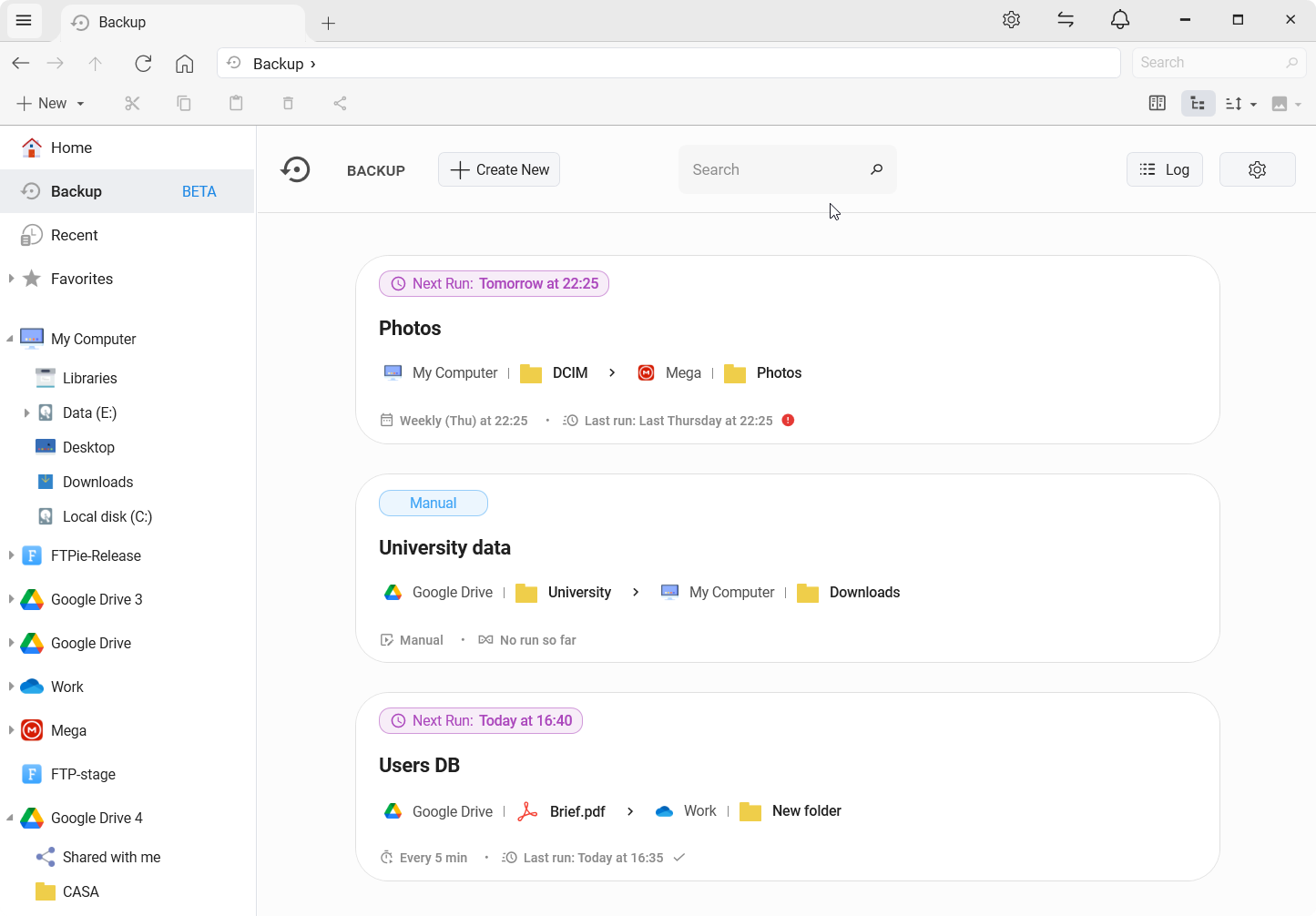
The Auto Backups panel shows all jobs with status, next run, last run, and a pause toggle. Each job has its own history - duration, transferred size, success/failure - plus detailed logs if something goes wrong. You can pause a job without losing its configuration, resume later, or delete jobs that are no longer needed.
If you close the app before a scheduled run, the missed-run policy decides what happens next time FTPie starts: skip the missed one, run it immediately, or wait for the next regular slot.
Answers to the usual questions
Each scheduled run creates a full archive of the source at that point in time. Retention controls how many past runs are kept. Versioned, not deduplicated.
One click. Open the backup’s history, pick a snapshot, and Restore puts it back - to the original location or a new one. It works for plain and password-protected zip snapshots, across local, FTP/SFTP, NAS and cloud, and safe-replace staging means an interrupted restore never destroys your live data.
Yes - FTPie is a desktop app and the scheduler runs inside it. If the PC is off when a run is due, the missed-run policy handles it on next launch.
The job is marked failed, logs are kept, and it retries on the next scheduled run. Each backup can also notify you of the result - in-app toast, email through your own account, Telegram, webhook, or by running a local app - with failure alerts on by default, so you don’t find out weeks later.
Yes. Source can be any connected storage, not just local folders. Example: back up an FTP server’s /var/www directory to Google Drive weekly.
In FTPie, backups are one job among many - transfers, remote editing, file management. If you want a single-purpose tool that only does encrypted, versioned backups to the same clouds, NAS devices, and servers - with a health dashboard per job - we also build BackupKit, encrypted backup software for Windows. Launching August 2026.
Related use cases and features
- Auto Backups feature page - full feature walkthrough.
- Integrated compression - how FTPie creates archives on remote storage.
- Transfer files between cloud accounts - one-off moves vs recurring backups.
- Deploy websites via SFTP - if you want to back up what you deploy, not just deploy it.
- Self-hosted cloud on Windows - NextCloud / ownCloud / SeaFile as a backup destination under your own control.
- Automate PC to cloud backups - detailed tutorial guide.
Start Your 30-Day Free Trial
Download FTPie and start your free 30-day trial. Enjoy seamless FTP + cloud integration and keep using the free version afterward.
Download Free Trial