Transfer Files Between Cloud Accounts on Windows
Move files between Google Drive, Dropbox, OneDrive, pCloud and FTP in one action, with no local download and no bandwidth caps - and no third-party service in the middle.
You have a folder of project files in Google Drive. Your client wants them in their Dropbox. The obvious path - download the folder to your laptop, then upload it to Dropbox - burns twice the bandwidth, fills your SSD, and ties up the machine for an hour if the files are big. It also goes wrong quietly: one failed chunk, one dropped Wi-Fi, and you’re restarting the whole thing.
FTPie treats cloud-to-cloud file transfers as a first-class operation. You connect both accounts once, open them side-by-side in a dual-pane view, and drag files between them. The data streams from one provider straight into the other through FTPie, chunk by chunk, buffered in memory rather than saved: no file lands in your Downloads folder and a 40 GB move needs no free disk space. Your own connection carries it in both directions - what you save is the disk round-trip and the manual steps, not the bandwidth.
Why the usual approaches fall short
Most people trying to move files between clouds end up with one of three options, and each has a real drawback:
Download → upload manually
Uses local disk space you may not have, leaves a copy to clean up, and any interruption forces you to start over. Painful above a few gigabytes.
Web-based cloud transfer tools
Convenient, but the free tiers cap bandwidth (MultCloud, for example, caps at 5 GB per month on free). You also hand your cloud credentials to a third-party server.
Command-line tools (rclone)
Powerful and free, but config-heavy. Fine for recurring automation, overkill for “move this folder once.”
Native sync clients
Drive/Dropbox/OneDrive clients are designed to sync, not move. Using them to transfer between accounts means dragging through local folders - the slowest path.
How FTPie transfers between clouds
FTPie is a Windows desktop app with 24 supported services including Google Drive, Dropbox, OneDrive, pCloud, Box, Mega, plus FTP, FTPS, SFTP and WebDAV. You connect each account once - credentials are stored locally on your machine, never on an FTPie server - then any combination of them can act as source and destination.
- Connect your source cloud (e.g. Google Drive) and destination cloud (e.g. Dropbox) from the dashboard.
- Open both in FTPie’s dual-pane view - source on the left, destination on the right.
- Select the files or folders and drag them across, or use Ctrl+C / Ctrl+V. The transfer starts immediately.
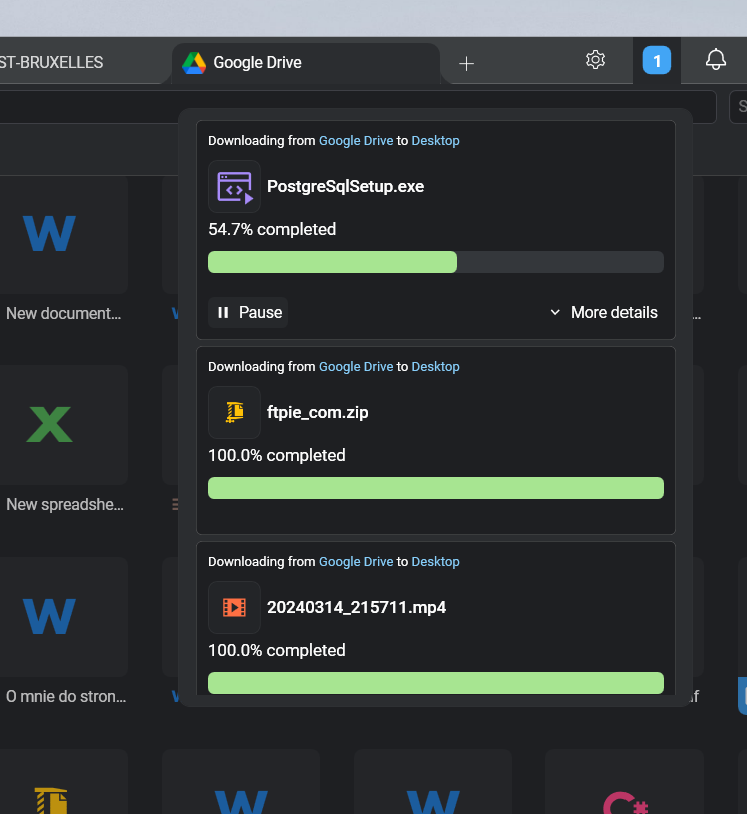
- Close the pane if you want - transfers keep running in the dedicated transfer manager.
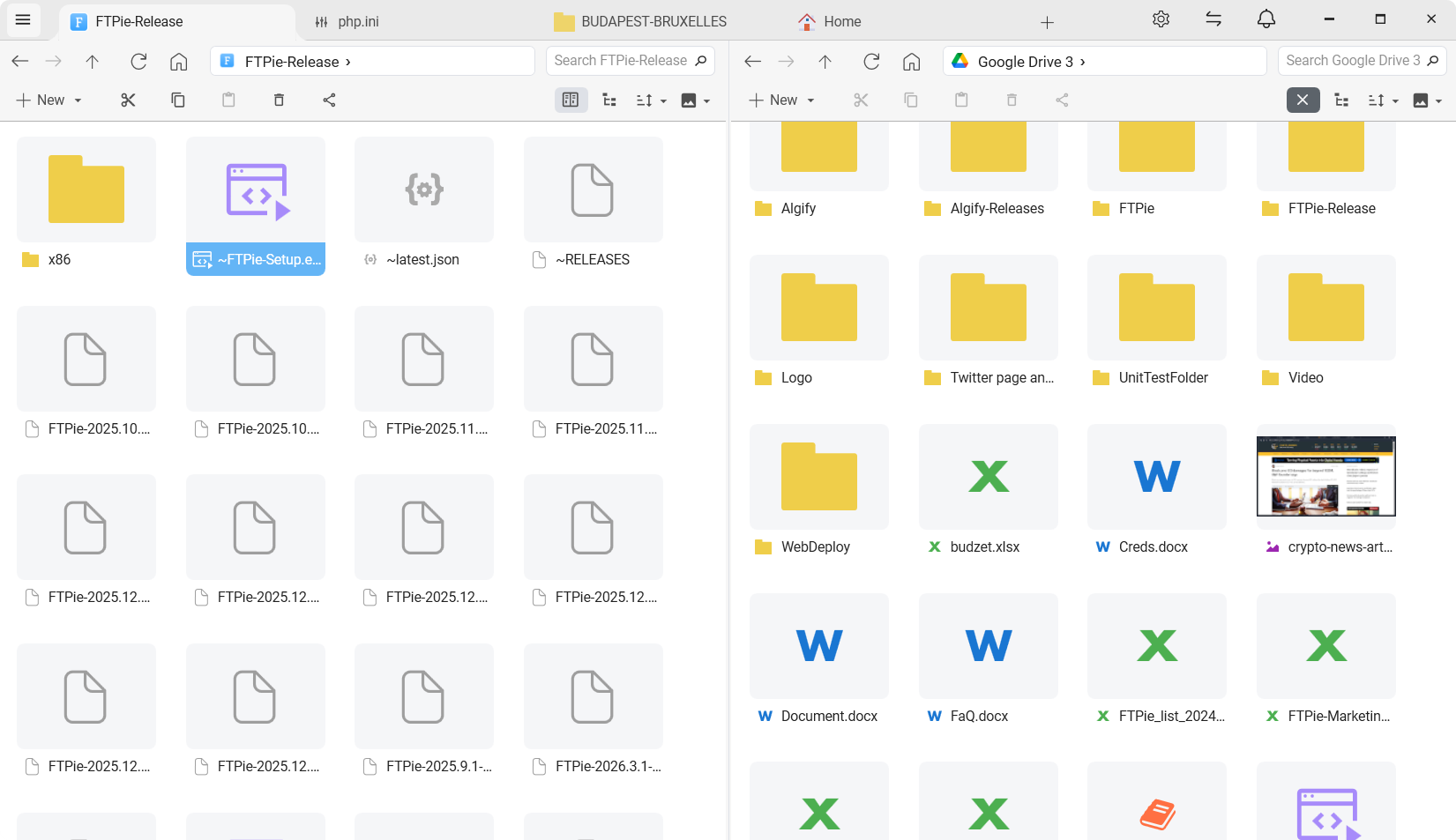
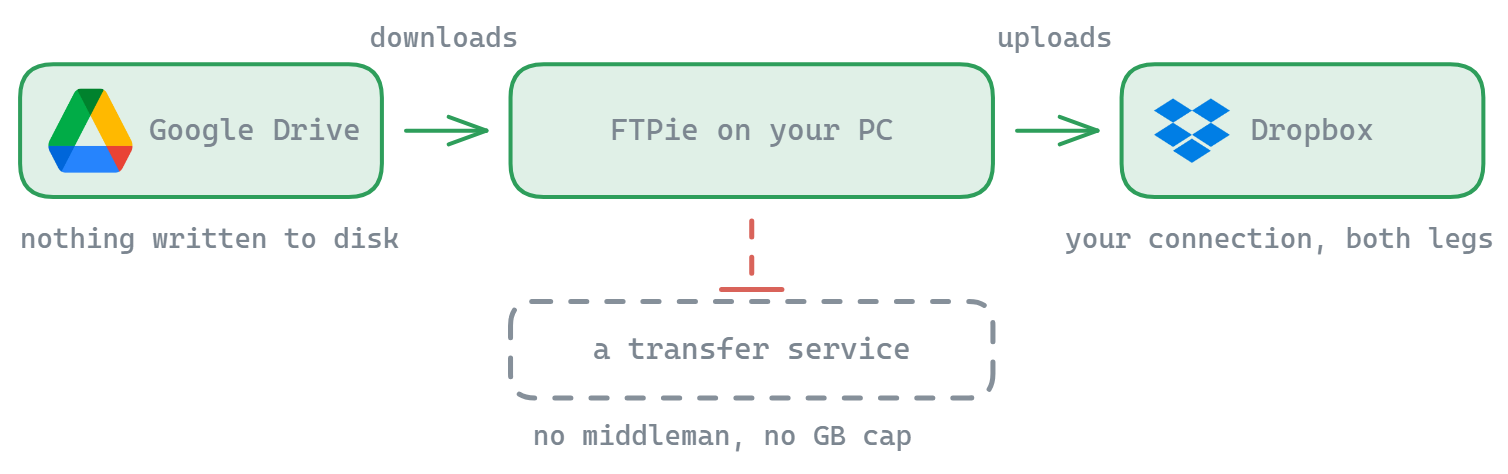
Under the hood, the transfer engine does a few things that matter for big moves:
- Server-side within one storage. Moving or copying between two folders on the same account is handed to that provider, where it supports it, so nothing crosses your connection. Between two different storages the data streams through FTPie.
- Chunk-level pause and resume. A dropped connection doesn’t mean starting the file over. Transfers even survive restarting FTPie.
- Parallel transfers. Five files move simultaneously by default, with a managed queue for the rest.
- Configurable retries. Pick retry count and backoff strategy (linear or exponential) per your connection.
Common cloud-to-cloud scenarios
Google Drive → Dropbox (or the reverse)
Typical when you’re handing a project off to a client who uses the other ecosystem.
Personal → work account on the same provider
FTPie supports multiple accounts per service, so both can be connected at the same time and you just drag between them.
FTP server → cloud storage
Hosting provider’s FTP server on the left, Google Drive on the right. Useful for archiving old site backups.
Cloud → NAS / self-hosted
Dropbox on the left, a Synology NAS over SFTP on the right. Get your files off rented storage and onto your own hardware.
What about really large transfers?
For anything above a few tens of gigabytes the two things that matter are: what happens when the connection blinks, and whether you can walk away from the machine. FTPie’s chunk-level resume handles the first. For the second, the transfer queue keeps running with the app minimized, and you can pause and resume individual transfers without losing progress on the rest.
If the move is recurring rather than one-off - say, weekly archives from an FTP server to a cloud bucket - point the same source and destination at an Auto Backup job instead, and let FTPie run it on schedule.
Answers to the usual questions
FTPie is a local Windows application. Credentials and tokens are stored on your machine and used to talk directly to each cloud provider. Nothing is proxied through an FTPie server.
No. There’s no FTPie-imposed cap. You’re bound only by what the providers and your network support.
Cloud storage (Google Drive, Dropbox, OneDrive, etc.) is part of Pro. The Free plan covers up to 3 FTP/FTPS/SFTP connections. See the plan comparison for the full split.
FTPie retries automatically based on your settings, then pauses the file if it can’t recover. Resume from the transfer manager once the connection is back - chunk progress is preserved.
Related use cases and features
- Pair-specific walkthroughs: Dropbox ↔ Google Drive · OneDrive ↔ Google Drive · Dropbox → OneDrive.
- Google Drive migration tool - moving a whole Drive to another account, provider, or NAS.
- Transfer engine deep-dive - pause/resume, parallel transfers, chunking internals.
- Dual-pane storage explorer - how the main interface works.
- Automated encrypted cloud backups - when the transfer is recurring, not one-off.
- Edit remote files without downloading - once your files are on the destination, edit them in place instead of round-tripping through your laptop.
- Self-hosted cloud on Windows - if the destination is NextCloud / ownCloud / SeaFile instead of a commercial provider.
- FTPie vs MultCloud - desktop-native vs web-based comparison.
- FTPie vs rclone - GUI vs CLI for the same job.
Start Your 30-Day Free Trial
Download FTPie and start your free 30-day trial. Enjoy seamless FTP + cloud integration and keep using the free version afterward.
Download Free Trial