Edit Remote Files Without Downloading
Open, edit and save files on SFTP, FTP, WebDAV or cloud storage directly - built-in code editor, Markdown live preview, and round-trip editing with any local app.
index.html in the built-in Monaco editor, tweaking a value, hitting save - no download, no re-upload.
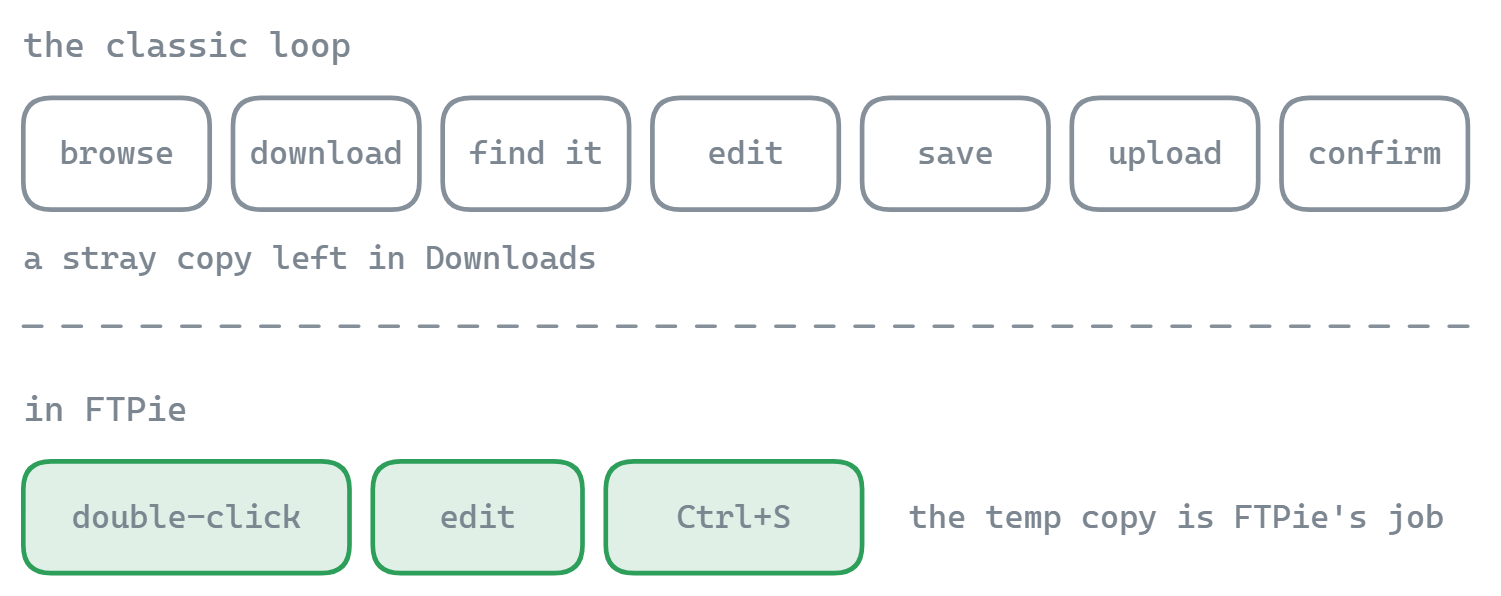
The “open, edit, save” loop is the most common thing you do with remote files, and most FTP clients make it the most annoying. Classic flow: browse to the file, download it, find it in your Downloads folder, open it in Notepad or VS Code, make a change, save it, drag it back to the FTP pane, confirm the overwrite, hope you didn’t pick up a newer copy from the server in the meantime. Every step is a chance to mess up.
FTPie collapses the whole loop to double-click → edit → Ctrl+S. The file stays logically where it lives; FTPie handles the temp download, the save-back, and the cleanup. This works on files stored on SFTP, FTP, FTPS, WebDAV, Google Drive, Dropbox, OneDrive, pCloud, Box, Mega, ownCloud, NextCloud, SeaFile, or a network share - same workflow everywhere.
Who needs this and why
Three kinds of edits make up most remote-file work:
Server configs
wp-config.php, nginx.conf, .htaccess, .env, docker-compose.yml. One-line changes that you don’t want to treat as a deployment.
Documentation and notes
README files, project docs, changelogs, tech specs - often living in Markdown on a shared server or private cloud.
Working documents
Word, Excel, Google Docs files stored in a cloud account you need to edit in place without copying down to the desktop.
Quick content fixes
Typo in a JSON blob, fix a value in a YAML deployment, correct a sentence in a PDF - in-place edits you shouldn’t need to ceremony.
Why the usual approaches fall short
- Classic FTP clients (FileZilla, WinSCP) - there’s no built-in editor. They shell out to Notepad or a configured external editor and rely on a watcher to detect saves. The watcher is brittle, doesn’t always catch edits, and leaves temp files around.
- VS Code with SFTP extensions - works, but setup is fiddly (per-project JSON, keyfile paths, workspace mode). Fine for development, overkill for “fix one line on a server.” Cloud-storage support varies by extension and quality is mixed.
- Mount the cloud as a drive - Drive / OneDrive desktop clients sync; they don’t stream edits. Large files pull down in full, and FTP isn’t mountable without third-party tools.
- Cloud provider’s web UI - the browser editor is barebones, doesn’t exist at all for FTP, and can’t handle binary or structured formats well.
How FTPie does it
FTPie ships with its own embedded apps - viewers and editors that open remote files in tabs inside the app itself. Four editors cover most of what people edit:

Monaco code editor
The same editor engine VS Code is built on. Syntax highlighting for 50+ languages, minimap, find/replace, scroll preview, dark/light theme. Handles server configs, code, JSON, YAML, SQL, anything text.
Markdown editor
Dedicated Markdown editor with live preview - edit on one side, rendered result on the other. Save straight back to the remote file. Good for READMEs, docs, notes kept in a NextCloud or SFTP-mounted project folder.
PDF viewer
Open PDFs from any storage with text selection and search. Reading and reference rather than full editing, but frequent enough that having it inline saves round-trips.
Image & video viewers
Zoom, pan, rotate, flip on images; full media controls for video. Useful for verifying the right file is at the right path before making changes elsewhere.
When you need your own editor: local-app round-trip
Some files need more than an embedded editor. A .psd belongs in Photoshop. A .sketch wants Sketch. A 5000-line codebase you’re debugging deserves your full VS Code setup with your extensions and keybindings.
FTPie’s document editing feature handles this: right-click → Edit in local app. FTPie downloads the file to a secure temp location, opens it in the associated Windows application, watches for saves, and streams every save back to the original remote location. When you close the file, FTPie deletes the temp copy.
- Right-click a remote file in any FTPie pane, pick Edit
- FTPie downloads it to a secure temp folder (not your Downloads)
- Windows opens the file in its default application for that file type
- You edit and save as normal - FTPie pushes each save back to the remote location automatically
- Close the file; FTPie cleans up the temp copy
Google Docs and Microsoft 365 round-trip
Office-type documents get a cloud version of the same workflow. If you have Google Drive connected, FTPie can open a .docx or .xlsx from any storage - even an SFTP server or a Dropbox account - in Google Docs or Sheets, save your edits there, and copy the updated file back to wherever it came from with the original format preserved. Same for Microsoft 365 if OneDrive is connected.
This is useful for three situations: collaboration (comments, real-time co-editing), mobile access (the cloud version is reachable from phone/tablet while the original stays on a server), and just “I don’t have Office installed.”
“I edit server configs five times a week. With FTPie it’s double-click, fix the line, save. Used to be ten clicks and a lot of hoping I didn’t pick up a stale version.”
Answers to the usual questions
FTPie writes the new file under a temporary name on the remote side first, then atomically replaces the original. If the network drops mid-save, the original file stays intact and FTPie tells you the save failed so you can retry.
Yes. SFTP connections support password or private key auth - editing works the same either way.
FTPie preserves file permissions and timestamps during the save-back where the protocol supports it. SFTP preserves mode bits; cloud providers use their own metadata models.
In a managed secure temp folder (not your regular Downloads). FTPie deletes them automatically when you close the editor or the local app editing the file.
The protocols themselves (FTP/SFTP/WebDAV) don’t have locking; FTPie follows the protocol. For Google Docs / MS 365 round-trip, the cloud editor handles real-time collaboration natively.
Free covers basic viewing (PDF, code, image) on FTP/FTPS/SFTP storage. The premium embedded apps used in this workflow - Markdown editor, Document Editing (Google Docs / M365), and the full editor round-trip with local apps - are part of Pro, along with cloud / WebDAV access. See the plan comparison.
Related use cases and features
- Embedded apps feature page - full list of built-in viewers and editors.
- Document editing feature page - Google Docs, MS 365, local app round-trip details.
- Deploy a website via SFTP - editing configs as part of the deployment workflow.
- Self-hosted cloud on Windows - editing files on your NextCloud / ownCloud / SeaFile server.
- Transfer files between cloud accounts - move a file first, then edit it in place on the destination.
- How to edit remote files (guide) - tutorial walkthrough.
Start Your 30-Day Free Trial
Download FTPie and start your free 30-day trial. Enjoy seamless FTP + cloud integration and keep using the free version afterward.
Download Free Trial