Self-Hosted Cloud on Windows (NextCloud, ownCloud, SeaFile)
Native Windows client for NextCloud, ownCloud and SeaFile. Dedicated setup wizards, full file-manager workflow, no WebDAV URL hunting, no forced sync.
You self-host because you’ve decided your data isn’t something you want living on someone else’s subscription. NextCloud, ownCloud, or SeaFile on a VPS, a home server, or a NAS is a reasonable place to land - but the Windows client story for all three has historically been two options: the official sync client (which only syncs, doesn’t browse) or a generic WebDAV mount with an obscure URL to paste.
FTPie gives you a third option: a native Windows file manager that treats your self-hosted cloud as a first-class storage type, with a dedicated setup wizard for each service, alongside FTP, SFTP, WebDAV, and commercial clouds in the same tabbed interface.
What “first-class” means here
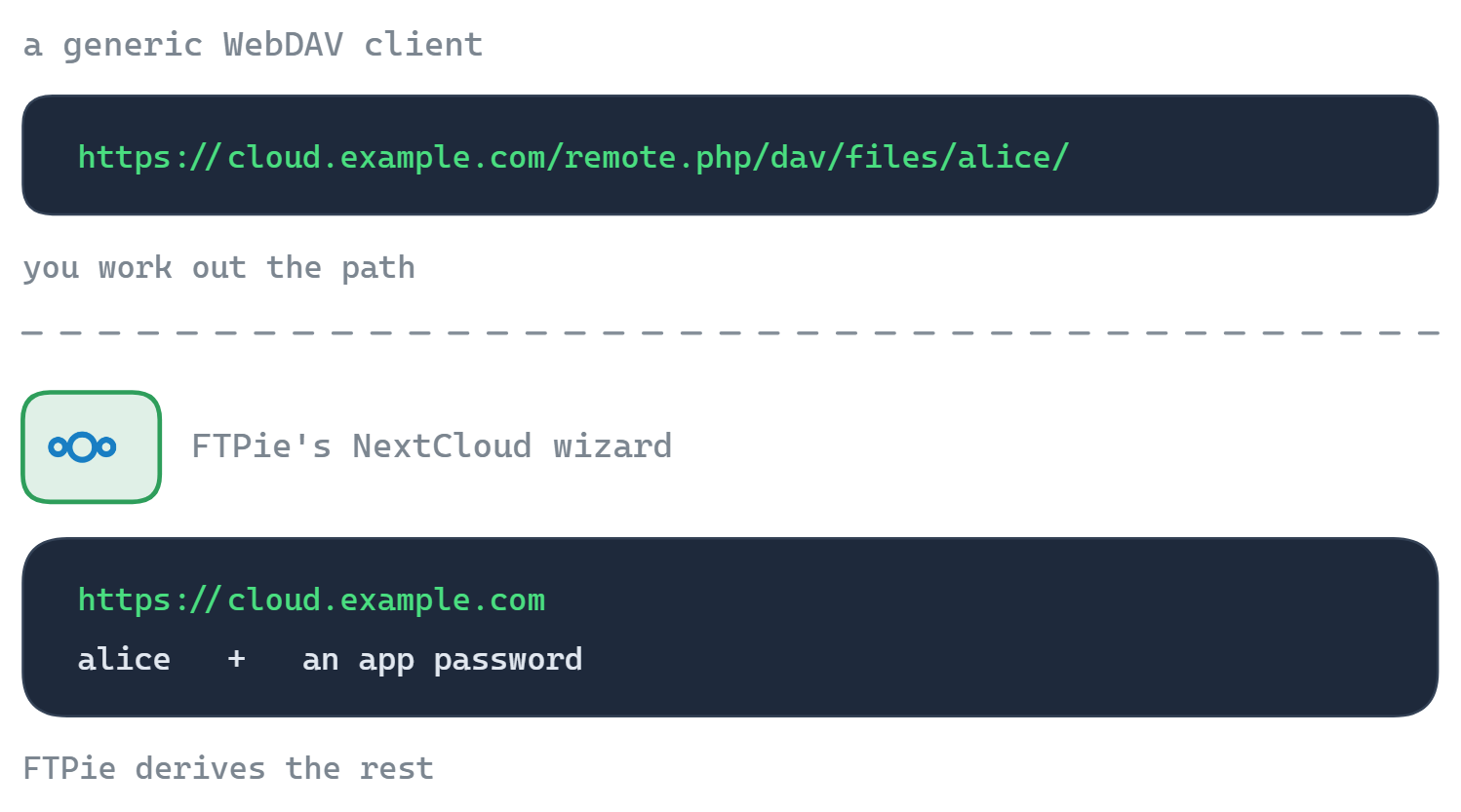
Most third-party tools treat self-hosted cloud as “well, it speaks WebDAV” and make you paste the full WebDAV URL, figure out the right path component, and handle your own authentication setup. FTPie ships dedicated connectors for each service:
NextCloud
Connect by server URL + username + password (or app password). FTPie derives the right endpoint paths automatically.
ownCloud
Same wizard-style connection. Works against ownCloud Infinite Scale and classic ownCloud instances.
SeaFile
Connects to SeaFile libraries with the service’s own auth model rather than a raw WebDAV layer.
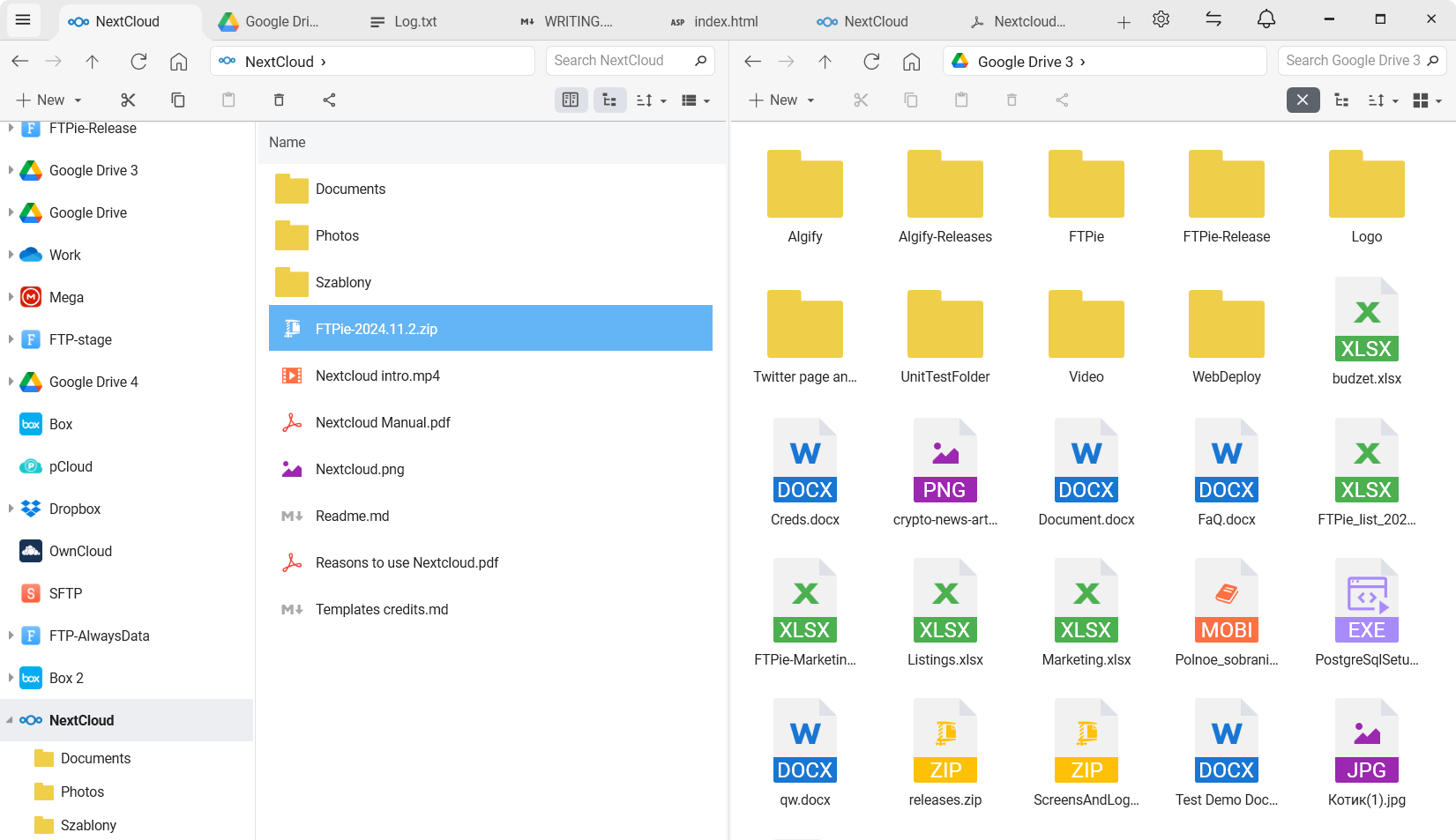
Once connected, each server shows up as a tile on the FTPie dashboard and in the tree view. You open it like any other storage - browse folders, open files, drag to another pane, run backups against it, edit in place.
Why this beats the official sync clients
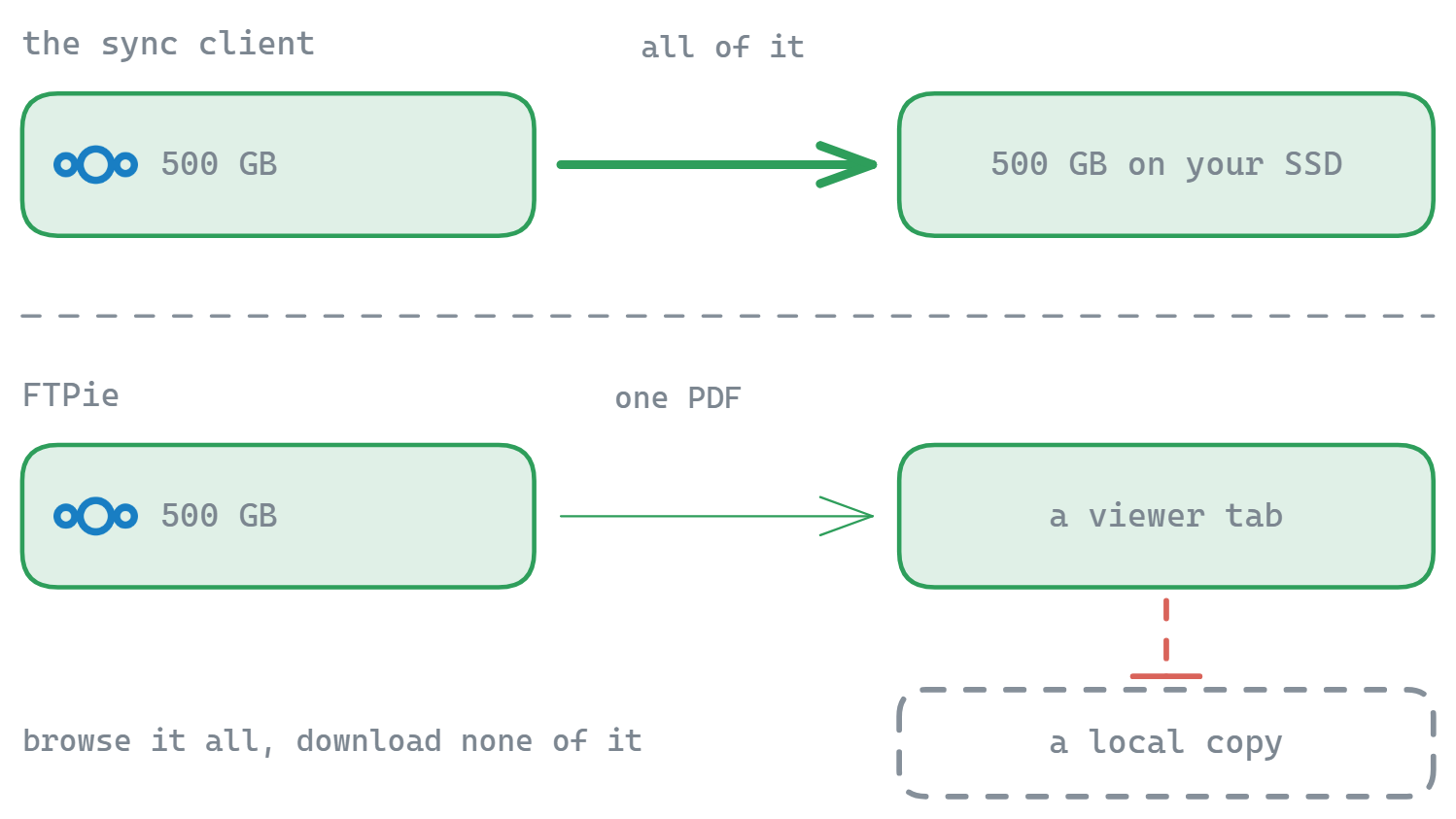
Sync clients are optimized for “I want this folder to be on my laptop”: they download everything in the selected paths, keep it in sync, and warn you if you’re low on disk. For a 500 GB photo library on your NextCloud that’s a non-starter. For a 30 GB document vault it’s overkill if you just want to grab one file.
FTPie is the opposite approach: nothing is downloaded until you open or transfer it. Browse the entire tree without copying a byte. Open a single PDF - FTPie streams it into the built-in viewer and doesn’t leave a local copy. Grab the one file you wanted and move on.
Official sync clients
Good for “I want this folder on my laptop,” bad for “I want to access 500 GB without filling my SSD.”
FTPie
Good for “I want to browse, open, edit, transfer, and back up without downloading everything.”
The two can coexist. Keep the sync client running for your always-offline-needed Documents folder; use FTPie for everything else on the server.
What you can do with a self-hosted cloud in FTPie
All the standard FTPie workflows apply to NextCloud / ownCloud / SeaFile the same as they do to any cloud or FTP server:
- Dual-pane browsing - server on one side, local or another server on the other, drag between them
- Edit files in place with the built-in Monaco / Markdown editors or via local-app round-trip (see the editing use case)
- Automated encrypted backups to or from your self-hosted server (see the backup use case)
- Compression in place - zip files directly on the server without downloading them first
- Transfer files between your self-hosted server and commercial clouds - migrate out of, or into, a self-hosted instance without going through local disk
- Quick Share - generate shareable links (FTPie bridges via your default shareable storage when the self-hosted server itself can’t produce public links)
- Favorites and Recent Documents - pin hot folders on your NextCloud server alongside folders on any other storage
Scenarios this is built for
The home-server person
NextCloud on a home NAS or Proxmox VM. Uses FTPie to browse / grab files from Windows desktops without syncing the whole server locally.
The small team on ownCloud
Team shares a self-hosted ownCloud instance. FTPie gives each team member a real file-manager workflow without touching the web UI or running sync for gigabytes they won’t use.
The migration out of Dropbox / Drive
Dropbox in one pane, NextCloud in the other, drag across. Doesn’t require syncing Dropbox locally first - FTPie streams between them.
The backup target
Use your SeaFile server as a backup destination with AES-256 encryption and scheduled runs from FTPie. Off-site (in the sense of off-laptop), under your control.
“The official NextCloud client kept trying to download 200 GB of photos I didn’t need on my laptop. Switched to browsing the server through FTPie instead. Problem solved.”
Answers to the usual questions
Yes. Connection setup accepts custom URLs, ports, and paths. Before connecting, you can also sanity-check the endpoint with the free WebDAV connection tester or the certificate checker.
App passwords yes - create one in the NextCloud / ownCloud security settings and use it as the password in FTPie. That’s the recommended approach when your account has 2FA enabled.
No. FTPie is a local desktop app. Credentials live on your Windows machine, encrypted, and are used to talk directly to your self-hosted server. No FTPie-operated proxy in between.
You can connect as many servers and accounts as you want, across any mix of NextCloud / ownCloud / SeaFile / WebDAV and everything else. Each is a separate tile on the dashboard.
No - FTPie uses a dedicated connector for each service, built on the service’s own API rather than a generic WebDAV mount. That is what handles sign-in, endpoints and per-service quirks for you, so you don’t paste raw URLs.
Self-hosted cloud connections (NextCloud, ownCloud, SeaFile) are part of Pro, along with WebDAV, NAS, and the commercial clouds. Free covers up to 3 FTP/FTPS/SFTP connections. See the plan comparison.
Related use cases and features
- All supported services - full list of storages FTPie connects to.
- Transfer files between cloud accounts - migrate into or out of a self-hosted server.
- Automated encrypted backups - use your self-hosted server as a backup destination.
- Edit remote files without downloading - editing on a self-hosted cloud works the same as SFTP.
- Security & privacy - how FTPie handles credentials and data.
Start Your 30-Day Free Trial
Download FTPie and start your free 30-day trial. Enjoy seamless FTP + cloud integration and keep using the free version afterward.
Download Free Trial