Deploy a Website via SFTP on Windows
Connect to any SFTP server, upload builds, edit configuration files in a built-in Monaco editor, and deploy from Windows Explorer with FTPie’s shell extension.
If you deploy websites on Windows, there’s a good chance your workflow still looks like this: open an old FTP client, connect to the server, drag a build folder into a tiny panel, notice a config file needs tweaking, download it, open it in Notepad, save, upload, hope you didn’t clobber a newer version. The protocol underneath - SFTP - is modern and secure. The tooling most people use around it is 15+ years old.
FTPie is a native Windows SFTP client built for the way people actually deploy today: tabbed interface, built-in code editor, Windows Explorer integration, and support for your FTP server and your cloud storage in the same app. This page walks through the deployment workflow end-to-end.
Who this is for
Freelance web developers, agency devs maintaining multiple client sites, sysadmins pushing config to remote servers, and anyone who has outgrown FileZilla but doesn’t want to live in a terminal. FTPie supports:
- SFTP (SSH-based, the modern standard for secure file transfer)
- FTPS (FTP over SSL/TLS)
- Plain FTP (still common with shared hosting)
- WebDAV (useful for some managed platforms)
- Plus 6+ cloud storage services alongside, in the same app
Connecting to an SFTP server
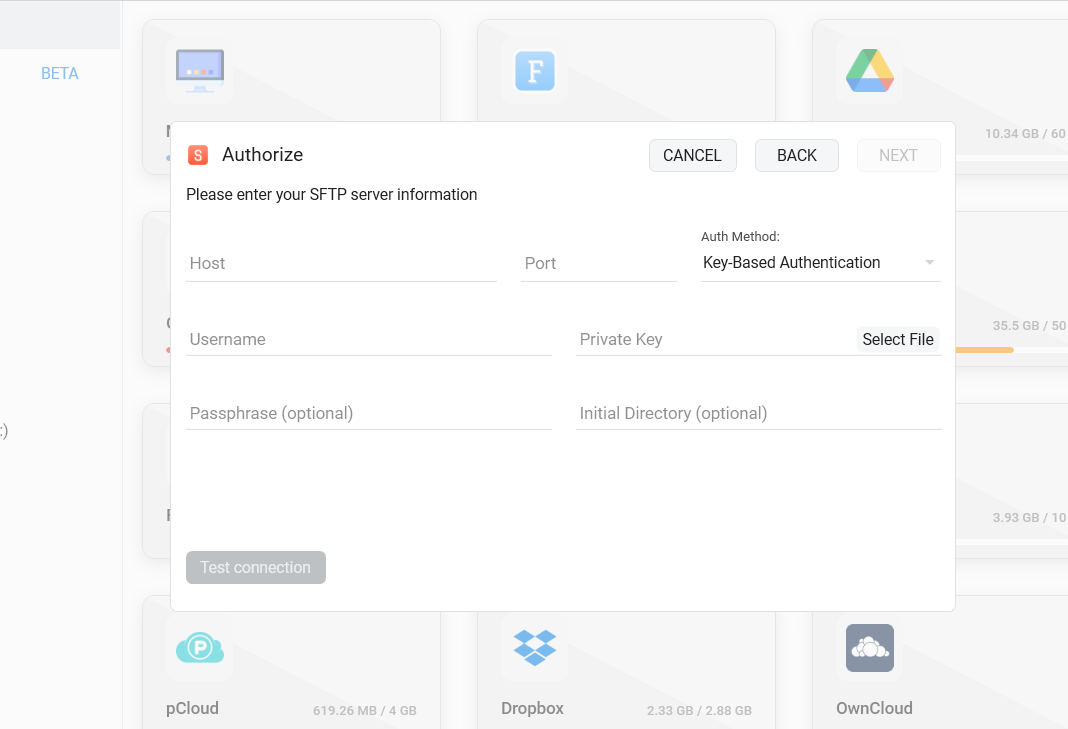
The connection dialog asks for host, port (22 by default), username, and either a password or an SSH private key. FTPie keeps stored credentials on your local machine - nothing is uploaded to a vendor server.
- Open the dashboard and click Add Storage → SFTP.
- Fill in host and port; pick password or key-based auth.
- Optional: set a specific starting directory so the connection opens straight into your site root.
- Save. The connection shows up as a tile on the dashboard and in the tree view for quick access.
Before connecting to a new server, you can sanity-check the endpoint with the free online SFTP connection tester or verify the key with the host key fingerprint viewer.
The deployment workflow
Deploying a static site or a PHP/WordPress project typically looks like this in FTPie:
1. Open source and server side-by-side
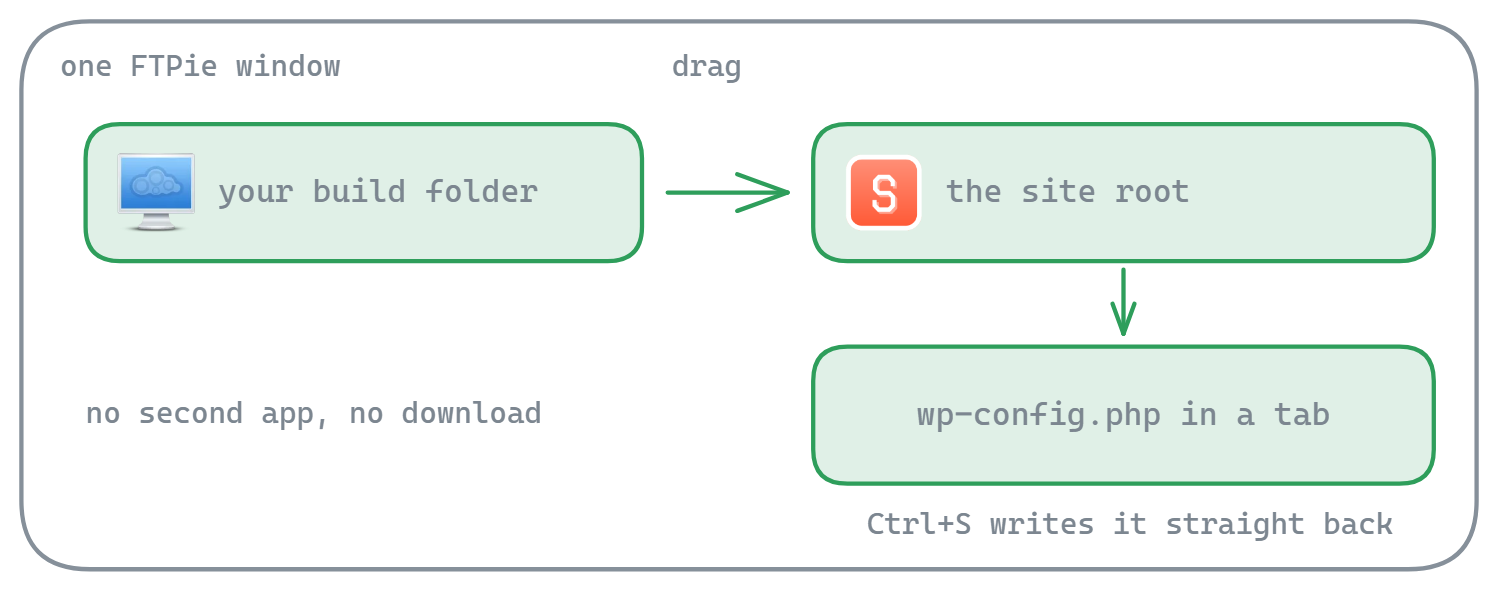
The left pane shows your local build folder; the right pane shows the remote site root via SFTP. This is the dual-pane storage explorer - Total Commander-style.
2. Drag the build across
Parallel transfers move multiple files at once. Chunk-level resume means a flaky connection doesn’t restart large assets.
3. Tweak configs in place
Double-click .htaccess, wp-config.php, nginx.conf - FTPie opens it in a tab with the built-in Monaco editor. Save and the file goes straight back to the server.
4. Verify from the browser
Multi-tab interface means you can keep the server open while you switch to a preview, check logs, or pull a file from another project - all without closing anything.
Editing remote files without downloading
This is the single biggest workflow improvement over traditional FTP clients. FTPie includes embedded apps - Monaco (VS Code’s editor engine), PDF viewer, image viewer, video player - that open remote files in tabs inside FTPie itself.
- Monaco code editor with syntax highlighting for 50+ languages, minimap, scroll preview, and dark/light theme-sync
- Edit
.php,.js,.ts,.yml,.json,.confdirectly from any SFTP/FTP server or cloud storage - For a file that needs your full IDE, FTPie can also open it in any local editor (VS Code, Sublime, etc.) and sync changes back automatically via its document editing feature
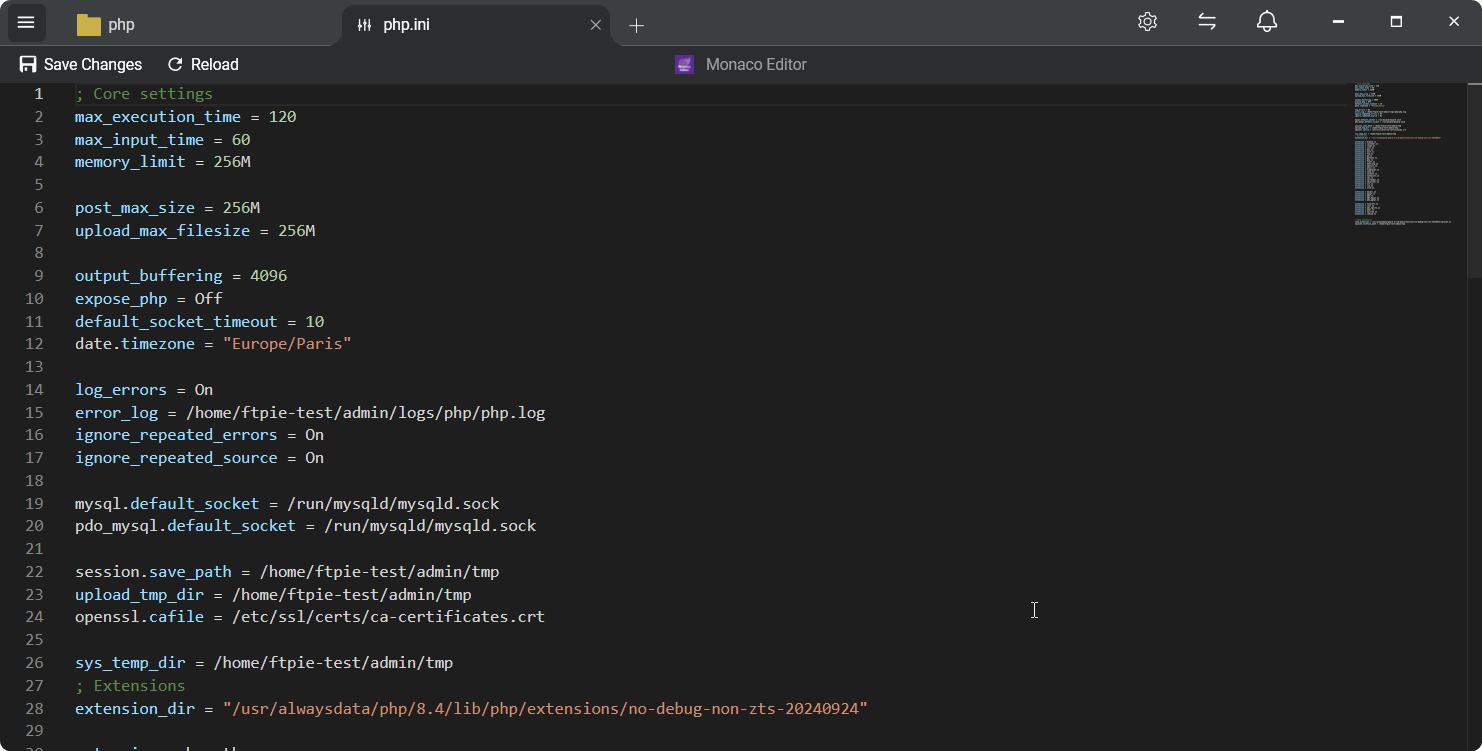
“Editing wp-config.php used to mean download, edit, re-upload, cross fingers. Now it’s double-click, edit, Ctrl+S.”
Deploying from Windows Explorer
FTPie installs a shell extension that adds a right-click submenu in Windows Explorer. This is useful when you want to deploy without opening the app at all:
- Quick Upload - right-click any folder in Explorer → pick a destination on any connected SFTP server → transfer starts in the background
- Open in FTPie - right-click a local folder that mirrors a remote path and jump straight there in FTPie
- Bi-directional drag-and-drop between Explorer and FTPie panes
- Clipboard integration - Ctrl+C a file in Explorer, Ctrl+V it into an SFTP folder in FTPie
For repeat deployments, folder shortcuts let you create a desktop icon that launches FTPie straight into a specific server path. One click, you’re in your site root.
Handling multiple client servers
Agency work often means a dozen different client servers, each with its own credentials. FTPie lets you:
- Save each server as a named connection on the dashboard
- Reorder them (drag favorites to the top)
- Pin frequently-used remote folders to the left-side tree view for one-click access
- Tab between two servers at once - e.g. copy files from staging to production without downloading through your laptop
Answers to the usual questions
Yes. You can connect to SFTP using a password or a private key file.
Locally on your Windows machine, encrypted. Nothing is sent to an FTPie server.
Yes - the Free plan includes SFTP (along with FTP and FTPS) and supports up to 3 connections. WebDAV, NAS, cloud storage, and the premium workflow features (encryption, scheduled transfers, CLI, etc.) are part of Pro. The plan comparison has the full breakdown.
Tabbed interface instead of floating windows, a real built-in code editor instead of external Notepad round-trips, Windows Explorer integration, and cloud storage alongside FTP in the same app. See the FTPie vs FileZilla and FTPie vs WinSCP comparisons.
Related use cases and features
- Transfer engine - chunking, pause/resume, parallel transfers.
- Embedded apps - Monaco editor, PDF viewer, image/video previews.
- Quick Upload - the shell extension deploy path.
- Edit remote files without downloading - the in-place editing story behind the deployment workflow.
- Transfer between cloud accounts - when the move is cloud-to-cloud.
- Automated encrypted cloud backups - back up the server, not just deploy to it.
Start Your 30-Day Free Trial
Download FTPie and start your free 30-day trial. Enjoy seamless FTP + cloud integration and keep using the free version afterward.
Download Free Trial