Manually copying files to cloud storage is unreliable and easy to forget. If you want your files protected without installing a full backup service or moving everything into a single provider, automating PC to cloud backups is the most flexible solution.
FTPie lets you create automatic backups between your PC, FTP servers, and cloud storage using scheduled rules, compression, encryption, and retention policies - while keeping full control over where your data lives.
What Does Automating PC Cloud Backups Mean?
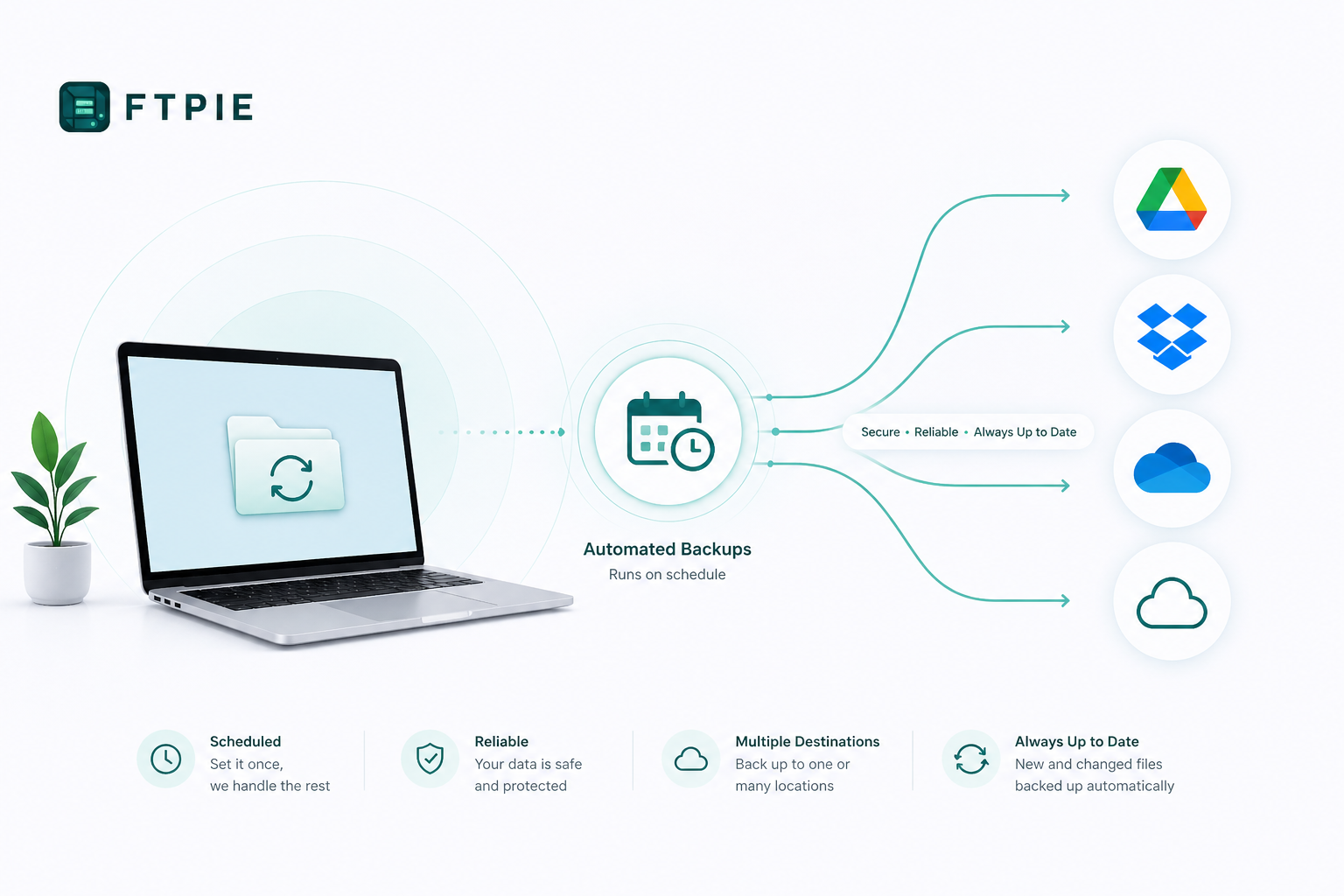
Automated PC cloud backups run on a schedule without manual action. Files are copied from your local machine to a destination such as cloud storage or an FTP server, ensuring your data is always protected if something goes wrong.
- No manual file copying
- No dependency on a single cloud provider
- Works with cloud, FTP, WebDAV, and local storage
Setting Up Automatic Backups in FTPie
FTPie uses a simple three-step wizard to create automatic backup jobs. You choose what to back up, where it should go, and how often it should run.
1. Select Source and Destination
Choose any local folder or file on your PC as the source, then select a destination such as cloud storage, FTP, SFTP, or WebDAV. FTPie does not require a special backup format - your files remain accessible.
2. Configure Schedule and Policies
You can automate backups based on your workflow:
- Daily or weekly schedules
- Custom intervals (hours, days, weeks)
- Manual-only execution when needed
Retention rules automatically clean up old backups, and missed-run policies define what happens if your PC is offline.
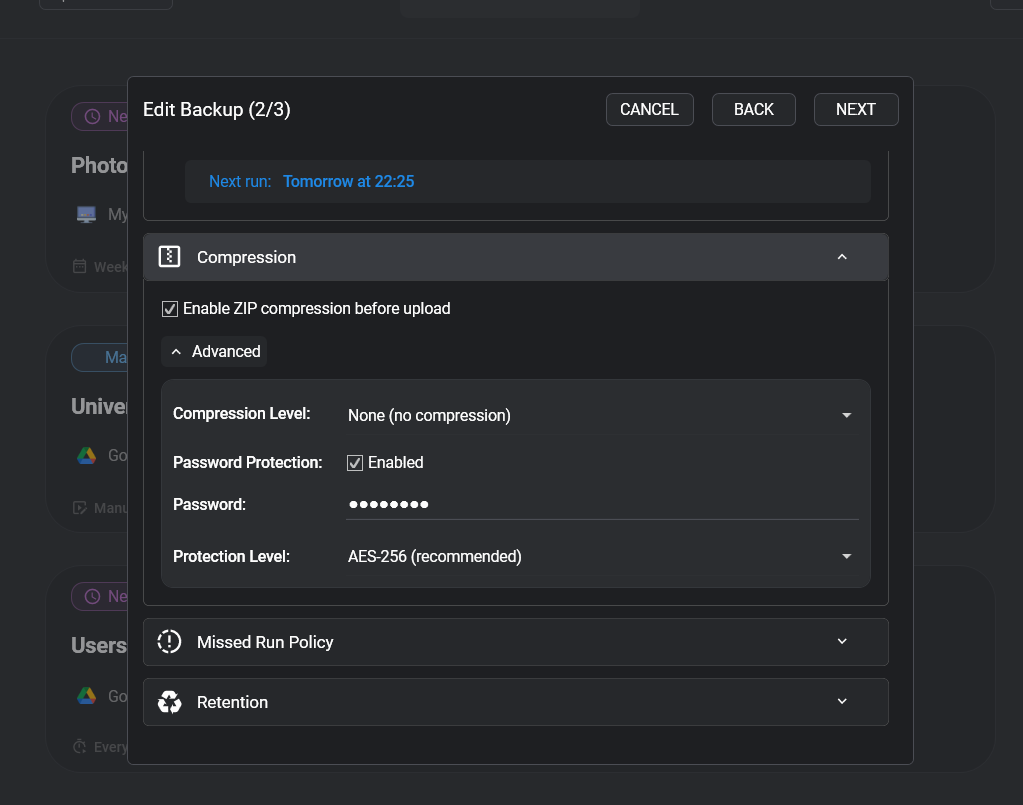
3. Enable Compression and Encryption
Before transfer, FTPie can compress your files locally and securely encrypt them:
- Multiple compression levels
- Password protection or AES-128 / AES-256 encryption
- Optimized local processing for faster transfers
Monitoring and Managing Backups
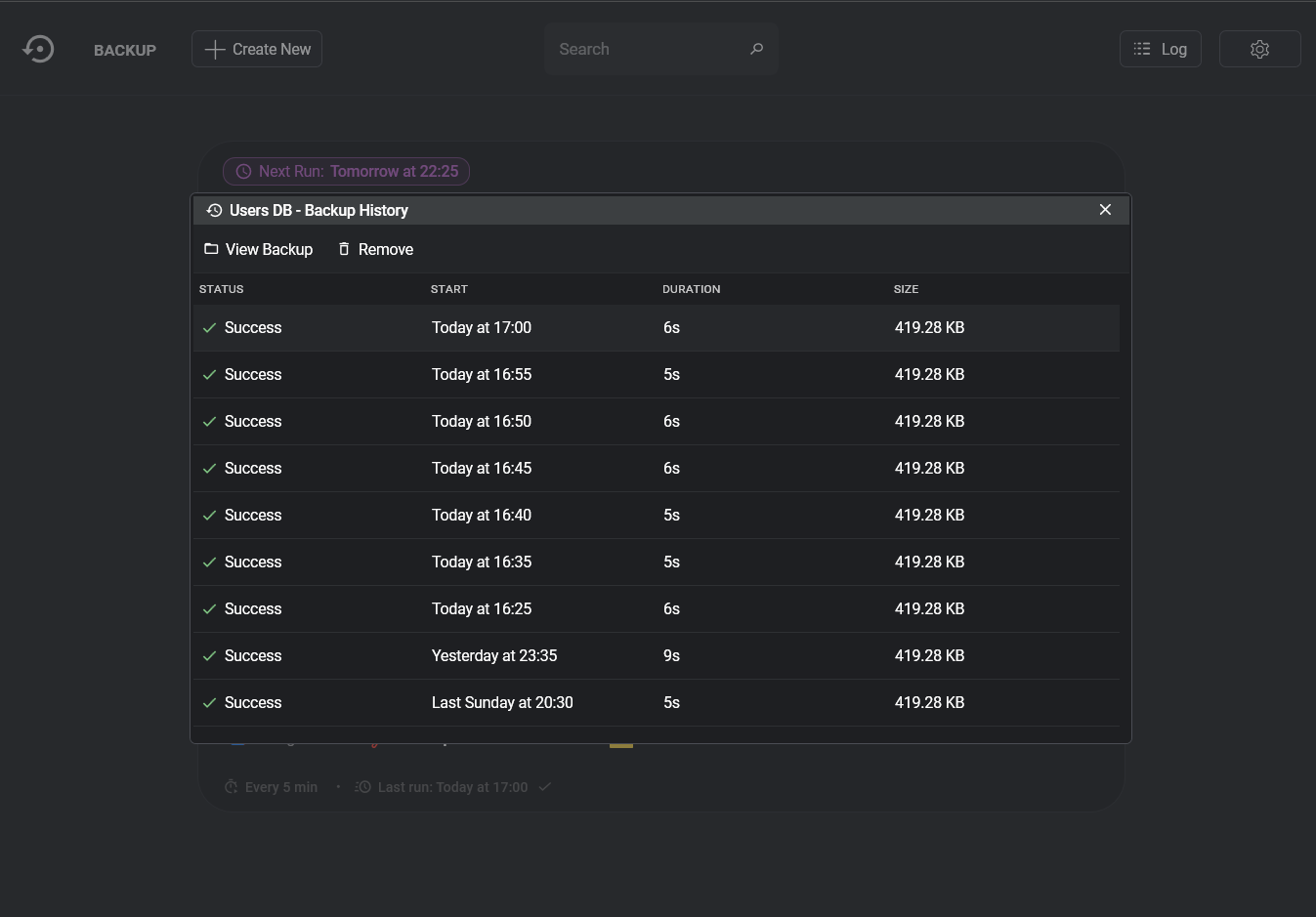
Every automatic backup is fully transparent. FTPie shows real-time status, next scheduled run, history, duration, and transferred size.
If something goes wrong, detailed logs help you understand exactly what happened and why - no guesswork involved.
PC Cloud Backup vs Local Backup
Local backups protect against accidental file deletion, but they do not protect against hardware failure, theft, or ransomware. Cloud backups add an off-site copy, significantly increasing data safety.
With FTPie, you can combine both approaches - backing up locally, to cloud storage, and even to multiple remote locations at the same time.
When Automated Backups Make Sense
Automatic PC to cloud backups are especially useful when:
- Protecting work files and projects
- Backing up photos and media libraries
- Archiving important documents securely
- Keeping off-site encrypted copies for recovery
Conclusion
Automating PC cloud backups doesn’t require handing control to a third-party backup service. With FTPie, you define where your files go, how they are protected, and when backups happen - using familiar storage protocols and cloud providers.
If you want simple, transparent, and flexible automated backups, FTPie gives you the tools without locking you into a black-box backup system.
And if you would rather have a purpose-built backup tool than a file manager that also backs up - with versioned archives, retention policies, and a per-job health dashboard as the whole product - we also make BackupKit, for automated encrypted cloud backups. It covers the same clouds, NAS devices, and servers, and launches in August 2026.
Learn more about the Auto Backups feature, or explore how to zip files on remote storage before backing them up.