Moving files between an FTP server and Google Drive usually involves downloading everything to your computer first, then uploading it to the other side. It works, but it is slow, wastes bandwidth, and adds unnecessary steps to what should be a simple operation.
FTPie connects both FTP and Google Drive in a single interface, letting you drag files directly between them - no local downloads, no switching between apps, and no manual re-uploads.
Why transferring between FTP and Google Drive is harder than it should be
FTP and cloud storage were designed for completely different workflows. FTP clients like FileZilla or WinSCP only connect to FTP servers. Google Drive works through a browser or sync client. There is no built-in way to move files directly between the two.
The typical workaround looks like this:
- Download files from FTP to your local machine
- Open Google Drive in a browser or sync folder
- Upload the files manually
- Clean up temporary local copies
This is manageable for a few files, but quickly becomes impractical when working with large folders, regular transfers, or multiple storage accounts. FTPie eliminates these steps by acting as a bridge between FTP and cloud storage.
Connecting FTP and Google Drive in FTPie
Before transferring files, you need both storages connected. FTPie supports adding multiple accounts of the same type, so you can connect several FTP servers and Google Drive accounts simultaneously.
Adding an FTP connection
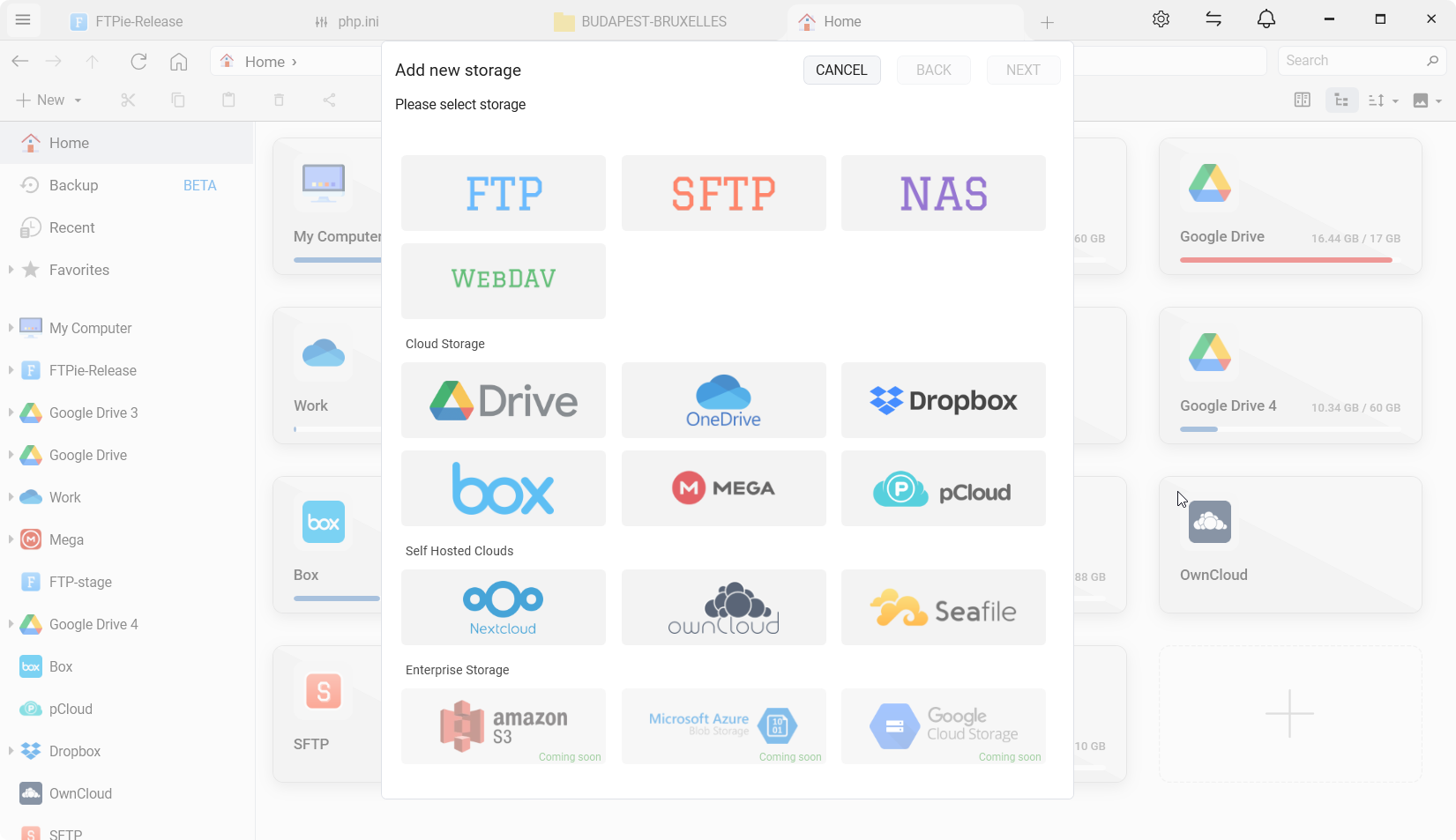
- Open FTPie and click Add Storage
- Select FTP (or SFTP / FTPS for encrypted connections)
- Enter your server address, port, username, and password
- Test the connection and save
Adding Google Drive
- Click Add Storage and select Google Drive
- Sign in with your Google account through the authorization window
- Grant FTPie access to your Drive files
Both storages now appear in FTPie's storage explorer, ready for browsing and transferring. For a more detailed walkthrough, see the getting started guide.
Transferring files with drag and drop
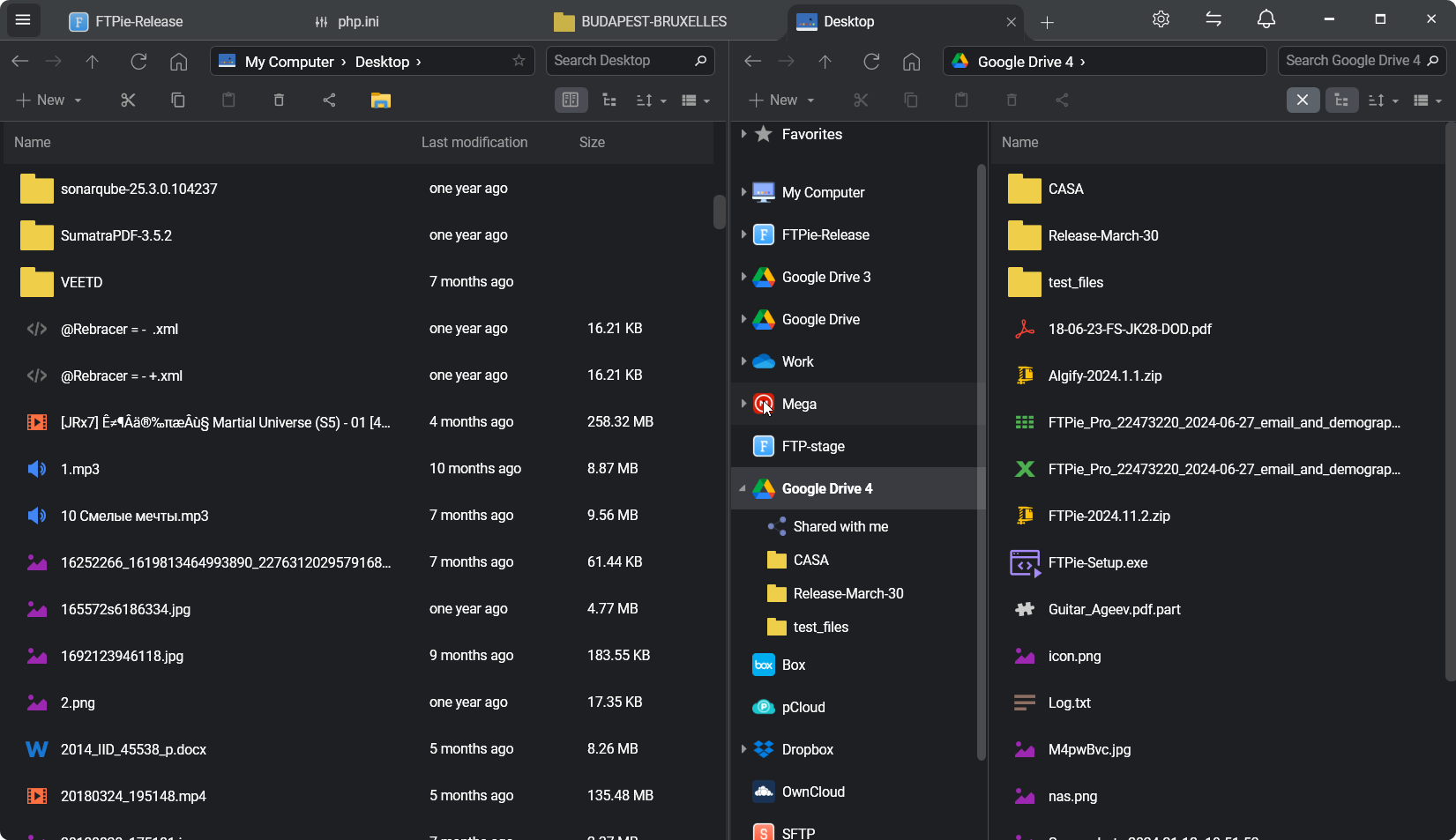
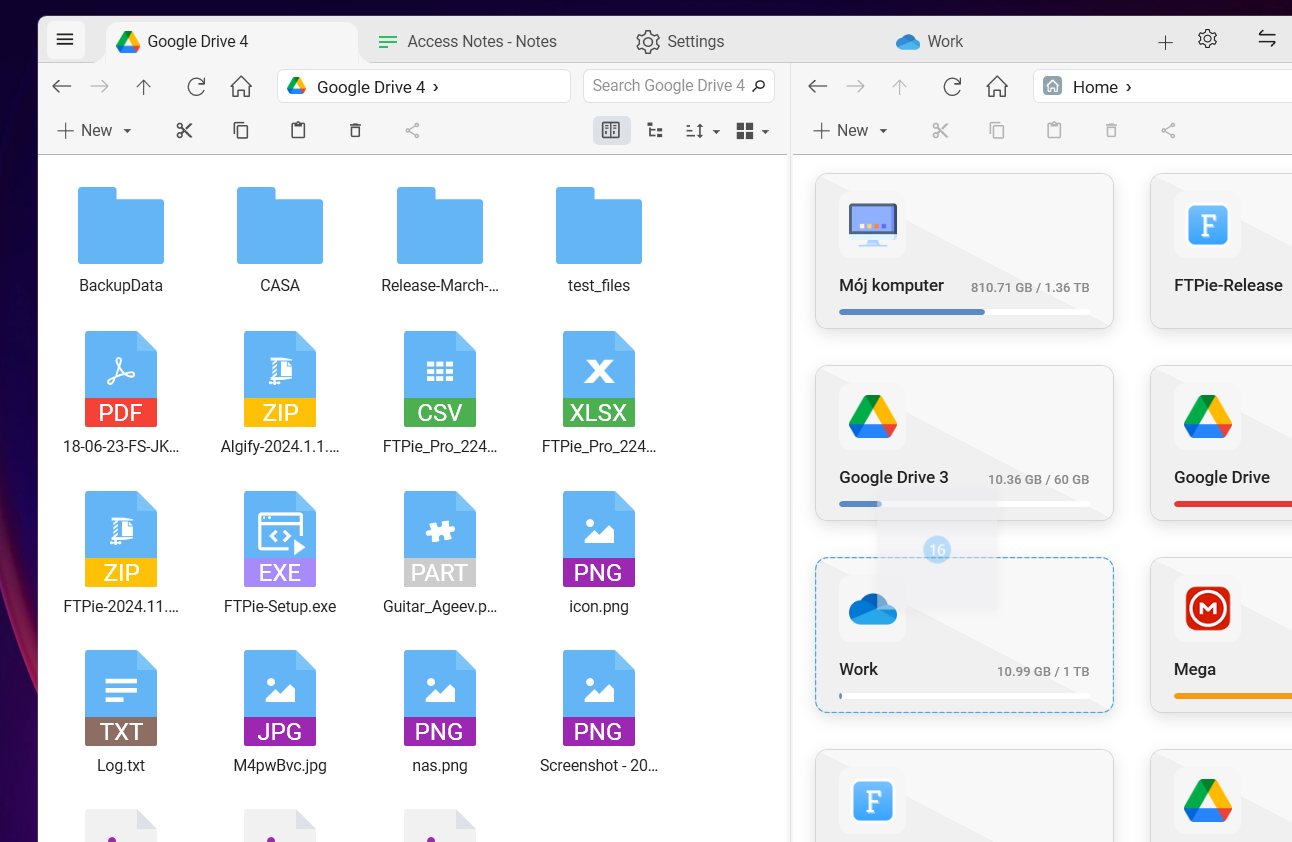
FTPie uses a dual-pane layout - open your FTP server on one side and Google Drive on the other. Then simply drag files or folders from one panel to the other.
FTPie's transfer engine handles the rest:
- Parallel transfers - multiple files move simultaneously for faster completion
- Pause and resume - stop a transfer and pick it up later, even after restarting the app
- Automatic retries - failed chunks are retried without restarting the whole file
- Real-time progress - see per-file progress, speed, and estimated time in the transfer manager
Alternative transfer methods
Drag and drop is the fastest way, but FTPie offers additional methods depending on your workflow:
Copy and paste
Select files on your FTP server, press Ctrl+C, navigate to Google Drive, and press Ctrl+V. This works the same way as copying files in Windows Explorer.
Quick Upload from Windows Explorer
If you have local files that need to go to Google Drive or FTP, right-click them in Windows Explorer and use FTPie's shell extension to upload directly - without even opening the main app.
Upload from URL
Need to send a file from the web directly to Google Drive? FTPie can upload files from a URL without downloading them to your PC first. Paste the link, choose the destination, and FTPie handles the transfer.
Working with transferred files
Once files are on Google Drive, you can continue working with them directly in FTPie:
- Preview files - open images, PDFs, videos, and code files using FTPie's built-in viewers
- Edit documents - open files in Google Docs or Microsoft 365 through FTPie's document editing integration
- Share files - generate shareable links instantly with Quick Share
- Compress files - zip files directly on Google Drive without downloading them
Going beyond FTP and Google Drive
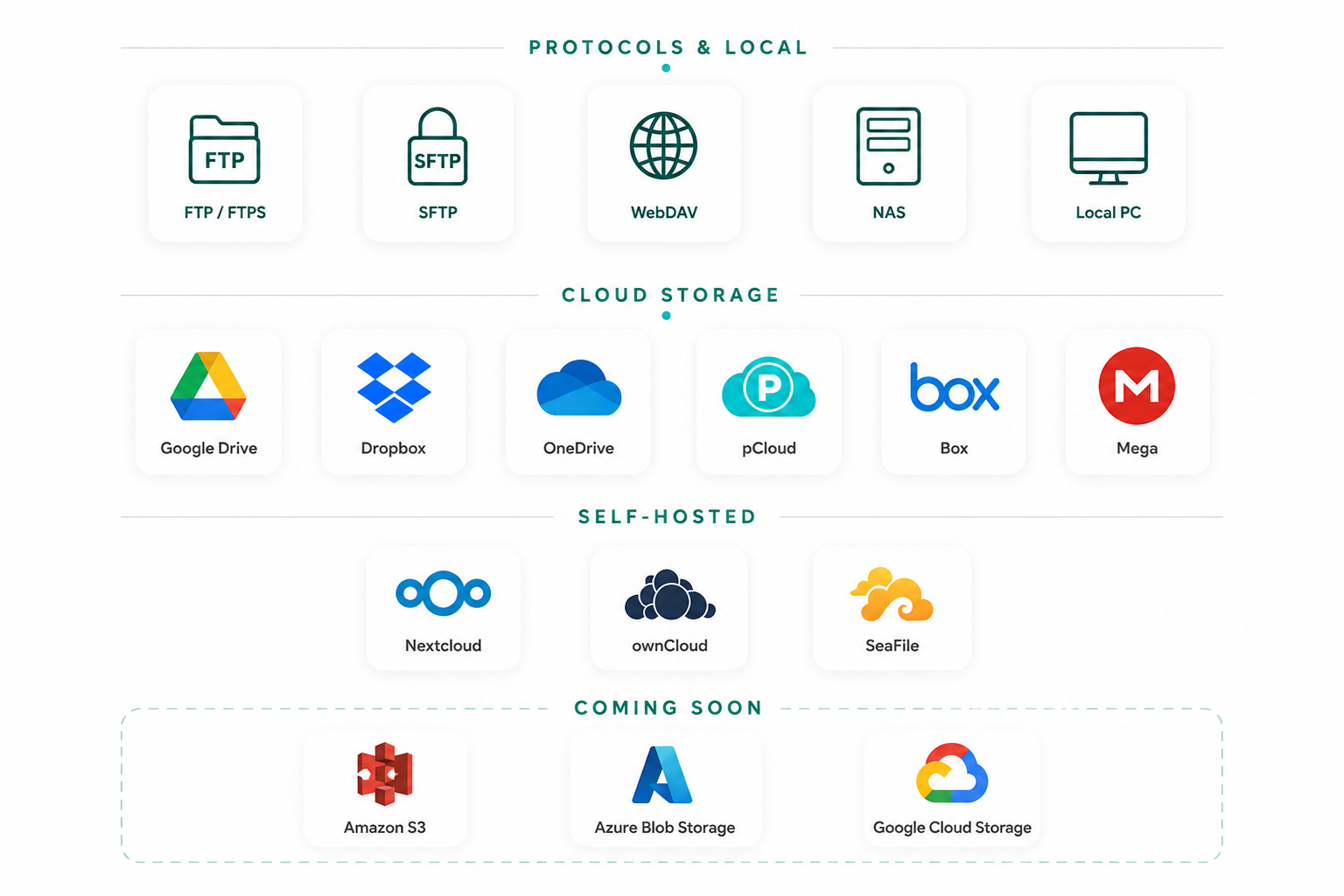
The same drag-and-drop workflow works across all storages FTPie supports - not just FTP and Google Drive. You can transfer files between any combination of:
- FTP, SFTP, FTPS, and WebDAV servers
- Google Drive, Dropbox, OneDrive, pCloud, Box, and Mega
- Local drives and network shares
This makes FTPie a unified hub for all your file management, regardless of where files are stored.
Automating regular transfers
If you regularly move files between FTP and Google Drive - for example, backing up a web server to the cloud - consider setting up an automatic backup. FTPie can run scheduled transfers with compression and encryption, keeping your data protected without any manual work.
Learn how to set this up in the automatic backups guide.
For a plain copy on a timetable - the same files sent from the FTP server to Drive every night, with no versions kept - use Scheduled Transfers instead. The same approach works between an SFTP server and Amazon S3, Azure Blob, Google Cloud Storage or Dropbox; moving files between SFTP and cloud storage covers those.
And if what you actually want to protect is your PC rather than the server - scheduled, versioned copies of local folders landing in your Drive - our dedicated backup app covers that: back up Windows to Google Drive with client-side AES-256 encryption.
Final thoughts
Transferring files between FTP and Google Drive does not need to be a multi-step chore. FTPie brings both into a single window with drag-and-drop simplicity, powerful transfer controls, and seamless integration with the rest of your workflow.
Download FTPie to start moving files between FTP and cloud storage in seconds. Already using FTPie? Explore the top 7 benefits you might be missing.