File transfers are rarely the main task of your day, but they eat into it constantly. Downloading, uploading, renaming, switching between apps, waiting for browsers to load cloud storage - these small interruptions add up fast. A modern FTP client can eliminate most of them.
FTPie is designed to reduce friction at every step of file management. Here is where it saves the most time compared to traditional tools.
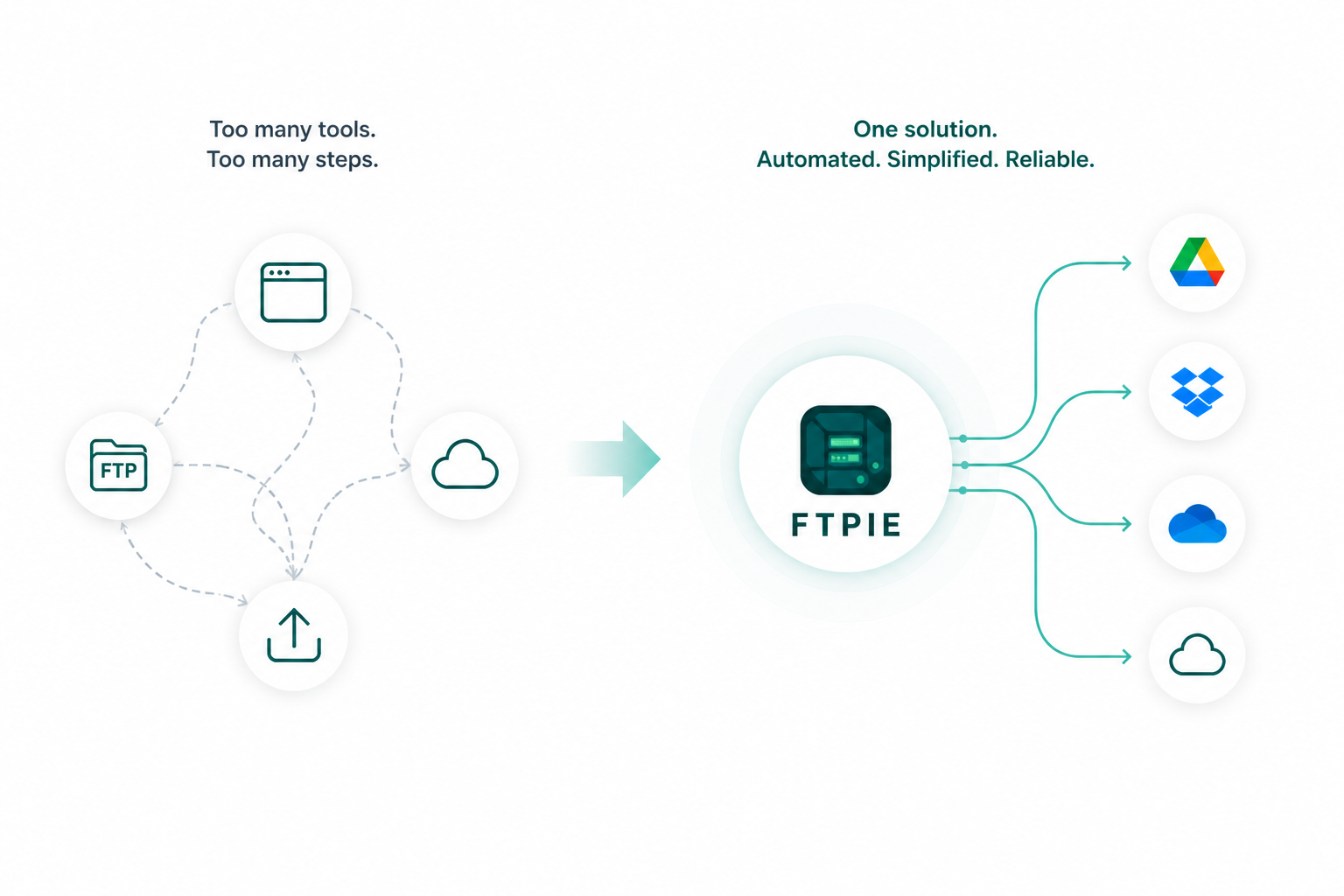
One app instead of five
A typical file management workflow might involve FileZilla for FTP, a browser for Google Drive, a separate app for compression, an email client for sharing, and a screenshot tool for captures. Each tool has its own interface, its own login, and its own quirks.
FTPie combines all of these into a single window:
- FTP, SFTP, FTPS, and WebDAV connections alongside Google Drive, Dropbox, OneDrive, and more
- Built-in compression and encryption
- Quick Share for instant file sharing via link
- Screenshot and screen recording tools
- File viewers for images, PDFs, code, video, and music
Fewer apps means fewer context switches. You stay focused on the work instead of the tooling around it.
Drag-and-drop between any storage
Moving files between an FTP server and cloud storage normally requires downloading locally, then re-uploading. FTPie's dual-pane explorer lets you drag files directly between any two storages - FTP to Google Drive, Dropbox to SFTP, local disk to OneDrive - without intermediate steps.
The transfer engine handles parallel uploads, automatic retries, and chunk-level pause and resume. You can start a large transfer, close your laptop, and pick it up later without losing progress.
For a step-by-step example, see how to transfer files between FTP and Google Drive.
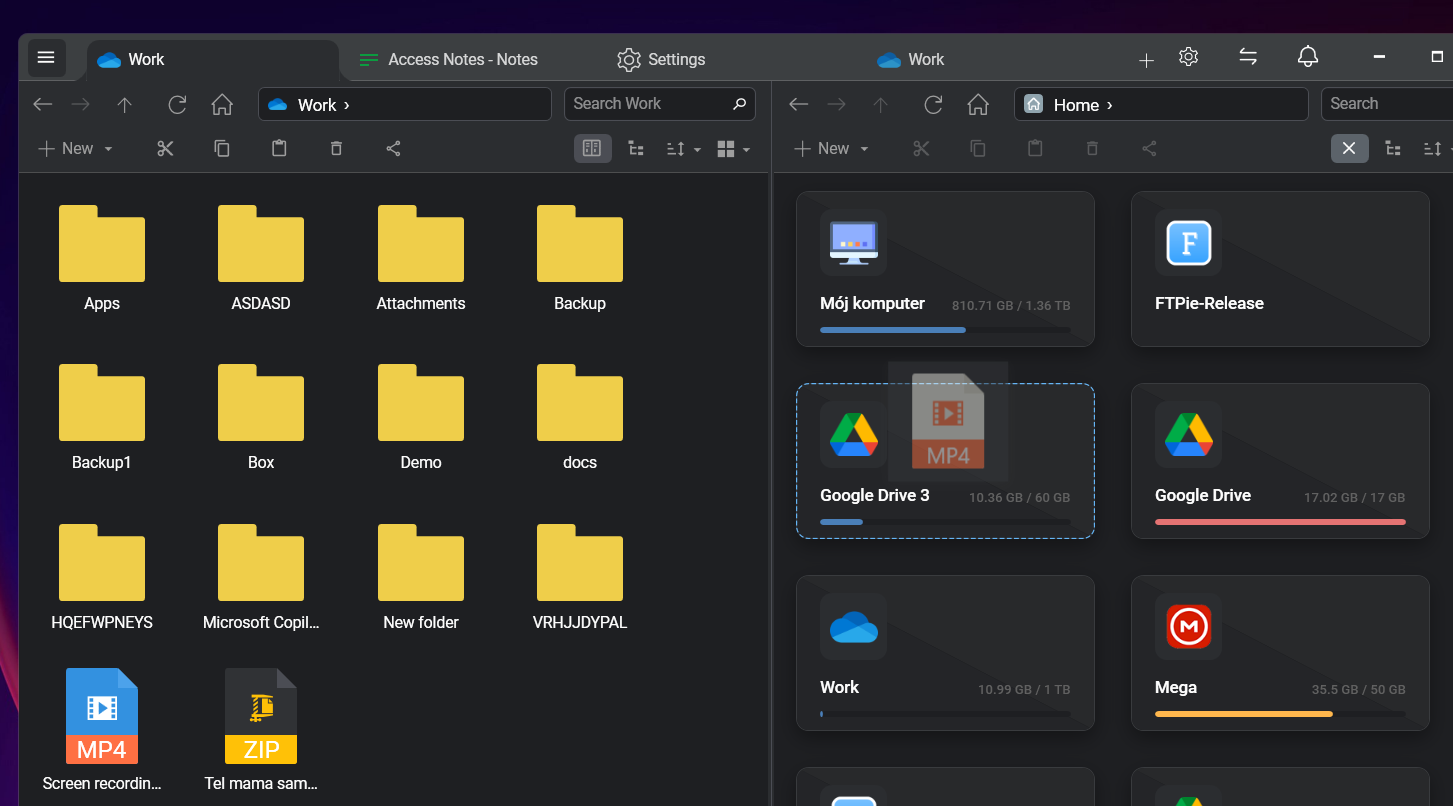
Tabs instead of floating windows
Traditional FTP clients like FileZilla and WinSCP use multiple floating windows - one for local files, one for remote files, separate dialogs for transfers, logs, and settings. It is easy to lose track of what is where, especially when working with multiple servers.
FTPie uses a tabbed interface similar to a web browser. Each storage, viewer, editor, or tool opens in its own tab. You can switch between an FTP server, a Google Drive folder, a PDF preview, and a code editor without any windows overlapping or getting buried.
Edit remote files without downloading
One of the biggest time sinks with traditional FTP clients is the download-edit-upload cycle. FTPie lets you edit remote files directly - whether through its built-in Monaco code editor, local applications like VS Code or Photoshop, or cloud editors like Google Docs and Microsoft 365.
FTPie handles the temporary file transfer and sync automatically. You just open, edit, save, and move on.
Upload without opening the app
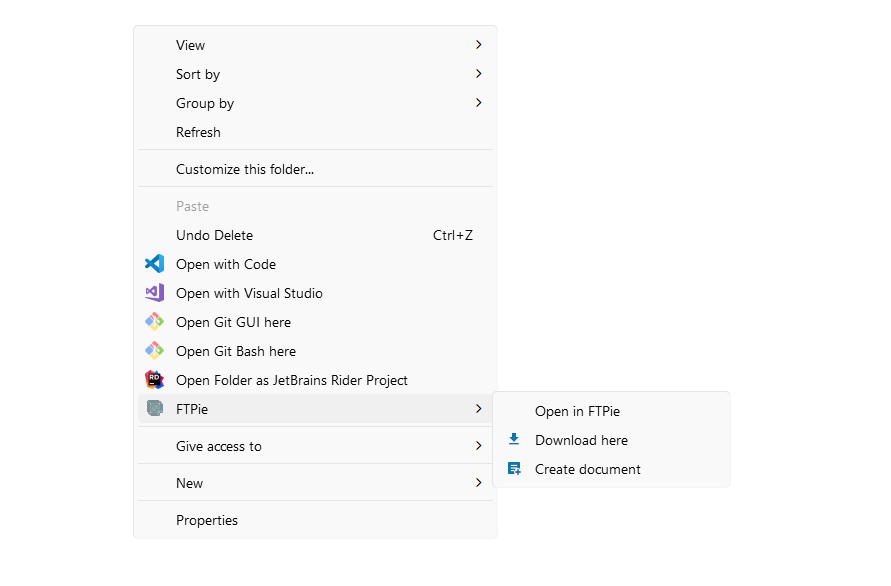
FTPie's shell extension adds file actions directly to the Windows Explorer right-click menu. You can:
- Quick Upload - send files to any connected storage from Explorer
- Quick Share - upload and generate a shareable link in one step
- Download Here - pull files from cloud or FTP into a local folder
- Open in FTPie - jump directly to a folder in the app
These actions bypass the need to open FTPie, navigate to the right folder, and initiate a transfer manually.
Automate the repetitive stuff
Recurring file tasks - like backing up a project folder to Google Drive every night - should not require manual effort. FTPie's Auto Backup feature lets you schedule transfers with custom intervals, compression, encryption, and retention policies.
Once set up, backups run silently in the background. No reminders, no manual uploads, no risk of forgetting. Learn how in the automatic backups guide.
Keyboard shortcuts and global hotkeys
Small efficiencies compound over time. FTPie supports customizable keyboard shortcuts for common actions and system-wide global hotkeys:
- Ctrl+Shift+F - show or hide FTPie instantly, even when minimized
- Ctrl+Shift+S - launch the screenshot tool
- Ctrl+Shift+V - start a screen recording
These work system-wide, so you never need to hunt for the app in your taskbar.
Preview files without downloading
Checking the contents of a file on an FTP server normally means downloading it, opening it in a separate application, then cleaning up the local copy. FTPie's embedded viewers let you preview images, PDFs, code files, videos, and music directly from any storage without a full download.
For archives, FTPie's smart archive preview downloads only about 1 MB of header data to show the full contents - useful when you just need to verify what is inside without pulling the entire file.
Upload files from a URL
Need to get a file from the web into your cloud storage? Instead of downloading it locally and then uploading it, FTPie can upload directly from a URL. Paste the link, pick the destination, and FTPie streams the file straight to your storage. No local disk space used, no extra steps.
Where the time savings add up
None of these features save an hour on their own. But across a full work week, the minutes add up:
- Skipping the download-upload cycle for cross-storage transfers
- Editing files in place instead of managing temp copies
- Sharing files with one click instead of four steps
- Previewing without opening separate apps
- Automating backups that used to be manual
- Using one app instead of switching between five
The result is less time managing files and more time doing actual work.
Final thoughts
A great FTP client should not just connect to a server - it should make every file operation faster and simpler. FTPie combines modern design with practical automation to cut out the repetitive friction that traditional tools ignore.
Download FTPie and see the difference in your daily workflow. For a full overview of what FTPie offers, check out the top 7 benefits.