Google Cloud Storage Client for Windows
Browse and manage Google Cloud Storage buckets from a real Windows file manager - in the same window as your clouds, FTP servers and NAS.
Google Cloud Storage is built for services, not people - the console and gsutil are the usual ways in. FTPie connects a GCS bucket as an ordinary storage account so you can browse it like a folder, next to your Google Drive, your SFTP servers and your NAS.
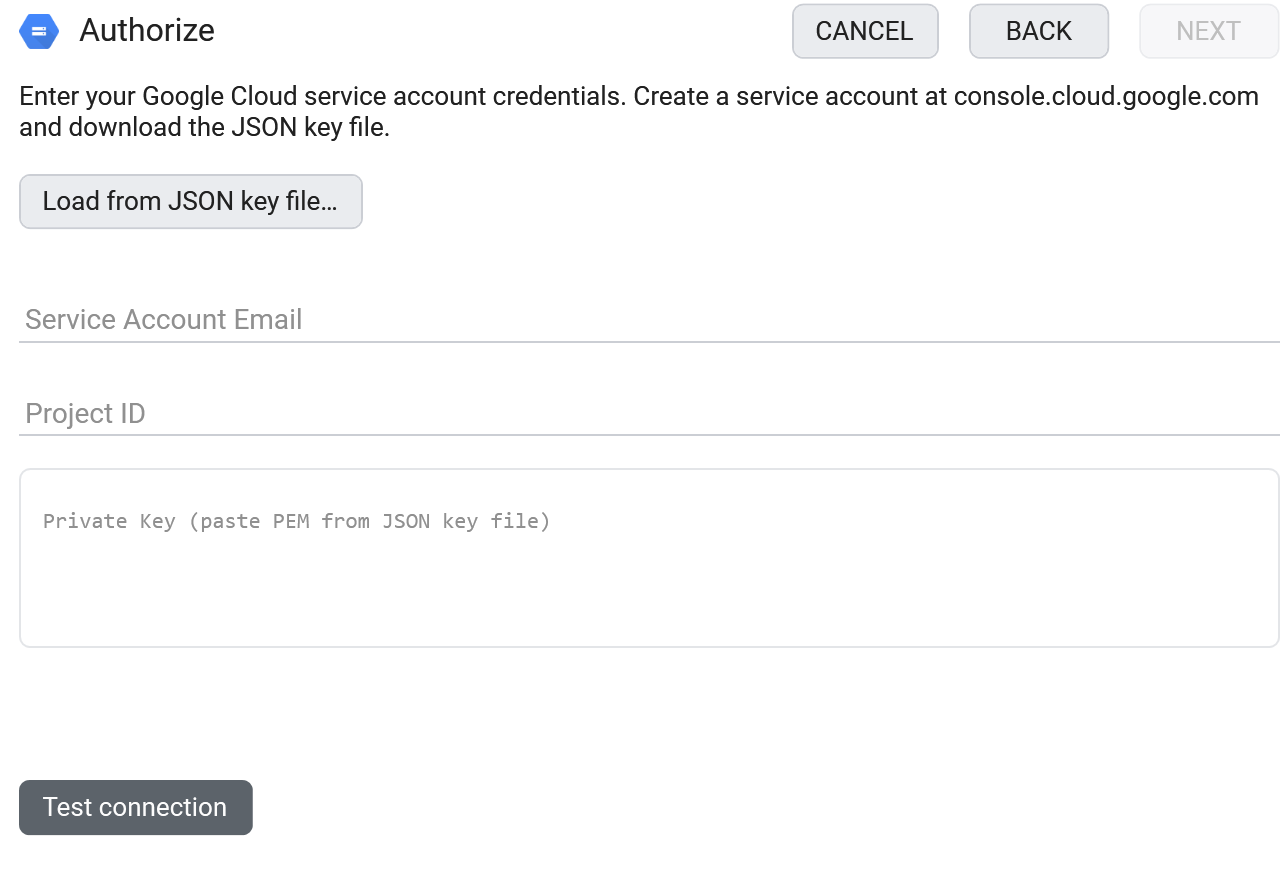
The fiddly part is normally the service-account key. FTPie takes the JSON file Google gives you and fills in the rest - one button, and you're connected.
What you'll need
- A service-account JSON key - it contains the account email, a private key and the project ID
- A bucket that already exists in that project
- A Storage role on the service account (Storage Admin, or at least Storage Object Admin plus bucket listing)
Where to get your service-account key
- Open the Google Cloud console and go to IAM & Admin -> Service Accounts.
- Create a service account (or pick one) and grant it a Storage role such as Storage Admin.
- Open the account, go to the Keys tab, and choose Add key -> Create new key -> JSON.
- The JSON file downloads - that's everything FTPie needs.
How to connect in FTPie
- Add a new storage and choose Google Cloud Storage (under Enterprise Storage).
- Click Load from JSON key file and select the file you downloaded - FTPie fills in the service-account email, private key and project ID.
- Click Test connection, and save. Your buckets appear as top-level folders.
Prefer to paste the fields by hand? You can - but the private key in the JSON is escaped, so loading the file is the reliable route.
What you can do
- Browse buckets and objects in a familiar dual-pane view
- Upload, download and drag-and-drop with a resumable transfer queue
- Move data between GCS and another storage with no local copy in between
- Edit an object in place with the built-in editors
- Share a file by signed link without making the bucket public
Good to know about object storage
- "Folders" are name prefixes, not real directories. FTPie shows them as folders; under the hood a folder is a shared prefix on object names.
- Share links are for files and are time-limited (V4 signed URLs, up to 7 days). There's no link for a whole folder.
- Buckets must exist already - create the first one in the Google Cloud console.
- Previews download the object - object storage has no server-side thumbnails.
Common questions
Google Cloud console -> IAM & Admin -> Service Accounts -> create -> grant a Storage role -> Keys -> Add key -> Create new key -> JSON.
Listing buckets is a project-level operation. It's in the JSON key file, and the Load button fills it in for you.
Usually the service account is from the wrong project or lacks a Storage role. Check the Project ID and grant at least Storage Object Admin.
Google Cloud Storage is part of FTPie Pro (with a 30-day trial). See the plan comparison.
Related
- All integrations
- Connect Amazon S3
- Connect Azure Blob Storage
- All supported storage
- Compare object-storage prices
- Transfer files between storage accounts
Start Your 30-Day Free Trial
Download FTPie and start your free 30-day trial. Enjoy seamless FTP + cloud integration and keep using the free version afterward.
Download Free Trial