Wasabi Client for Windows
Browse, upload and download Wasabi buckets from a real Windows file manager - in the same window as your clouds, FTP servers and NAS.
Wasabi is hot cloud storage with no egress fees and full S3 compatibility - a favourite for backups and media. What it doesn't give you is a proper desktop file manager. FTPie connects Wasabi as an ordinary storage account so your buckets show up as folders, next to your clouds, FTP servers and NAS.
Drag files in and out, move data straight between Wasabi and another storage with no local round-trip, and share a file by link - all from one window.
What you'll need
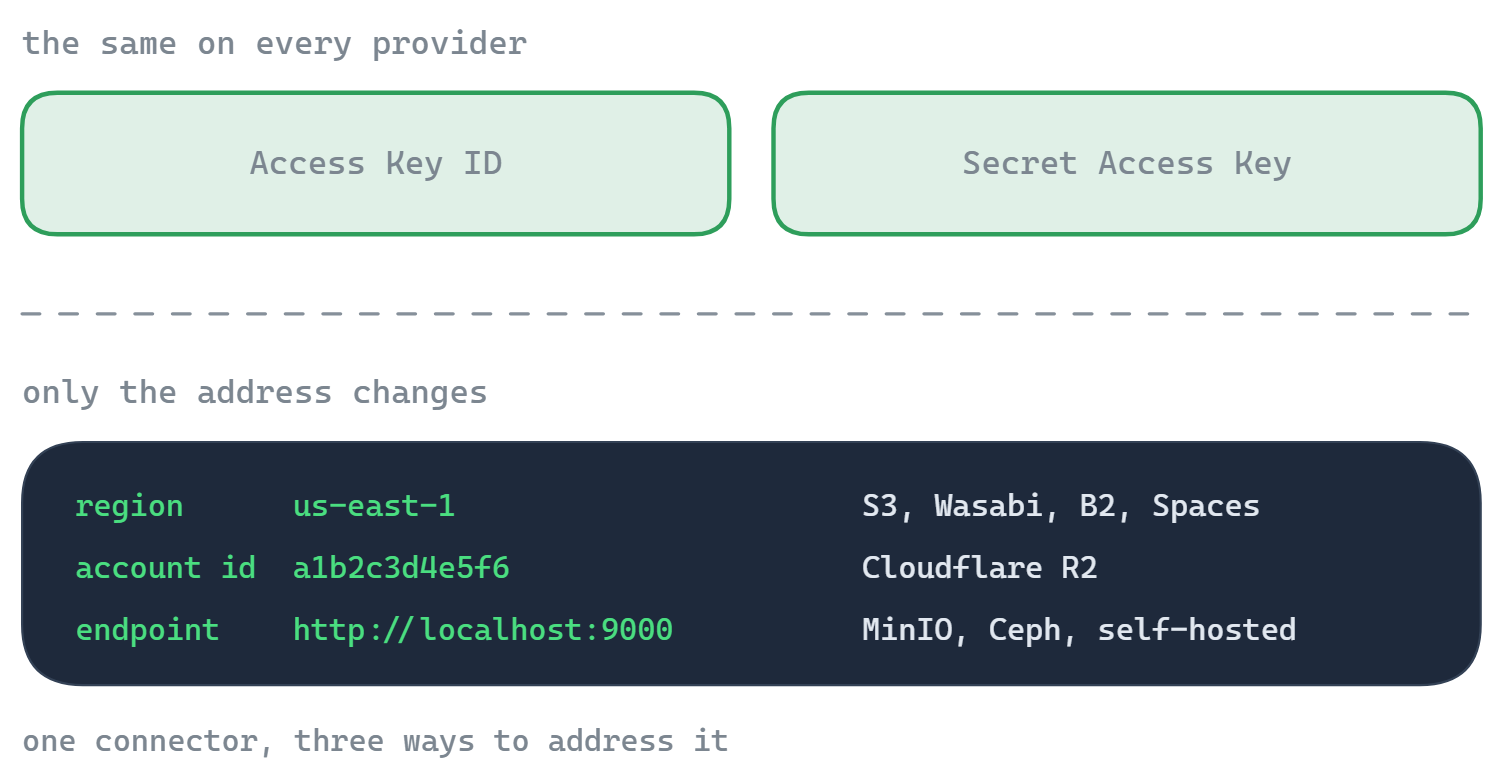
- Region - from the bucket's S3 endpoint, e.g.
us-east-2 - Access Key ID and Secret Key
- A bucket that already exists
- Optional: a Bucket name, if your key is scoped to a single bucket
Where to get your Wasabi keys
- Sign in to the Wasabi console.
- Open Access Keys and choose Create Access Key (root or a sub-user).
- Copy the Access Key ID and Secret Key - the secret is shown only once.
- Open your bucket and read its S3 Endpoint (
s3.<region>.wasabisys.com) - the region is the middle part.
How to connect in FTPie
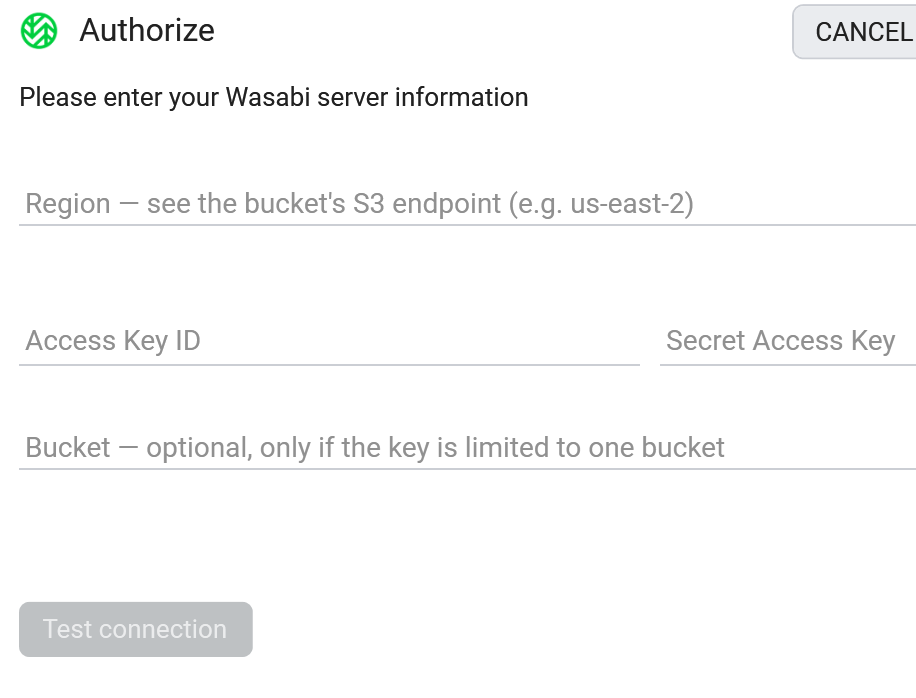
- Add a new storage and choose Wasabi (under Enterprise Storage).
- Enter the Region, Access Key ID and Secret Key.
- If your key covers a single bucket, put its name in the Bucket field.
- Click Test connection, and save.
What you can do
- Browse buckets and objects in a familiar dual-pane view
- Upload, download and drag-and-drop with a resumable transfer queue
- Move data between Wasabi and another storage with no local copy in between
- Edit an object in place with the built-in editors
- Share a file by presigned link without making the bucket public
Good to know about object storage
- "Folders" are name prefixes, not real directories. FTPie shows them as folders; under the hood a folder is a shared prefix on object names.
- Share links are for files and are time-limited (presigned URLs, up to 7 days). There's no link for a whole folder.
- The region must match the bucket. Wasabi validates it, so a wrong region gives a clear error rather than a silent failure.
- Previews download the object - object storage has no server-side thumbnails.
Common questions
Wasabi console -> Access Keys -> Create Access Key. Copy the Access Key ID and Secret Key.
Read it from the bucket's S3 Endpoint, s3.<region>.wasabisys.com - e.g. us-east-2.
Yes - enter that bucket's name in the Bucket field and FTPie opens it directly.
Wasabi is part of FTPie Pro (with a 30-day trial). See the plan comparison.
Related
- All integrations
- Connect Backblaze B2
- Connect Cloudflare R2
- Connect Amazon S3
- All supported storage
- Compare object-storage prices
Start Your 30-Day Free Trial
Download FTPie and start your free 30-day trial. Enjoy seamless FTP + cloud integration and keep using the free version afterward.
Download Free Trial