Amazon S3 Client for Windows
Browse, upload, download and edit Amazon S3 buckets from a real Windows file manager - in the same window as your clouds, FTP servers and NAS.
Amazon S3 is the storage most other tools quietly stand on, but reaching it as a person usually means the AWS console or the CLI. FTPie connects S3 as an ordinary storage account: enter a key, and your buckets show up in a dual-pane file manager next to your Google Drive, your SFTP servers and your NAS.
Browse objects, drag files in and out, edit a config file in place, and move data straight between S3 and another storage without a local round-trip. No console, no command line.
What you'll need
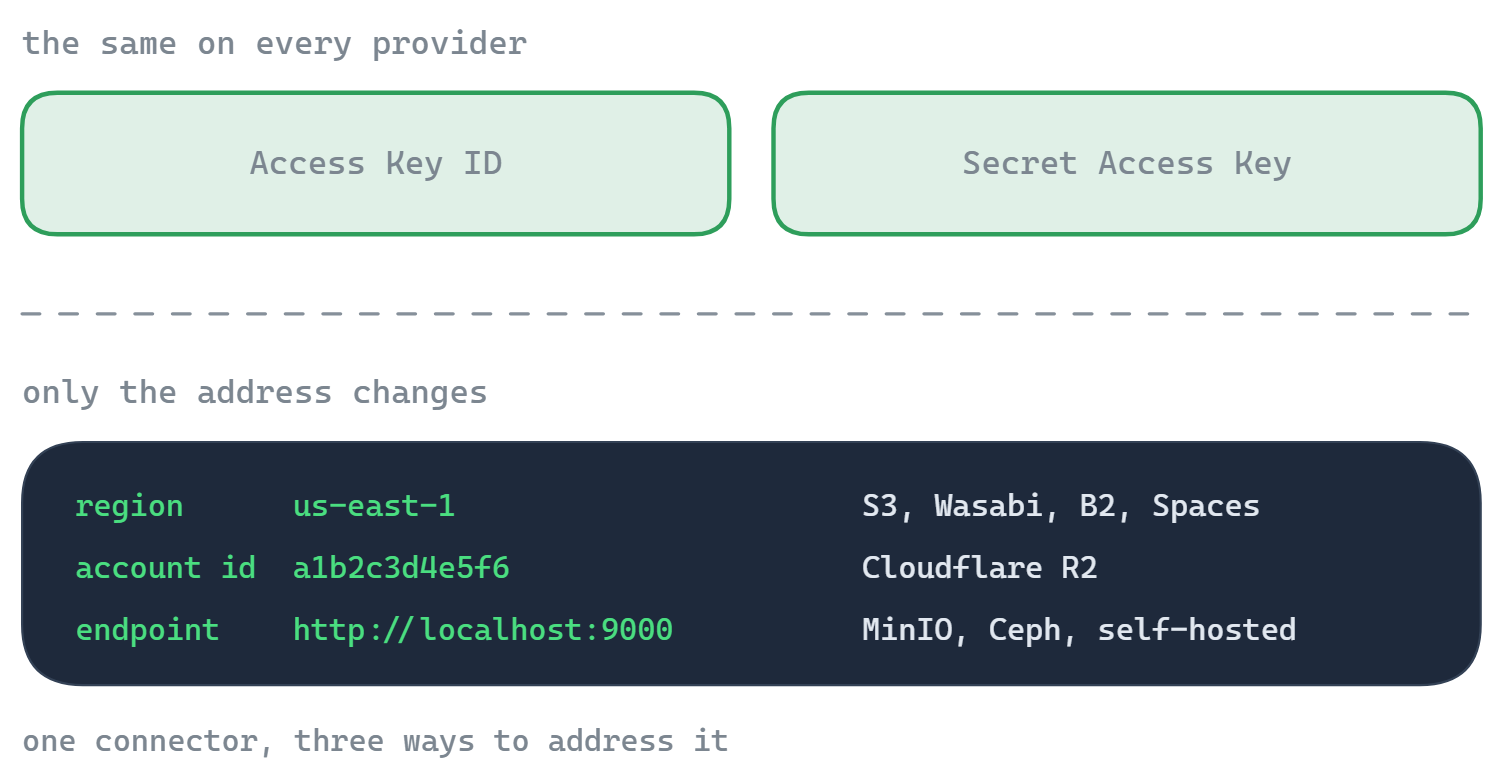
- AWS region - the region your bucket lives in, e.g.
us-east-1 - Access Key ID and Secret Access Key - for an IAM user
- A bucket that already exists (FTPie connects to buckets; it doesn't create your first one)
- Optional: a Bucket name, only if your key is limited to a single bucket
Where to get your access key
- Sign in to the AWS Management Console and open IAM.
- Under Users, pick a user (or create one) and attach an S3 permission policy -
AmazonS3FullAccessfor full access, or a least-privilege policy scoped to one bucket. - Open the user's Security credentials tab, choose Create access key, and select Application running outside AWS.
- Copy the Access key ID and Secret access key - the secret is shown only once, so save it now.
- In the S3 console, note the region of the bucket you want to connect (create one first if you don't have it).
How to connect in FTPie
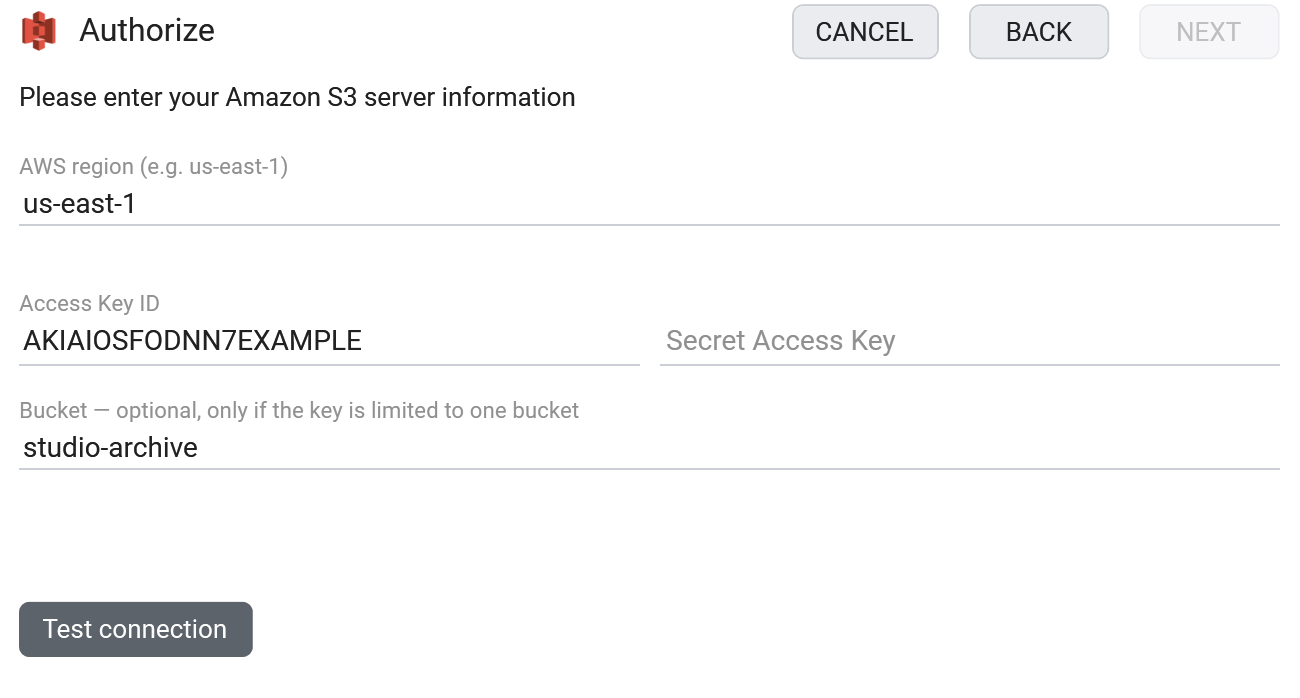
- Add a new storage and choose Amazon S3 (under Enterprise Storage).
- Enter the Region, Access Key ID and Secret Access Key.
- If your key only has access to one bucket, put its name in the Bucket field.
- Click Test connection, and save. Your buckets appear as top-level folders.
What you can do
- Browse buckets and objects in a familiar dual-pane view
- Upload, download and drag-and-drop with a resumable transfer queue
- Move data between S3 and another storage - cloud, FTP, NAS - with no local copy in between
- Edit an object in place with the built-in editors
- Share a file by presigned link without making the bucket public
Good to know about object storage
S3 is object storage, so a couple of things differ from a normal drive - FTPie hides most of it, but it's worth knowing:
- "Folders" are name prefixes, not real directories. FTPie shows them as folders so it feels normal; under the hood a folder is just a shared prefix on object names. Handed a raw
s3://URI or ARN? The S3 URI parser breaks it into bucket and key. - Objects can sit in different storage classes. Standard for active data; cheaper Infrequent Access and Glacier tiers for archives, usually applied with a bucket lifecycle rule - see how the S3 storage classes compare on price and retrieval.
- Share links are for files and are time-limited (presigned URLs, up to 7 days). There's no link for a whole folder.
- The region has to match the bucket. AWS validates it, so a wrong region gives a clear error rather than a silent failure.
- Previews download the object - object storage has no server-side thumbnails.
Common questions
The bucket's AWS region, an Access Key ID and a Secret Access Key. The bucket must already exist.
Yes - a bucket-scoped key can't list all buckets, so enter that bucket's name in the Bucket field and FTPie opens it directly.
Yes - FTPie generates a presigned URL that works in any browser with no credentials. Links are per-file and expire after up to 7 days; the bucket stays private.
S3 is part of FTPie Pro (with a 30-day trial). See the plan comparison.
Related
- All integrations
- Connect Cloudflare R2
- Connect S3-compatible storage (MinIO, Ceph, Storj)
- All supported storage
- Compare object-storage prices
- Transfer files between storage accounts
Start Your 30-Day Free Trial
Download FTPie and start your free 30-day trial. Enjoy seamless FTP + cloud integration and keep using the free version afterward.
Download Free Trial