Some file has to reach an FTP or SFTP server every night: a sales export for a partner, a backup for a client's server, a price list for a supplier. Or it has to come back every morning, like the stock file a distributor drops on its SFTP server. Doing it by hand works for a week. After that you want it to happen on its own.
On Windows there are three realistic ways to get there: Windows' own sftp command with a batch file, or
a WinSCP script - both started by Task Scheduler - or an app that does the scheduling for you. This guide shows a
working setup for each, and is plain about where each one stops.
The short answer
- A server or an always-on PC, nobody signed in, and you need file masks, deletes or a mirror: a WinSCP script and Task Scheduler.
- One SFTP upload with an SSH key, and nothing to install: Windows' built-in
sftpwith a batch file. - You'd rather not maintain a script, a cloud is on one side, or you want alerts and a run history: a scheduler app such as FTPie's Scheduled Transfers.
What every unattended transfer needs
Whichever route you pick, four things decide whether it still works in three months:
- Credentials nobody has to type. A saved password or, better, an SSH key. A job that waits for a password never finishes.
- A host key that is already trusted. The first SFTP connection asks you to confirm the server's fingerprint, and an unattended run can't answer that question. Accept it once, by hand, before you schedule anything. The SFTP host key fingerprint viewer shows which keys a server offers.
- A machine that is on. Task Scheduler and desktop apps both run on your PC. If it sleeps at 2 a.m., so does the job.
- A way to hear about failures. The quiet failure is the expensive one: the export stopped in March and nobody noticed until May.
Option 1: Windows' built-in sftp and a batch file
Windows 10 and 11 include the OpenSSH client, so sftp is already installed - type sftp in
PowerShell to check. Its -b switch reads commands from a file and runs them with no prompts. Save the
commands as C:\Scripts\upload.txt:
lcd C:\Exports
cd /incoming
put *.csv
bye
Then run the file with your private key:
sftp -b C:\Scripts\upload.txt -i C:\Users\you\.ssh\id_ed25519 exports@sftp.example.comWe ran this against a public test server with Windows' own OpenSSH 9.5. Three things trip people up:
- It needs key authentication. Batch mode switches password prompts off, so a password login fails with "Permission denied". Create a key with
ssh-keygenand give the public half to whoever runs the server. - Connect once by hand first. Run the same
sftp -i ...command without-band answeryesto the host key question. Otherwise the scheduled run stops at "Host key verification failed". - The first error ends the run. If
cd /incomingor aputfails, nothing after it runs and sftp exits with code 1, which is usually what you want. Put a-in front of a command (-rm old.csv) to let it fail without stopping the rest.
It speaks SFTP only. For plain FTP, Windows' older ftp.exe can be scripted too, but it has no passive
mode and no encryption - see FTP from the command line on Windows.
Option 2: a WinSCP script
WinSCP is the usual answer in sysadmin forums, for good reason: it is free, and its scripting covers FTP, FTPS, SFTP,
SCP, WebDAV and S3. Save this as C:\Scripts\upload.txt:
option batch abort
option confirm off
open sftp://exports:YourPassword@sftp.example.com/ -hostkey="ssh-ed25519 255 ..."
put -neweronly C:\Exports\*.csv /incoming/
exit
Run it with WinSCP's console program (adjust the path if WinSCP lives elsewhere):
"C:\Program Files (x86)\WinSCP\WinSCP.com" /ini=nul /log=C:\Scripts\upload.log /script=C:\Scripts\upload.txt- Don't type the
-hostkeyvalue. Connect once in the WinSCP window, then open Session > Generate Session URL/Code: its Script tab writes the wholeopenline, fingerprint included. -neweronlysends only files that are new, or newer than the copy on the server, so a re-run doesn't resend everything.-deleteremoves each local file once it has uploaded - a move instead of a copy.synchronize remote C:\Exports /incomingmirrors a folder, and with-deleteit also removes server files that are gone locally. Few GUI schedulers do this.- The password sits in a text file. Lock the folder down, or switch to key authentication with
-privatekey=C:\Keys\exports.ppkon theopenline. - The exit code says what happened: 0 when every command worked, 1 when something failed.
Schedule either script with Task Scheduler
Put the command line in a small C:\Scripts\upload.cmd file, then:
- Open Task Scheduler and choose Create Task - not "Create Basic Task", which hides the setting you need.
- On General, name the task and select Run whether user is logged on or not, so it runs at night with nobody signed in.
- On Triggers, add a daily trigger at, say, 2:00.
- On Actions, add Start a program and point it at
C:\Scripts\upload.cmd. - Save, enter your Windows password when asked, then right-click the task and choose Run once to check the log.
That gives you a job that runs whether or not anyone is at the PC - the one real advantage scripts keep over a desktop app. What it doesn't give you is an alert. The task's Last Run Result shows the exit code, but if you want an email when a night fails, that is one more script to write and keep working.
Option 3: a scheduler app
The third route skips the script. In FTPie you set a scheduled transfer up from the files themselves: select the files or folders to send, choose Create scheduled transfer, pick the target folder, and say when it should run.
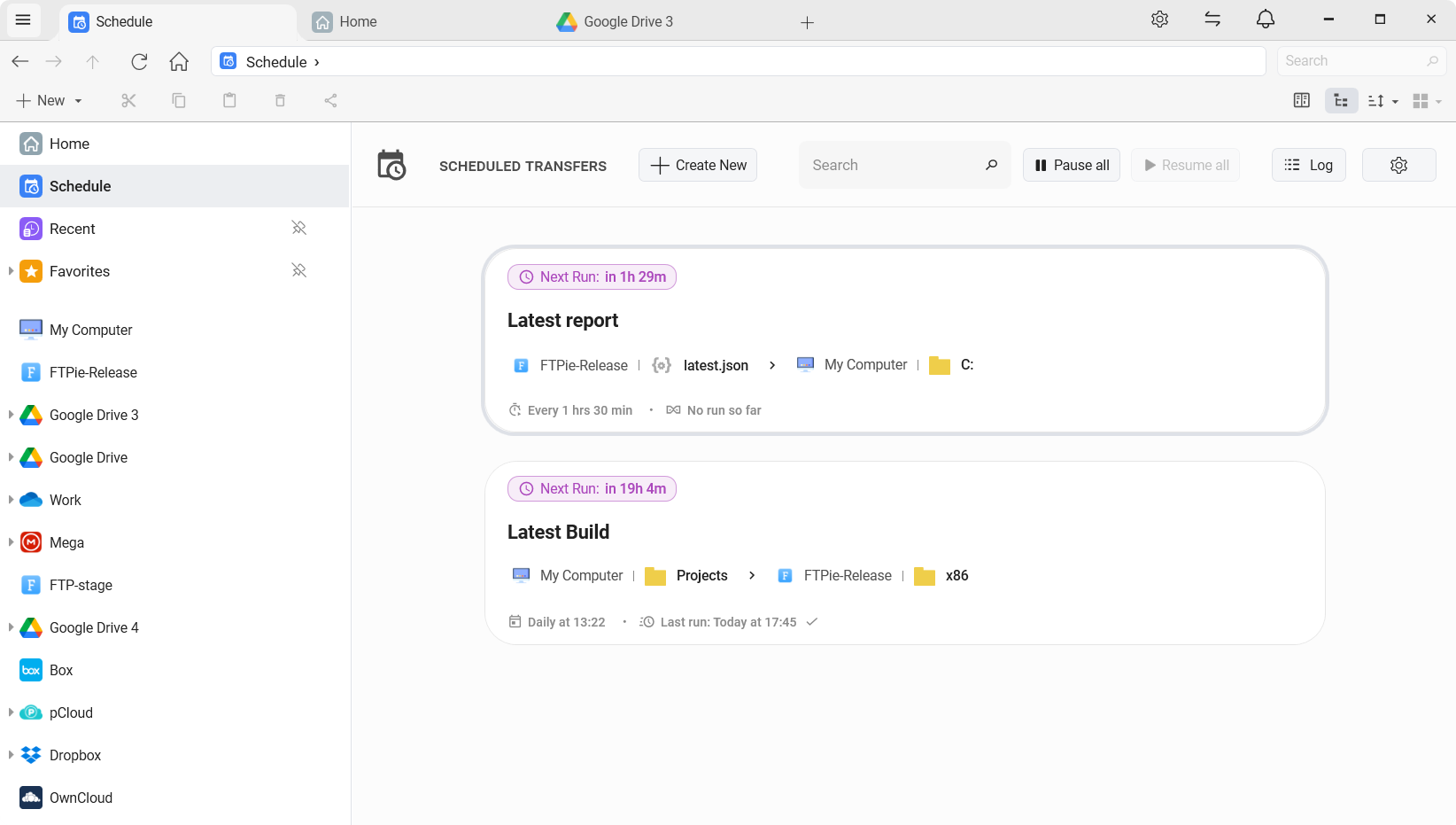
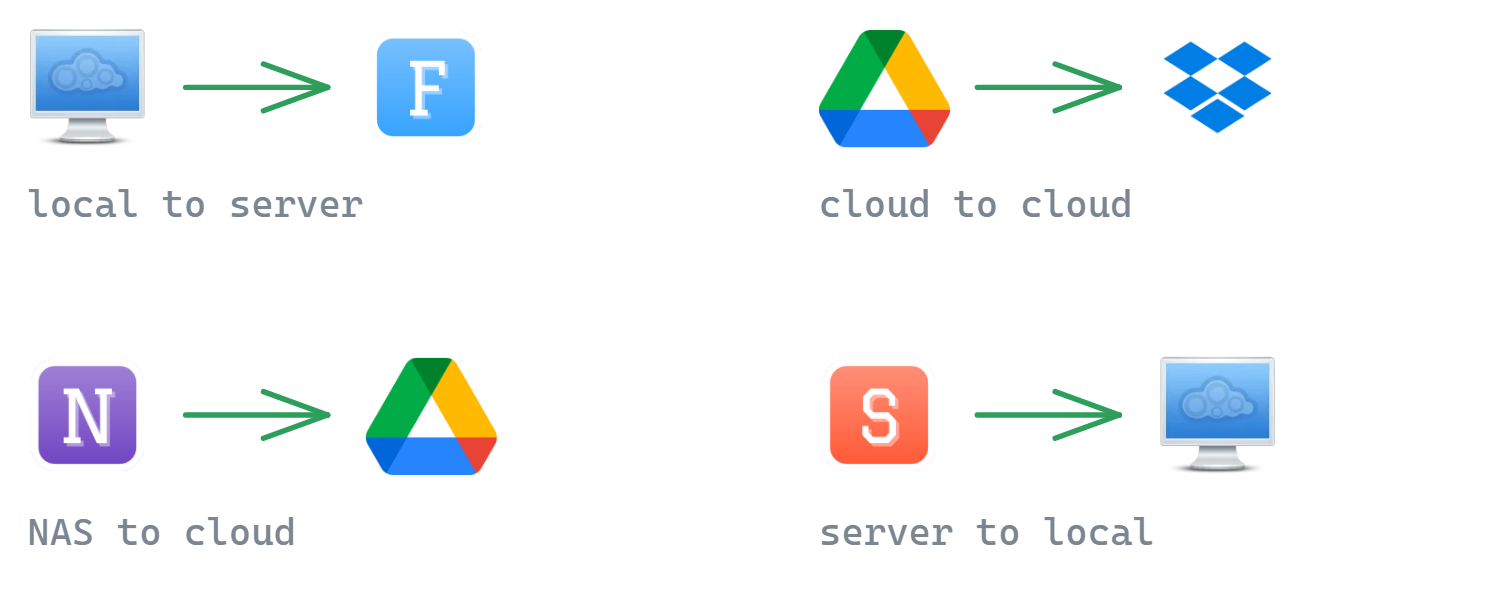
- Any two places. Source and target can each be your PC, an FTP, FTPS or SFTP server, a NAS, WebDAV, or a cloud - Google Drive, Dropbox, OneDrive, Amazon S3, Azure Blob, Google Cloud Storage and more. A partner's SFTP folder into an S3 bucket is one transfer, with no script and no gateway in between.
- Schedules: daily at a set time, weekly on chosen days, a custom interval, or once on a date. If the PC was off at the scheduled time, a per-transfer policy runs the job straight away, skips it, or asks.
- Files already at the target are replaced or skipped - your choice per transfer. Skip turns a re-run into "send only the new files".
- Failures reach you. Each transfer can report its result by in-app toast, email, Telegram or webhook, or by starting a program, and every run lands in a history with sizes and replaced/skipped counts, plus the activity log.
- Credentials live in FTPie, not in a text file next to the script.
And what it doesn't do, so you can rule it out quickly:
- It isn't a sync. A run sends the files and folders you picked. Nothing is deleted at the target, and there is no two-way mode.
- No file masks. You pick files and folders - a folder is sent with everything in it - but there is no "
*.csvonly" filter. - No "changed files only". Replace re-sends every file on every run; Skip sends only the files the target doesn't have yet.
- FTPie has to be running. It is a desktop app, so the PC must be on with you signed in. A server that runs jobs with nobody logged on is script territory.
- It's a Pro feature. Scheduled Transfers and the cloud connections are part of FTPie Pro, and the free trial includes both.
If you like the script route but not the password in a text file, FTPie Pro also has a
command line that uses the storages you've already added in the app. One line in your
.cmd file, scheduled the same way as above:
ftpie-cli upload C:\Exports\sales.csv partner-sftp:4121:/incoming
The number is the storage's id from ftpie-cli accounts; the name in front of it is just a label.
Every command returns an exit code a script can check, and the CLI documentation lists
every verb.
Side by side
| sftp + Task Scheduler | WinSCP + Task Scheduler | FTPie Scheduled Transfers | |
|---|---|---|---|
| Protocols | SFTP | FTP, FTPS, SFTP, SCP, WebDAV, S3 | FTP, FTPS, SFTP, WebDAV, NAS, local, cloud and object storage |
| To install | Nothing | WinSCP (free) | FTPie (Pro feature, free trial) |
| Credentials | SSH key file | In the script, or a key file | Saved in FTPie |
| Runs with nobody signed in | Yes | Yes | No - FTPie must be running |
File masks (*.csv) | Yes | Yes | No - you pick files and folders |
| Re-runs send only new or changed files | No | Yes (-neweronly) | New files only (Skip) |
| Mirror with deletes, or two-way | No | Yes (synchronize) | No |
| Failure alerts | Build your own | Build your own from the exit code | Toast, email, Telegram, webhook |
| Run history | Task Scheduler history | Log file | Per-run history and activity log |
Which one should you use?
If the job runs on a server, must run with nobody signed in, or needs masks, moves or a mirror, use WinSCP and Task Scheduler. It is the most capable of the three, and it's free.
If it's a single SFTP upload with a key and you can't install anything, Windows' own sftp does the job.
If you would rather not own a script, if one side is a cloud or a bucket, or if a silent failure is what really worries you, a scheduler app is less work to keep running. That's the case Scheduled Transfers was built for.
Start Your 30-Day Free Trial
Download FTPie and start your free 30-day trial. Enjoy seamless FTP + cloud integration and keep using the free version afterward.
Download Free Trial