Every Windows PC ships with a command-line FTP client. It has been there since the 1990s: open Command Prompt or PowerShell, type ftp, and you're in. No installation, no admin rights, nothing to download - which is exactly why it's still the fastest way to grab a file from an FTP server on a machine you don't control, or to script a quick transfer on a build box.
This guide walks through a complete ftp.exe session - connecting, transferring, scripting - and is honest about where the tool stops being the right choice. If you just want the full command list, the FTP Command Reference covers every client and protocol command with syntax and examples.
Step 1: Connect to the server
Start a session by passing the hostname directly, or launch the client first and use open:
C:\> ftp ftp.example.com
ftp> open ftp.example.com
The server answers with a banner and asks for credentials. Type the username, press Enter, then the password (it won't be echoed). For servers that allow it, the username anonymous with any email as the password gets you read access to public files.
Step 2: Look around
Four commands cover navigation. dir lists the current remote directory, cd changes it, pwd prints where you are, and lcd - the one everyone forgets - changes the local folder where downloads land and uploads come from:
ftp> dir
ftp> cd /public_html
ftp> lcd C:\Users\vlad\Downloads
Local directory now C:\Users\vlad\Downloads.
Step 3: Switch to binary mode
Before transferring anything that isn't plain text, type binary. In the default ASCII mode, ftp.exe rewrites line endings during transfer - harmless for .txt files, corrupting for zips, images, executables, and anything else binary. This one command prevents the classic "the file downloaded but won't open" problem:
ftp> binary
200 Type set to I.
Step 4: Download and upload
get downloads a file, put uploads one. Their multi-file versions mget and mput accept wildcards, and prompt toggles the per-file "y/n" confirmation off so wildcards run unattended. hash prints a # per block so long transfers show progress:
ftp> hash
ftp> get backup.zip
ftp> put report.pdf
ftp> prompt
Interactive mode Off.
ftp> mget *.log
Step 5: End the session
bye (or quit) closes the connection and exits. A full session looks like this:
C:\> ftp ftp.example.com
User: alice
Password: ********
ftp> binary
ftp> cd /backups
ftp> lcd C:\Backups
ftp> get site-backup.zip
226 Transfer complete.
ftp> bye
Scripting transfers with -s:
ftp.exe can run a script instead of an interactive session. Put commands in a text file - the first two lines are the username and password - and pass it with -s:. The -n flag suppresses the automatic login prompt when you script the login yourself with user:
# upload.txt
alice
secretpassword
binary
cd /public_html
lcd C:\Site\dist
prompt
mput *.html
bye
C:\> ftp -s:upload.txt ftp.example.com
This works with Task Scheduler for recurring jobs - but notice what you just did: stored a password in a plain text file, for a protocol that also sends it unencrypted over the network. Fine on a LAN with a throwaway account; not fine for anything that matters.
Where ftp.exe stops being the right tool
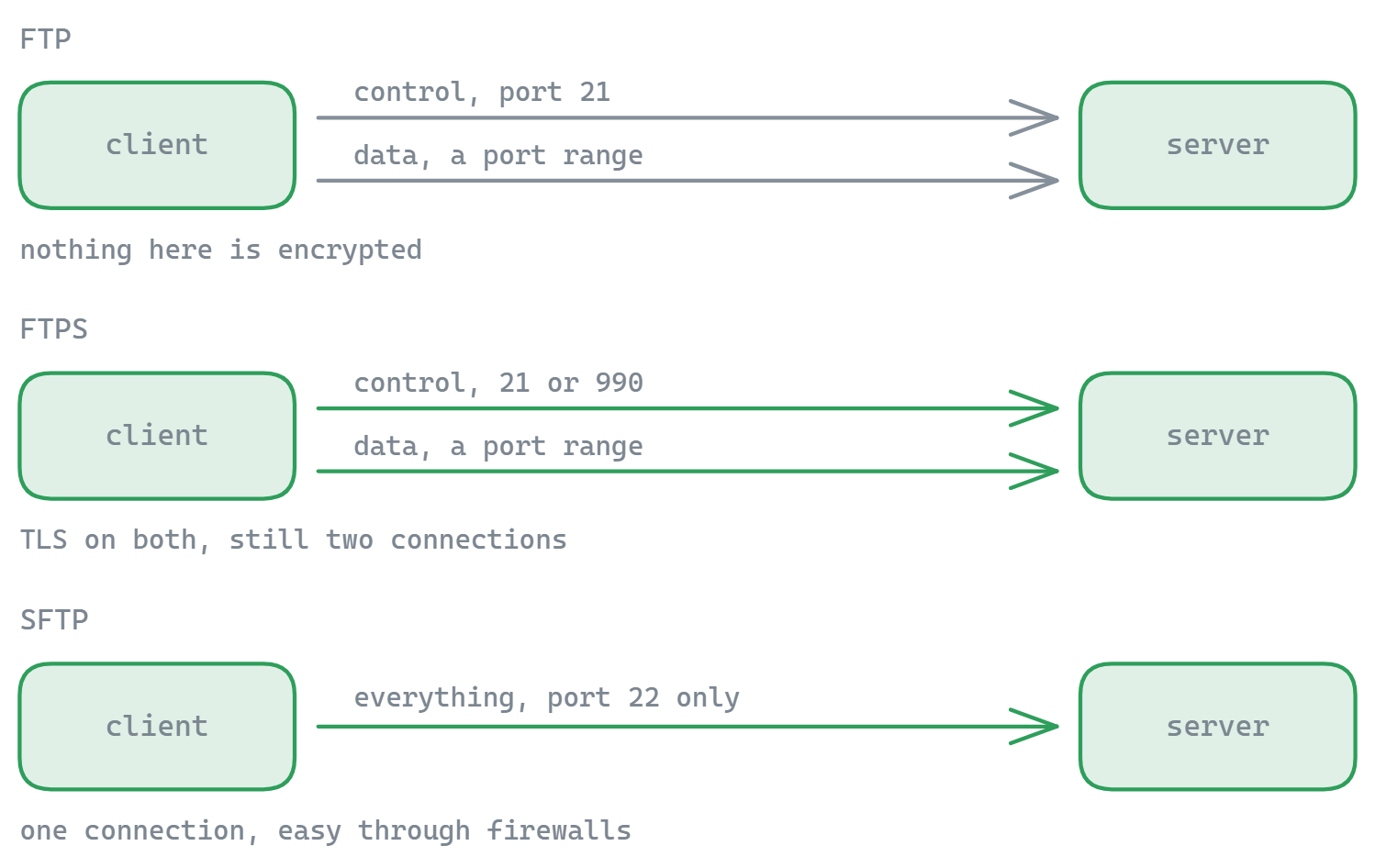
The built-in client is genuinely useful, and it's also a 30-year-old design with hard limits worth knowing before you fight them:
- No passive mode. ftp.exe only supports active-mode transfers, where the server opens a connection back to your PC. Modern routers and firewalls block that, which is why sessions log in fine and then hang forever on
dirorget. There is no flag to fix it - passive mode simply isn't implemented. - No encryption at all. Neither SFTP nor FTPS is supported. Credentials and file contents travel in clear text.
- No resume, no recursion. An interrupted 2 GB download starts over from zero, and there's no way to transfer a folder tree in one command.
For SFTP, Windows 10 and 11 include the OpenSSH sftp command, which is the modern scriptable choice - its command set is similar but not identical, and the SFTP Command Reference documents all of it.
When a GUI is simply faster
Command-line FTP earns its keep for quick one-off grabs and simple scripts. The moment you're juggling directories on both sides, retrying failed transfers, or moving whole folder trees, a graphical client wins on time. FTPie is a free FTP client for Windows with working passive mode, plus SFTP, FTPS, WebDAV, and 10+ cloud services in one window - drag and drop replaces mput, transfers resume themselves, and the free plan covers up to 3 server connections.
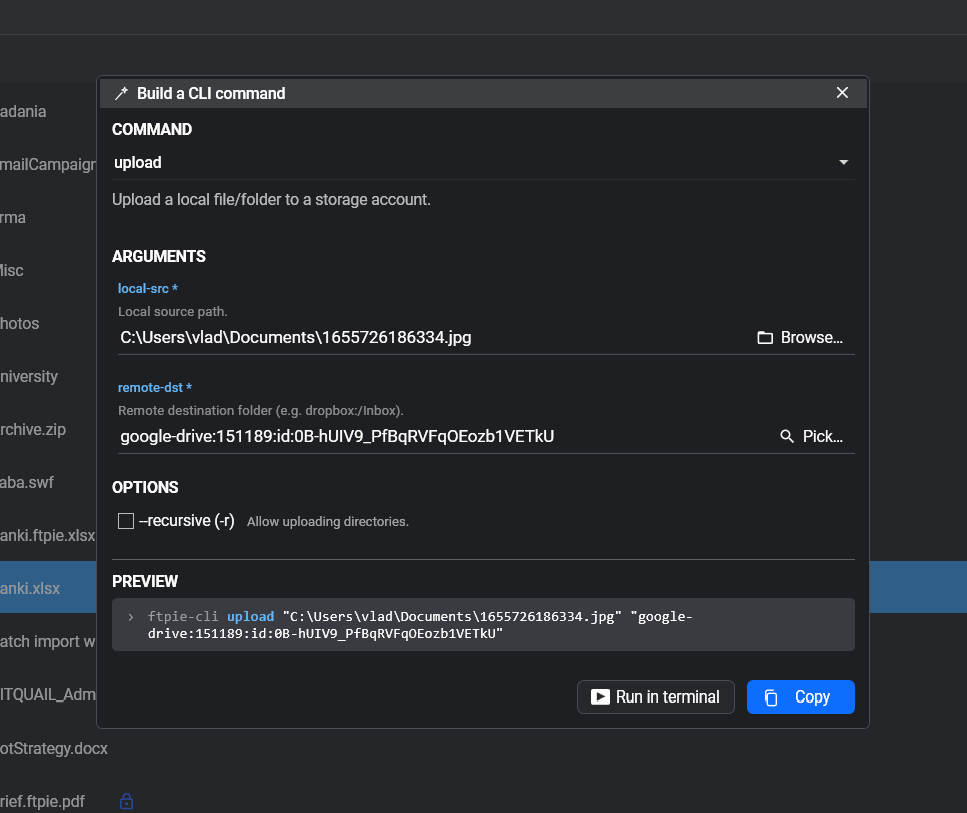
And if you liked the scripting part, FTPie Pro includes a real CLI with SFTP/FTPS/cloud support and a visual command builder, plus Scheduled Transfers that replace the script-plus-Task-Scheduler dance entirely - no passwords in text files.
Keep the FTP Command Reference bookmarked for the full command list - client commands and the raw protocol commands they map to.
Start Your 30-Day Free Trial
Download FTPie and start your free 30-day trial. Enjoy seamless FTP + cloud integration and keep using the free version afterward.
Download Free Trial