Object storage has quietly become where a lot of data actually lives - backups, media, static assets, whole application datasets. But it was built for programs, not people: reaching Amazon S3 or a Cloudflare R2 bucket usually means the provider's web console or a command line. FTPie 2026.7.3 changes that. Object storage now connects like any other storage account, so your buckets show up in a normal dual-pane file manager - right next to your Google Drive, your SFTP servers and your NAS.
Eight new connectors, one engine
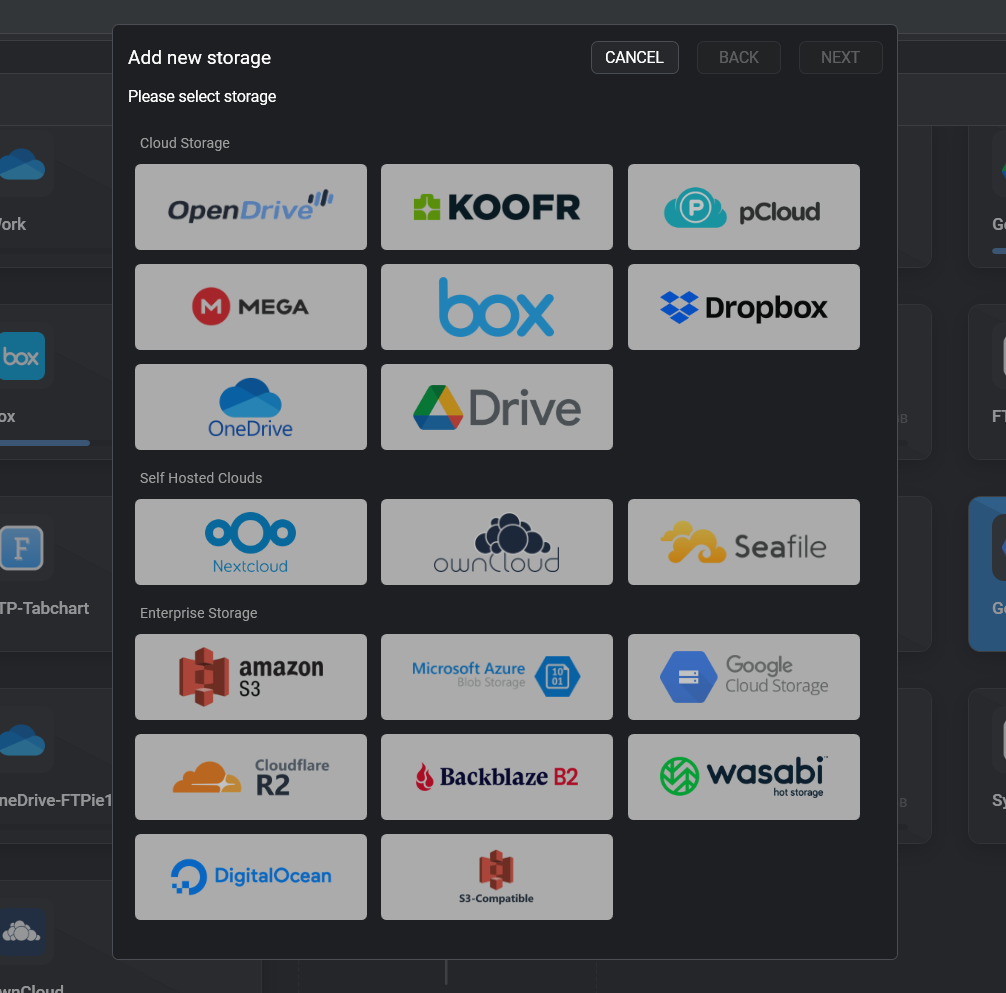
Three of the big names get first-class connectors:
- Amazon S3 - the original object storage, connected with an access key.
- Azure Blob Storage - a lightweight alternative to Azure Storage Explorer that also happens to speak to everything else you use.
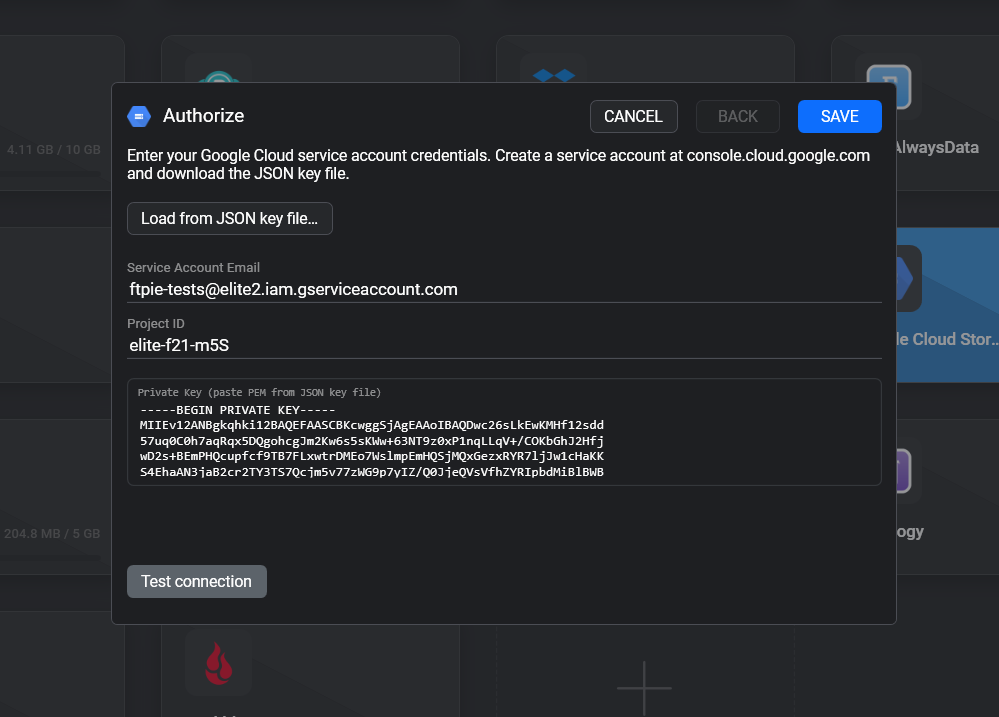
- Google Cloud Storage - load the service-account JSON key file and FTPie fills in the rest.
And because the S3 API has become the common language of object storage, the same engine powers a row of S3-compatible providers: Cloudflare R2, Backblaze B2, Wasabi, DigitalOcean Spaces, and a generic S3-Compatible option that points at any custom endpoint - MinIO, Ceph, Storj, SeaweedFS, Garage, you name it. If your provider isn't on the list but speaks S3, that last one connects it.
What you can actually do with it
The point of putting buckets in a file manager is that everything you already do with FTPie just works on them:
- Browse, drag and drop, upload and download with a resumable transfer queue.
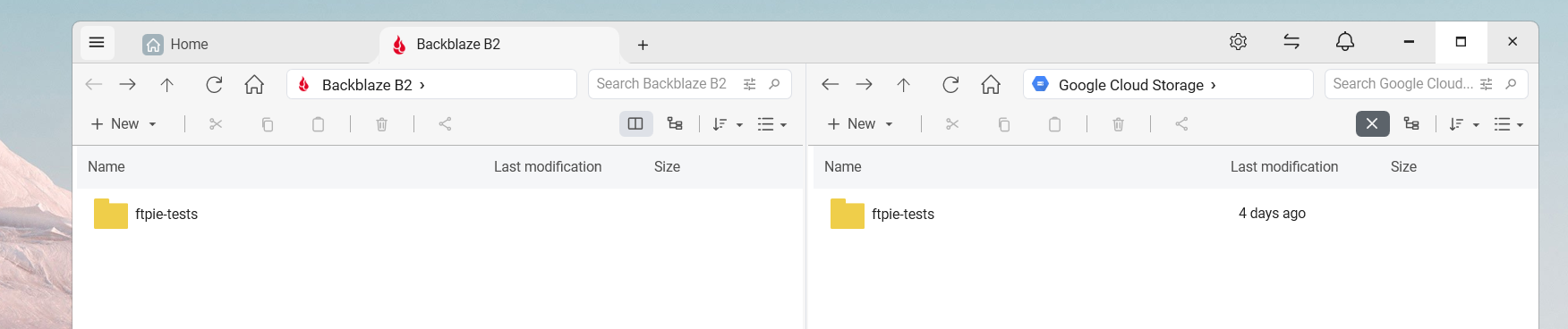
- Move data straight between object storage and anything else - pull an S3 bucket into a Backblaze B2 one, push a Google Drive folder to Azure, copy from a NAS to R2 - with no local round-trip in between. This is the thing the console and the CLI make genuinely painful.
- Edit an object in place with the built-in editors - handy for a config file or a small JSON blob sitting in a bucket.
- Share a file by link. FTPie generates a presigned URL (S3, R2, B2, Wasabi, Spaces), a service SAS (Azure) or a signed URL (Google Cloud) that works in any browser without credentials, and expires on its own - the bucket stays private the whole time.
Getting connected without the usual friction
Every provider hands you credentials in a slightly different place, so each connector has a step-by-step guide that says exactly what to enter and where to find it in the portal. A few things we sanded down specifically:
- Google Cloud's service-account key is fiddly to paste by hand (the private key is escaped inside the JSON). So there's a Load from JSON key file button - pick the file Google gave you and the account, key and project ID fill themselves in.
- Bucket-scoped keys work. On R2 and B2 especially, tokens are often limited to a single bucket - which normally means the app can't even list the account to get started. Name the bucket in the connector and FTPie opens it directly.
- The account root shows where it points - endpoint, region and key - so if something looks off, you can see the actual target at a glance.
Honest about how object storage differs
We'd rather tell you the sharp edges up front than have you find them. Object storage isn't a disk, and FTPie hides most of the difference - but not by pretending:
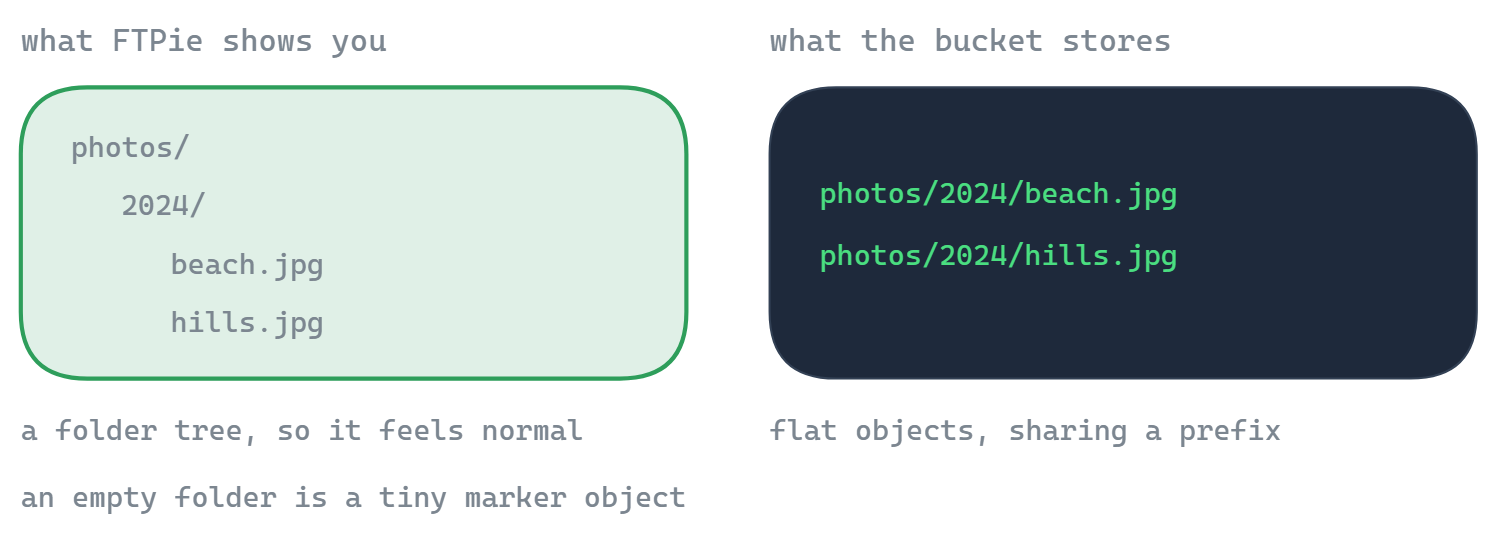
- "Folders" are really name prefixes. Object storage has no true directories; a folder is just a shared prefix on object names. FTPie presents it as a folder so it feels normal, and folder operations do the right thing - just know that an "empty folder" is a tiny marker under the hood.
- Share links are per-file and time-limited. A presigned/SAS/signed URL points at one object and lasts up to 7 days - there's no single link for a whole folder, and no permanent public link (which is usually what you want anyway).
- The bucket has to exist first. FTPie connects to buckets and containers; create the first one in the provider's console.
- Region matters, and some providers check it. AWS and Wasabi validate it, so a wrong region gives a clear error rather than a silent failure; the connection guides say where to read the right value.
Also in this release: stability
2026.7.3 also fixes a batch of crashes reported since the last update - a launch-race crash, a browsing crash when a folder failed to open, the "Leaked a Mutex!" crash on relaunch, a failure to start on older Windows (8.1 and early Windows 10), a Music Player crash, and a crash when right-clicking empty space in the folder tree. The full list is in the release notes.
Getting it
Enterprise object storage is part of FTPie Pro - and if you already bought Pro, it's in your app the moment you update. New here? There's a 30-day Pro trial. See every storage FTPie connects on the supported services page, or jump straight to a connection guide for the provider you use.