Two weeks ago, 2026.6.3 shipped the first two of the three features that had been sitting on the roadmap the longest - File Encryption and the CLI. 2026.7.2 completes the set: Scheduled Transfers is now live in Pro. On top of that, this release adds a visual builder for CLI commands, a proper live speed and time-remaining display for transfers, a significantly safer Google Docs / Microsoft 365 editing flow, one-click unsharing, and two reliability upgrades that make FTPie start - and fail - more gracefully. The condensed list lives in the release notes; here's the story.
Scheduled Transfers - recurring transfers without scripts
The usual way to automate a recurring transfer on Windows is a script wired into Task Scheduler: invisible, brittle, and silently broken the moment a path or a password changes. If you just want "push this folder to the server every evening" or "mirror this Dropbox folder into Google Drive every Sunday", writing PowerShell for it always felt like too much ceremony.
Scheduled Transfers does it from a normal interface. Pick the files or folders to move, pick a destination folder - any two locations FTPie can reach, in any pairing: local, FTP/SFTP, NAS, WebDAV or cloud - choose how often it should run, and FTPie takes it from there.
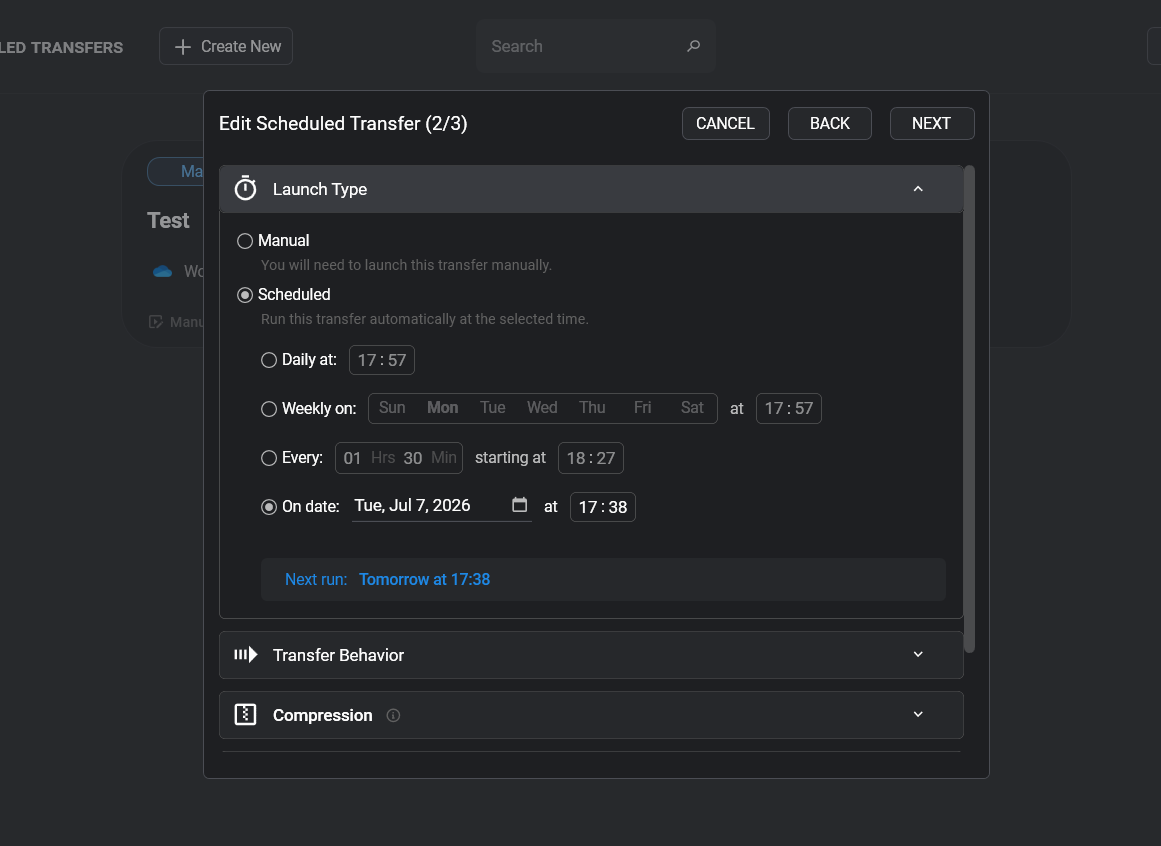
It is built on the same engine as Auto Backups, so all the details you'd expect are there:
- Flexible schedules - daily at a set time, weekly on chosen days, custom intervals, or a one-off run on a specific date. If the PC was off at the scheduled time, a per-transfer missed-run policy decides what happens: run immediately, skip, or ask.
- Smart conflict handling - choose what happens to files that already exist at the destination: replace them, skip them, or transfer only changed files so repeat runs stay fast.
- Optional ZIP packaging - pack each run into an archive, with password protection if you want it.
- Notifications - each transfer can report its result through an in-app toast, email, Telegram, a webhook, or by running a local app - the same notification system backups use.
- Full management - a dedicated dialog lists every scheduled transfer with its next run; run one now, pause and resume, edit, rename, and inspect a per-run history with transferred sizes, replaced/skipped counts and logs.
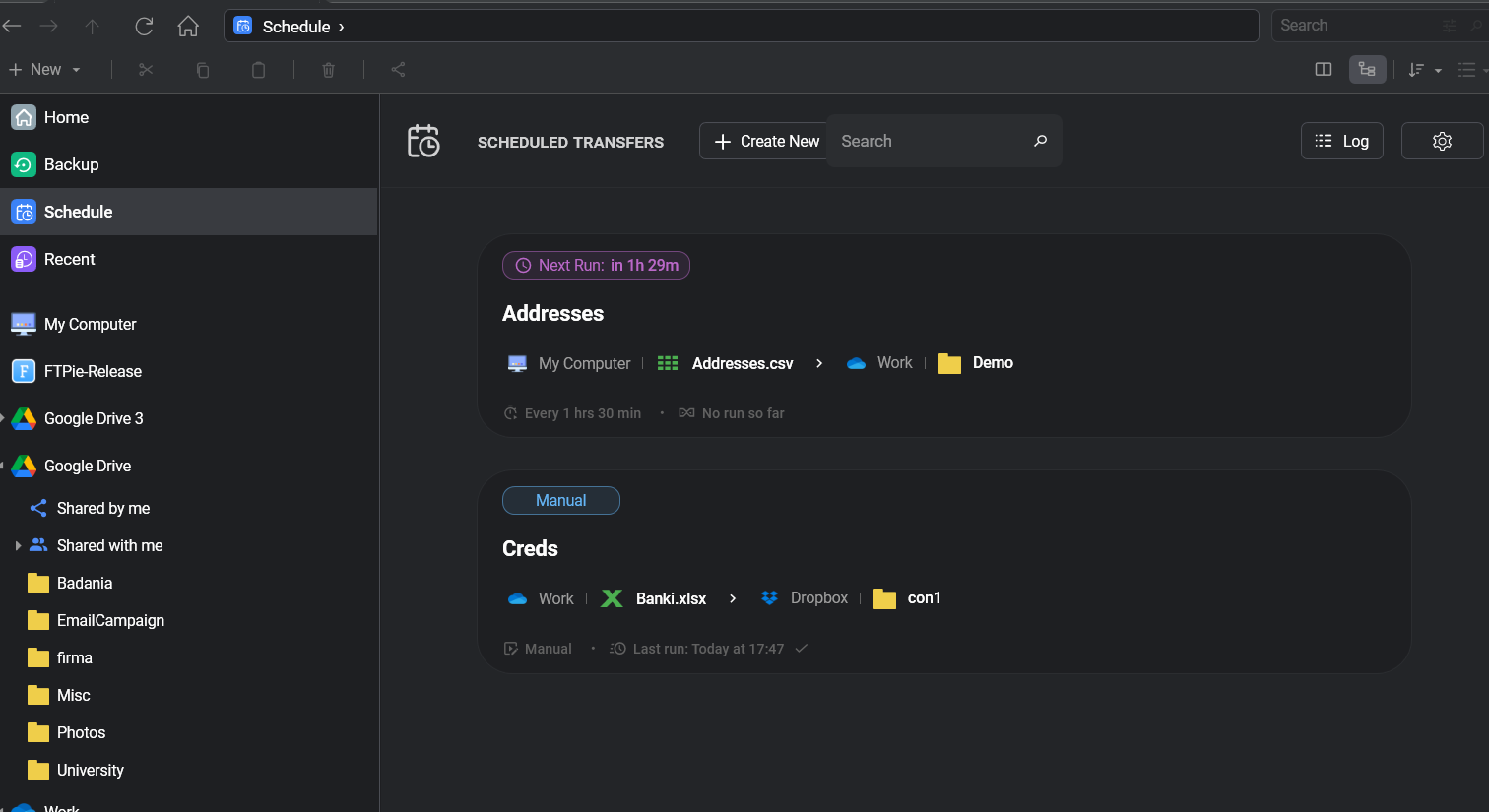
How is this different from Auto Backups? Intent. Backups protect a copy - versioned snapshots with retention, built for recovery. Scheduled Transfers move files - built for keeping two locations in step, on time, without keeping history. If you've ever scheduled a backup job just to fake a recurring transfer, this is the feature you actually wanted.
Scheduled Transfers is part of FTPie Pro, and if you bought Pro at any point, it's already in your app - just update.
CLI Command Builder - the command line without the learning curve
The CLI shipped last month, and the most common piece of feedback was a fair one: a command line is only useful once you know the syntax. Version 2026.7.2 removes that hurdle with the Command Builder - open it from the main menu under CLI → Command Builder.
Pick a command from a dropdown and its arguments appear as normal form fields, each with a hint explaining what it expects. For storage paths you don't type anything at all: a Pick… button opens FTPie's item picker, you browse to the file or folder, and the correct CLI reference is generated for you - including the rename-proof id form for clouds like Google Drive. A live preview shows the exact command as you build it. When it looks right, Copy it into your script or hit Run in terminal to try it on the spot.
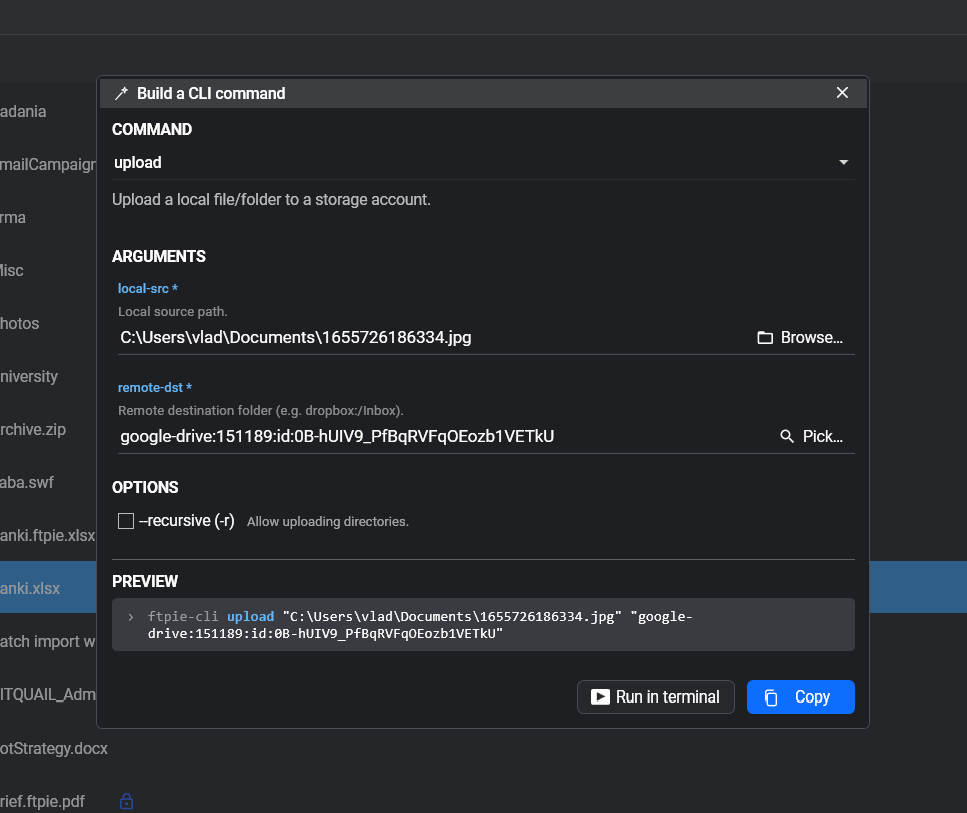
It's the fastest way I know to go from "I want to automate this" to a working command - and
because the builder reads the real CLI, it always matches what ftpie-cli actually
accepts. The full command reference - Command Builder included - lives in the
CLI docs.
Live transfer speed and time remaining
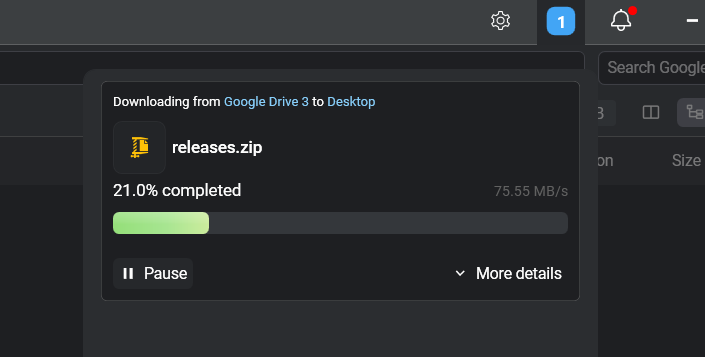
The transfers window now shows a live speed and an estimated time remaining for the whole transfer. Getting this right was harder than it sounds: naive speed displays collapse to zero on batches of small files and swing wildly on chunked cloud-to-cloud uploads, which is exactly why the earlier attempt was pulled. The new implementation samples and smooths the byte stream so the number stays steady and honest in both of those cases - and it's the same algorithm the CLI has been using for its progress bar, now shared by both, so the app and the terminal always agree.
Safer Google Docs & Microsoft 365 editing
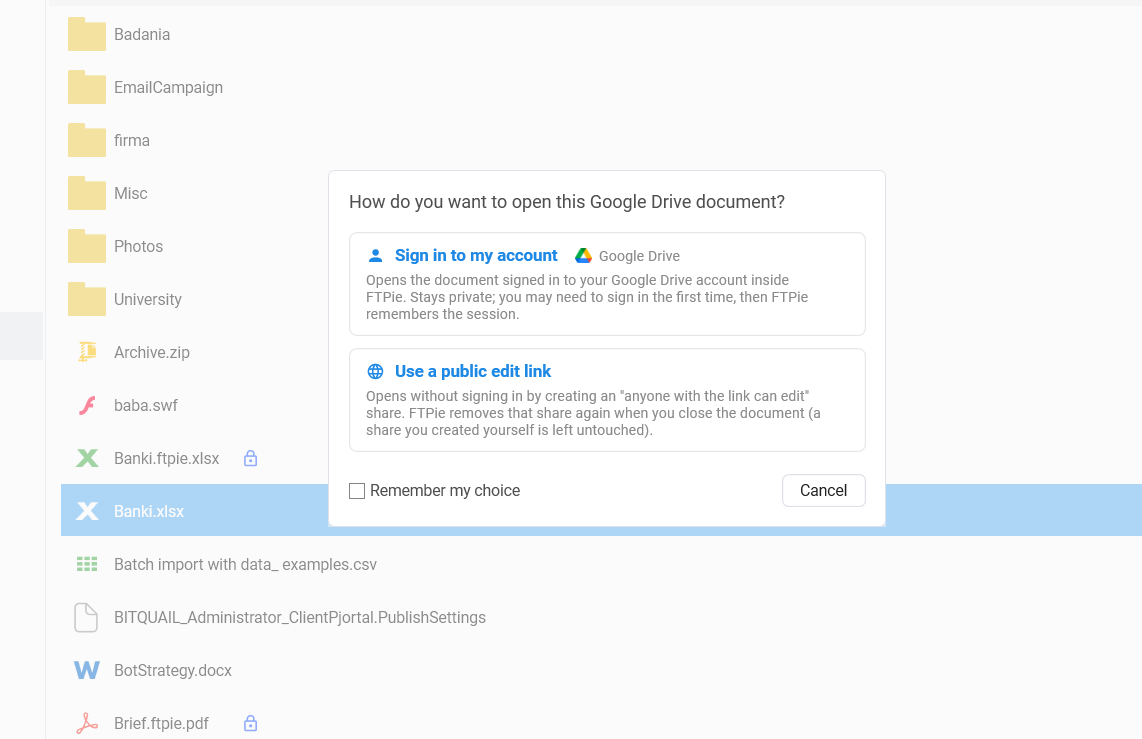
FTPie's document editing lets you open a file from any storage in Google Docs or Office Online. Until now, it did that by creating a share link behind the scenes - which worked, but left documents more accessible than they needed to be, for longer than they needed to be. This release reworks the whole flow around a simple principle: no lingering access.
- Choose how documents open. The first time you edit, FTPie asks: sign in to your Google / Microsoft account in the built-in browser (no share link is created at all), or use a share link like before. Your choice is remembered per provider and can be changed any time in Settings → Apps.
- Share links clean up after themselves. If a link is used, FTPie now removes it automatically when you close the document. And if the document already had a link you created yourself, FTPie reuses it and leaves it untouched - so nothing you shared on purpose ever disappears, and duplicate permissions no longer pile up on frequently edited files.
- Sign in once per account. Editor sessions are now kept per storage account, so sign-in mode doesn't mean logging in every time.
- See where you are. The editor gained a browser-style toolbar with a security lock, the current address, refresh, and an open-in-external-browser button.
If cloud editing is new to you, the guide on editing remote files without downloading covers the whole workflow - including the local-app and built-in editor routes.
Stop sharing from "Shared by me"
The Shared by me folder (added for Google Drive and Dropbox in the last release) shows everything you've shared - whether via Quick Share or straight from the provider - and now it lets you act on it. Right-click any item and stop sharing: FTPie revokes the share link and permissions while leaving the file itself exactly where it is. Reviewing and cleaning up your shared files is now a one-minute job.
Starts cleaner, fails louder
Two reliability changes round out the release:
- App launch reliability - fixed a bug where FTPie could fail to reopen after being closed. In some cases a leftover background process from the previous session lingered, making a new launch think the app was still running. FTPie now shuts down and clears these processes correctly, so the app always starts cleanly.
- Crash reporting - if FTPie ever hits a fatal error while starting up, a window now appears where you can review what happened and send us a report (optionally with the diagnostic log and your email) - instead of the app silently failing to launch. Nobody plans to see this window, but when something goes wrong, "silently nothing happens" is the worst possible answer.
What's next
With encryption, the CLI and Scheduled Transfers all shipped, the focus moves to the remaining Pro roadmap: enterprise object storage (Amazon S3, Azure Blob, Google Cloud Storage) and Folder Sync / Folder Watcher. As always, they're already included in Pro - they unlock automatically when they land.
Thanks
The Command Builder exists because people asked for an easier way into the CLI, and the document editing rework started from a single very good question about share links. Keep the feedback coming - it shapes these releases more than anything else. Thanks for using FTPie.