FTPie 2026.11.1 is out, and most of it is about sharing. Until now a link from FTPie was your storage's own link, or a short redirect to it: open to anyone who had it, with no way to put a password on it. This version adds FTPie links: short links on ftpie.link, with a password if you want one, one link for a whole set of files, and screenshots and notes shared as themselves. Videos play smoothly now and come with a playlist, and FTP, FTPS and SFTP got a long list of fixes.
A short link, with a password if you want
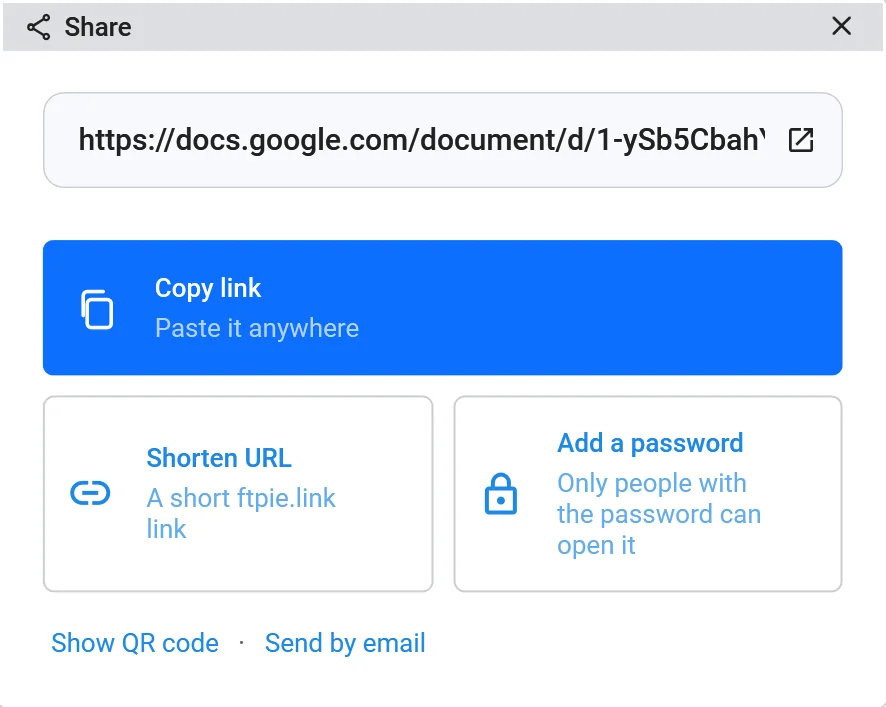
Share a file on any cloud and the dialog opens on the file's own link, with Copy link as the big button. Under it are two new ones. Shorten URL turns the link into ftpie.link/ and ten characters, which opens the file where it is. Add a password does the same behind a password you type twice.
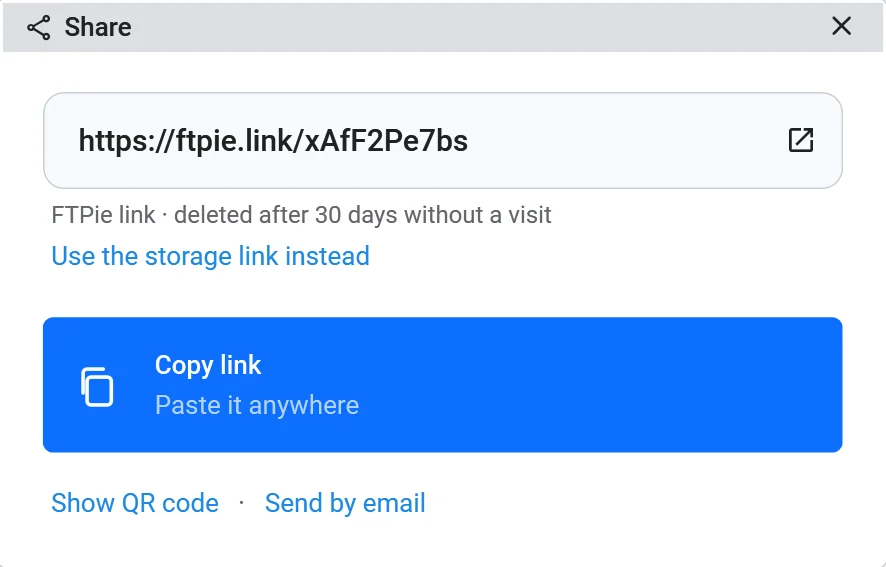
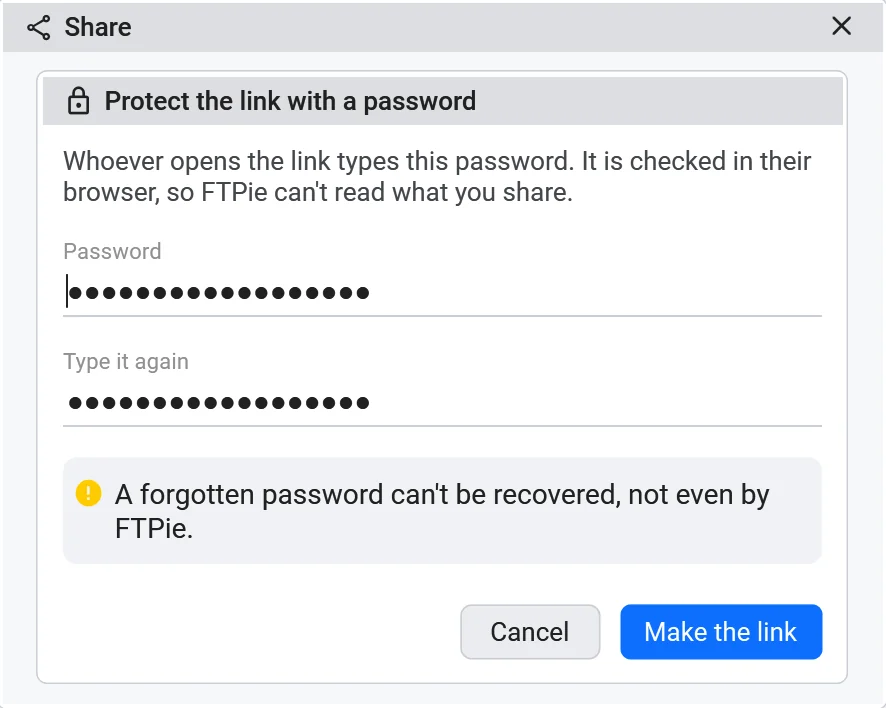
The password never leaves your PC as a password. FTPie encrypts the link with a key made from it before sending anything, and the page on ftpie.link asks for it and decrypts in the recipient's browser. So ftpie.link holds data it can't read, and nobody, FTPie included, can recover a forgotten password. Under the box FTPie says what you made ("FTPie link · deleted after 30 days without a visit · Password-protected"), and Use the storage link instead goes back to the original. Both links keep working.
One link for several files
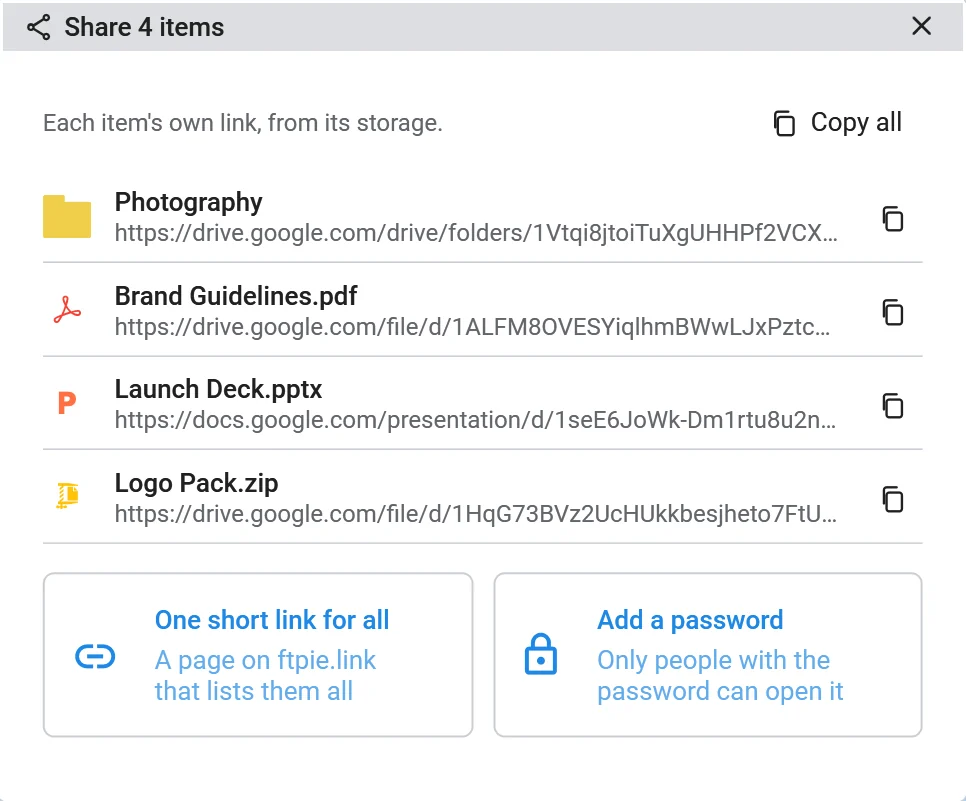
Select a few files and folders and choose Share on the toolbar or in the right-click menu. You get each item's own link in a list, with Copy on every row and Copy all at the top, which is often all you need. When it isn't, One short link for all makes a single page on ftpie.link that lists them, and Add a password beside it puts that page behind a password.
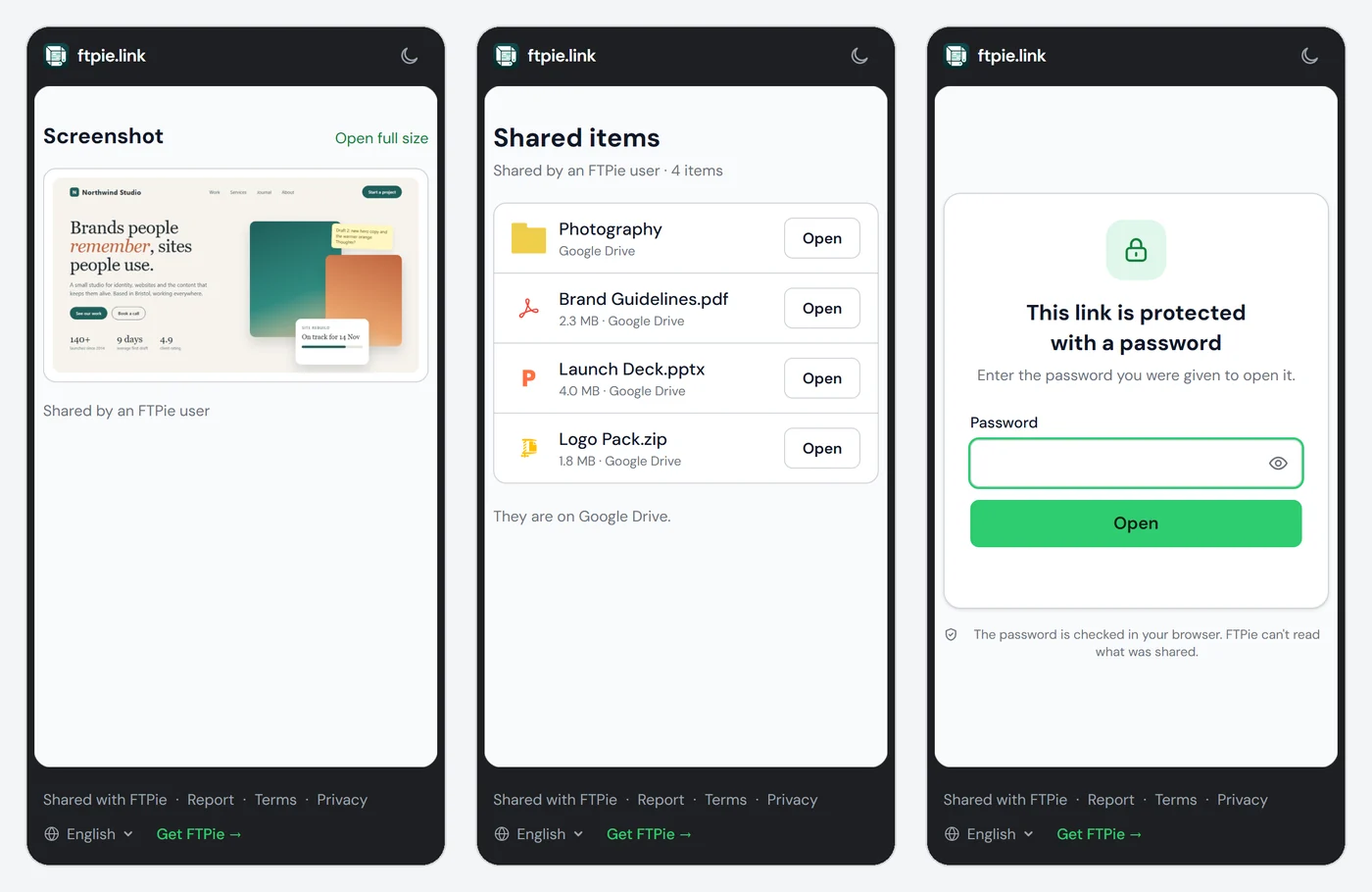
This is what the person you send it to sees. No account and no app: a page in their browser, in their language, with an Open button on each item that takes them to the file on your storage.
Share a screenshot or a note itself
Until now, sharing a screenshot meant uploading the image to one of your clouds and sending that link. The screenshot tool now has Get link first in its toolbar: it puts the screenshot itself on ftpie.link, where it opens as an image with an "Open full size" link. Notes has the same button, and a shared note opens as a read-only page that looks as it does in FTPie: headings, lists, tables and code, in the theme it was shared from.
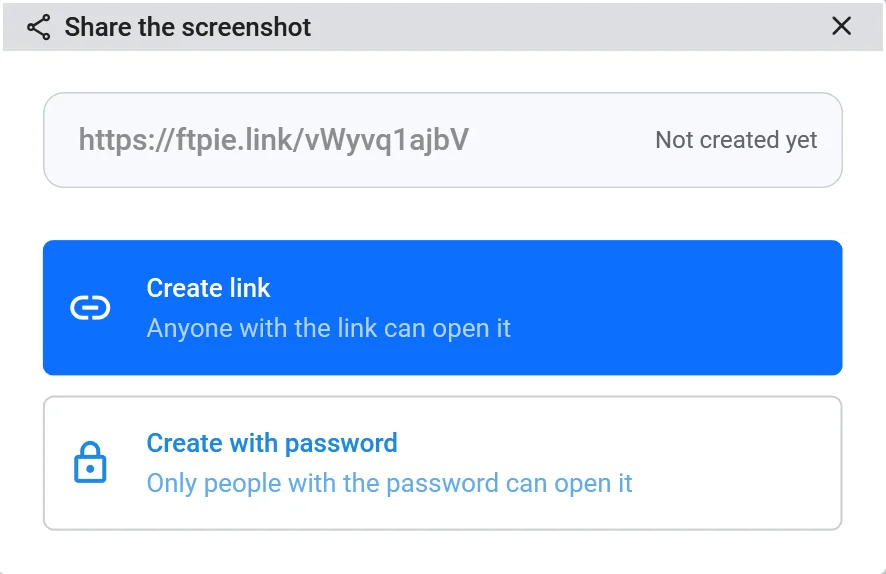
The address is there before anything is made, dimmed and marked "Not created yet". Nothing leaves your PC until you choose Create link or Create with password. Share, beside Get link, still puts a copy on your own storage, the way it always has.
Every link in one place, and gone when you're done
Main menu > Shared links lists everything you've shared, grouped by day: FTPie links, with a thumbnail for a screenshot and the first line of a note, and the storage links you made before. Filter by kind, copy any link again, and Revoke an FTPie link to stop it for everyone at once.
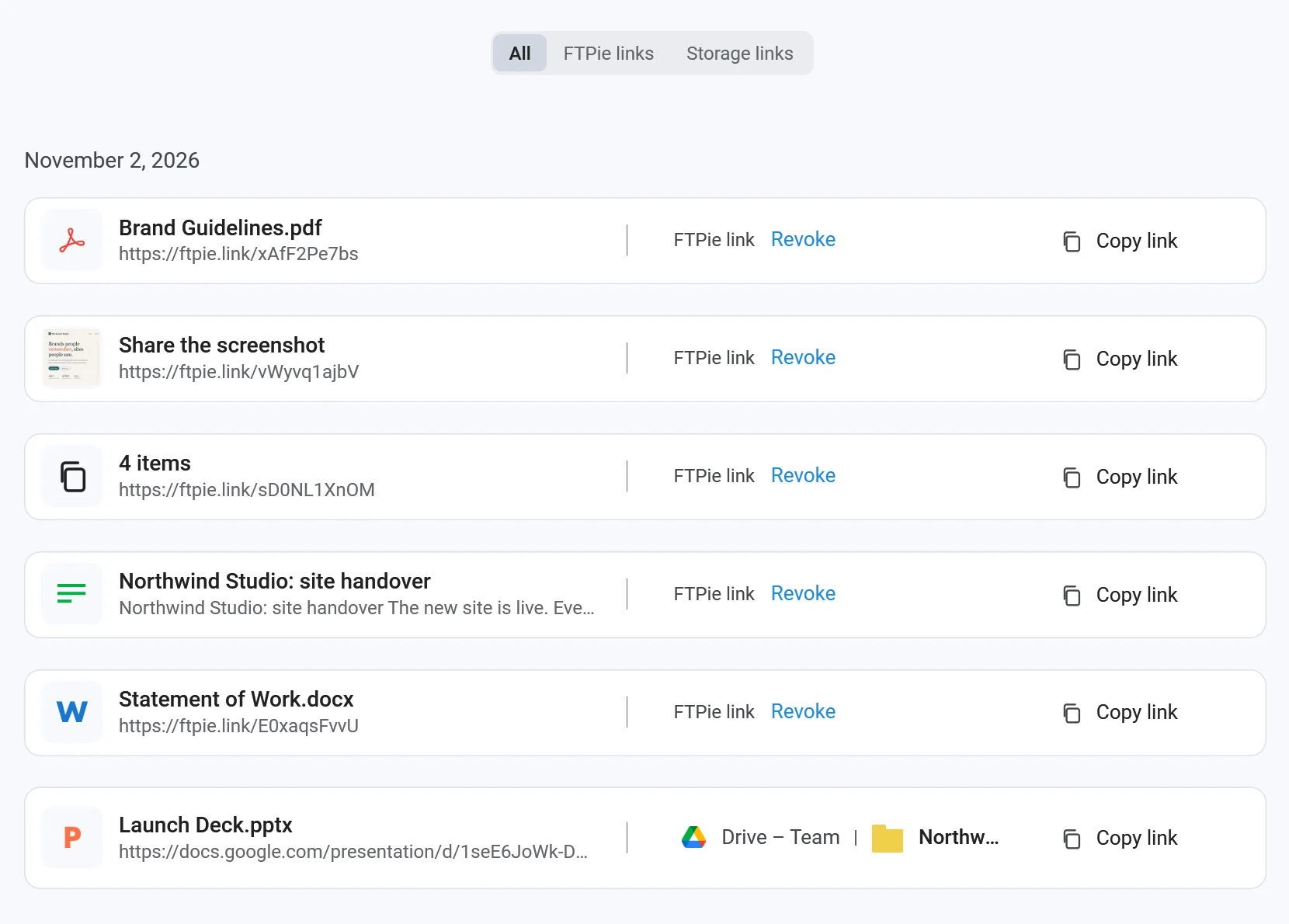
And you don't have to remember to clean up. An FTPie link is deleted after 30 days without a visit, and a link made on the trial lasts 7 days at most. The list itself stays on your PC: there is no account on ftpie.link that lists what you've shared.
Email with nothing to set up
Share via email used to need your own mail account: Gmail with an app password, Outlook, or an SMTP server. That still works and nothing changes if you use it. If you never set it up, Settings > Email now has FTPie mail (no setup): share emails go out with nothing to configure, and backup and transfer alerts reach the email address on your licence.
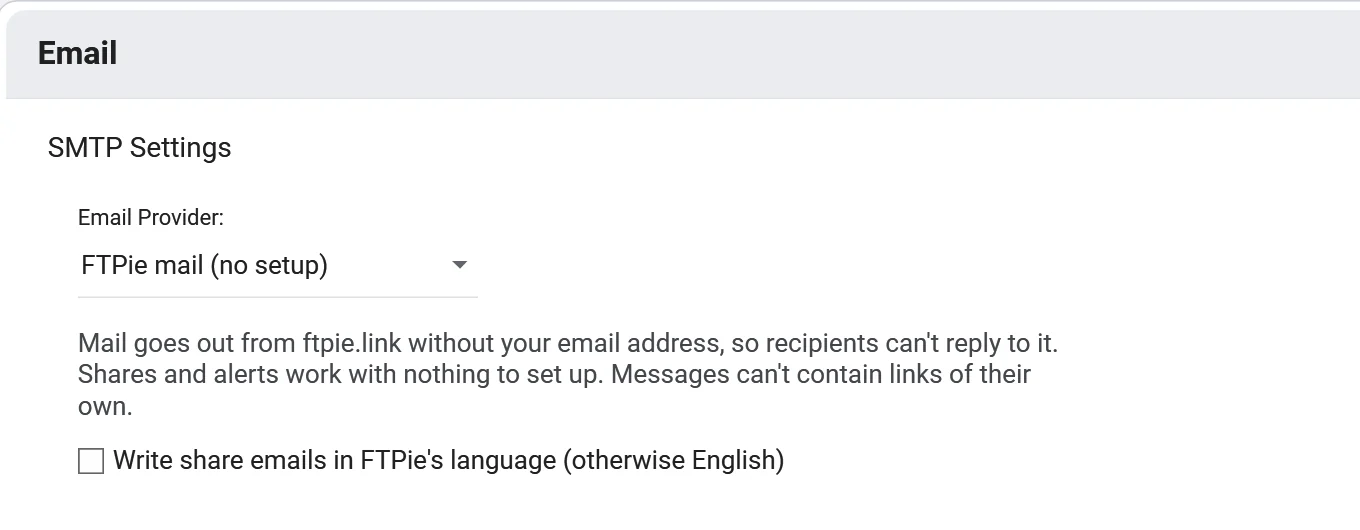
The mail comes from ftpie.link and doesn't carry your email address, so the recipient can't reply to it. It is in English, since FTPie can't know the recipient's language, unless you tick "Write share emails in FTPie's language". Every item in a share email now has an Open button, folders included.
Quick Share asks first, and uploads inside the dialog
An FTP or SFTP server, a NAS or your own PC can't make a public link, so FTPie has always uploaded a copy to a cloud you pick and shared that. It now says so before it does: what goes up, its size, and to which storage, with Change to pick another and Cancel, which uploads nothing.
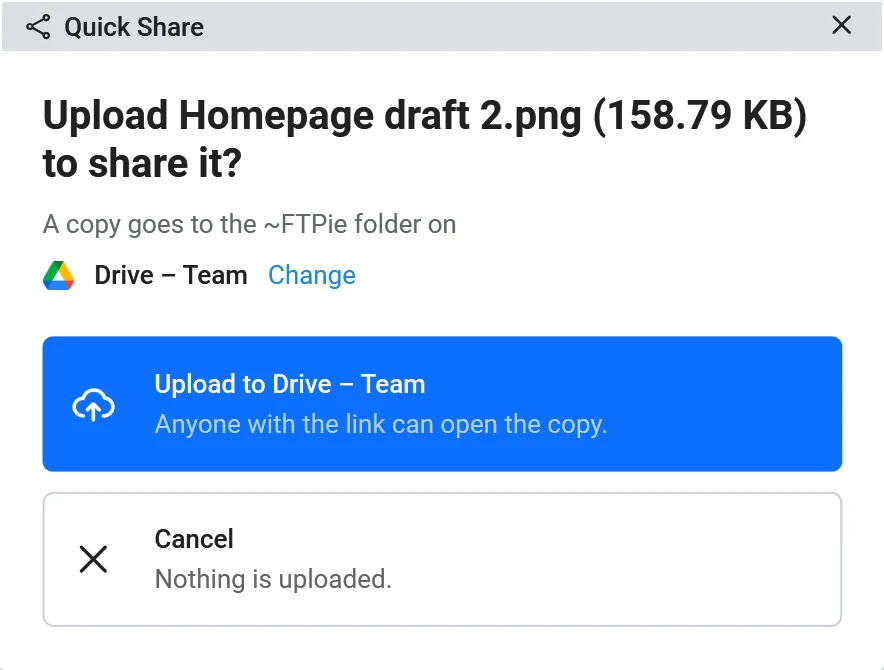
When you upload, the progress runs in the link box ("Uploading... 45%") and the link appears in the same dialog, instead of in a separate transfer window.
- A short link to a file keeps the address of the file on your storage, encrypted. The file itself never passes through ftpie.link.
- A screenshot or a note is stored on ftpie.link, in Cloudflare's storage, and the page loads it straight from there.
- With a password, all of it is encrypted in FTPie before it leaves your PC, with a key made from the password, so ftpie.link can't read it.
- The pages set no cookies and run no analytics. FTPie links and FTPie mail come with FTPie Pro and the trial; a trial has lower limits.
Videos play smoothly, with a playlist
The video player drew every frame with the processor instead of the graphics card, so a 60 fps video showed about 14 frames a second, and the rest of FTPie stayed on that slower drawing until you restarted it. Videos now play on the graphics card, as Windows' own player does. In our tests 30 fps videos play every frame, and 60 fps videos went from 14 to over 50 frames a second.
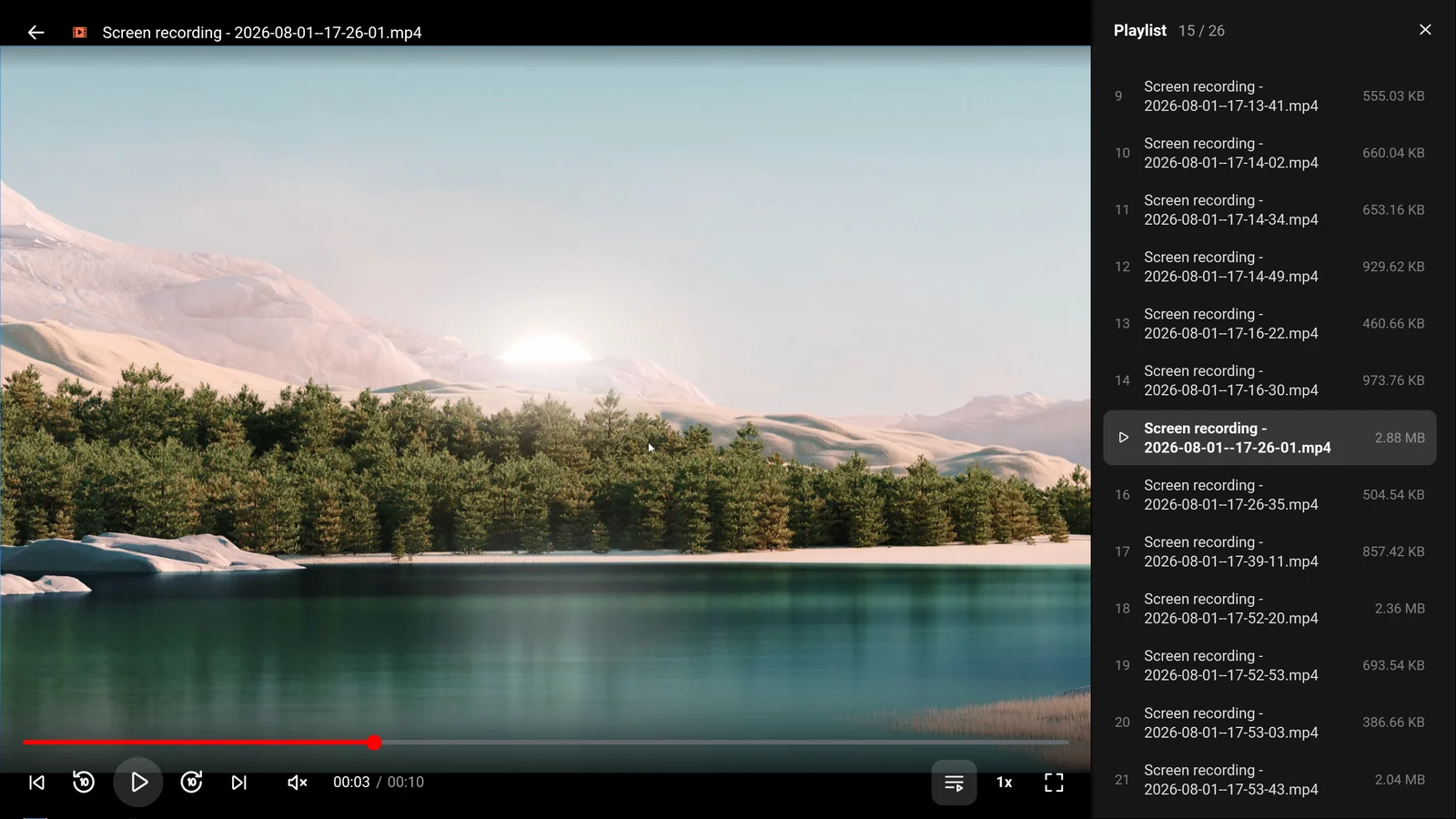
When a folder has more than one video, the player lists them in a playlist on the right, with the one playing marked and kept in view. Long names wrap onto a second line, so screen recordings that differ only by their time are easy to tell apart. The playlist button next to the speed hides or shows it, and FTPie remembers your choice.
The music player got a row of thin bars that jump on every beat and leave a small cap hanging at each peak, like the spectrum analyzers of the old desktop players, and a glow around the play button that swells with the bass.
Open with the app you meant
- Open shows the app it will use. Right-click a file and Open carries the icon of the app a double-click opens it in.
- Open with lists the apps you use for that type of file, the last one first, so another of them is one click away.
- Files open without holding up the window. FTPie picks the app in the background in a few milliseconds, where a double-click used to search every installed program twice.
- A toolbar that shows what you can do. With nothing selected, New folder, Upload and Transfer here, which brings files from any of your storages into the folder you are in, are buttons on the toolbar. The column headers in the Details view are lighter, and sort the same way the Sort button does.
- Settings, sorted into groups: Files, Automation, Security and Tools.
FTP, FTPS and SFTP
This part of the release came from testing FTPie against four kinds of server, vsftpd, ProFTPD, Pure-FTPd and OpenSSH, and fixing what didn't hold up:
- Hidden files show up on every FTP server: .htaccess, .well-known, a project's .git. Copies, moves and backups take them, and "Show hidden files and folders" in Settings hides them from the list only.
- Folders behind a symbolic link open, such as the www folder of cPanel hosting, and deleting a link removes the link and leaves what it points to.
- Go to any folder on the server. Type a path with .. in the address bar, or use the new folder button at the top of an FTP or SFTP storage and type /var/www.
- Names in any alphabet, such as zażółć.txt and 日本語.txt, on servers that don't announce UTF-8.
- FTPS certificates that Windows trusts are accepted without a question, so scheduled transfers and backups keep running when a server renews its certificate.
- Several files at once on every FTP server, five unless you change it, with a Max Connections setting per account. A server that allows fewer is handled straight away.
- Faster uploads into big folders. In our tests, 200 small files went into a folder of 2,000 in about a third of the time.
Fixes worth a line each
- Big files go from SFTP and FTP to Google Drive, OneDrive and Dropbox. A file over the chunk size (50 MB unless you changed it) failed with "Invalid request" on the way.
- Downloads keep names with ".part" in them: video.part1.rar was saved as video1.rar.
- A download never replaces a file you didn't choose to replace. Windows takes Photo.JPG and photo.jpg for the same name, and one could quietly replace the other.
- Empty files download from S3-compatible storage such as MinIO.
- A right-click no longer starts a drag, and a busy error log no longer closes FTPie.
Get it
FTPie updates itself, so you may already be on 2026.11.1: check Settings → About. If not, download it here; it installs over your existing copy and keeps your storages and settings. The full release notes list every change, and Quick Share has the whole of sharing on one page.