FTPie 2026.10.2 is out. Half of it you will see the moment it starts: the top of the window has been rebuilt, with a main menu that finds your open tabs, an address bar you can jump through, and a toolbar that changes with what you select. The other half you will not see, and it matters more: backups and transfers that no longer lose files, or report a file as done when it is not.
One change needs a minute of your time if you connect to your own NAS or WebDAV server over HTTPS. It is further down.
A main menu that finds your tabs
The menu used to slide in over the whole window. It now drops down from the arrow at the top left, right under the tabs, and it starts with the thing you most often need when lots of tabs are open: every open tab, listed with its icon, the one you are on marked. Type to narrow the list, pick one with the arrow keys and Enter. When there are so many tabs that their names no longer fit, this is the quickest way back to the one you want.
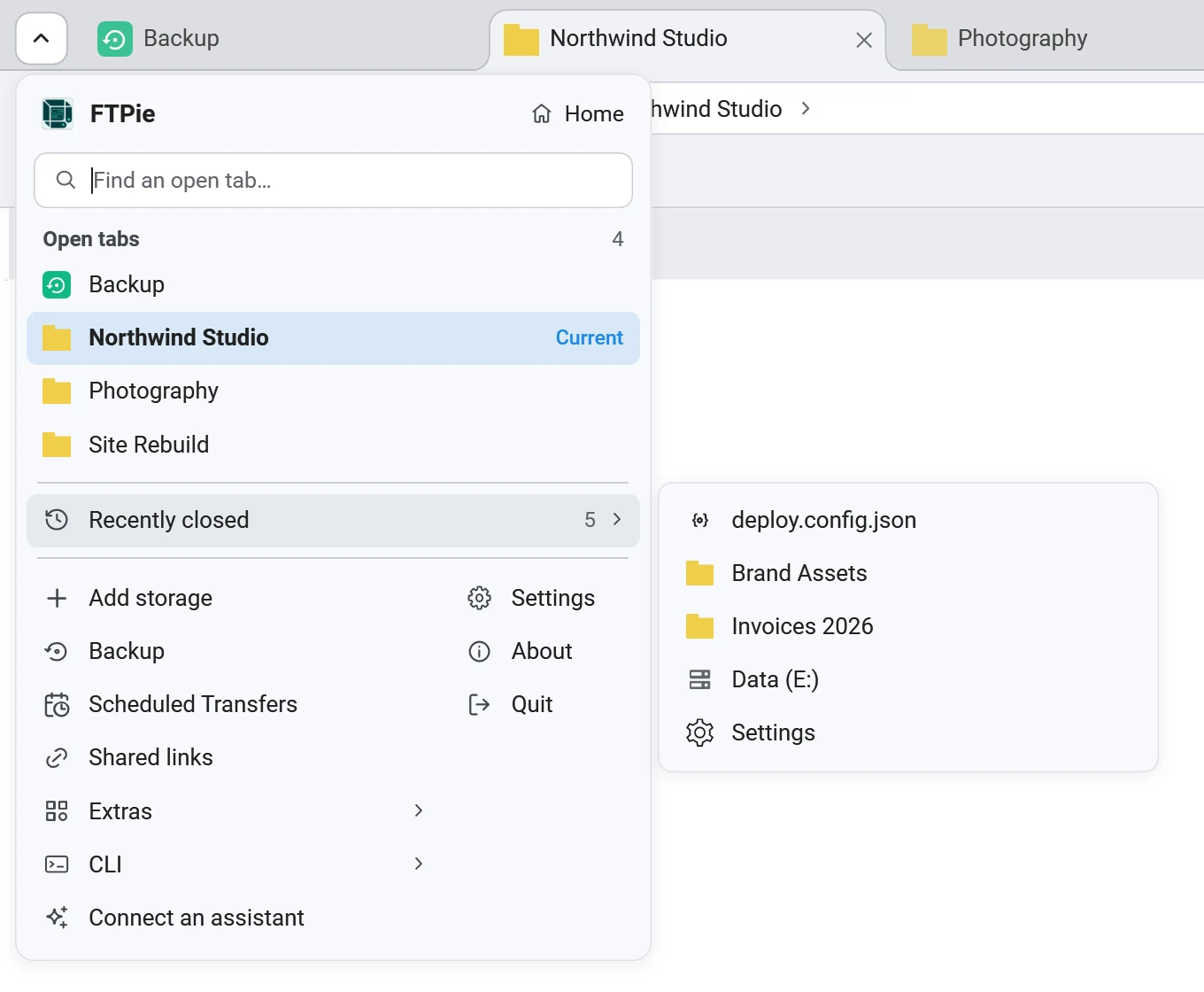
- Recently closed keeps the last ten tabs you closed, and each comes back where it was: a storage folder on that folder, and Home, Settings or Notes as they were. Ctrl+Shift+T reopens the last one, as in a browser.
- Home at the top of the menu takes you to your storages, to the Home tab you already have open if there is one.
- The rest sits in two columns: Add storage, Backup, Scheduled Transfers, Shared links, Extras (Notes, Screenshot and Screen Recording), CLI and Connect an assistant, then Settings, About and Quit.
An address bar you can jump through
Click the arrow after any folder in the address bar and it lists the folders inside it. Pick one and you are there. The folder your current path runs through is highlighted, so you can see where you came from and step sideways into a neighbour without going up first.
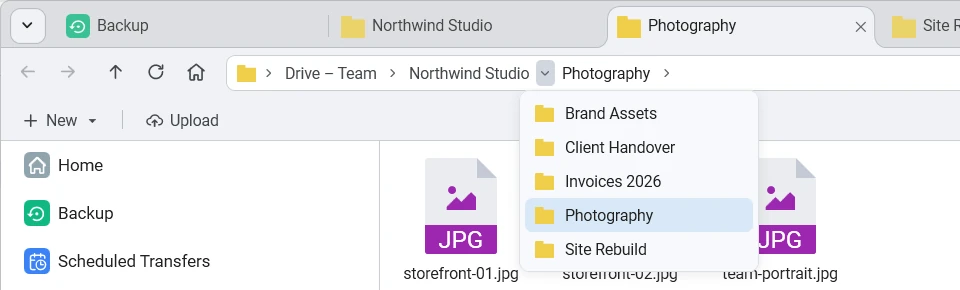
The list does not wait for a server. It shows the folders FTPie already knows from your browsing, the same ones the folder tree shows, so it opens straight away on a cloud, an SFTP server or a NAS alike. A folder FTPie has not opened yet offers to open it instead.
- Type or paste a path. Press Ctrl+L or Alt+D, or click the empty part of the bar. A Windows path works from any tab; on a storage you type the storage's own path. FTPie suggests the folders it knows and finishes the name: Tab goes on into that folder, Enter opens it.
- Switch storage from anywhere. The arrow next to the icon at the start of the bar lists your storages and the pages pinned to Home, such as Backup and Favorites.
- Right-click a folder in the bar to open it in a new tab or in split view, copy its path, add it to Favorites or show it in File Explorer. Middle-click opens it in a new tab, and you can drop files straight onto it.
- Right-click or hold Back and Forward to jump to any of the last 20 places in that tab. Long paths keep their start: « at the beginning of the bar lists the folders that did not fit.
A toolbar that follows what you select
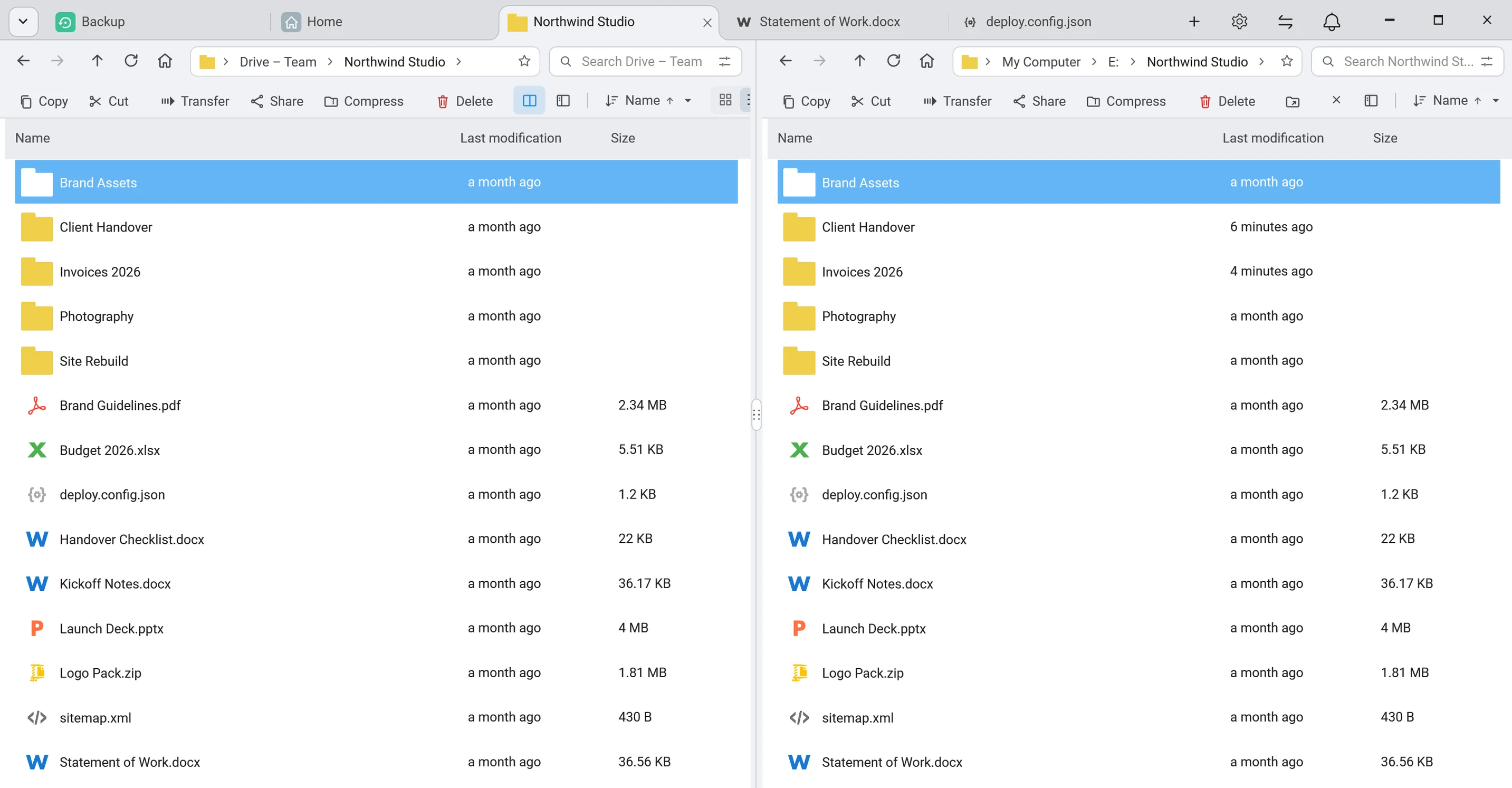
The toolbar used to show the same row of file actions all the time, most of them greyed out. Now it shows what makes sense at that moment. With nothing selected, it offers what the folder can take:
Nothing selected

Three files selected

- Nothing selected: New, Upload on a cloud or server storage, and Paste once there is something to paste.
- Files selected: Copy, Cut, Transfer, Share (for a single item its storage can share by link), Compress and Delete, in words rather than bare icons. How many you selected and their total size sit on the right, with an × to clear the selection. In a narrow split-view pane the words drop to icons.
- The view mode is a switch you can see, Icons, Details and Preview, instead of a dropdown, and the sort button says what it sorts by and in which direction.
Drag a folder to the edge to open it side by side
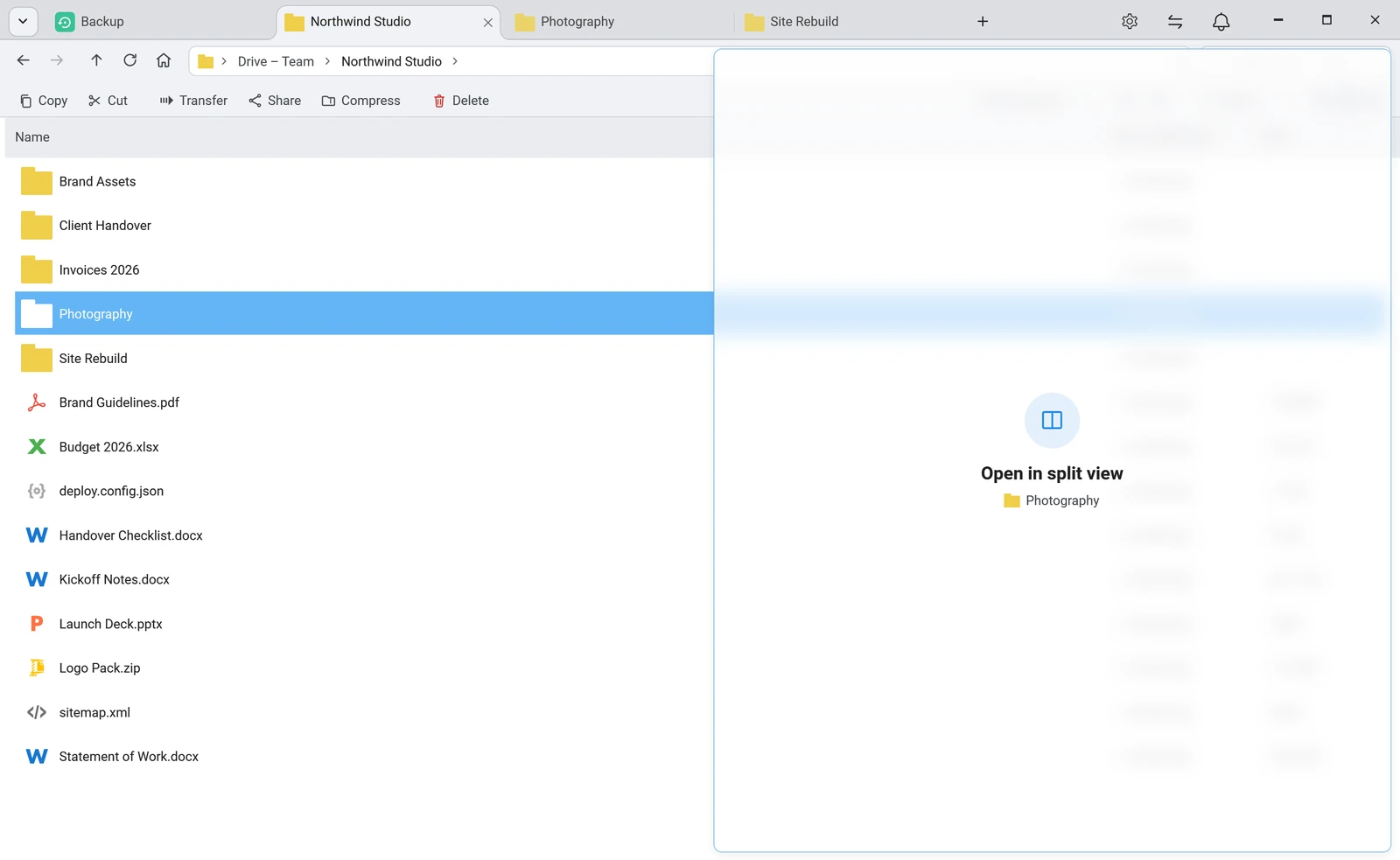
Split view puts two places side by side, a cloud folder and a folder on your PC, say, and it is now one drag away. Drag any folder to the right edge of the window and a preview shows where it will open. Let go, and it opens next to the folder you are in.
And when you have shared something: Main menu > Shared links keeps every link you made with Share and Quick Share, newest first and grouped by day. Copy one again, open it in your browser, or go to the folder the file is in. Closed the share dialog before copying the link? It is still there. Removing a link from the list only tidies the list; the link keeps working.
Backups: the part worth reading
Most of the work in this release went into backups, and two of the changes are things you should know about even if you never open the backup page:
- If you back up to S3, Azure Blob, Google Cloud Storage, Cloudflare R2, Backblaze B2, Wasabi or DigitalOcean Spaces: a backup larger than about a gigabyte could finish uploading correctly and still be reported as failed. It was left in a folder ending in "_part", where restore never looked and where your provider kept charging for it. Backups to these storages are now written straight into place and marked complete when they finish. If you have "_part" folders on a bucket, point a new backup at that folder and FTPie offers to recover the complete backups among them.
- Hidden files and folders are backed up. Plain backups used to leave them out, including every Git repository's .git folder, while compressed backups kept them. Both now include them, so a backup can grow. Shortcuts to other folders (junctions) are not followed, so nothing is backed up twice.
The rest makes backups harder to break and easier to trust:
- One file in use no longer fails the whole backup. A compressed or encrypted backup now saves everything else, names the file it could not read, and finishes as "completed with errors".
- A Filters step in the backup wizard leaves things out: patterns such as *.tmp, node_modules or *.iso, a size limit, and presets for temporary files and caches, node_modules and .git folders, and files over 1 GB. An excluded folder is never even listed, so the backup is faster as well as smaller.
- No changes, no new copy. FTPie compares the source with the last backup first and records "No changes" instead of storing an identical copy. It is on by default for new backups of folders on your PC, and a full copy is still made at least once a week.
- Every backup says what it holds. A .manifest.json beside each backup lists every file, whether the run finished and anything it could not include, and a HOW-TO-RESTORE.txt explains how to get your files back with nothing but 7-Zip and your password, or with FTPie on a new PC.
- Keep your history on a new PC. Point a new backup at a folder that already holds backups and FTPie offers to adopt them, so the earlier runs show in its history and restore straight away.
- Restoring is safer. An original is no longer deleted before its replacement is in place, a filtered backup restores by merging, and Restore warns you when the backup you picked did not finish. The encryption password is typed twice, so a typo cannot lock you out.
Transfers that say what really happened
A file manager's first job is to never lose a file, and its second is to tell you the truth about what it did. This release closes several ways FTPie could fail at either:
- Replacing a file never loses the one you had. The new file arrives under a temporary name, and the old one goes only once the new one is in place. If anything fails, the old file is put back and the transfer says why.
- Downloads to your PC or a network share arrive whole. When a server sent a download in several pieces, as some cloud storages do when they are busy, FTPie could keep only the last piece and still call the download complete. It now joins the pieces, picks up where a server stopped, and fails a file it cannot get whole, with a message saying so.
- A storage that stops answering fails the file instead of quietly skipping it, and a Move then keeps its source, so you can retry.
- Renaming and moving on S3 keeps the original if the copy is not confirmed, and files over 1 GB now go up to S3-compatible storage and Azure Blob in parts, so files larger than about 5 GB, which those storages refuse in one go, can be uploaded at all.
- Errors you can act on. An expired cloud sign-in tells you to sign in again, instead of "Bad Request", and a full destination says it is full.
FTPie now checks the certificate of every server it connects to over HTTPS, as Windows does. It used to accept any certificate, which meant a connection could be intercepted without you knowing. If your server uses a certificate it made itself, as many home NAS boxes do, FTPie refuses the connection until you trust it: edit the storage, press Test connection, check the certificate it shows (who it was issued to, when it expires, and its fingerprint, which you can compare with the one your NAS shows), and trust it. FTPie remembers it for that server.
In the same spirit, SFTP now warns when a server's key changes. A key you accept is remembered for that server and port, and when a server you know presents a different one, FTPie warns that someone may be intercepting the connection, with Reject as the default. Keys you accepted before still count, so you are not asked again.
The text editor saves exactly what you see
Every save used to add an empty line at the end of the file, with a Windows line ending even in a Linux file, which is enough to break a shell script on a server. A file in an encoding other than UTF-8 could lose its accented letters. The editor now writes exactly what you see, in the file's own encoding and line endings. A new status bar shows where the cursor is and lets you switch word wrap, the highlighting language and the line endings, and Ctrl+S saves.
Fixes worth a line each
- MEGA signs in again. MEGA added an extra security check for apps, and FTPie could not answer it; the sign-in failed with a message about quota. It answers it now, and opening MEGA no longer freezes the window for a second or two.
- OneDrive signs in even if you switch between Personal and Work or school while the sign-in page is open.
- SFTP connects on FIPS-mode PCs, as many company and government PCs are set up.
- A busy FTP server no longer fails a file on the first try when it answers "try again later".
- FTPie starts on PCs where Windows refuses to protect its data, instead of closing before its window appears.
- The ZIP viewer opens big archives, over 4 GB or with tens of thousands of files, and asks for an archive's password first.
- The ~FTPie-Temp folder is cleaned up when FTPie closes, instead of staying behind.
Get it
FTPie updates itself, so you may already be on 2026.10.2: check Settings → About. If not, download it here; it installs over your existing copy and keeps your storages and settings. This post covers the highlights. The full release notes list every change, including the image viewer, the video player, Notes, and the screenshot and recording tools, which all got a cleaner look.