A NAS feels safe - redundant disks, RAID, blinking reassurance in the closet. But RAID protects against a dead disk, not against fire, theft, ransomware that encrypts your shares, or the classic accidental delete that replicates instantly across mirrors. A real 3-2-1 setup needs a copy that lives somewhere else, and for most homes and small offices "somewhere else" means cloud storage. Here are the practical ways to get it there.
Option 1: Your NAS vendor's own backup app (start here)
Honest advice first: if your NAS is a Synology or QNAP, the built-in tools are good and run on the NAS itself - no PC required:
- Synology: Hyper Backup does versioned, deduplicated backups to a long list of clouds; Cloud Sync does continuous one-way or two-way sync. (Our Synology → Google Drive guide walks through both.)
- QNAP: Hybrid Backup Sync (HBS 3) covers the same ground - versioned backup jobs and sync to major clouds.
Their limits: each is locked to its vendor's ecosystem, cloud-target support varies by app and region, restore browsing happens through the NAS interface, and the proprietary backup formats generally need the same tool to restore.
Option 2: rclone (free, powerful, command-line)
rclone can copy or sync an SMB share to nearly any cloud and is genuinely excellent - if you're comfortable maintaining config files, cron/Task Scheduler entries, and reading logs when something silently stops. For a technical user it's a fine answer; for everyone else it's a part-time job. (Where it sits against a GUI approach: FTPie vs rclone.)
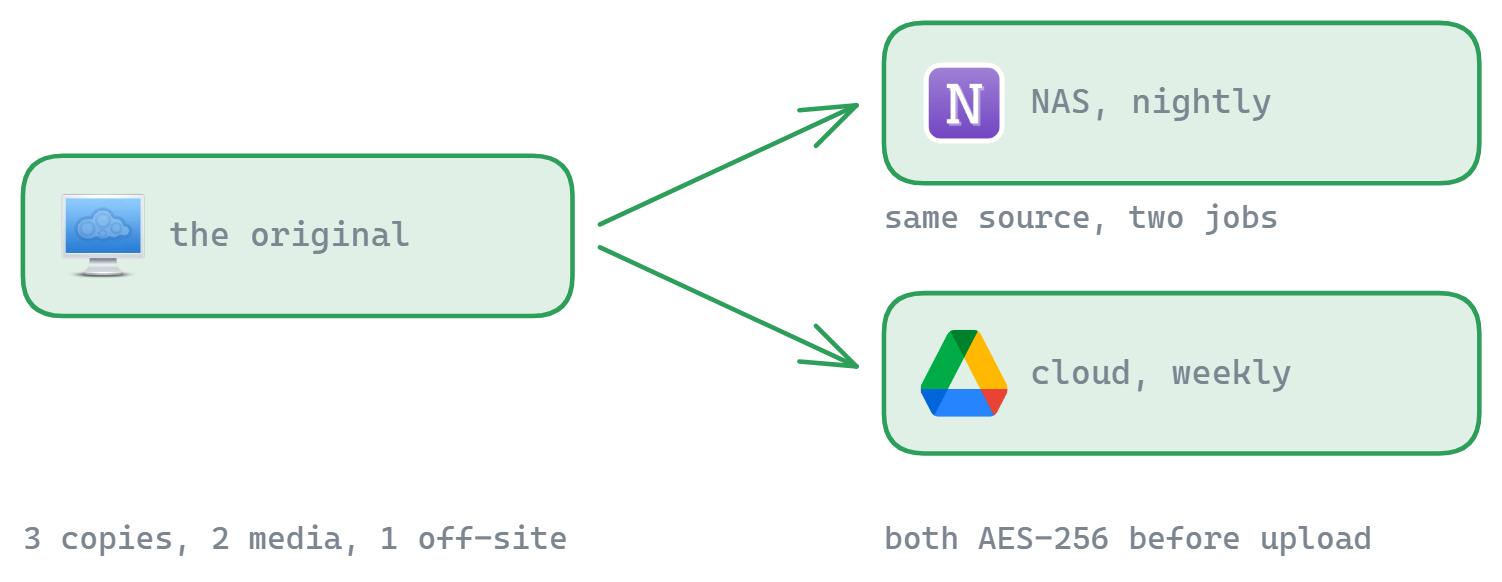
Option 3: A scheduled pipeline from Windows - any NAS, any cloud
If a Windows PC in the house is on regularly anyway, FTPie turns it into the bridge: it connects your NAS over SMB (works with Synology, QNAP, or any NAS exposing shares) and your cloud account, and an Auto Backup job ties them together:
- Connect the NAS share and the cloud (Google Drive, Dropbox, OneDrive, pCloud, MEGA…).
- Create an Auto Backup: source = the NAS folders, destination = a cloud folder, schedule = nightly/weekly.
- Optionally enable compression (fewer, smaller uploads) and client-side AES-256 encryption - the cloud only ever stores ciphertext, and the password never leaves your PC.
- Restore is one click from the backup manager - and files are browsable, not locked in a proprietary vault format.
The honest trade-off: this runs from Windows, so the PC must be on when the schedule fires - vendor apps run on the NAS itself and don't have that constraint. What you get in exchange: one identical workflow for any NAS brand (including no-name SMB boxes the vendor apps ignore), client-side encryption you control, notifications (email/Telegram/webhook), and backups that live alongside the rest of your file management.
Which option fits you?
| Situation | Best fit |
|---|---|
| Synology/QNAP, backups must run 24/7 without a PC | Hyper Backup / HBS 3 |
| Comfortable with CLI, want maximum flexibility for free | rclone |
| Any-brand NAS, want encryption + easy restores + a GUI | FTPie Auto Backup from a Windows PC |
| Continuous mirroring rather than versioned backup | Vendor sync apps (know that sync replicates deletes!) |
Two related reads: the general automated PC-to-cloud backup guide (same engine, local sources), and how to encrypt files on Windows if the encryption side matters most to you.
Start Your 30-Day Free Trial
Download FTPie and start your free 30-day trial. Enjoy seamless FTP + cloud integration and keep using the free version afterward.
Download Free Trial