You have a Synology full of family photos or business files, and a Google account with storage to spare. Getting one into the other has three sensible answers - two of them made by Synology - and the right choice depends on whether you want sync, versioned backup, or an encrypted pipeline you control from Windows. Honest guide, all three.
Option 1: Synology Cloud Sync (mirror, not backup)
Cloud Sync (installable from Package Center, runs on the NAS) continuously syncs a NAS folder with Google Drive - one-way or two-way. It's free, reliable, and runs 24/7 without any other machine involved. The critical caveat is in the name: sync is not backup. Delete a file on the NAS (or let ransomware encrypt it) and the change mirrors to Drive. Use it for availability - having files in both places - not for protection.
Option 2: Synology Hyper Backup (the real backup)
Hyper Backup does what backup should: scheduled, versioned, deduplicated backups with retention rules, and Google Drive is a supported destination. Restores of specific versions happen through Hyper Backup or Synology's browser tools, because data is stored in its own backup format rather than as plain files. If your requirement is "a proper versioned backup of the NAS, run by the NAS," this is Synology's answer, and it's a good one.
The trade-offs: the backup format is only readable by Synology's tools (no browsing the files directly in Drive), and encryption/retention knobs live in yet another NAS app to administer.
Option 3: A Windows-based pipeline with FTPie (control + encryption)
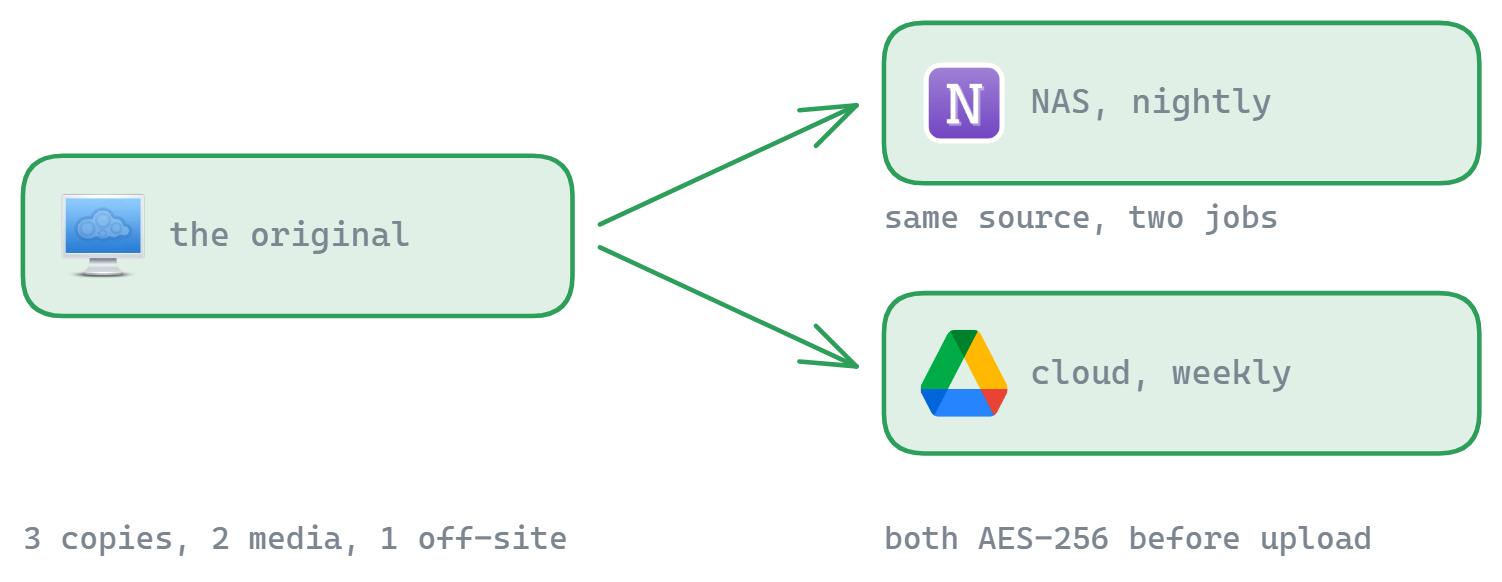
If a Windows PC is part of your setup anyway, FTPie can run the backup from there: it connects the Synology over SMB and Google Drive over its API, and an Auto Backup job moves NAS folders to Drive on a schedule - with optional compression and client-side AES-256 encryption, so Google only ever stores ciphertext and the password never leaves your machine. Files land in Drive as browsable files (or encrypted .ftpie files), not a proprietary vault.
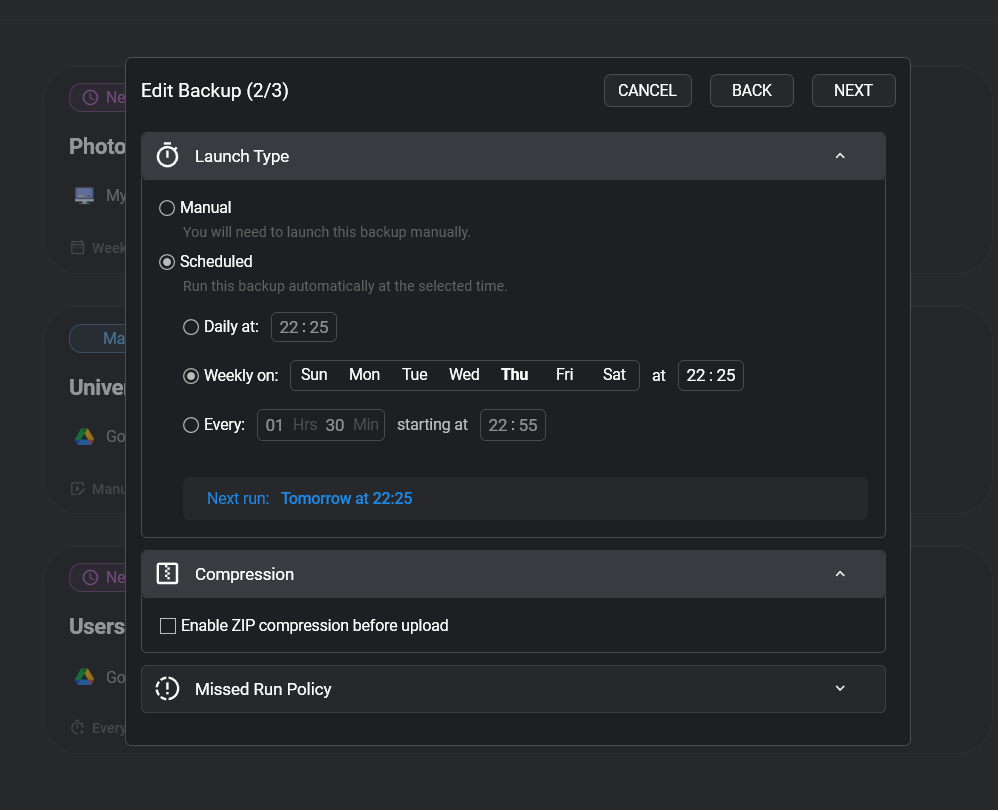
When this beats the native apps: you want encryption Google can't see through, you manage several NAS brands and want one workflow, or the same FTPie install already handles your other transfers and backups. The honest limitation: the PC has to be on when the schedule fires - the NAS-native apps don't need that.
The decision in one table
| You want | Use |
|---|---|
| Files available in both places, continuously | Cloud Sync (remember: deletes replicate) |
| Versioned, NAS-run backup with retention | Hyper Backup |
| Client-side encrypted, browsable backups run from Windows | FTPie Auto Backup |
Zooming out - other clouds, other NAS brands, rclone, and the 3-2-1 picture - is covered in How to Back Up a NAS to the Cloud. And if the encryption angle is what brought you here, encrypting files before they reach Google Drive goes deeper on exactly that.
Backing up to Google Drive is a different job from moving off it. If you are consolidating accounts rather than protecting them, see the Google Drive migration tool, or the direction-specific walkthroughs for Google Drive and OneDrive and Dropbox to Google Drive.
Start Your 30-Day Free Trial
Download FTPie and start your free 30-day trial. Enjoy seamless FTP + cloud integration and keep using the free version afterward.
Download Free Trial