Google Drive encrypts your files in transit and at rest - with keys that Google holds. That's real protection against outsiders, and none at all against the provider itself: Drive content is scanned (that's how abuse detection and search-inside-documents work), it's readable to anyone who compromises your Google account, and it's subject to whatever legal process reaches Google. Client-side encryption exists in Google Workspace - for enterprise plans, with admin setup. For a personal account, if you want files only you can read, you encrypt them yourself before they go up.
Option 1: Password-protected archive (quick, manual)
For an occasional bundle - tax documents once a year - zip the files with AES-256 using 7-Zip and upload the archive. Free and effective; the downsides are the manual cycle (extract, edit, re-zip, re-upload) and remembering to actually do it. Windows' built-in zip won't help: it has no password option, as we detail in the zip & encrypt guide.
Option 2: A Cryptomator vault (transparent, one folder)
Cryptomator creates an encrypted vault folder inside your Drive sync folder; unlocked, it behaves like a normal drive. It's free, open source, and encrypts filenames too. It assumes you use Drive's official sync app on every machine, protects that one vault location, and doesn't help with files you share or store elsewhere. A solid choice for its niche - we compare the models honestly in FTPie vs Cryptomator.
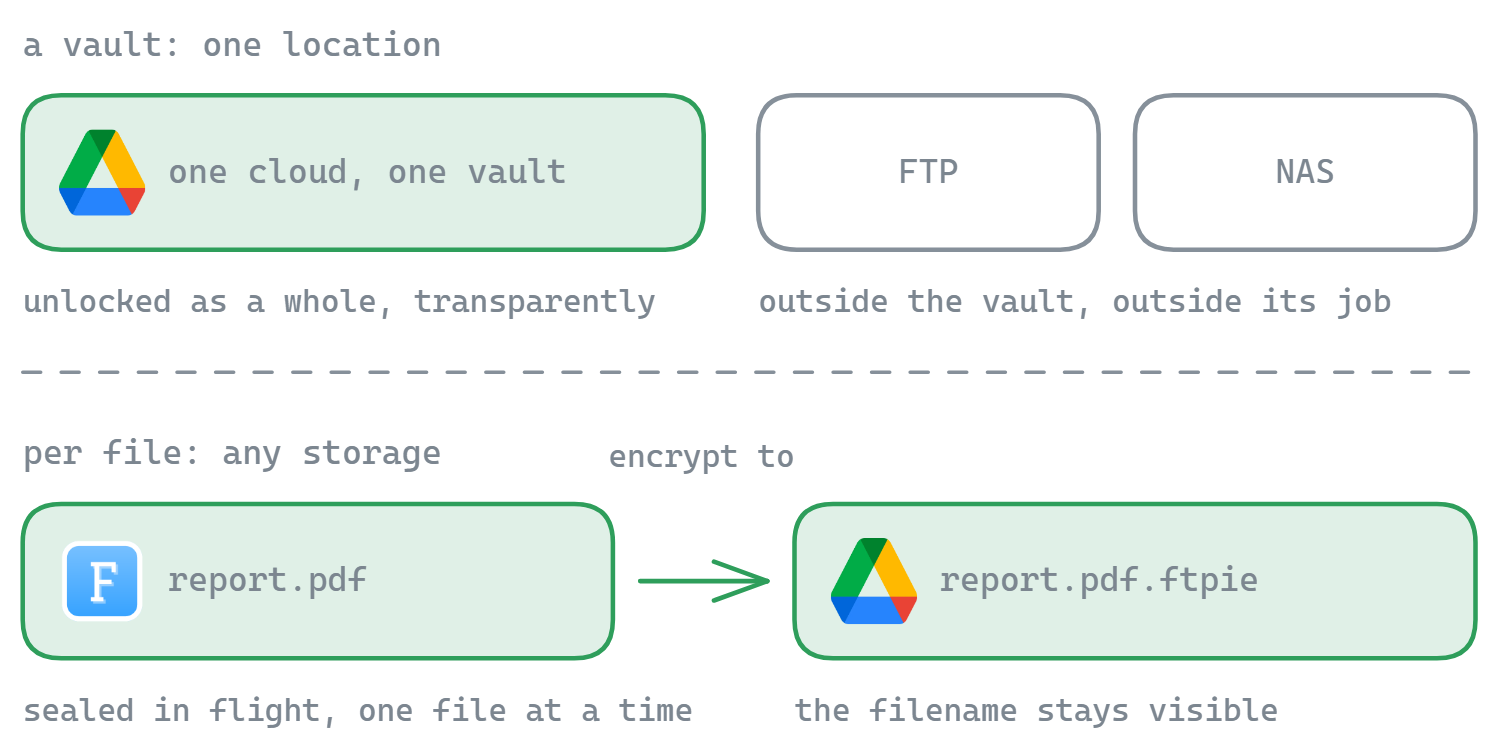
Option 3: Encrypt-and-upload in one step with FTPie
FTPie connects to your Google Drive through its API - no sync client, multiple accounts side by side - and builds AES-256 client-side encryption into the transfer itself:
- Right-click the file (or folder) on your PC and choose Encryption → Encrypt to…
- Pick your Google Drive (any folder, any connected account) and set a password.
- FTPie derives the key on your PC, encrypts the stream on the fly, and the file arrives in Drive already sealed as
name.ftpie.ext- plaintext never leaves your machine.
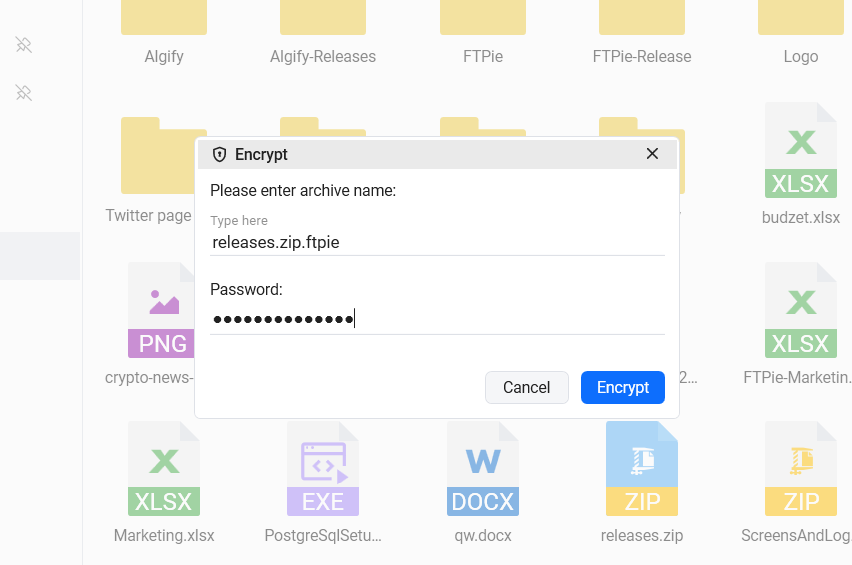
It works in every direction: Encrypt here seals a file already sitting in Drive, and Encrypt to… can even move a file from one cloud to another, encrypting mid-flight. Decryption is deliberately free - anyone with FTPie's free version and the password can open your files, on any PC, so you're never locked in. And for files that should be encrypted every time, Auto Backups can compress, encrypt, and upload to Drive on a schedule.
The honest caveats
- Filenames stay visible. Encrypted files keep their name (
report-2026.ftpie.pdf). If names are sensitive, zip first and encrypt the archive, or rename before encrypting. - No password recovery. Real client-side encryption means nobody - not Google, not FTPie - can restore a forgotten password. Store it in your password manager.
- Encrypted files aren't previewable in Drive. Obviously - that's the point - but remember Drive's web preview, search-inside-files, and Docs editing won't work on ciphertext.
Which option fits you?
| You want… | Use |
|---|---|
| A once-in-a-while encrypted bundle | 7-Zip AES-256 archive, uploaded manually |
| A private corner inside your synced Drive folder | Cryptomator vault |
| Encrypt specific files/folders straight into Drive, share them, automate it | FTPie Encrypt to… / Auto Backups |
Using Dropbox as well? The same decision looks slightly different there - see encrypting files before uploading to Dropbox, or zoom out to the full map of Windows file encryption options.
Encrypting is often the last step before a bigger move. If you are actually leaving one cloud for another, the mechanics are covered separately: moving Dropbox to Google Drive, migrating between Google Drive and OneDrive, or the migration tool itself.
Start Your 30-Day Free Trial
Download FTPie and start your free 30-day trial. Enjoy seamless FTP + cloud integration and keep using the free version afterward.
Download Free Trial