Dropbox encrypts stored files with 256-bit AES and transfers with TLS - using keys Dropbox manages. That protects you from outsiders, not from the provider: Dropbox systems can read file contents (deduplication and preview generation depend on it), and so can anyone who gets into your account. Two things people often mistake for a fix aren't: Dropbox Vault is a PIN-protected folder - access control, not encryption - and Boxcryptor, the classic client-side layer for Dropbox, no longer exists (Dropbox acquired its technology and the service wound down). If you want files in Dropbox that only you can read, you encrypt before upload.
Option 1: Encrypted archive (the manual classic)
Bundle files into an AES-256 zip with 7-Zip and drop the archive into Dropbox. Fine for occasional use; tedious for anything you touch regularly, since every change means extract → edit → re-zip. (Windows' built-in zip can't password-protect at all - details in the zip & encrypt guide.)
Option 2: A Cryptomator vault (Boxcryptor's spiritual successor)
For ex-Boxcryptor users who want the same transparent-vault feel, Cryptomator is the closest free equivalent: an encrypted vault folder inside your Dropbox sync folder, unlocked as a virtual drive, filenames encrypted. It requires the Dropbox sync client and protects that one vault - the trade-offs are laid out in FTPie vs Cryptomator.
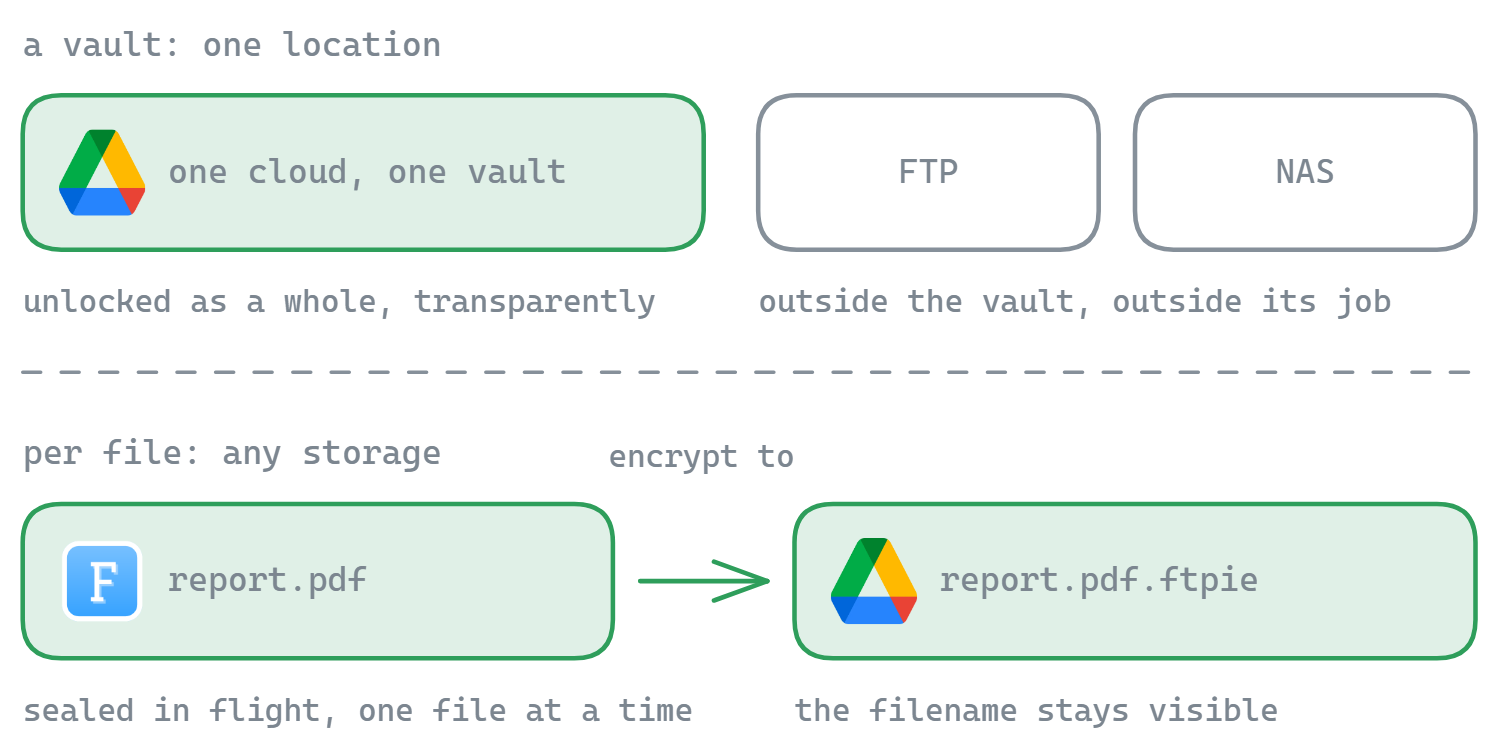
Option 3: One-step encrypt-and-upload with FTPie
FTPie talks to Dropbox through its API - no sync client, no local Dropbox folder needed - and its File Encryption is built into the transfer layer:
- Right-click a file or folder on your PC → Encryption → Encrypt to…
- Choose your Dropbox and a destination folder, set a password.
- The file streams up encrypted on the fly - AES-256, key derived on your PC, never uploaded. Dropbox stores only ciphertext, named
name.ftpie.ext.
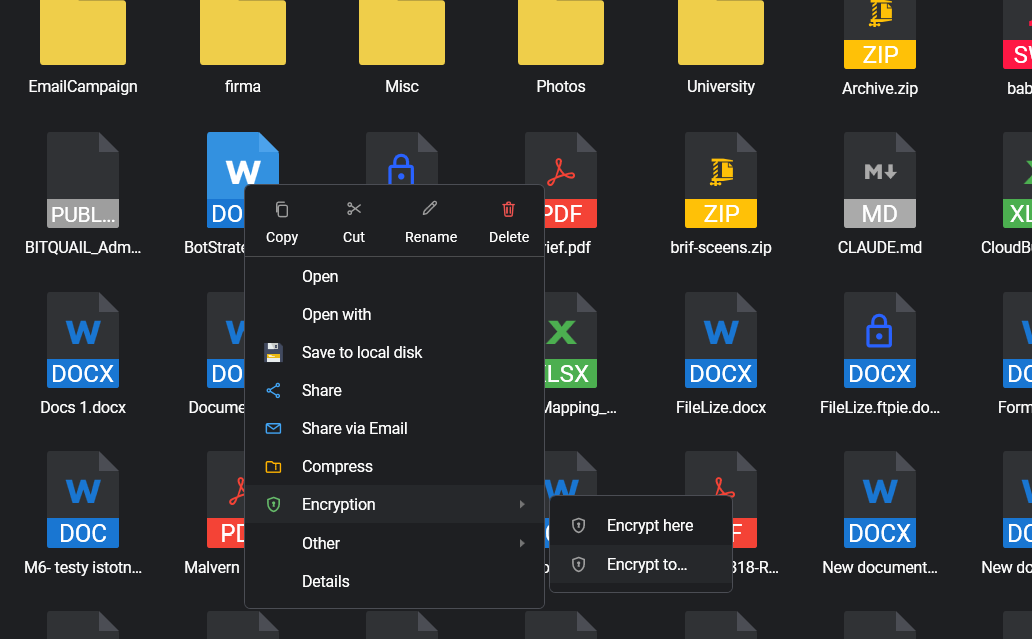
Encrypt here does the same for files already in Dropbox, and cross-cloud moves (Dropbox → Google Drive, say) can encrypt mid-transfer. Decryption is free for everyone - a colleague installs free FTPie, enters the password you shared, and opens the file. Recurring protection is a checkbox: Auto Backups can compress + encrypt to Dropbox on a schedule.
The honest caveats
- Filenames remain visible (
contract-final.ftpie.docx). Sensitive names → zip first, encrypt the archive. - Forgotten password = lost files. No recovery path exists, by design. Use a password manager.
- No Dropbox previews or in-browser viewing for encrypted files - ciphertext is ciphertext.
Which option fits you?
| You want… | Use |
|---|---|
| An occasional locked bundle in Dropbox | 7-Zip AES-256 archive |
| Boxcryptor-style transparent vault in your synced folder | Cryptomator |
| Encrypt straight into Dropbox, share decryptable files, automate backups | FTPie Encrypt to… / Auto Backups |
Same question for your other cloud? See encrypting before uploading to Google Drive, or the full comparison of every Windows encryption option.
Start Your 30-Day Free Trial
Download FTPie and start your free 30-day trial. Enjoy seamless FTP + cloud integration and keep using the free version afterward.
Download Free Trial