"How do I encrypt a file on Windows?" has at least six correct answers, and they protect against completely different things. Encrypting your laptop's drive does nothing for the copy you upload to Google Drive; a password-protected zip does nothing for the files still sitting in your Documents folder. So instead of one recipe, here's the honest map: what each Windows encryption option actually protects, and which one fits the job in front of you.
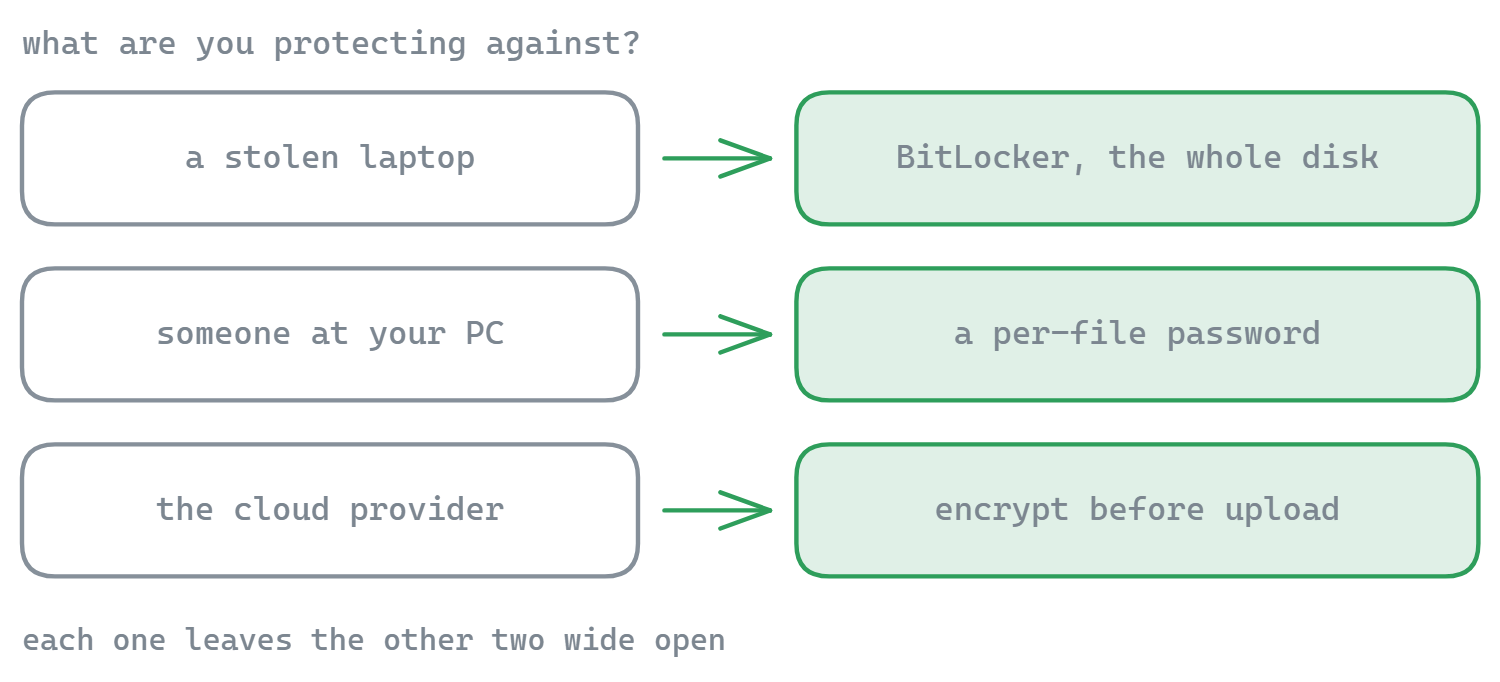
First, decide what you're protecting against
- Stolen or lost laptop → full-disk encryption (BitLocker).
- Someone with access to your PC or user account → per-file encryption with its own password.
- Files leaving your machine - uploads, cloud storage, email attachments, FTP servers → client-side per-file encryption, so only ciphertext travels.
- Sending one bundle to one person → an encrypted archive they can open with a shared password.
Option 1: BitLocker - protects the whole drive, and only the drive
BitLocker (Windows Pro and up; "Device encryption" on many Home machines) encrypts your entire disk. If the laptop is stolen, the data is unreadable - that's its job, and it does it well. Turn it on in Settings → Privacy & security → Device encryption, or search "Manage BitLocker".
What it does not do: protect files from anyone using your logged-in session, or protect anything that leaves the disk. The moment a file is copied to a USB stick, attached to an email, or synced to a cloud, it leaves the encrypted disk in plain form.
Option 2: EFS - per-file, but tied to your Windows account
EFS (Encrypting File System, Windows Pro only) encrypts individual files transparently: right-click → Properties → Advanced → "Encrypt contents to secure data". Files decrypt automatically when you are logged in and are unreadable to other accounts.
The transparency is also the weakness: anything that runs as you reads the files fine, and copies leaving your profile (cloud sync included) leave decrypted. EFS is fine for a shared family PC; it is not a tool for protecting uploads.
Option 3: Password-protected archives - 7-Zip's AES-256
The classic answer for "send these files securely to one person": pack them into an archive with a password. Note that Windows' built-in zip cannot do this - Explorer's "Compress to ZIP file" has no password option at all. You need 7-Zip (free): select files → 7-Zip → Add to archive → set a password and pick AES-256 (not the weak legacy ZipCrypto). Full walkthrough, including doing this on remote storage, in our zip & encrypt guide.
Archives are great for one-shot sharing, clunky for ongoing protection: every edit means extract → change → re-archive → re-enter password.
Option 4: Document passwords - Office's built-in encryption
Word, Excel, and PowerPoint can encrypt a single document: File → Info → Protect Document → Encrypt with Password. Modern Office uses AES and is genuinely strong with a good password. Perfectly reasonable for one contract or spreadsheet; unmanageable as a system - it only covers Office formats, and every file carries its own password.
Option 5: Client-side per-file encryption - built for files that travel
Everything above protects files at home. The gap is files that leave: backups on an FTP server, documents in Google Drive or Dropbox, folders on a NAS your whole family can reach. For those, you want the file encrypted before it goes anywhere, with a key that never leaves your machine - so the storage only ever holds ciphertext.
That's what FTPie's File Encryption does: right-click any file or folder → Encryption → Encrypt, set a password, and it's sealed with AES-256 (CBC with HMAC-SHA256 integrity checks, key derived on your PC with PBKDF2). It works the same on local files and remote ones, and Encrypt to… can encrypt straight into any connected storage in one step - even cloud-to-cloud, streaming and encrypting on the fly without a download step first. Decrypting is free for everyone: recipients install the free FTPie, enter the password, done.
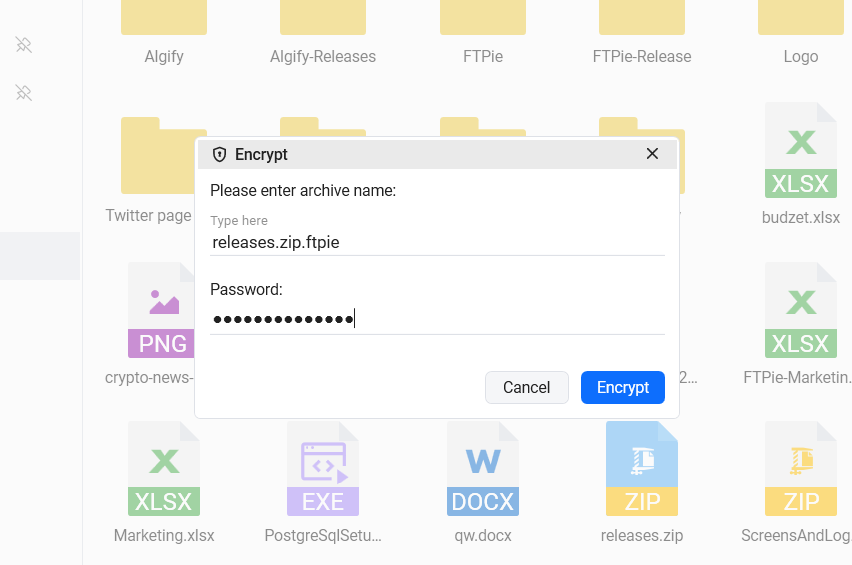
One honest limitation shared by per-file tools: filenames stay visible (the file becomes name.ftpie.ext). If the names are sensitive, zip first and encrypt the archive.
The comparison, in one table
| Method | Protects against | Doesn't protect | Best for |
|---|---|---|---|
| BitLocker | Stolen/lost device | Anything leaving the disk; logged-in access | Every laptop, always on |
| EFS | Other users of the PC | Anything running as you; synced copies | Shared PCs (Pro editions) |
| 7-Zip AES-256 | Anyone without the password | Nothing - but clunky to edit; weak if ZipCrypto chosen | One-off encrypted bundles |
| Office passwords | Anyone without the password | Non-Office files | Individual documents |
| FTPie File Encryption | Storage provider, server admins, cloud breaches | Filename visibility | Files on cloud, FTP, NAS - anywhere remote |
Sensible combinations
These aren't competing - a solid setup uses several: BitLocker on for the device, per-file encryption for anything that leaves (uploads, cloud folders, off-site backups), and an encrypted archive when you hand a bundle to someone else. If your files end up on Google Drive or Dropbox specifically, we've written step-by-step guides for encrypting before upload to Google Drive and Dropbox - and for automated protection, scheduled backups can compress and encrypt on every run.
Start Your 30-Day Free Trial
Download FTPie and start your free 30-day trial. Enjoy seamless FTP + cloud integration and keep using the free version afterward.
Download Free Trial