Zipping and encrypting go together for a reason: the zip bundles many files into one and shrinks them, the encryption locks the bundle - and as a bonus, the individual filenames disappear inside the archive, so snoopers see one opaque file instead of your folder structure. Windows, however, makes this harder than it should be.
The catch: Windows' built-in zip has no password option
Right-click → Compress to ZIP file creates a plain, unprotected archive. There is no password field - not hidden in a menu, simply not there. Windows Explorer can open some password-protected zips, but it cannot create them. So "zip and encrypt" on Windows always means bringing a tool.
Method 1: 7-Zip (free, local files)
- Install 7-Zip, select your files or folder, right-click → 7-Zip → Add to archive…
- Set Archive format: zip (for compatibility) or 7z (better compression, always-strong encryption).
- Type a password and - important for zip format - set Encryption method: AES-256, not ZipCrypto. ZipCrypto is a legacy scheme that modern tools crack easily; it exists only for ancient compatibility.
- For 7z format, optionally tick Encrypt file names so even the list of contents needs the password.
Limitation: this is a local workflow. If the files live on an FTP server or in a cloud account, you first download everything, archive it, and upload it back - three manual steps, times every update.
Method 2: FTPie - zip and encrypt on any storage, without the round-trip
FTPie's Integrated Compression puts the same capability directly into the file manager - and it works on remote files as naturally as local ones. Select files on your FTP server, NAS, or cloud account, right-click → Compress, choose the compression level and an encryption option:
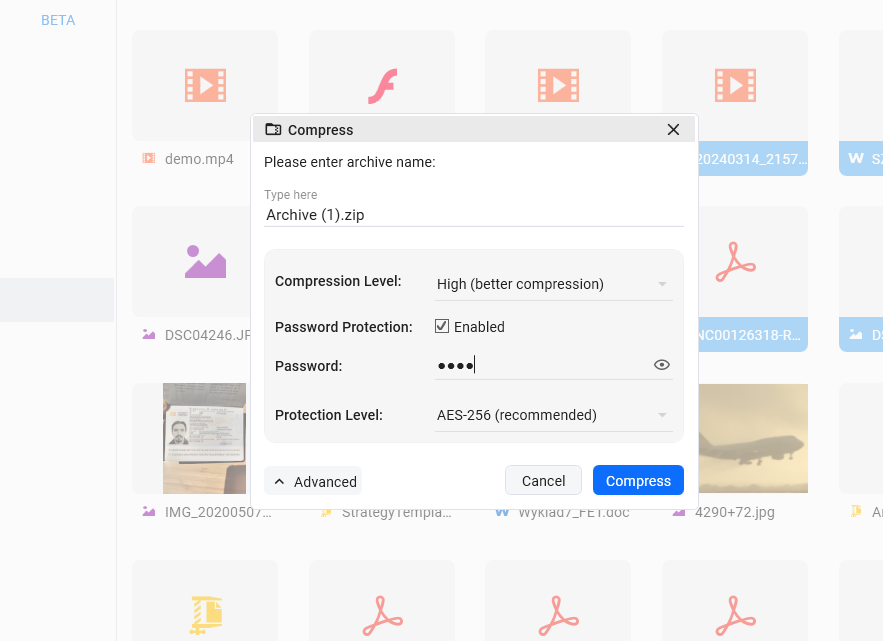
- Plain password - maximum compatibility with old unzippers
- AES-128 - strong, slightly faster
- AES-256 - the standard choice; use this unless you have a reason not to
FTPie handles the transfer choreography automatically - the archive is created and lands back in the same remote folder, no manual download/upload cycle. (Under the hood the data does stream through your PC, which is exactly what you want: the password never goes anywhere.) The remote compression walkthrough shows the full flow, including the smart archive preview that lists a remote zip's contents without downloading it.
Zip encryption vs. real per-file encryption
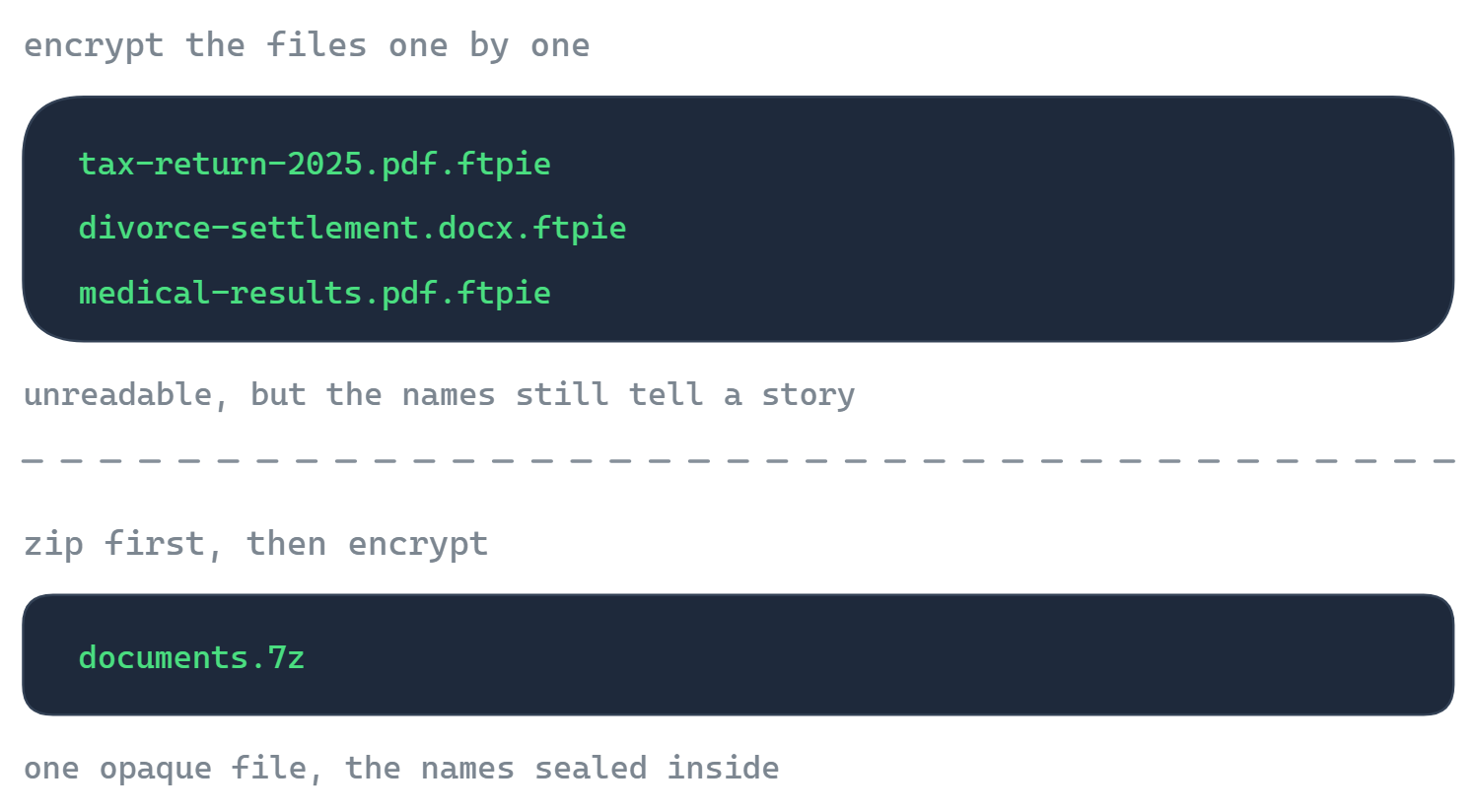
A password-protected archive is encryption for a bundle you occasionally open. If what you actually want is ongoing protection for files that live on remote storage - backups, documents in a cloud account - a per-file scheme fits better: no extract/re-archive cycle, each file individually sealed and decryptable on demand. That's FTPie's File Encryption: AES-256 client-side, works on any connected storage, and decryption is free for every recipient. The two combine nicely, too - when file names are sensitive, zip first, then encrypt the archive, since per-file encryption keeps names visible.
Which to use when
| Situation | Use |
|---|---|
| Email a folder of documents to one person | 7-Zip → zip + AES-256, share the password separately |
| Files already on FTP/cloud need bundling + locking | FTPie → Compress with AES-256, right on the server |
| Ongoing protection for remote files you keep using | FTPie File Encryption (per-file, no archive cycle) |
| Sensitive filenames | Zip first (names hidden inside), then encrypt the archive |
| Recurring backups, compressed + encrypted | Auto Backups with compression & encryption enabled |
Wondering about the wider encryption toolbox on Windows - BitLocker, EFS, Office passwords, and where each fits? That's covered in How to Encrypt Files on Windows.
Start Your 30-Day Free Trial
Download FTPie and start your free 30-day trial. Enjoy seamless FTP + cloud integration and keep using the free version afterward.
Download Free Trial