For a decade, Boxcryptor was the default answer to "how do I encrypt my Dropbox?" Then, in late 2022, Dropbox acquired Boxcryptor's key technology; the product stopped being sold, existing plans wound down, and the service that a lot of privacy-conscious cloud users depended on effectively ceased to exist. Its encryption never resurfaced as a consumer Dropbox feature - so if you're an ex-Boxcryptor user, you're choosing a replacement, not waiting for a comeback.
First, before anything else: get your files out
If you still have encrypted files in the old Boxcryptor format, decrypt them while you still can. A working Boxcryptor installation with your account can still decrypt locally; without it, recovery gets painful. Decrypt everything to a local folder (temporarily - keep the machine offline-ish if the data is sensitive), verify the files open, and only then move to a new encryption tool. Do not delete the originals until the re-encrypted copies are verified.
Your two realistic replacement models
Model 1: A transparent vault - Cryptomator
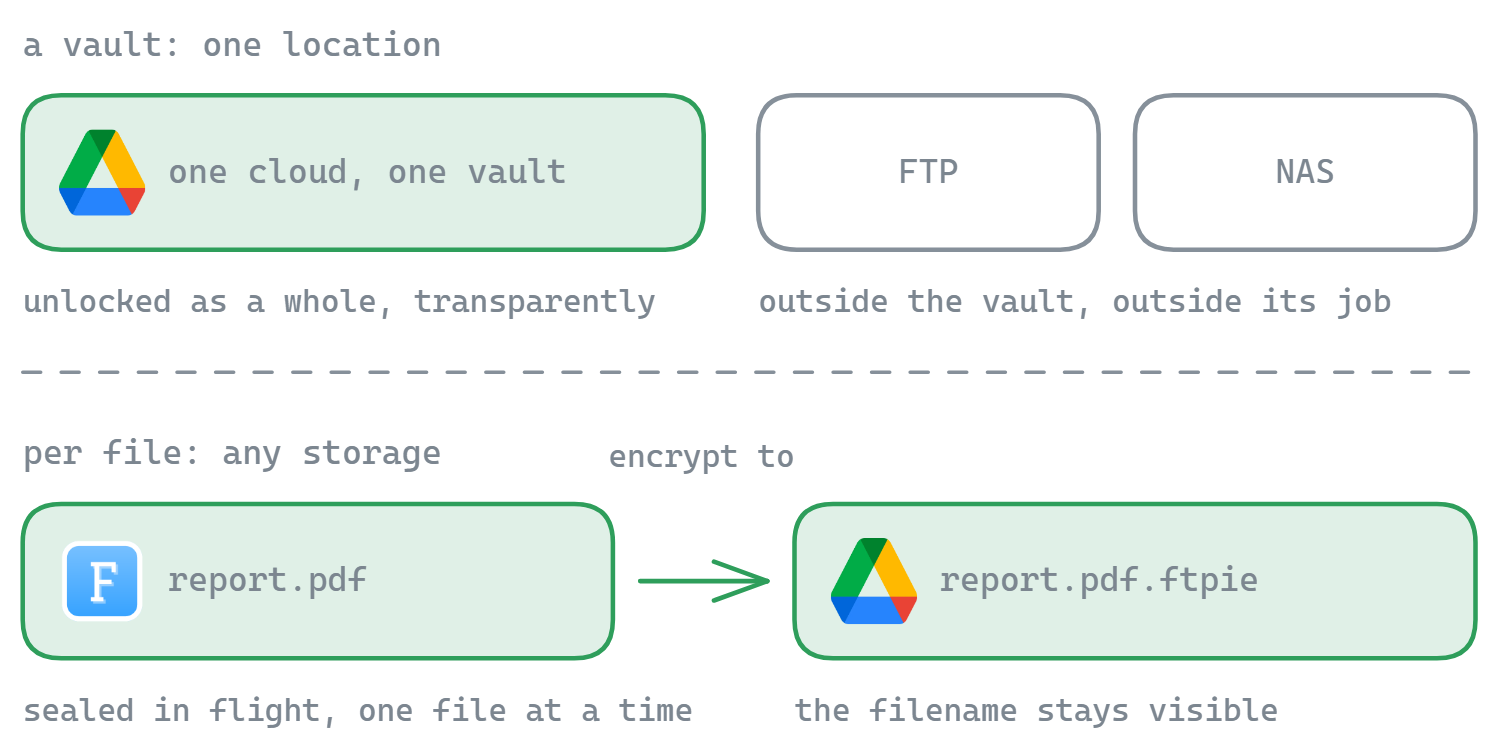
Closest to how Boxcryptor felt: an encrypted vault inside your cloud's sync folder, unlocked as a virtual drive, encryption invisible in daily use, filenames encrypted too. Cryptomator is free, open source, and audited. It's the right like-for-like choice if your workflow is "one cloud, official sync client, my own devices." Its limits: one vault location, no per-file sharing (recipients need the vault), nothing for FTP/NAS/multiple clouds without extra tooling.
Model 2: Per-file encryption in a file manager - FTPie
FTPie's File Encryption takes a different shape: instead of a vault you mount, you encrypt individual files and folders - locally or on any storage FTPie connects to (Dropbox, Google Drive, OneDrive, FTP, SFTP, WebDAV, NAS). Right-click → Encrypt, AES-256, key derived on your PC and never uploaded. Encrypt to… seals and uploads in one step, even cloud-to-cloud on the fly, and decryption is free for everyone - send someone a .ftpie file and the free version opens it with the password. It also automates: scheduled backups with compression + encryption per run.
Its honest limits versus a vault: filenames stay visible (zip first if that matters), encrypting needs FTPie Pro, and there's no transparent virtual-drive experience - encryption is a deliberate act per file.
Quick comparison
| Boxcryptor (gone) | Cryptomator | FTPie | |
|---|---|---|---|
| Model | Transparent vault layer | Transparent vault | Per-file, in a file manager |
| Filename encryption | Yes | Yes | No (names visible) |
| Multi-cloud + FTP/NAS | Clouds only | One vault per synced folder | Any connected storage, incl. FTP/SFTP/NAS |
| Share an encrypted file | Via accounts | Vault access needed | Yes - free decryption for recipients |
| Automation | - | - | Scheduled encrypted backups & transfers |
| Price | - | Free desktop (paid mobile) | Free to decrypt; encrypting in Pro |
The deeper version of this comparison - including when we'd honestly tell you to pick Cryptomator - is in FTPie vs Cryptomator.
Migrating with FTPie, step by step
- Decrypt out of Boxcryptor to a local folder (see above) and verify the files.
- Connect your clouds in FTPie - Dropbox, Google Drive, or wherever the files should live.
- Encrypt to… the destination: select the local files, set a strong password (password manager!), and they arrive encrypted - plaintext never touches the cloud.
- Set up the recurring part. Anything that should stay protected continuously - documents folders, exports - becomes an Auto Backup with encryption enabled.
- Clean up. Once verified, securely delete the temporary decrypted copies and the old ciphertext.
Per-cloud walkthroughs, including the caveats worth knowing: encrypting before uploading to Dropbox and to Google Drive. For the whole toolbox - BitLocker, EFS, archives, and where each fits - start at How to Encrypt Files on Windows.
Start Your 30-Day Free Trial
Download FTPie and start your free 30-day trial. Enjoy seamless FTP + cloud integration and keep using the free version afterward.
Download Free Trial