Dropbox and Google Drive don't talk to each other - deliberately. There's no "export to Google Drive" button in Dropbox and no "import from Dropbox" in Drive, so people end up downloading gigabytes to a laptop just to upload them again. Here are the three realistic ways to move files between the two, from free-and-manual to set-it-and-forget-it.
Method 1: Download and re-upload (fine for a folder, painful for a drive)
- In Dropbox's web interface, select your files/folders and Download - Dropbox packs them into a zip (large selections get split into multiple zips, capped at around 20 GB each).
- Extract the zip locally - you'll need free disk space equal to the data, twice over (zip + extracted).
- Drag the extracted folders into Google Drive in the browser, and leave the tab open until the upload finishes.
This works, and for a few gigabytes it's the honest answer. At scale it falls apart: interrupted browser uploads restart from scratch, timestamps get reset, shared-link structures are lost, and your disk needs room for everything twice.
Method 2: The sync-client shuffle
If both the Dropbox and Google Drive desktop apps are installed, you can drag files from one synced folder to the other in Explorer and let the two clients do the transfer. Less clicking than the browser, but the data still flows down to your disk and back up, both sync clients hammer away simultaneously, and selective-sync gaps ("online-only" files) silently turn the copy into a placeholder shuffle. For a one-time small move, acceptable; for a migration, fragile.
Method 3: Direct transfer with a file manager (no download folder, no middleman)
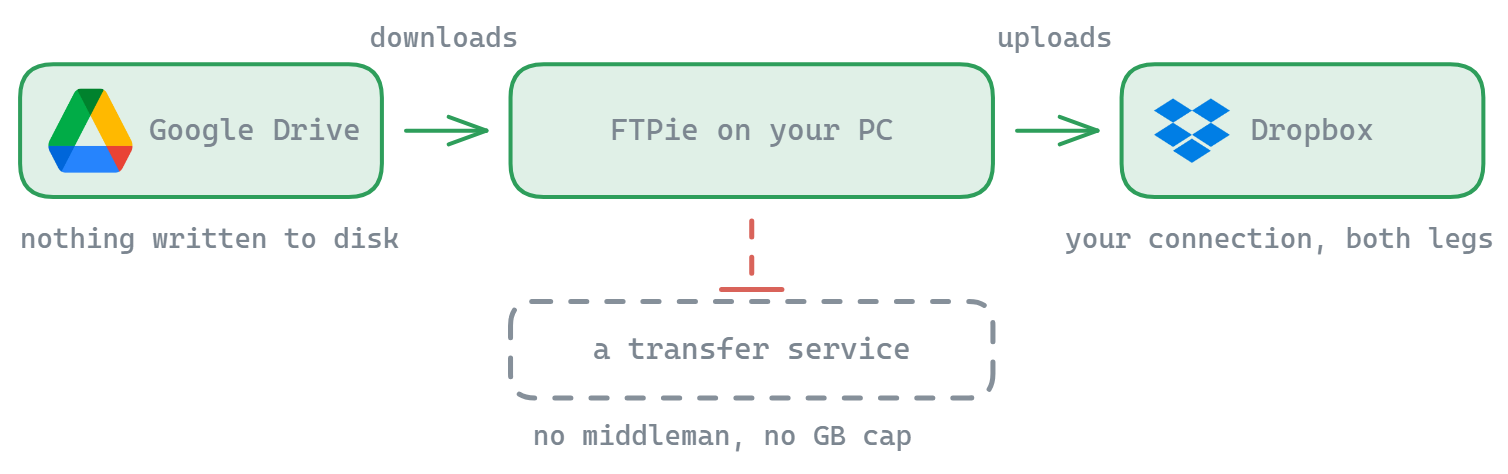
FTPie connects to Dropbox and Google Drive through their APIs - no sync clients - and shows them side by side in a dual-pane window:
- Connect both accounts (a minute each, OAuth sign-in - FTPie never sees your passwords).
- Open Dropbox in the left pane, Google Drive in the right.
- Select what you want to move and drag it across. The transfer queue handles folders recursively, resumes interrupted files, and retries failures.
Two things make this different from "cloud transfer" websites like MultCloud: privacy - the transfer runs from your own PC, directly between you and the two providers, so your files never pass through anyone else's servers and there's no third-party quota meter counting your gigabytes - and repeatability: with Scheduled Transfers (Pro), the same Dropbox → Drive copy can re-run itself nightly or weekly. Set it once, and the folder keeps arriving.
Want to keep Dropbox and Google Drive "in sync"?
Honest framing first: FTPie doesn't do real-time two-way sync. What a scheduled transfer gives you is a recurring one-way copy - "everything new in this Dropbox folder appears in this Drive folder every night" - which covers the common cases: a gradual migration, a cross-cloud backup, feeding one team's Dropbox into another team's Drive. If you need true bidirectional sync with conflict resolution, that's a different (and rarer) problem than most "sync Dropbox with Google Drive" searches are actually trying to solve.
Migration checklist
- Shared links don't migrate. Links created in Dropbox keep pointing at Dropbox - re-share the important ones from Drive after the move.
- Google Docs are fine in both directions - but note Office files edited in Drive may convert formats depending on your Drive settings.
- Watch Drive's storage math: your Google account's 15 GB (or paid quota) is shared across Gmail and Photos too.
- Sensitive files? You can encrypt them client-side before they land in Drive - FTPie can even encrypt mid-transfer, cloud-to-cloud.
Moving between other pairs? See OneDrive ↔ Google Drive and Dropbox → OneDrive, or the general pattern in transferring files between cloud accounts. Curious how FTPie stacks up against the transfer-website model? FTPie vs MultCloud is the honest breakdown.
Start Your 30-Day Free Trial
Download FTPie and start your free 30-day trial. Enjoy seamless FTP + cloud integration and keep using the free version afterward.
Download Free Trial