WebDAV is one of those protocols you never plan to learn - you just meet it. Your Nextcloud server offers it, your NAS has a checkbox for it, a client hands you a https://... address and says "connect with WebDAV". This guide covers what it actually is, how to connect to it from Windows, and what to do when the built-in Windows client misbehaves - which it will.
What is WebDAV?
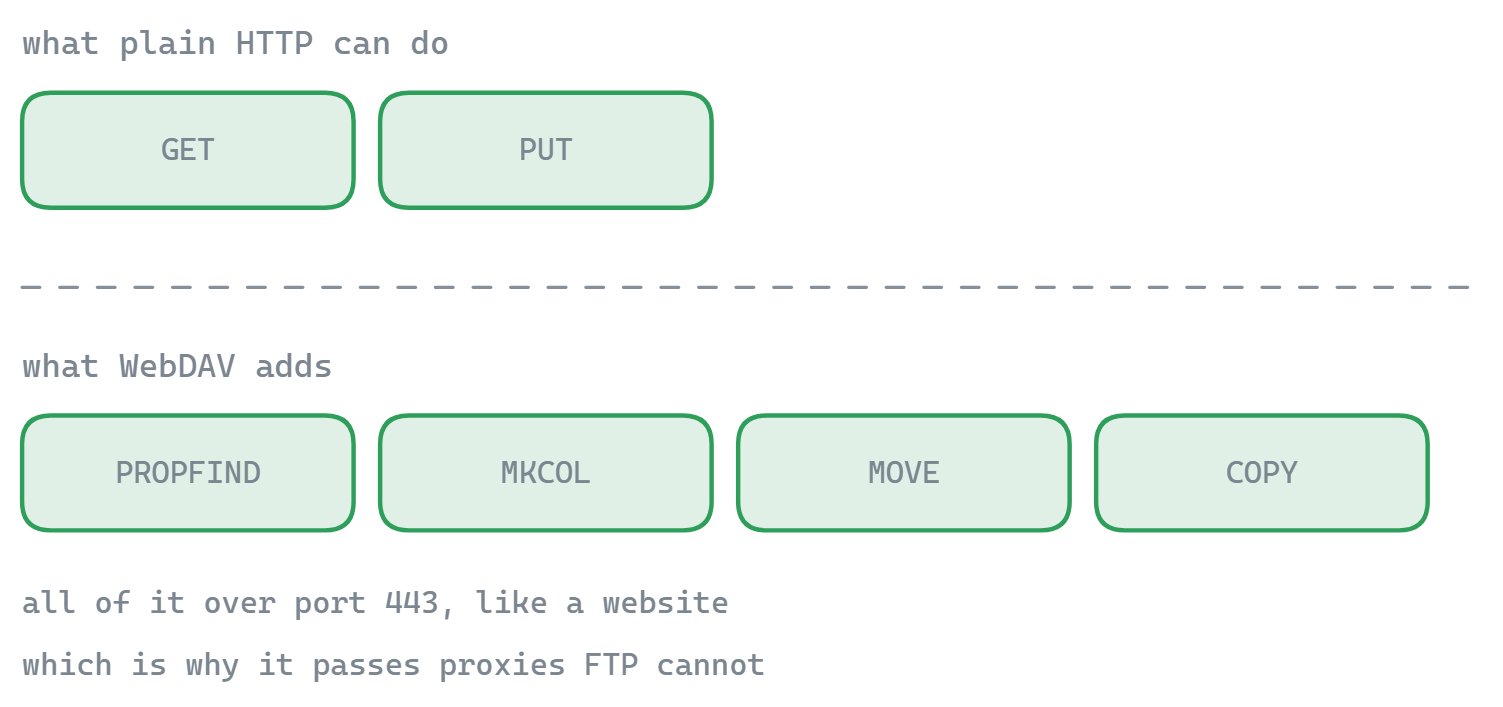
WebDAV (Web Distributed Authoring and Versioning) is an extension of HTTP - the same protocol your browser speaks - that adds file management verbs to it. Where plain HTTP can only fetch (GET) and submit (POST), WebDAV adds commands to list folders (PROPFIND), upload (PUT), create directories (MKCOL), copy, move, delete, and lock files. The result: any web server with WebDAV enabled behaves like a network drive you can browse and write to.
Because it's just HTTP underneath, WebDAV inherits HTTP's strengths - it works over port 443 with normal TLS certificates, passes through firewalls and proxies that would block FTP, and needs no special ports opened. (Curious how that compares to the FTP family? See FTP vs SFTP vs FTPS.)
Where you'll actually encounter it
- Self-hosted clouds: Nextcloud and ownCloud expose your files over WebDAV - it's the official way to connect desktop apps that don't use their sync client.
- NAS boxes: Synology, QNAP, and most other NAS vendors offer WebDAV as a remote-access option that's easier to expose safely than SMB.
- Cloud drives & hosts: several providers (pCloud, Koofr, many web hosts and university file services) publish WebDAV endpoints for third-party clients.
- Document systems: SharePoint and various DMS platforms speak WebDAV dialects for drive-style access.
How to map a WebDAV drive in Windows Explorer
Windows has a built-in WebDAV client (the "WebClient" service). To map a server as a drive letter:
- Open File Explorer → right-click This PC → Map network drive…
- Pick a drive letter, and in Folder enter the server address, e.g.
https://cloud.example.com/remote.php/dav/files/USERNAME/for Nextcloud, or your NAS's WebDAV URL. - Tick Connect using different credentials, click Finish, and enter your username and password (for Nextcloud/ownCloud with two-factor enabled, generate an app password first).
- The drive appears under This PC - browse, open, and save files like any folder.
Before blaming Windows when this fails: verify the endpoint itself responds correctly with our free WebDAV connection tester (it runs a real PROPFIND and shows the server's DAV compliance level), and rule out certificate problems with the WebDAV certificate checker - an expired or mismatched certificate is the single most common cause of a refused connection.
The honest part: Explorer's WebDAV client is flaky
The built-in client works for light use and fails in ways that look random until you know them:
- 50 MB download limit. Files over 50 MB fail with error 0x800700DF until you raise
FileSizeLimitInBytesin the registry (underHKLM\SYSTEM\CurrentControlSet\Services\WebClient\Parameters). - HTTP is blocked by default. Explorer only sends Basic authentication over HTTPS; plain-HTTP servers need another registry change (
BasicAuthLevel) that you shouldn't really make. - Slow listings and timeouts. Large folders can take ages to enumerate, and long transfers drop when the WebClient service times out.
- Cryptic errors. "The network path could not be found" can mean a certificate issue, an auth failure, or a sleeping service - Explorer won't tell you which.
These are limitations of the Windows WebClient service, not of WebDAV itself - the protocol is fine; the built-in client is the weak link.
A better way to use WebDAV on Windows
A dedicated client sidesteps the WebClient service entirely. FTPie connects as a WebDAV client for Windows with none of the registry ceremony: no file size caps, clear error messages when auth or certificates fail, resumable transfers with a queue, and built-in viewers and editors so you can open and save remote files directly. The same window also connects Nextcloud and ownCloud through dedicated API connectors (often nicer than raw WebDAV), plus FTP, SFTP, NAS, and 10+ cloud services.
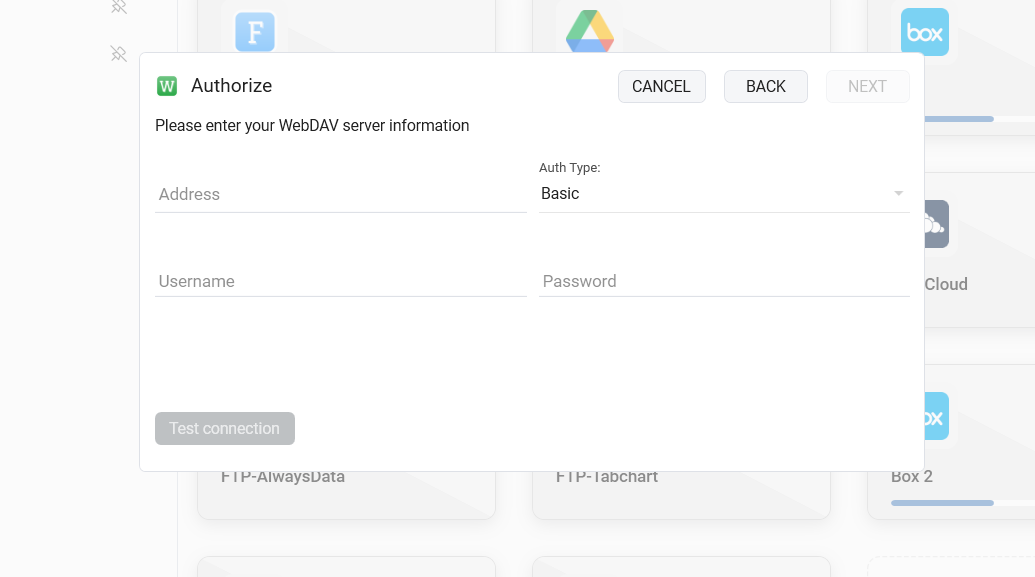
WebDAV support in FTPie is part of the paid plans (a 30-day trial included) - the free plan covers FTP, FTPS, and SFTP. If your daily driver is a Nextcloud, a NAS, or a WebDAV-speaking host, that's the difference between fighting Explorer and just using a file manager.
Quick answers
Is WebDAV secure? Over HTTPS, yes - it's as secure as the TLS configuration of the server. Never send credentials over a plain http:// WebDAV URL.
Is WebDAV dead? No - it quietly powers the "connect as network drive" feature of most self-hosted clouds and NAS devices, precisely because every platform still ships a client for it.
WebDAV or SMB for my NAS? On the local network, SMB. Over the internet, WebDAV (or better, the NAS vendor's own secure remote access) - exposing SMB to the internet is asking for trouble.
Start Your 30-Day Free Trial
Download FTPie and start your free 30-day trial. Enjoy seamless FTP + cloud integration and keep using the free version afterward.
Download Free Trial