Google Drive Migration Tool for Windows
Migrate a Google Drive to another Google account, OneDrive, Dropbox, a NAS or your PC - directly, from a desktop app, with scheduling for staged moves and no third-party servers touching your files.
"Migrate Google Drive" hides half a dozen different jobs: a graduating student saving a school Drive before the account closes, a switcher moving to the OneDrive storage bundled with Microsoft 365, someone consolidating three part-full Drives into one, a business pulling its files onto its own NAS. Google's own answer is Takeout - a zip-export of everything, delivered in multi-gigabyte chunks for you to unpack and re-upload somewhere. It works, once, painfully.
FTPie approaches it as a file manager: connect the source Drive and the destination - whatever that destination is - and move files directly between them, with the transfer engine handling resume, retries and parallelism.
One tool, every migration direction
Google account → Google account
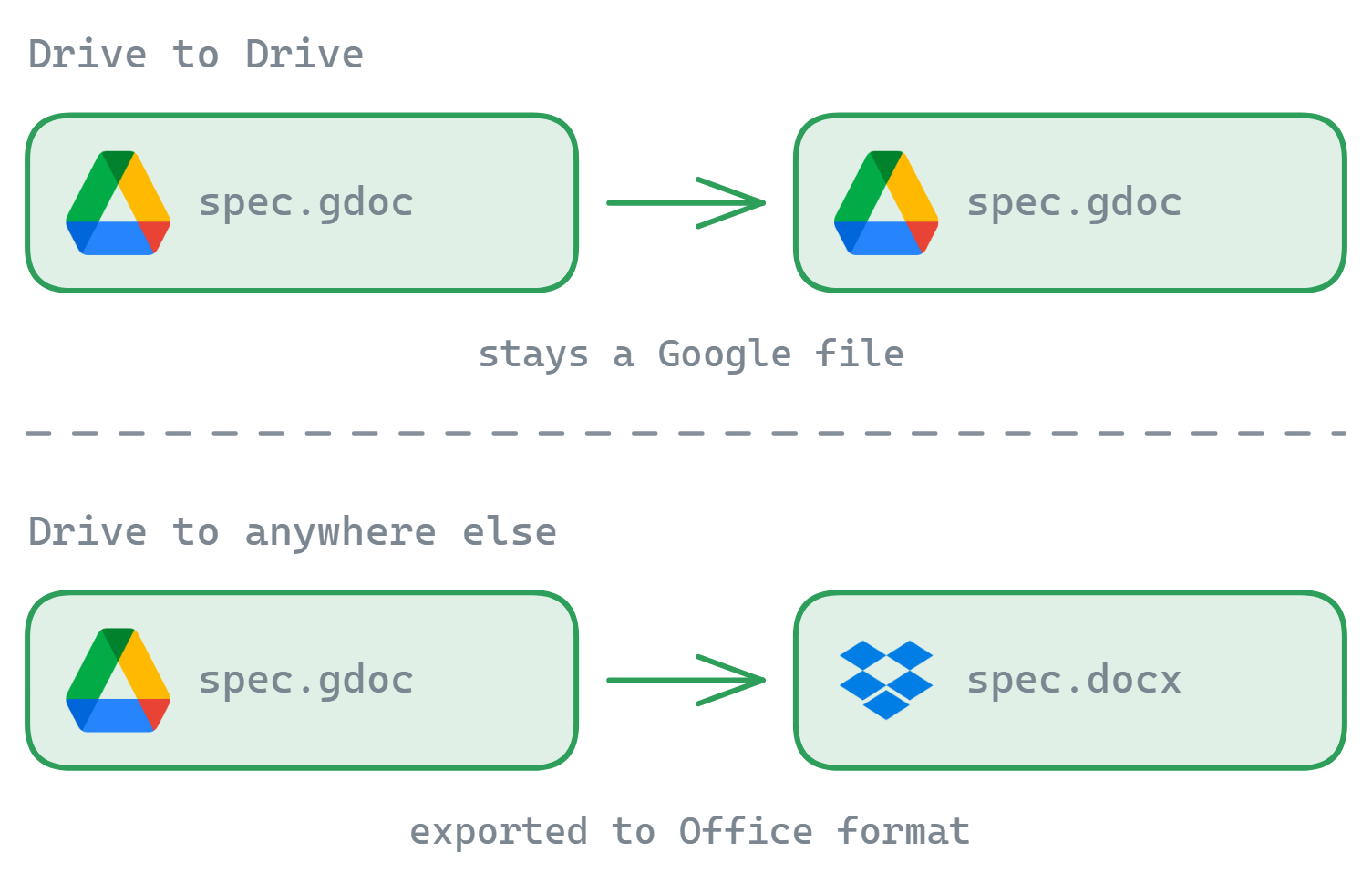
Both Drives connected simultaneously (multiple accounts per service is built in) - drag between panes. Google files stay native.
Google Drive → OneDrive or Dropbox
Cross-provider moves with Docs/Sheets exported to Office formats in transit. Step-by-step: OneDrive guide, Dropbox guide.
Google Drive → NAS / FTP / your PC
Off the cloud entirely: Synology or QNAP over SMB, any server over SFTP/FTP, or a local drive - same drag, same queue.
Anything → Google Drive
Migrations run the other way too - consolidate a Dropbox, an old FTP host and a desktop folder into one Drive.
How a migration runs
- Connect the source and destination accounts (OAuth sign-in; tokens stay on your PC).
- Open them side by side in the dual-pane view and drag the folders across - the queue transfers recursively with chunk-level resume and automatic retries.
- For big or gradual moves, create a scheduled transfer: every night it picks up whatever's new at the source and lands it at the destination. Migrate at your own pace, then switch over.
- Verify item counts on the destination, re-share what needs sharing, and only then empty the source.
Why desktop-based migration beats a transfer website
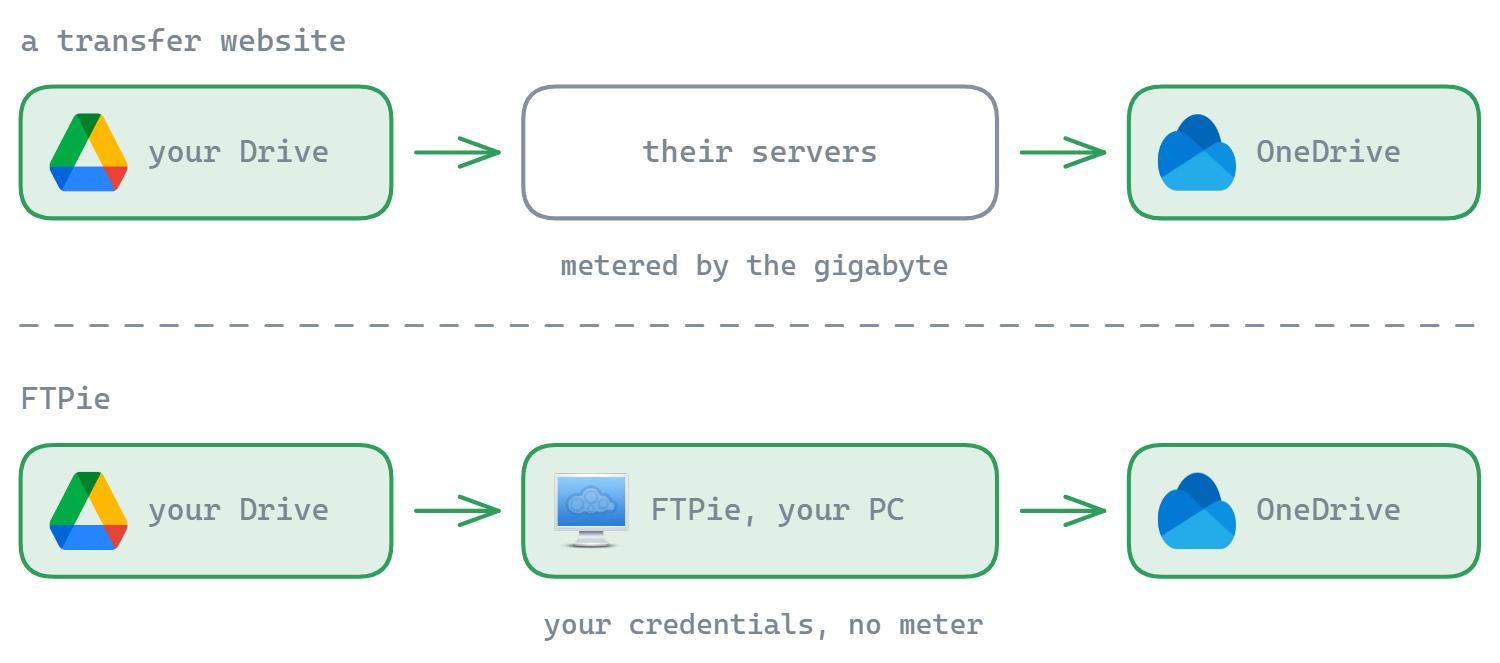
- Privacy: your files move between you and the providers under your own credentials - never through a migration service's cloud, never readable by a middleman. (The web-service model is compared honestly here.)
- No quota meter: web services meter transferred gigabytes because the data flows through their servers. FTPie has nothing to meter.
- Resume & retries at chunk level - a blinked connection doesn't restart a 40 GB folder.
- Scheduling built in - staged migrations and post-migration recurring copies use the same mechanism, not a separate subscription tier.
Answers to the usual questions
Yes - FTPie supports multiple accounts per service, so you connect both Google Drives side by side and drag files from one to the other. This is the clean way to move a school or work Drive to a personal one before losing access.
Native Google files aren't regular files - when they leave Google's ecosystem they export to Office formats (docx, xlsx, pptx). Moving between two Google accounts keeps them as Google files. Review heavily formatted documents after a cross-provider move, and keep originals until you've verified.
FTPie imposes none - no gigabyte metering, no per-month caps. You're bound only by the providers' own API limits and your connection. Web-based migration services meter your data because it flows through their servers; FTPie's transfers don't.
Cloud connections (Google Drive, OneDrive, Dropbox…) are part of Pro - and the 30-day Pro trial is a perfectly legitimate way to run a one-time migration. The Free plan covers FTP/FTPS/SFTP connections.
For large Drives, a staged approach is safer: run a scheduled copy that picks up everything new each night, verify counts on the destination, then switch over and delete the source when you're confident. FTPie's scheduling makes the staged pattern a checkbox rather than a project.
Related
- Transfer files between cloud accounts - the general pattern
- Dropbox ↔ Google Drive · OneDrive ↔ Google Drive · Dropbox → OneDrive
- Google Drive client for Windows - multiple accounts, no sync app
- FTPie vs MultCloud · FTPie vs rclone
Start Your 30-Day Free Trial
Download FTPie and start your free 30-day trial. Enjoy seamless FTP + cloud integration and keep using the free version afterward.
Download Free Trial